Table of Contents
The iPhone records steps in Health, but Apple does not provide a dedicated Health steps widget for the Home Screen. A third-party app such as Pedometer++ can read the relevant motion or Health data and display a step count in a Home Screen or Lock Screen widget.
Install Pedometer++ and allow only the data it needs
- Install Pedometer++ from the App Store, then open it once so its widgets become available.
- When iOS asks for Motion & Fitness or Health access, allow the categories needed for step counting. Read and write permissions are separate; review each switch rather than approving unrelated health categories.
- Open Pedometer++ Settings and choose a daily step goal and distance units if desired.
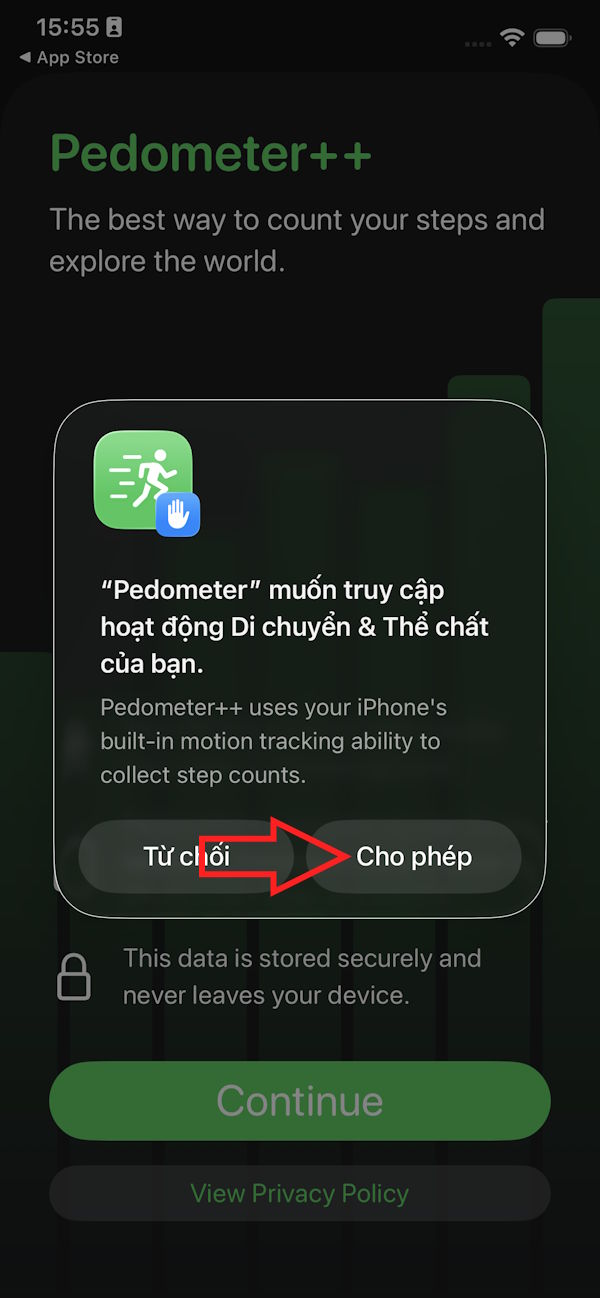
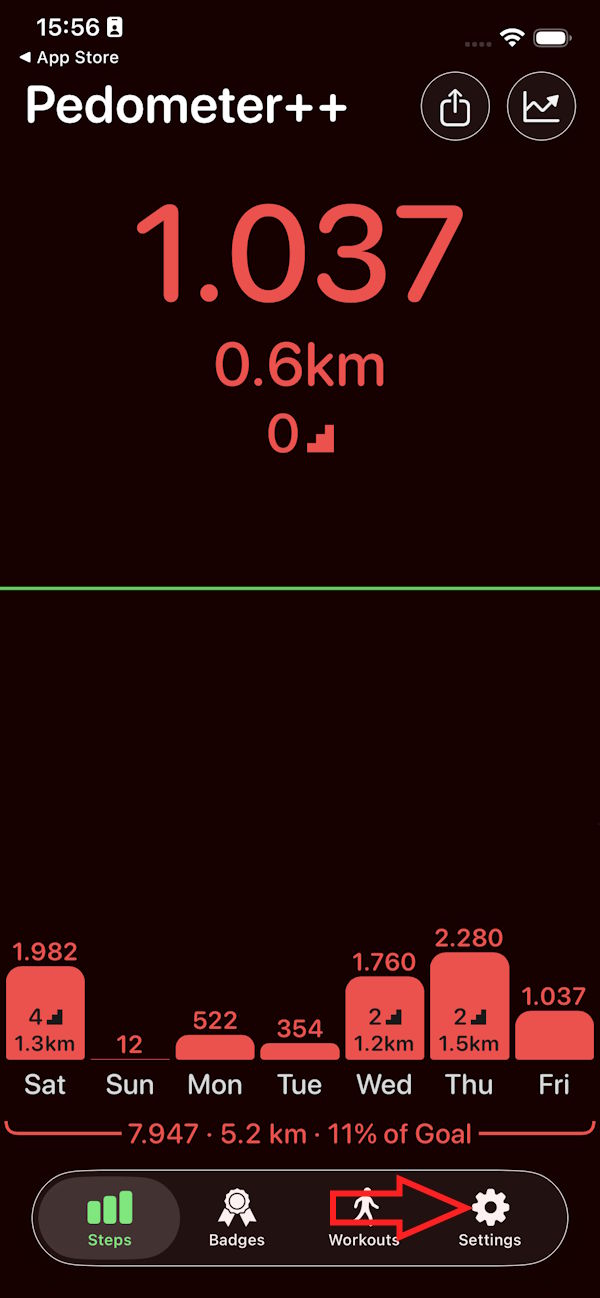
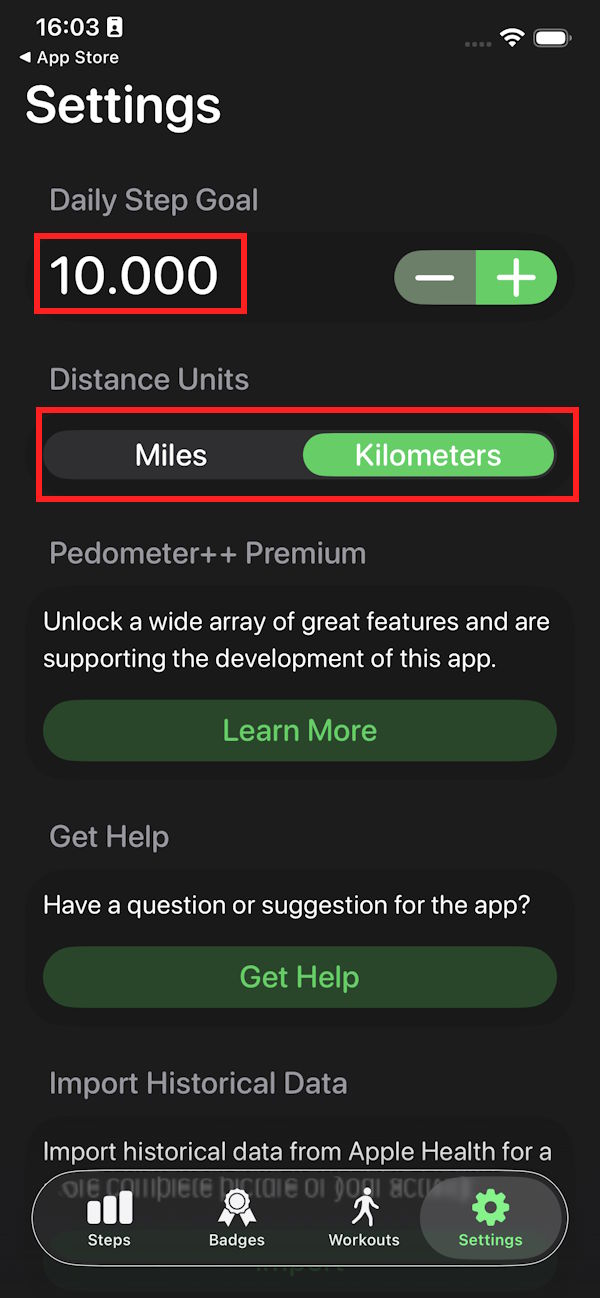
You can review or revoke access later in Health > Summary > profile picture > Apps. Apple's Health privacy guide explains how to change each app's read and write permissions.
Method 1: Turn the app icon into a widget
On current iOS versions, a supported app icon can be converted directly:
- Touch and hold the Pedometer++ icon on the Home Screen.
- Tap one of the widget-size icons at the bottom of the shortcut menu.
- Choose the layout that shows the information you want, then position it on the Home Screen.
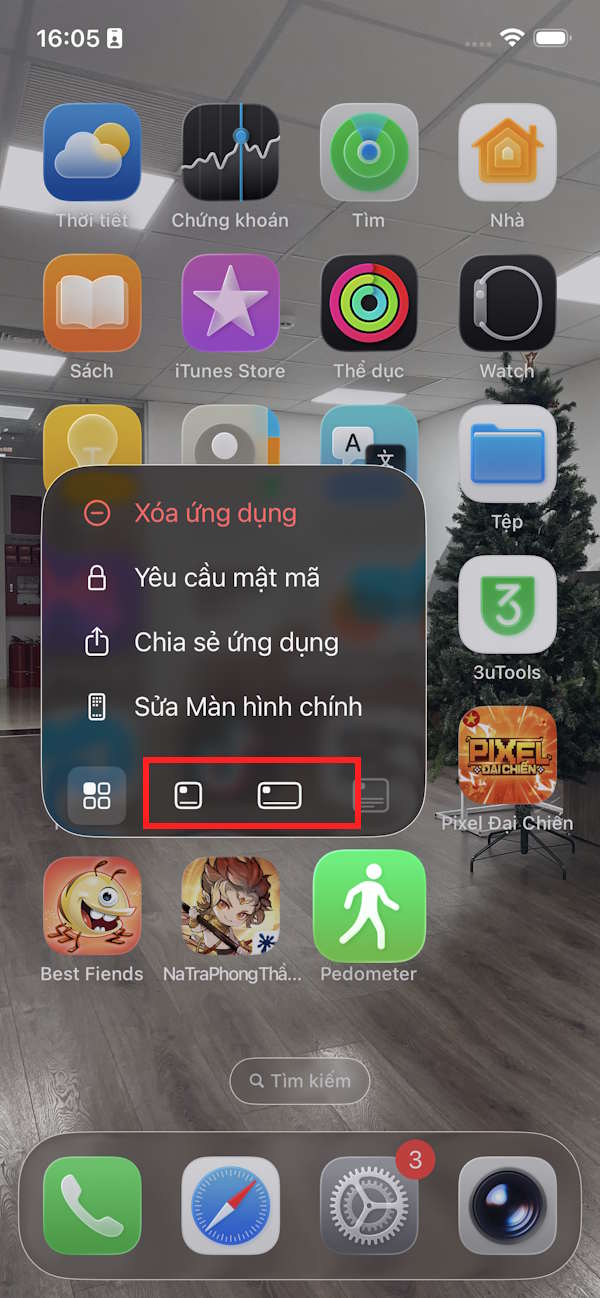
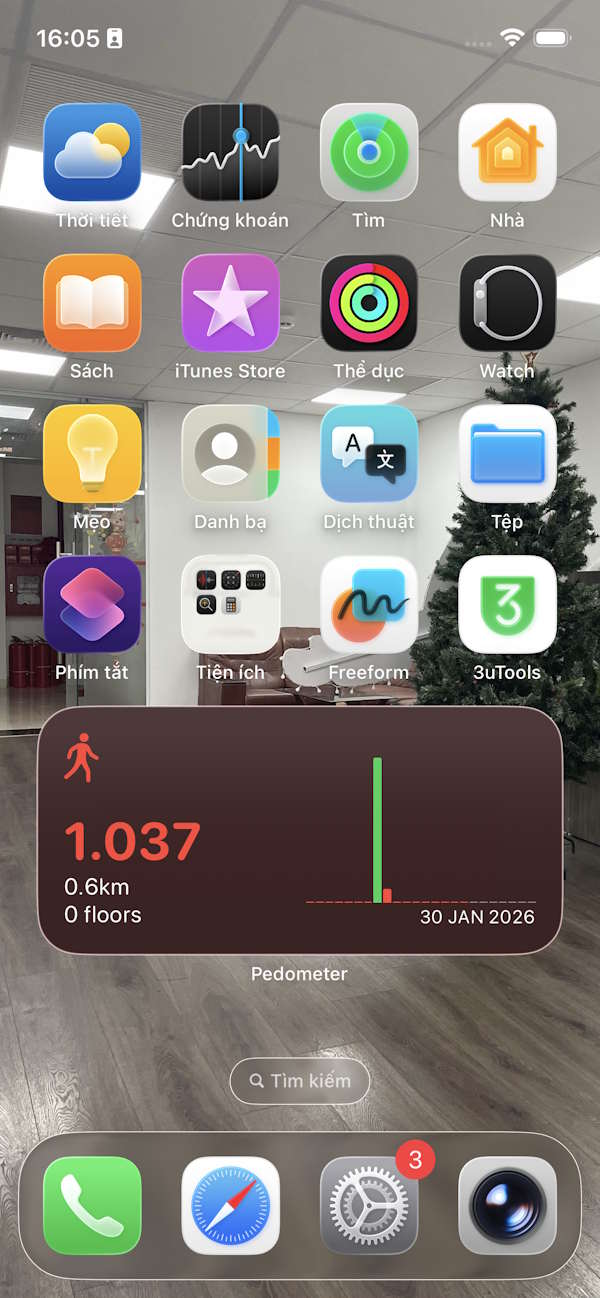
This replaces that Home Screen icon with the widget. The app still remains installed and available in the App Library.
Method 2: Add the widget and keep the app icon
- Touch and hold an empty area of the Home Screen until the icons jiggle.
- Tap Edit > Add Widget. Older iOS releases may show a plus button instead.
- Search for and select Pedometer++.
- Swipe through the available layouts and sizes, tap Add Widget, then drag it to the desired position.
- Tap Done.
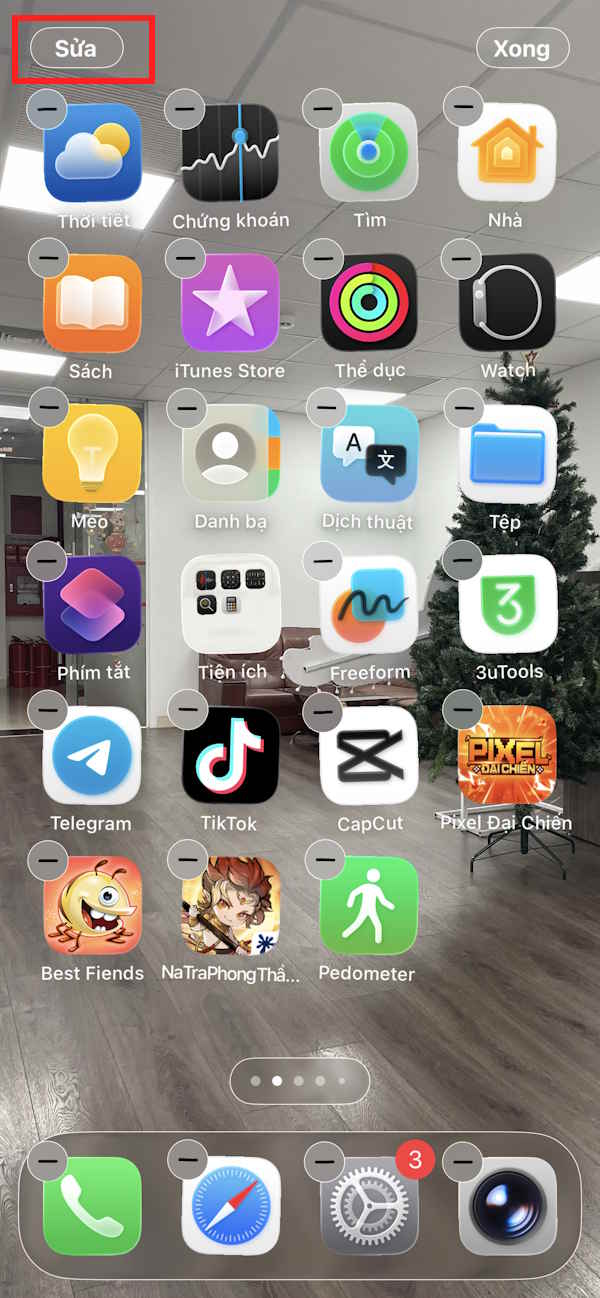
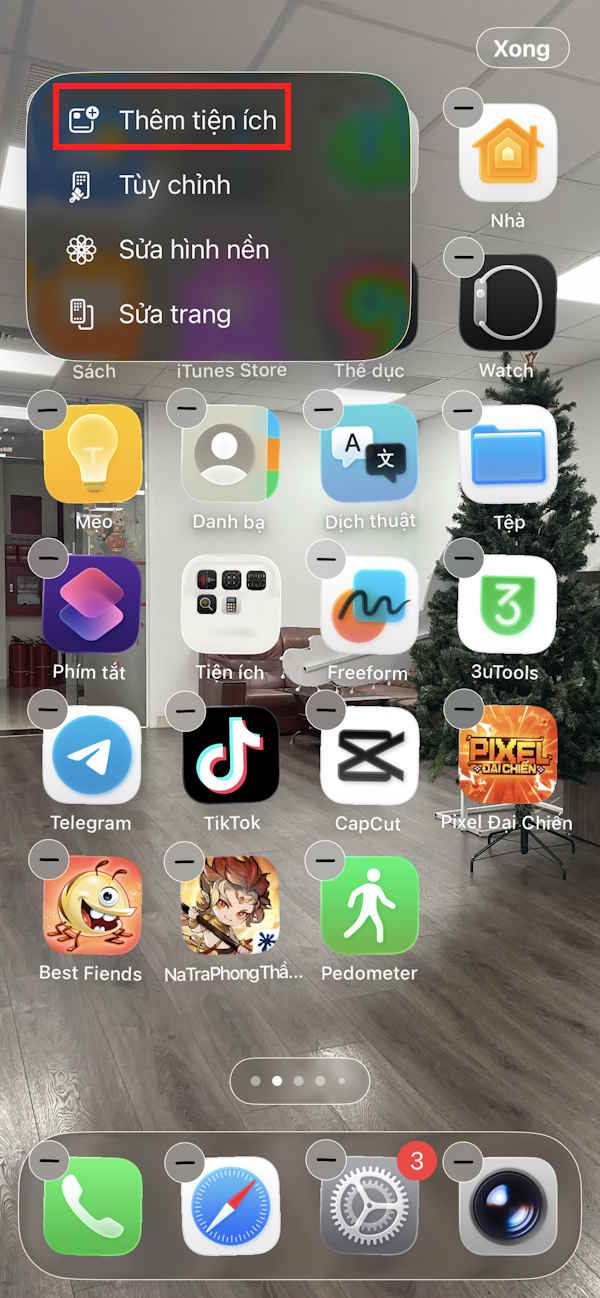
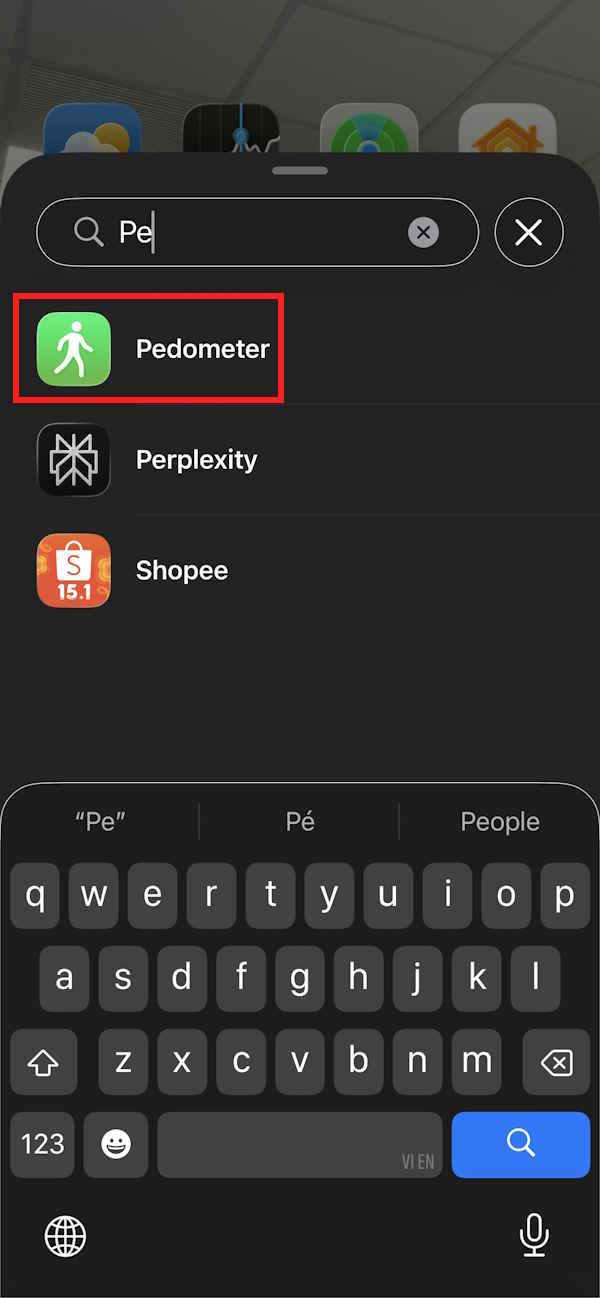
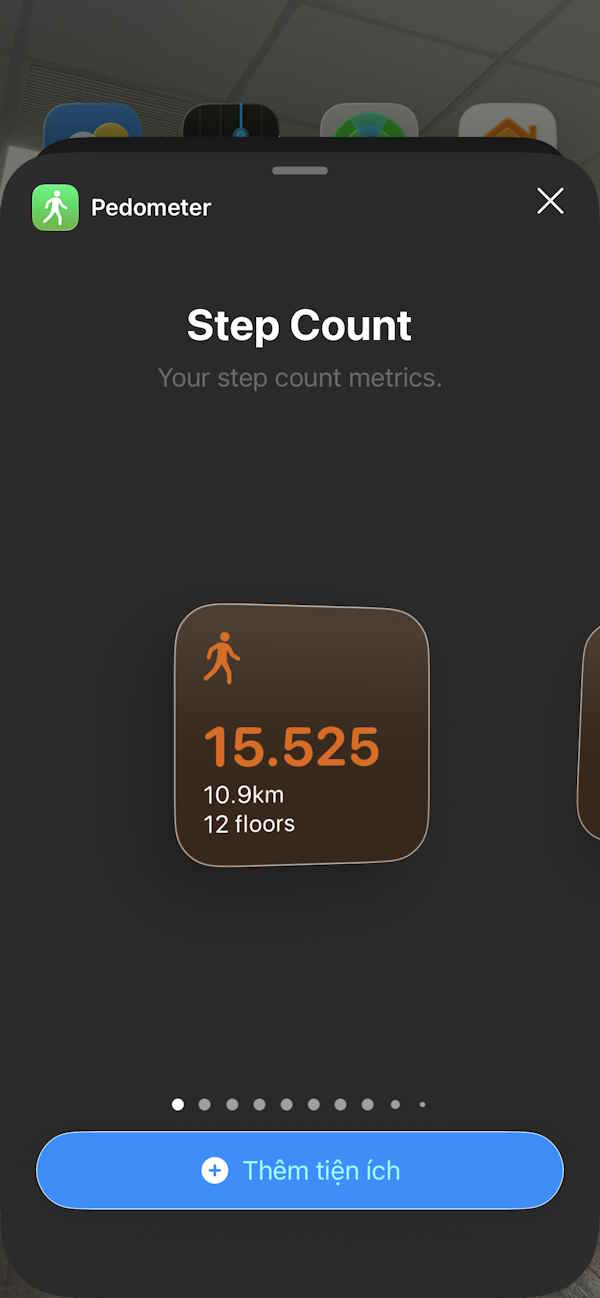
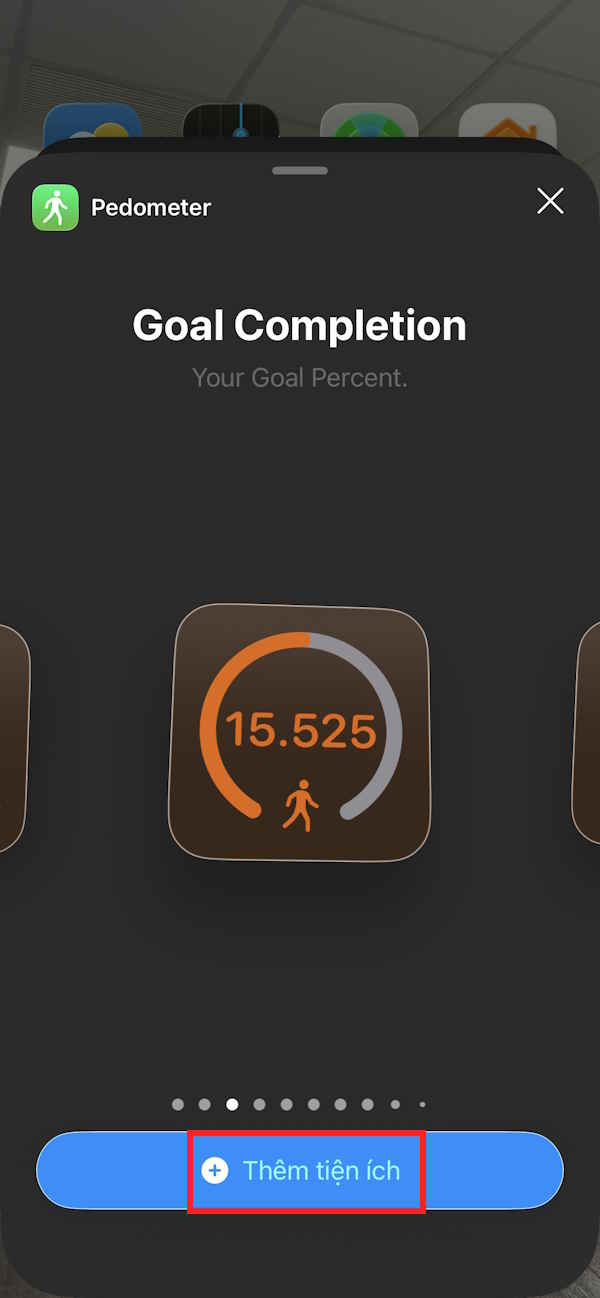
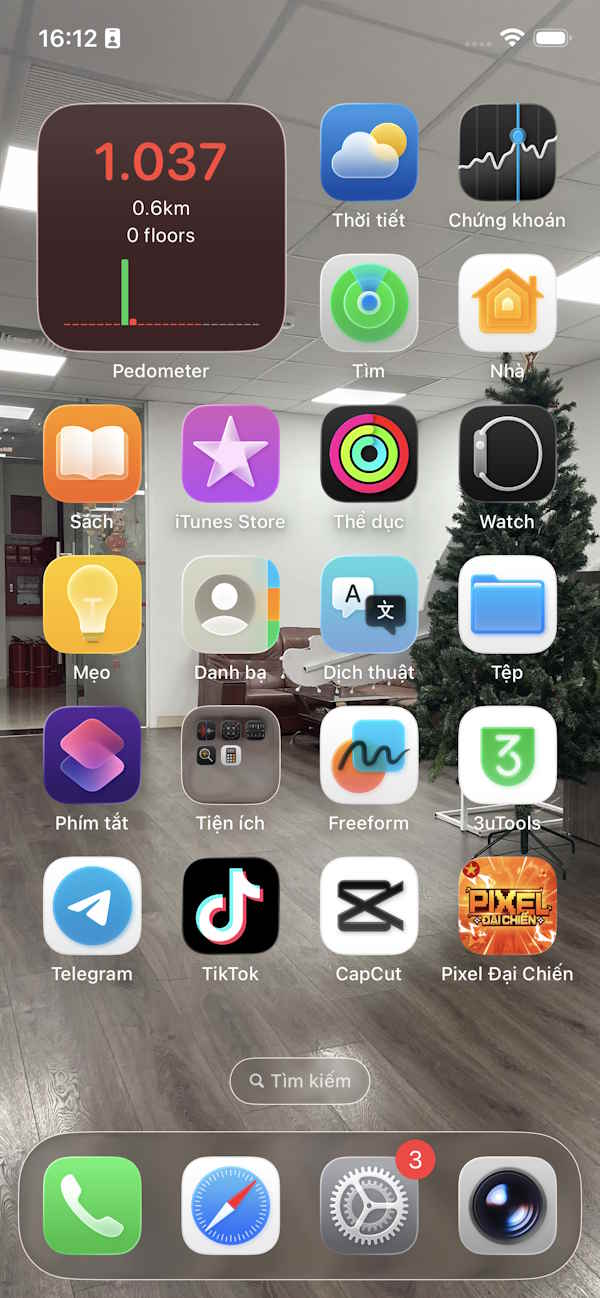
Apple's widget instructions cover Home Screen, Today View, and widget stacks. TipsMake's Pinterest widget guide shows the same current Home Screen workflow with another app.
Optional: add a Lock Screen step widget
- Touch and hold the Lock Screen, unlock the iPhone if prompted, and tap Customize.
- Select Lock Screen, tap the widget area, and choose Pedometer++.
- Select an available step layout, arrange it, and tap Done.
Lock Screen choices are smaller than Home Screen widgets, and the layouts offered depend on the installed app version.
Why the widget may show no steps or an old total
- The app is absent from the widget gallery: open Pedometer++ once after installing or updating it, then return to the gallery.
- The total is zero: check Motion & Fitness and Health permissions, then walk with the iPhone for several minutes and reopen the app.
- The widget is stale: widgets refresh on an iOS-controlled schedule rather than continuously. Open the app to update its data, then restart the iPhone if the widget remains stuck; the developer lists a restart as a common fix.
- The phone and Apple Watch disagree: the devices may have recorded overlapping or different activity. Check Health > Browse > Activity > Steps > Data Sources & Access to see which sources contributed.
- Some walking is missing: an iPhone can count only the movement it detects. Steps taken while the phone is left behind will not necessarily appear unless another approved device recorded them.
Step counts and calorie estimates are useful activity indicators, but they are not medical measurements. For more on keeping device records aligned, see TipsMake's guide to syncing Apple Watch health data with iPhone.
Related Articles
 How to 10 Cool Ways to Trick Your Phone's Step Counter (Without Walking)9 minutes read
 How to Use Apple Watch as a Step Counter, Without an Iphone3 minutes read
 The Best Step Counter App for Android and iOS7 minutes read
 Counter CSS: Counter - Counter in CSS4 minutes read
 Create Space on the Home iPhone Screen Without Jailbreak6 minutes read
 5 Ways to Keep Your iPhone Home Screen Tidy6 minutes read
Reader Comments 0
Sign in with email or Google to join the discussion.