Table of Contents
Although Microsoft Word is packed with powerful features, the interface can sometimes be confusing. By simply adjusting a few tools, the Word interface can be much simpler.
Although Microsoft Word is packed with powerful features, menus, toolbars, and many other customizations can sometimes make the interface confusing and prevent you from fully focusing on your work. By adjusting a few tools, the Word interface will be much simpler. Follow the detailed instructions In this guide.
Hide toolbars in Word
The Ribbon toolbar in Microsoft Word contains all the tools You should format and adjust the layout of your document. In case you want to clean up the Word interface and focus more on the content, you can hide the Word toolbar.
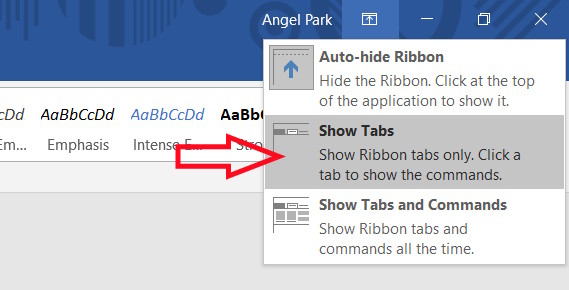
Just press Ctrl + F1 or click the small arrow in the lower right corner of the Ribbon and select and choose Show Tabs Only.
- How to hide and show the Ribbon toolbar in Word
Simplify the Status bar
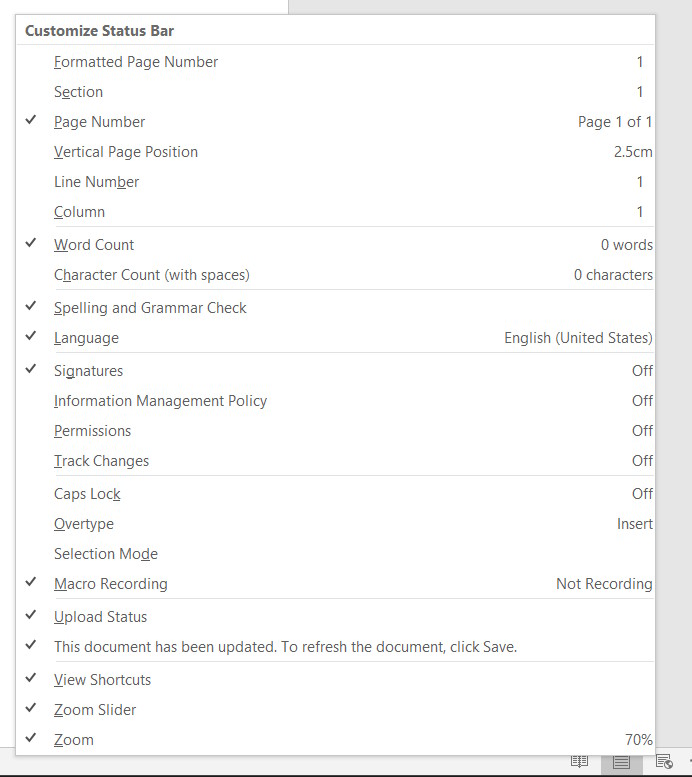
The status bar at the bottom of Microsoft Word displays details like page and word count, language, zoom level, etc. While these statistics can be useful, collapsing them makes the workspace look cleaner and more focused.
Right click on the status bar below the interface and choose to hide the content you don't want.
Using Focus mode Word
To hide the Ribbon, tabs, status bar, and other content all at once, Focus mode is perfect. It hides everything except the main writing area with just one click, giving you a private space to focus on your writing. When You should access the ribbon, just hover your mouse over the top.
- How to enable Focus Mode on Word
Adjust the test installer
While Word's autocorrect feature can be helpful, it often interrupts your writing and distracts you. So you can turn some settings off while you're writing and only turn them back on when you're editing.
Click File > Options > Proofing In the displayed interface.
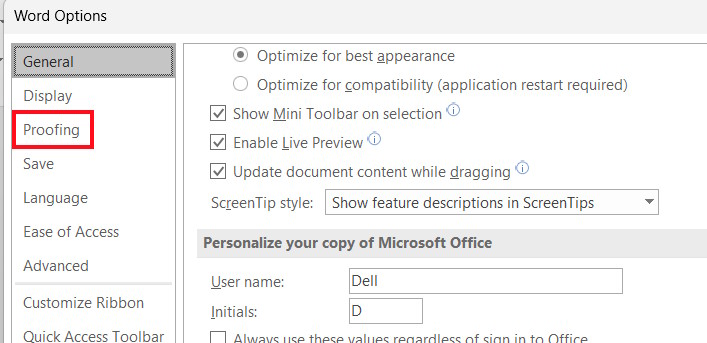
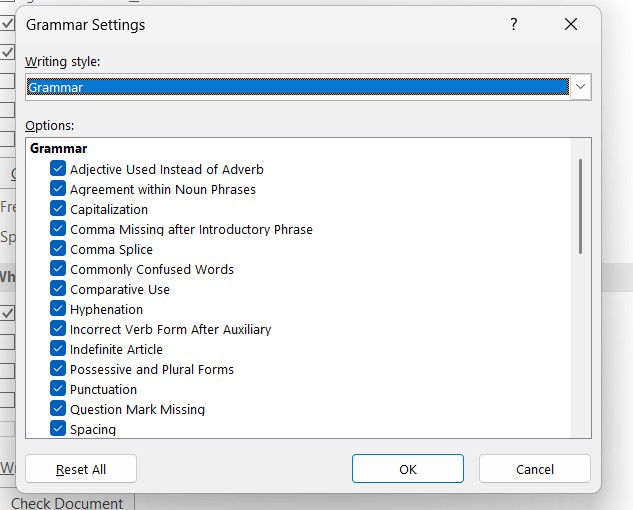
Look at the content next to it, we Proceed to uncheck the content you do not need to automatically correct errors when writing . Click on Settings To continue adjusting.
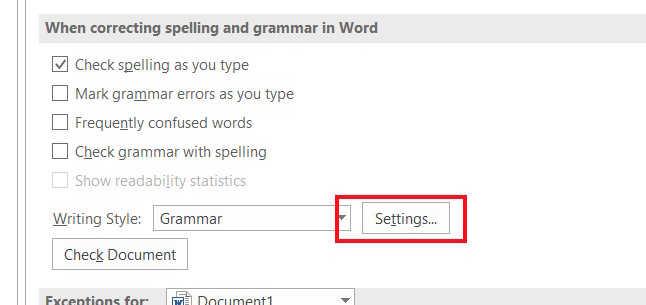
Here you also choose to remove automatic error correction options so as not to affect the work you are doing.
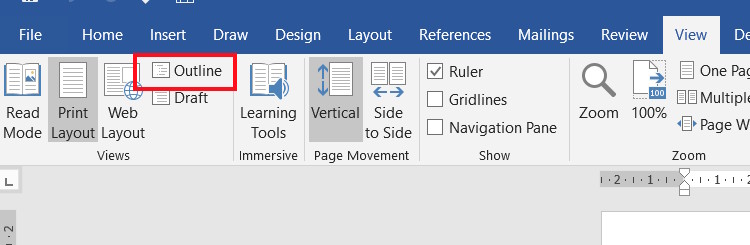
Using Outline View in Word
Outline View turns your document into a neat, collapsible list of headings and subheadings, allowing you to jump between sections and reorganize your ideas more quickly.
- How to Use Outline View in Microsoft Word
FAQ
What should you know about simplify the word interface to increase concentration?
In practical terms, although Microsoft Word is packed with powerful features, the interface can sometimes be confusing. By simply adjusting a few tools, the Word interface can be much simpler.
Why does simplify the word interface to increase concentration matter?
The article highlights that by adjusting a few tools, the Word interface will be much simpler.
What is the main takeaway?
The main takeaway is that in case you want to clean up the Word interface and focus more on the content, you can hide the Word toolbar.
Related Articles
 How to Compact the Gmail Interface with Simplify Gmail: Change Gmail4 minutes read
 How to Simplify the Facebook Interface on Chrome: Facebook Tricks4 minutes read
 How Long Does It Take for the Alcohol Concentration to Drop to 0 After4 minutes read
 How to Turn Off the Start Interface on Word 20163 minutes read
 8 Simple Ways to Practice Concentration3 minutes read
 Complete Guide Word 2016 (Part 1): Familiarize Yourself with the9 minutes read
Reader Comments 0
Sign in with email or Google to join the discussion.