Table of Contents
What people always overlook serves as the real power of the browser. So change your work settings to prioritize the browser, and your productivity will skyrocket.
Many people start their day with about 10 apps open. They never see it as a problem. After all, they all solve a problem or help with a task in their workflow. But in reality, having too many apps open is a nuisance. It clutters your desktop, makes it difficult to use, and takes up many resources.
Turn your browser into a productivity dashboard. What people always overlook is the real power of the browser. So change your work settings to prioritize the browser, and your productivity will skyrocket. I'll be using Google Chrome for the purposes of this article, but even if you ditch Google Chrome for a Chromium-based browser, most of the features will still work just fine.
Tabliss
Start with new tab page
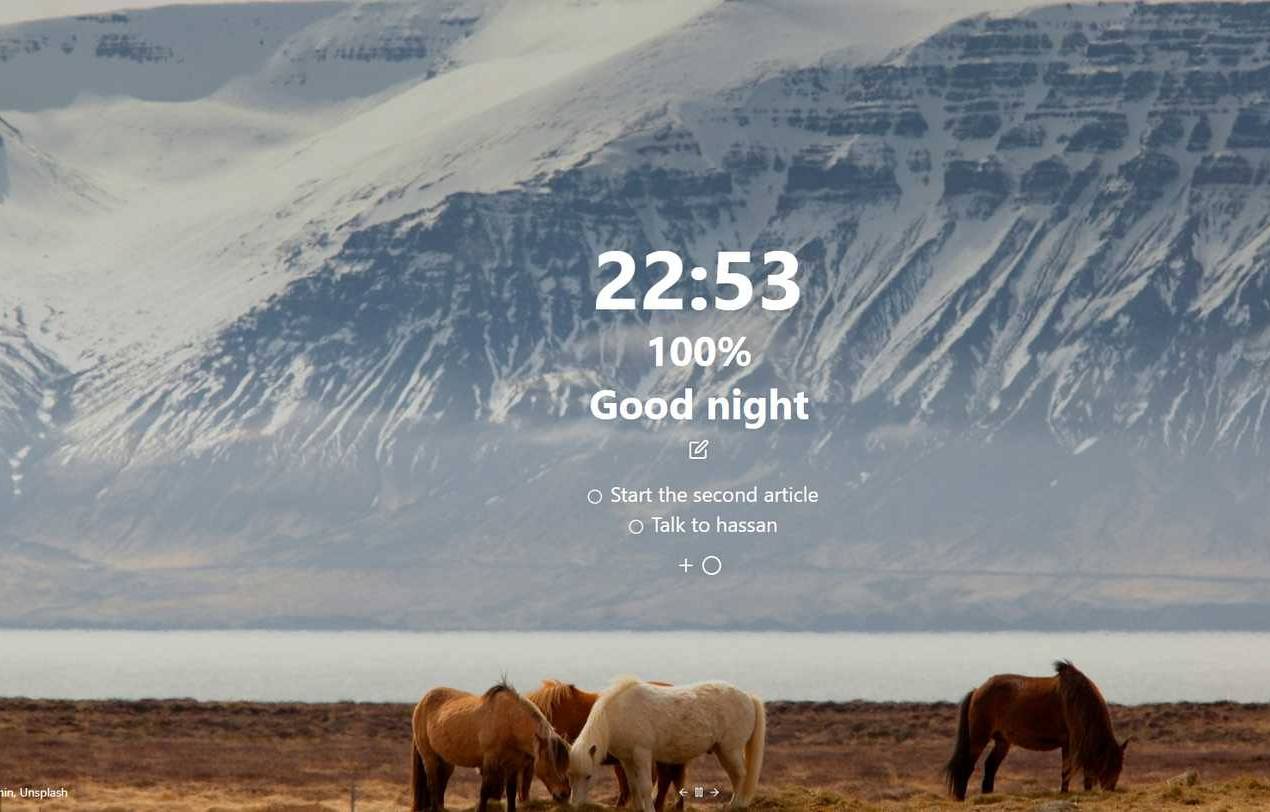
The first step is to rethink what happens when you open a new tab. You'll often see a blank page with Google Search, but for real productivity, it's a big space that can be filled with useful widgets that help you organize your workday right from the moment you launch Chrome. To do this, install the Tabliss Chrome extension, which provides a number of widgets.
By default, Tabliss just shows a pretty background image and the time, but that doesn't fix any productivity issues. So, choose the widgets that will boost your productivity the most. Click on the Settings Icon and under Widgets, Choose the widgets you want. First, choose Work Hours. This widget lets you configure your work days and hours, and shows you the percentage of your workday. This little widget helps boost productivity, as you can always see what you've done and what's left to do every time you open a new tab.
Tab group
Master tabs and stay focused with Chrome's built-in tools

People often open many tabs—from email, documents, research, to chat apps. So the next hurdle is to organize those tabs and avoid switching too much. This time, you don't need a third-party app; just make good use of Chrome's tab groups.
Color-code groups for easy identification. To minimize distractions, pin certain tabs to the far left corner for easy access. All pinned tabs will automatically load each morning when you launch your browser, creating a consistent workspace.
Marinara New and StayFocusd
Stay focused and manage your time on the browser
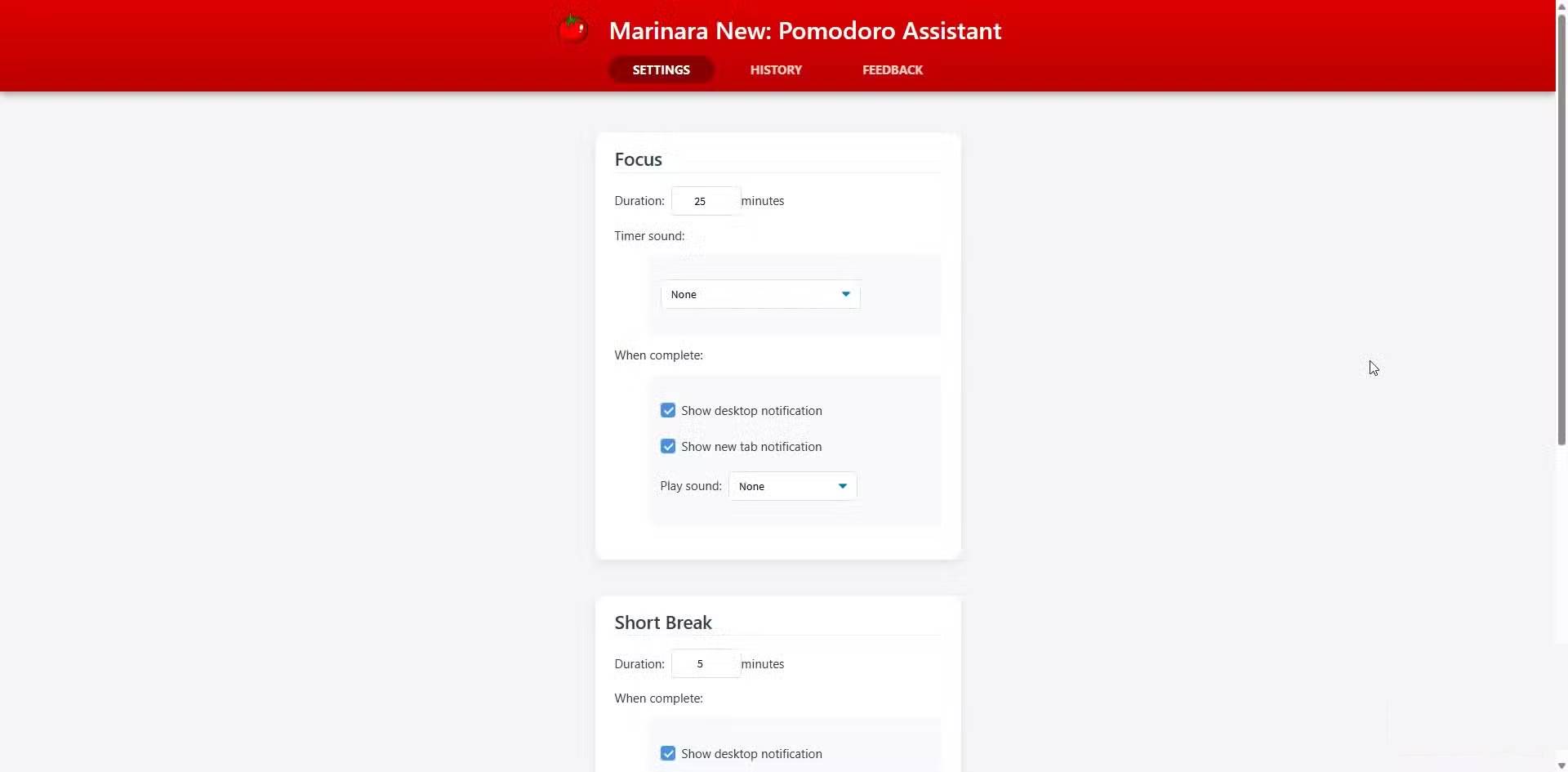
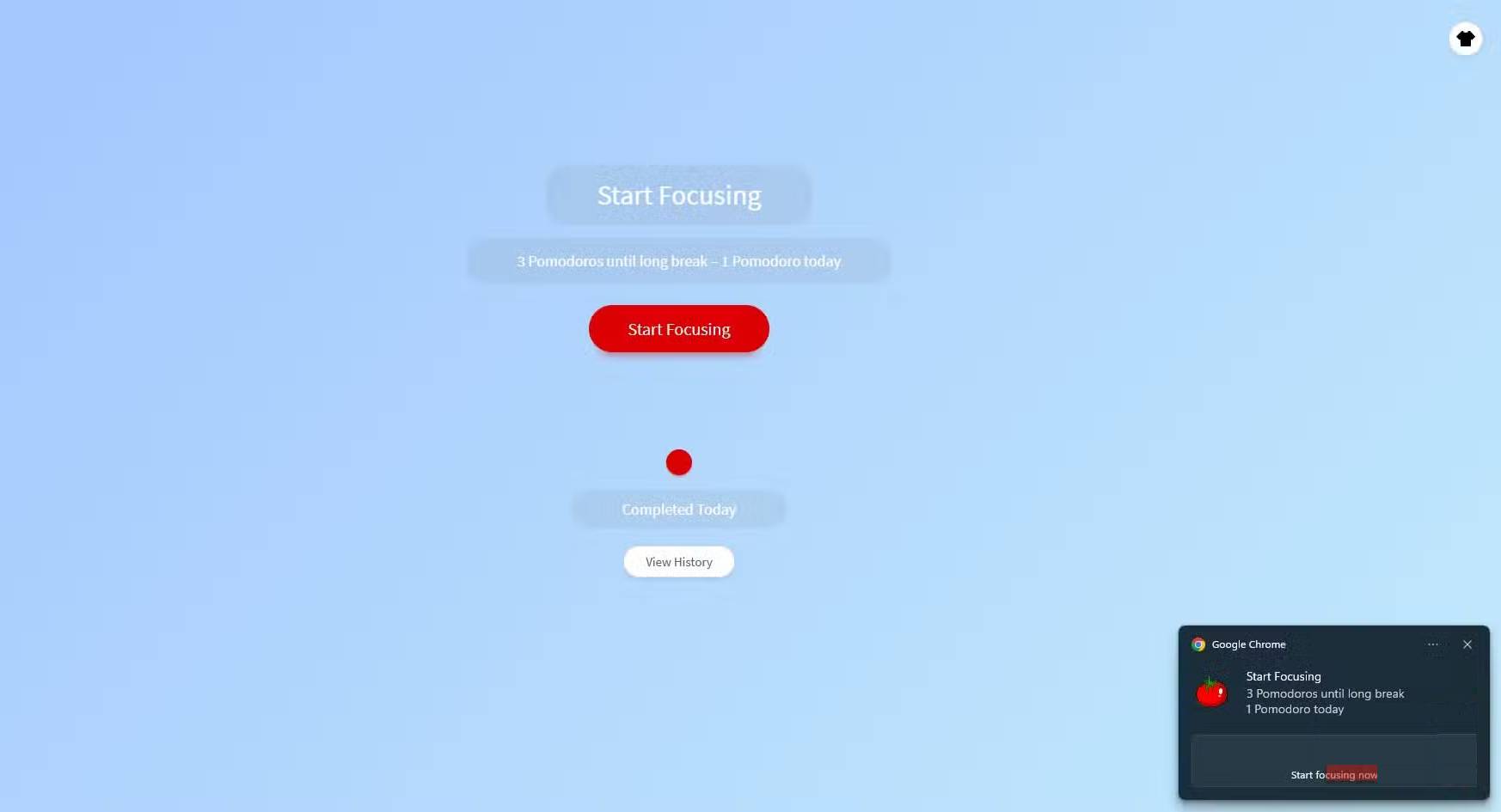
Even if you try to keep your dashboard clean and your tabs organized, you often find yourself getting distracted. Marinara New: Pomodoro Assistant is a free Chrome extension that helps you organize your work in 25-minute blocks. You can start, pause, or reset your work session without leaving your current tab.
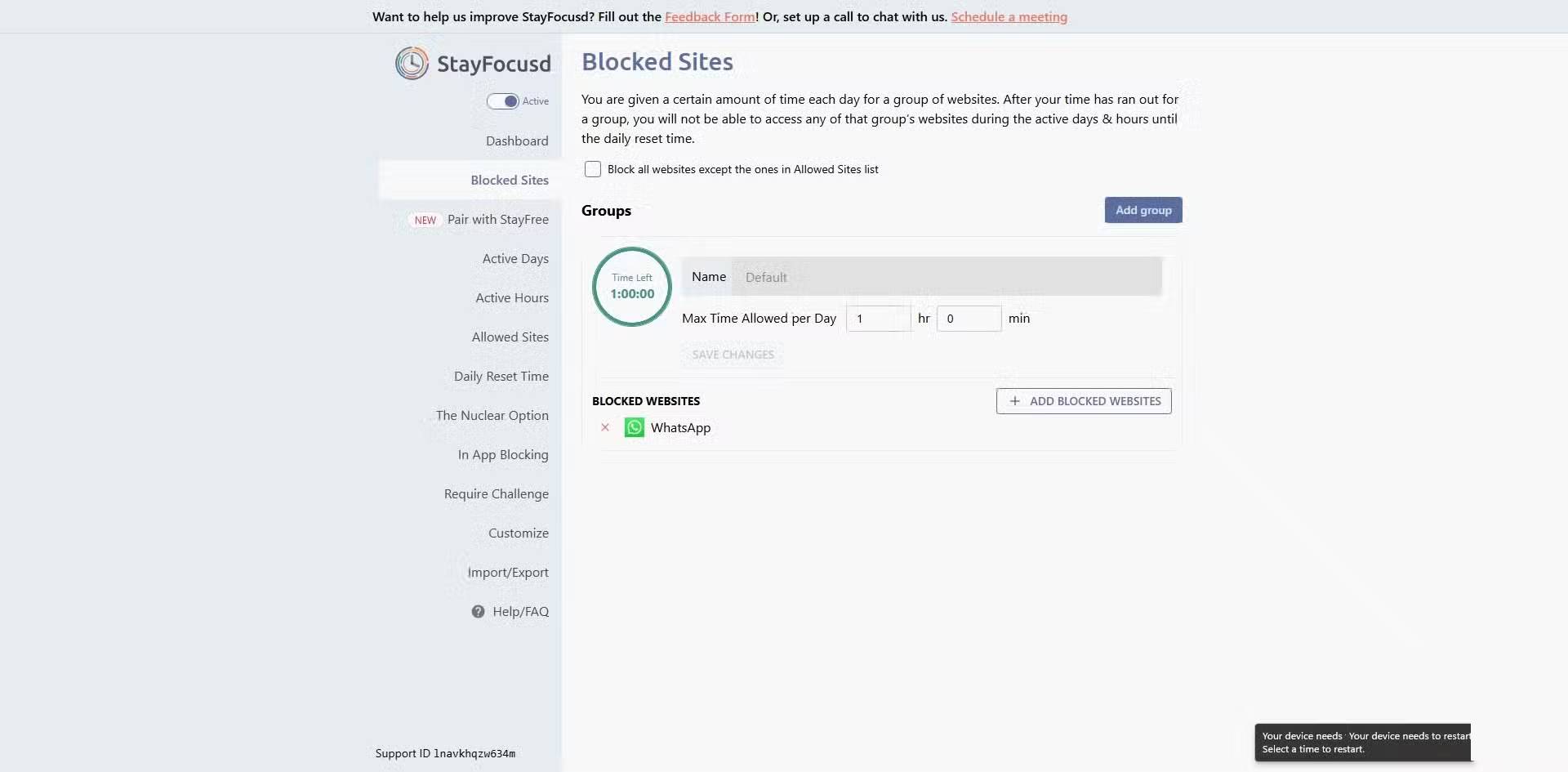
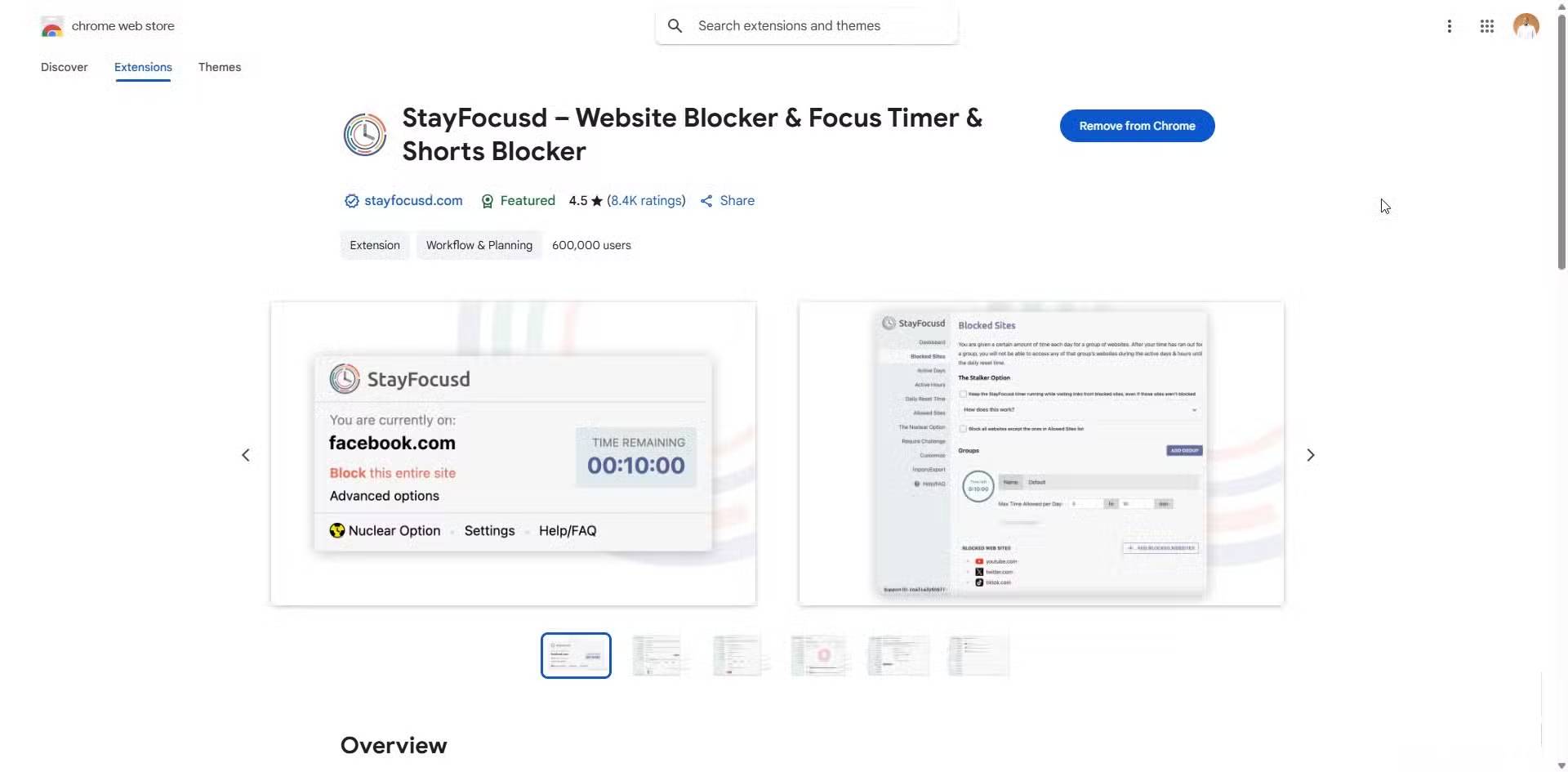
You can also stop yourself from wandering off to social media or the news with the StayFocusd Chrome extension. With this free tool, you can add your most distracting sites to your block list and set a daily limit. Maybe 30 minutes for Facebook or 15 minutes for X.
With these changes, you'll be more focused and able to complete tasks on schedule, avoid distractions, and stay motivated without leaving your browser.
FAQ
How do you set up Google Chrome as a productivity dashboard: step-by-step guide?
In practical terms, what people always overlook is the real power of the browser. So change your work settings to prioritize the browser, and your productivity will skyrocket.
What should you check before getting started?
Review the requirements, compatible device or software version, and any warnings described in the guide before making changes.
What should you do if the steps do not work?
Repeat the steps in order, confirm that your app or system is up to date, and review the troubleshooting details provided above.
Related Articles
 Google Dashboard - Everything Google Knows About You3 minutes read
 7 Best Chrome Extensions to Increase Your Productivity6 minutes read
 What Is Dashboard? What Is Dashboard? Dashboard Definition6 minutes read
 Google Chrome Interface: Complete Guide3 minutes read
 3 Chrome Extensions Enhance Your Security and Safety7 minutes read
 5 Chrome Extensions to Stay Safe Online6 minutes read
Reader Comments 0
Sign in with email or Google to join the discussion.