Table of Contents
No need to move files to Trash, macOS lets you delete them immediately using keyboard shortcuts, the Finder menu, or create your own 'Delete Immediately' option.
The Trash on macOS is where files you delete are temporarily kept—making it easy to restore things you no longer need without having to dig through a backup. It also virtually eliminates the risk of accidentally deleting something.
That said, if you want to Immediately delete A file without sending it to the Trash, macOS still lets you do that.
Delete files with keyboard shortcuts
Normally, to move a file to the Trash, you use Command + Backspace . But if you want to skip that step and Delete it permanently , use Option + Command + Backspace .
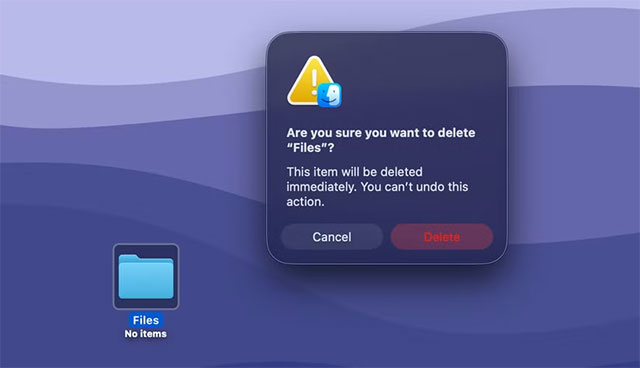
Just select the file or folder you want to delete, then press the above key combination. A dialog box will appear to confirm the action, warning you that you Can't undo it . Press Delete To delete it, or Cancel If you change your mind.
The Option Key is a 'magic' key in macOS — it hides many useful extra features that people often overlook. If you have the time, try holding it in menus to discover some cool hidden options.
Delete directly via Finder menu
If you don't like keyboard shortcuts, Finder has a similar option available.
Select the file you want to delete, open the File Menu, then Hold down the Option key —the Move to Trash Line will then change to Delete Immediately . Select this and confirm to delete it immediately.
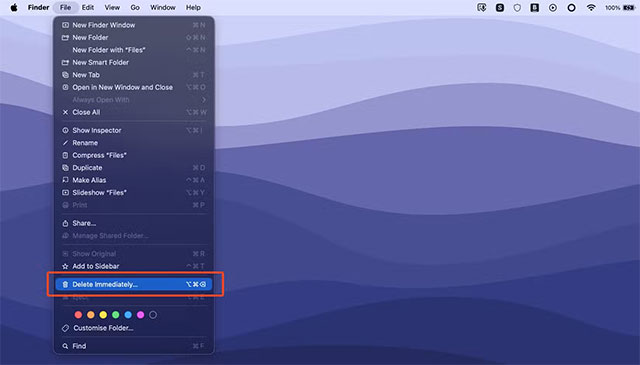
Create 'Delete Now' option in right-click menu
If you are an advanced user, you can add the 'Delete Immediately' feature to the right-click menu in Finder using the Shortcuts App. This option lets you delete files Without confirmation , so be extremely careful when using it.
How to do it:
1. Open the Shortcuts App, select Quick Actions In the sidebar, then tap the + Sign to create a new action.
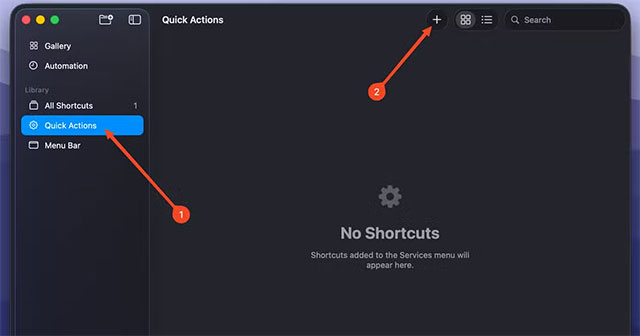
2. In the Search Actions Box, type 'Run Shell Script' and double-click to add.
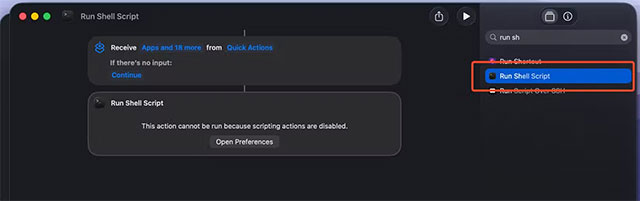
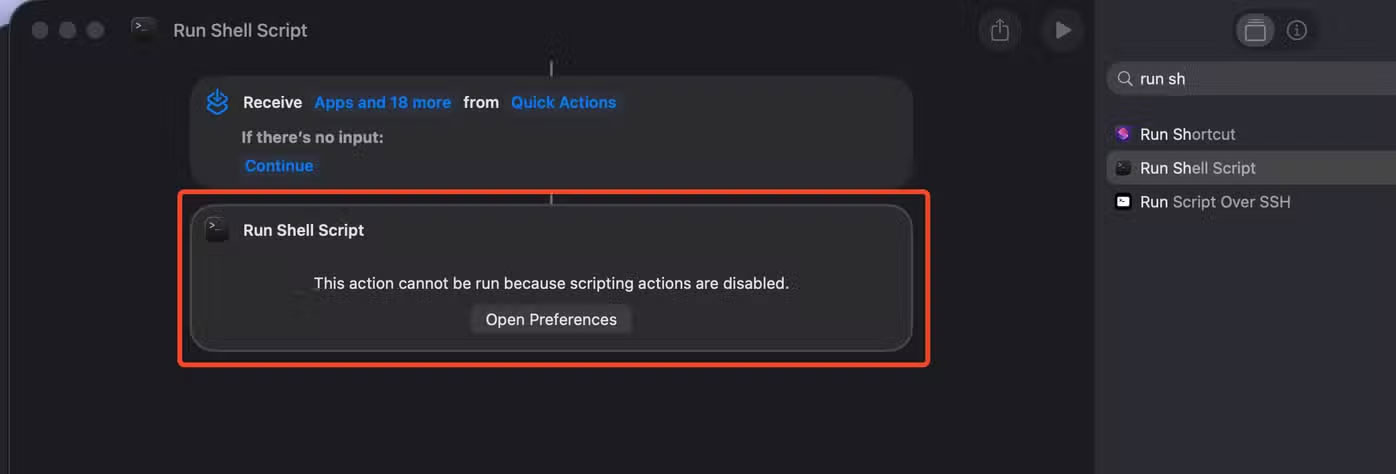
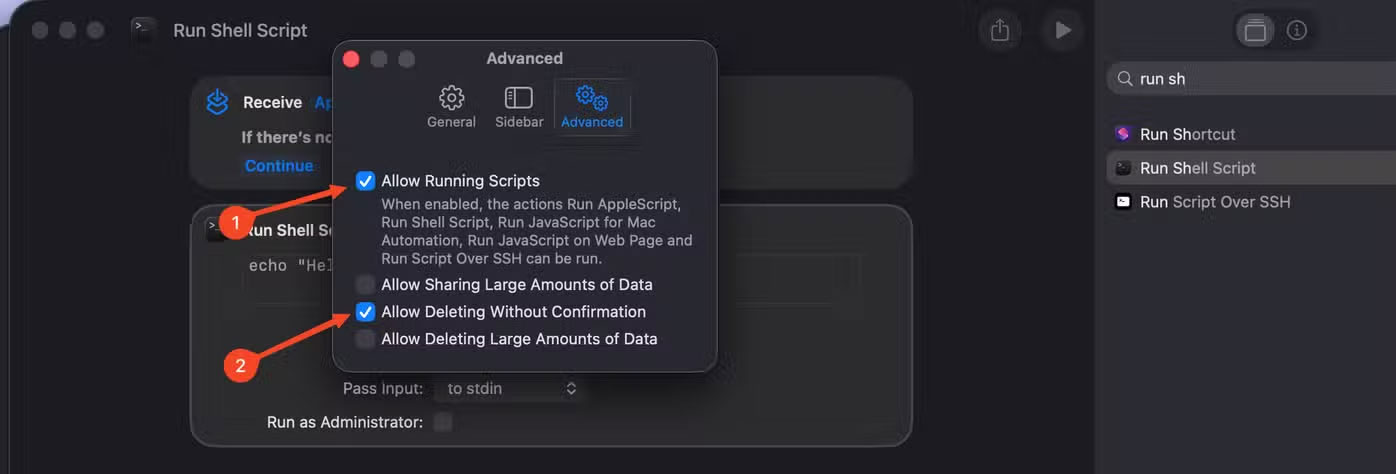
3. If this is your first time using this feature, macOS may give you an error because execution permissions are not enabled. Click Open Preferences , then enable Allow Running Scripts And Allow Deleting Without Confirmation .
4. In the 'Run Shell Script' box, select Shell: zsh And Pass Input: as arguments .
5. Paste the following code into the content box:
#!/bin/zsh for f in "$@"; do /bin/rm -rf -- "$f" done This script will immediately delete the selected file or folder Without asking again .
To add a confirmation step, use the version with the following message:
#!/bin/zsh response=$(osascript -e 'display dialog "Permanently delete selected file(s)? This cannot be undone." buttons {"Cancel", "Delete"} default button "Cancel"') if [[ "$response" == *"Delete"* ]]; then for f in "$@"; do /bin/rm -rf -- "$f" done fi 6. Close the window, right-click on the newly created Quick Action, select Rename To rename it — for example, 'Delete Immediately'. You can change the color, add an icon for easy recognition.
7. To enable, right-click any file → Quick Actions → Customize , enable 'Delete Immediately' and select Done .
From now on, when You should delete quickly, just right-click → Quick Actions → Delete Immediately . If you use the unsigned version, the file will disappear immediately; but if there is a dialog box, just press Delete To finish.
You can also use the Shortcuts App to create more convenient actions for macOS — from automatically organizing files, converting image formats, to managing your system.
Be careful with the 'permanent delete' operation
Before we wrap up, it's important to note that skipping the Recycle Bin will permanently delete a file. You can't undo or restore it. So use this feature sparingly, and avoid making the Option + Command + Backspace Key combination a subconscious reflex. One wrong press could mean you lose important data forever.
That said, this deletion method is still extremely convenient, especially when you regularly deal with large files such as videos or photos, which take up many space and quickly fill up both the Recycle Bin and SSD.
FAQ
What should you know about permanently delete files on macOS without sending to trash?
In practical terms, no need to move files to Trash, macOS lets you delete them immediately using keyboard shortcuts, the Finder menu, or create your own 'Delete Immediately' option.
Why does permanently delete files on macOS without sending to trash matter?
The article highlights that however, if you want to Immediately delete a file without sending it to the Trash, macOS still allows you to do that.
What is the main takeaway?
The main takeaway is that delete files with keyboard shortcuts Normally, to move a file to the Trash, you use Command + Backspace .
Related Articles
 How to Add Trash to Permanently Delete Files on Windows 10/118 minutes read
 How to Delete Files on Mac Directly Without the Trash4 minutes read
 How to Delete Trash Automatically on Mac3 minutes read
 How to Recover Deleted Files Permanently in the Trash3 minutes read
 2 Ways to Permanently Delete Files on Windows3 minutes read
 How to Delete Files on Mac - Empty Trash or Secure Empty Trash?6 minutes read
Reader Comments 0
Sign in with email or Google to join the discussion.