Table of Contents
Explore instructions to delete (forget) connected wifi address on iPhone.
This article will guide you through the simple steps you need to take to delete (forget) a previously connected WiFi network on your iPhone.
Why would you want to forget a connected WiFi network on your iPhone?
There are many reasons why you might want to delete a WiFi network that you have previously connected to. One of the most common problems is that the internet is not working. In this case, forgetting the network and reconnecting can be a simple and effective solution.
Nowadays, WiFi networks appear around us, from home to the company, you can easily connect to WiFi with your phone. That's why your device will remember many different WiFi networks, when connecting, the device will prioritize connecting to the WiFi network by name (order a, b, c), even if the WiFi signal of that WiFi network is extremely weak. This will take you more time to set up to select a WiFi network with a better connection. To solve this problem, you just need to forget the weak WiFi networks that you have connected to before.
Additionally, if you've switched network providers or are about to upgrade your router, you may also want to forget your current network before these changes take effect.
Some people may also want to forget their WiFi networks for security reasons. In fact, public WiFi networks can be a threat to privacy and security, and the chances of problems increasing if your iPhone automatically connects to these networks without your knowledge.
How to forget a Wi-Fi network on iPhone
Below are the simple steps you need to follow to delete (forget) a previously connected WiFi network.
Step 1
Unlock your iPhone and go to the 'Settings' app.
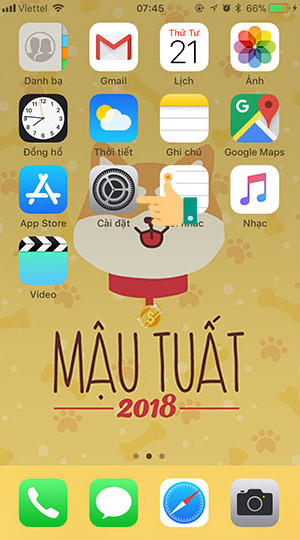
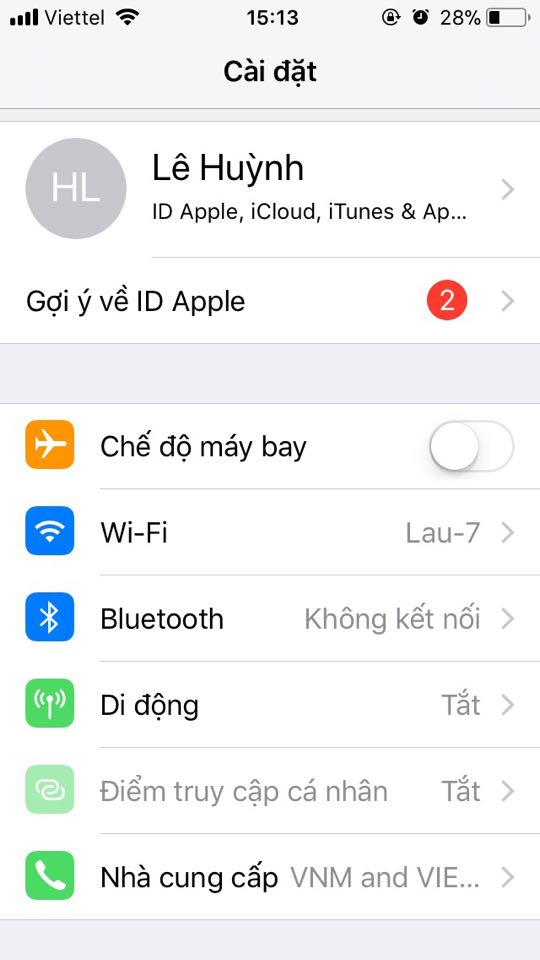
Step 2
In the Settings menu, tap on 'Wi-Fi'.
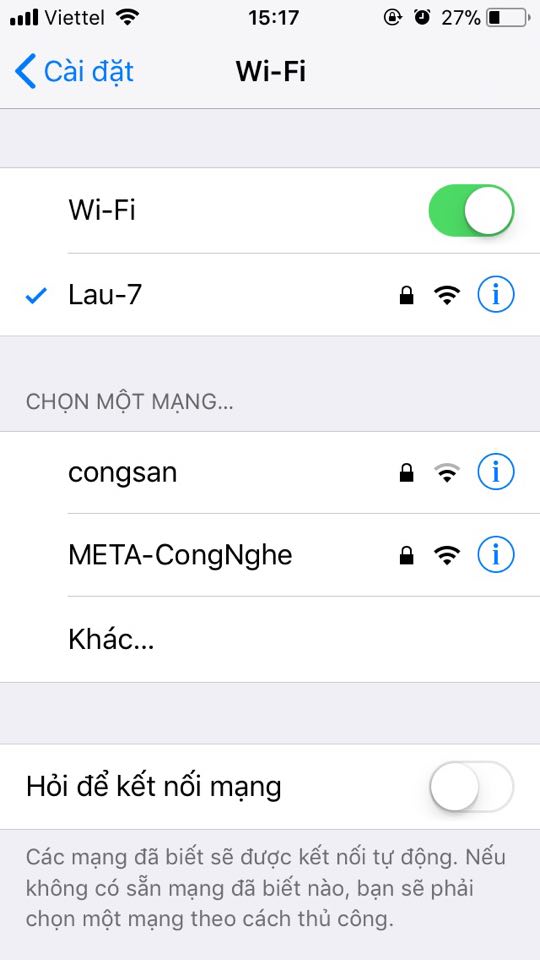
Step 3
On the interface, there will be many WiFi networks appearing on your phone. Now you just need to click on the letter (i) icon next to the WiFi address you want to remove from the device.
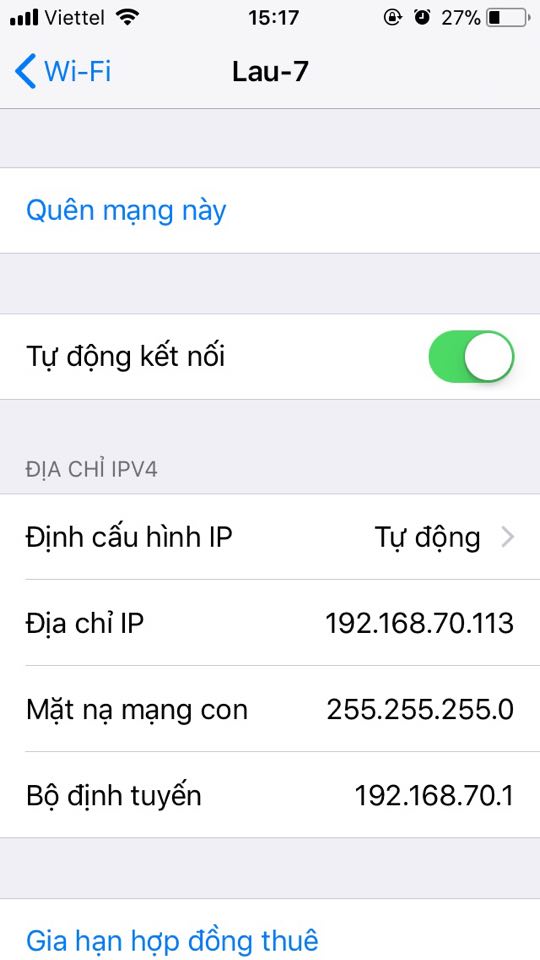
Step 4
Click "Forget this network" to stop the device from automatically connecting to that network.
Step 5
Click "Forget" again to make sure you want to delete this WiFi network.
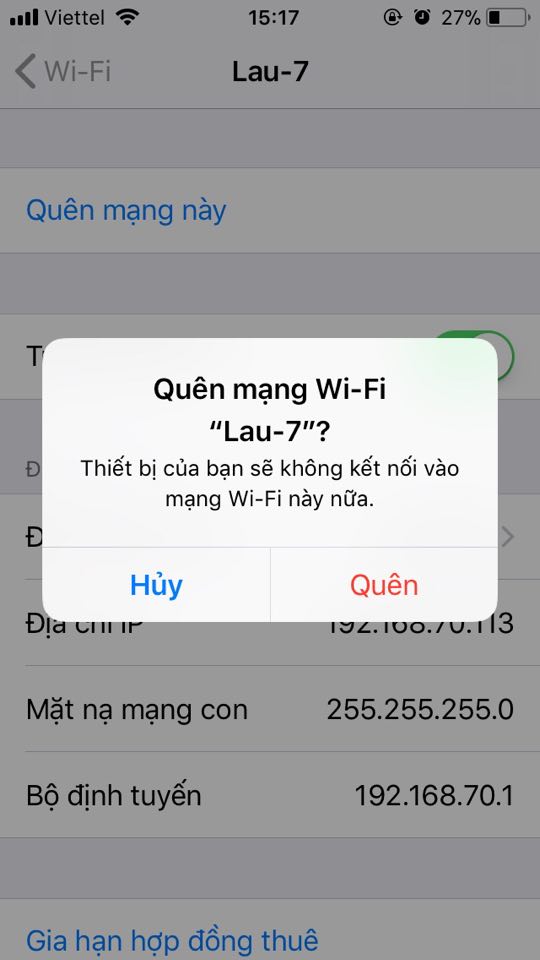
( Note : To forget a network on your iPhone, you don't necessarily have to connect to that network).
This is a beginner's guide on how to forget a connected WiFi network on your iPhone. If you want to reconnect to a forgotten WiFi network, you will have to re-enter the password. But that's not too complicated.
Good luck!
See also:
- 6 ways to fix Wifi connection errors on iPhone 6
- Having Wifi Problems on iOS 11? Here's How to Fix It
- Instructions for broadcasting WiFi using iPhone/iPad
Final Thoughts
Understanding instructions to delete (forget) connected wifi address on iphone makes it easier to evaluate the information and apply the most relevant recommendations. Focus on the key points above and verify details that may change over time.
FAQ
What is instructions to delete (forget) connected wifi address on iphone?
Explore instructions to delete (forget) connected wifi address on iPhone.
What key points does this article cover?
The article focuses on Why would you want to forget a connected WiFi network on your iPhone?, How to forget a Wi-Fi network on iPhone, Step 1, with practical explanations and examples.
How can you use this information in practice?
Use the explanations to compare options, verify important details, and make a more informed decision. Apply the recommendations that best match your goals and situation.
Related Articles
 How to Delete Connected Wi-Fi Addresses on iPhone4 minutes read
 How to Delete Connected Wi-Fi on the Phone5 minutes read
 How to Forget/Delete Wi-Fi Networks on Chromebook3 minutes read
 How to View Saved Wi-Fi Passwords on Windows 7/8/103 minutes read
 How to Retrieve Saved Wi-Fi Passwords on Computers and Laptops5 minutes read
 Conflict of IP Address Error When Connecting to Wi-Fi on iPhone5 minutes read
Reader Comments 0
Sign in with email or Google to join the discussion.