Table of Contents
Maybe you've been neglecting your extra mouse buttons, don't know what to do with your gaming mouse buttons when you're not playing, or are thinking about getting a new mouse to upgrade your productivity.
General productivity advice is to keep your hands on the keyboard as much as possible, as keyboard shortcuts are much faster than using a mouse. But if you use your mouse correctly, you can access your most used shortcuts right from there, allowing you to do more with just one hand.
Maybe you've been neglecting your extra mouse buttons, don't know what to do with your gaming mouse buttons when you're not playing, or are thinking about getting a new mouse to upgrade your productivity. With a little creativity, you can make your buttons incredibly useful.
How to set up the mouse
For example using the Logitech G502 gaming mouse from 2017. While the G502 is great overall, the mouse wheel becomes loose over time.
The G502 mouse has all of the following buttons:
- Standard left and right click
- A mouse with 3 buttons: Middle button, along with left or right mouse option
- A button in the middle of the mouse
- Two left buttons left mouse button
- A button below where your thumb would normally be located
- Two more buttons above where your thumb would normally rest
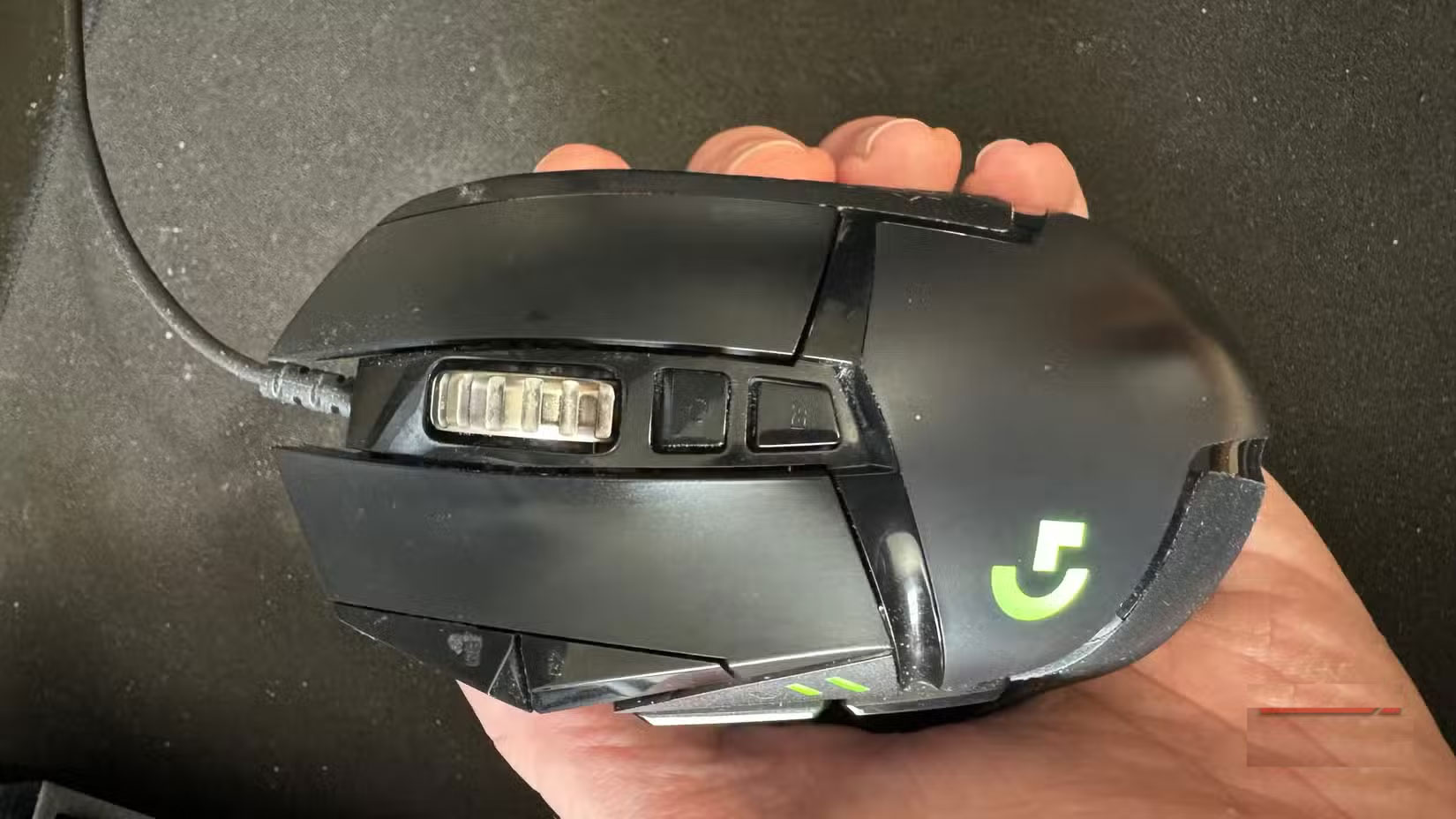
There's also a button to toggle between line-by-line and free-scrolling modes, although this is a physical button and can't be customized.
You can find nine customizable buttons in total, in addition to the standard left and right mouse buttons. You can do a lot with them, whether you want to assign simple actions or advanced shortcuts.
Function of each button
To customize the buttons on your mouse, use Logitech's G Hub software. Your mouse manufacturer should provide similar software for customizing your mouse. If you're using a regular mouse, try X-Mouse Button Control.
Mouse wheel
Leave the default middle click behavior for the mouse wheel because it's useful. Its two main uses are closing a browser tab and opening a link in a new tab, both of which you'll do frequently.
You can close a tab with Ctrl + W And open a new tab by holding Ctrl While clicking. But middle clicking to open and close is so common that reassigning it would hurt productivity.
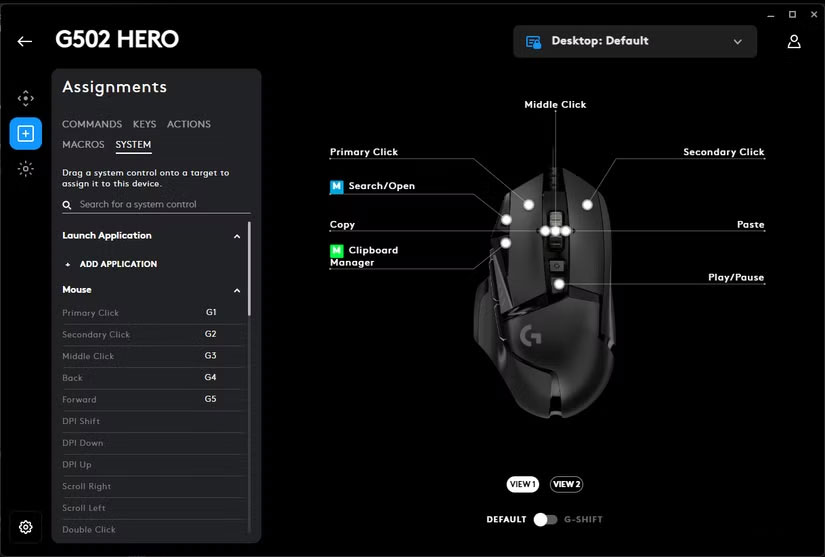
For example, I've assigned the Copy Button to pushing the mouse wheel left, and the Paste Button to pushing it right. If you're constantly copying and pasting, being able to do this without taking your hand off the mouse is handy. Again, keeping your hand on Ctrl + C (and V ) isn't hard, but prioritize keeping your most-used commands close at hand.
The only button on the top
Behind the mouse wheel speed toggle is another customizable button. This button requires you to move your index finger a long way, so it's best to put it somewhere you don't use often. By default, it's used to switch mouse profiles, but that's not useful for many people.
Instead, set this button to Play/Pause , which many people like because they almost always listen to music on Spotify.
Buttons on top
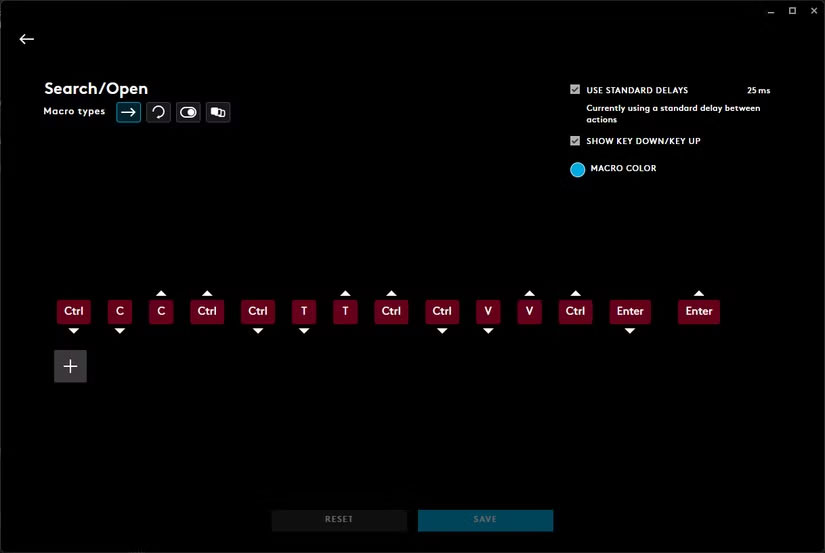
Most people rarely use the top left buttons on their mouse. They end up creating two macros, which are the most complex shortcuts on a mouse (though not the most difficult to understand).
On the top front button, run a macro by pressing Ctrl + C , Ctrl + T , Ctrl + V , then Enter , all in succession. Use this macro as a shortcut to search for highlighted text in your browser - all you have to do is highlight a word or phrase, then press this button to search Google.
And finally the buttons near the thumb
The G502 has three buttons that are all within reach of your thumb on the lower left. The top two buttons can be left as default: Forward And Back . These buttons are incredibly useful in the browser, and work similarly in other apps you use every day, like Slack.
It's not fancy, but you'll be using this a lot. Plus, the Alt + Left/Right Shortcut requires two hands or a stiff stretch, so it's a good candidate for mapping to the mouse.
The final button is where your thumb naturally rests, making it a good choice for a command You should run often. By default, you hold it down to decrease your mouse DPI — when you're zooming in on a sniper rifle in a game, but not when you're working. You've probably been used to saving your current document ( Ctrl + S ) for a long time; people are always worried about losing data, so saving is done frequently.
FAQ
What should you know about map shortcuts to any mouse button to cycle through applications?
In practical terms, maybe you've been neglecting your extra mouse buttons, don't know what to do with your gaming mouse buttons when you're not playing, or are thinking about getting a new mouse to upgrade your productivity.
Why does map shortcuts to any mouse button to cycle through applications matter?
The article highlights that the G502 mouse has all of the following buttons: Standard left and right click A mouse with 3 buttons: Middle button, along with left or right mouse option A button in the middle of the mouse Two left buttons left mouse.
What is the main takeaway?
The main takeaway is that function of each button To customize the buttons on your mouse, use Logitech's G Hub software .
Related Articles
 How to Set Up a Computer Mouse for Left-handed People3 minutes read
 Use Extended Mouse Buttons to Increase Efficiency8 minutes read
 Surf the Web More Effectively with the Mouse Wheel6 minutes read
 How to Fix the Problem of Left Clicking on Windows13 minutes read
 Told You 5 Shortcuts with the Windows Button on Your4 minutes read
 Tips to Create Shortcuts to Open Applications on Windows 105 minutes read
Reader Comments 0
Sign in with email or Google to join the discussion.