Table of Contents
Even if you've been using a computer mouse for years, you may still be missing out on some of its most useful features. From arranging windows and auto-scrolling to selecting files and managing tabs, the humble mouse has a ton of tricks up its sleeve that you'll wish you'd discovered sooner.
- Summary of Touchpad operations on Windows 10, Windows 11
7. Drag with right mouse button for Move/Copy menu
By default, when you drag and drop a file with the left mouse button in Windows, the file is moved to a new location. But what if you want to copy the file or create a shortcut? In that case, you don't need to copy and paste the file or right-click the file and select Send to > Desktop (create shortcut) .
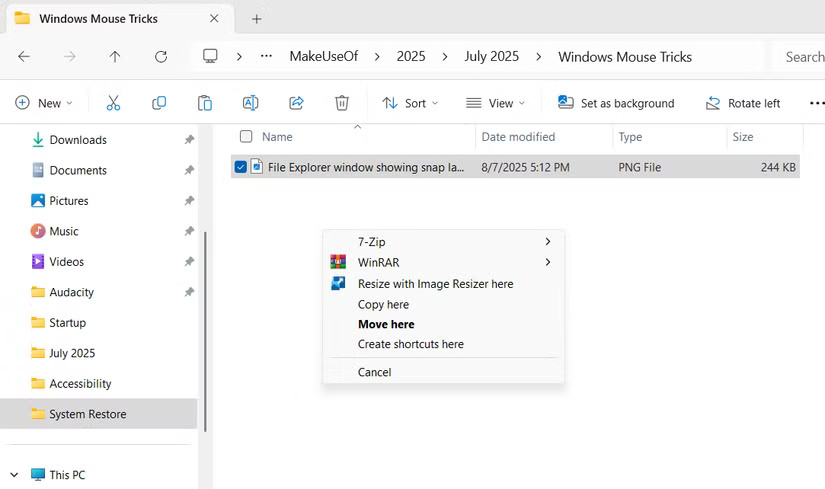
You can also select multiple items and drag them all at once using the right mouse button. This method is quite useful when creating desktop shortcuts for multiple applications and programs at once.
6. Shift + Right Click to open the full context menu
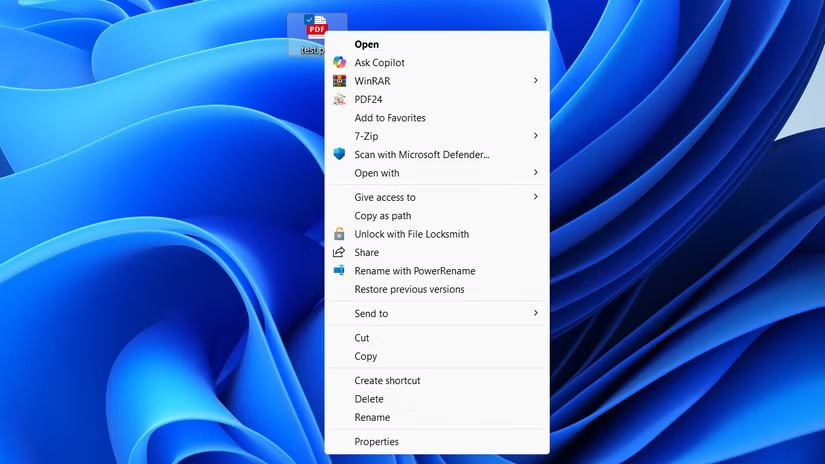
The right-click menu in Windows 11 has improved significantly since it first launched (or maybe you've gotten used to it). However, there are still times when you need to access the full classic context menu on your PC.
For instance, you may need to use options like Create shortcut , Scan with Microsoft Defender , or some third-party app actions hidden under Show more options .
5. Shift + Mouse Wheel to scroll horizontally
The need to scroll sideways isn't a common one — but you do need it from time to time. Maybe you're working on a giant Excel spreadsheet, editing a timeline in a video editor, or viewing a web page that's zoomed in and out of focus.
In these cases, you don't need to hunt for a scroll bar. Instead, hold down the Shift key and the mouse wheel. Scrolling down moves content from left to right; scrolling up moves content back. This trick works in most apps and browsers that support horizontal scrolling.
4. Ctrl + Click or Shift + Click to select multiple files
Selecting multiple files on your PC doesn't have to be a complicated task. Windows provides two handy shortcuts that make batch file management quick and easy.
Ctrl + Click is useful when you need to manually select individual files. Hold down Ctrl and click each file you want to select.
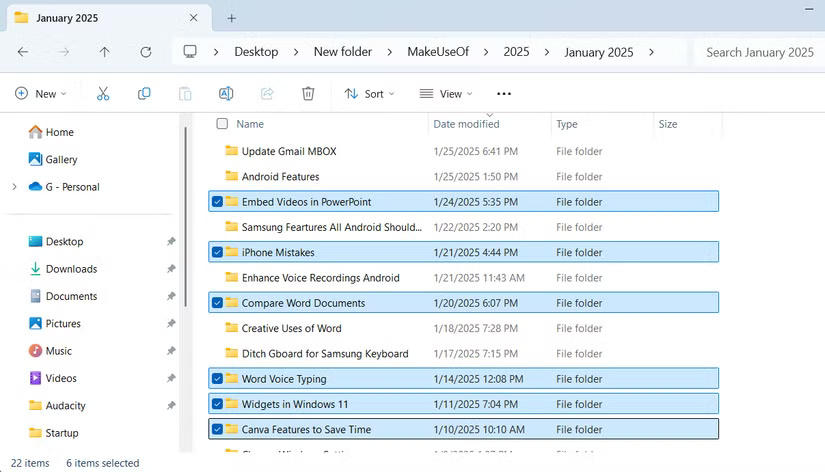
Shift + Click , on the other hand, is ideal for selecting a group of consecutive files. Click the first file, hold Shift , then click the last file in the group. Windows will automatically highlight everything in between.
3. Middle click to open and close tabs quickly
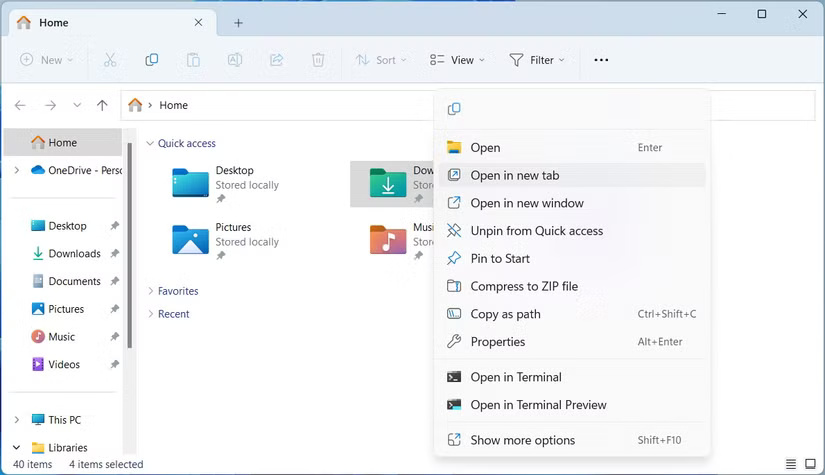
Tabs in File Explorer are a groundbreaking feature, but if you often right-click a folder and choose Open in new tab , there's a faster way. Middle-click (or scroll wheel) any folder in File Explorer and it will instantly open in a new tab. And if you want to close an existing tab, middle-click its title bar.
2. Middle click to auto scroll the page
Scrolling through long web pages or documents with your mouse wheel can get tiring quickly. But there's a way to fix that.
Instead of continuously rotating the mouse wheel, press it (middle click) anywhere on the page. A small circular icon will appear and your cursor will change to indicate that auto-scrolling is active.
Now, move your mouse up or down a little, and the page will start to automatically scroll in that direction. The further you move your mouse away from the icon, the faster the scrolling speed will be.
1. Customize mouse buttons
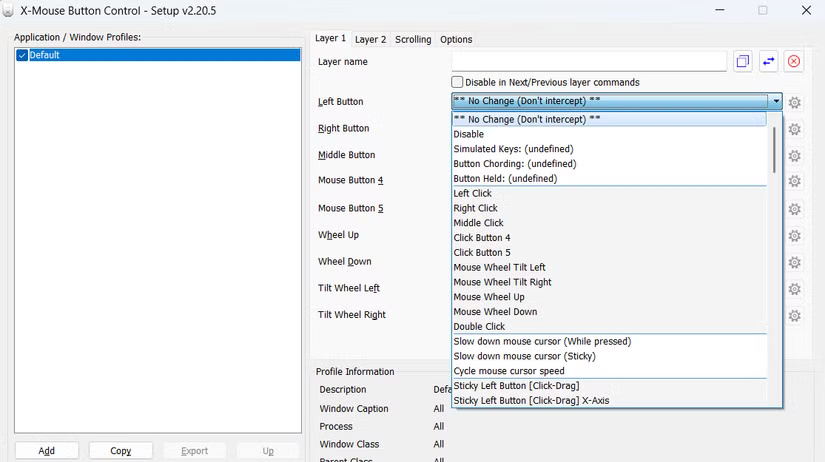
If you've spent money on a high-end mouse like the Logitech MX Master, chances are it came with its own custom software. And if it does, you're sitting on a potential productivity goldmine.
With tools like Logitech Options, Razer Synapse, or Corsair iCUE, you can remap buttons, assign custom shortcuts, and even create application-specific profiles that change how the mouse behaves depending on what you're doing.
Unlike a keyboard, which offers a wealth of useful shortcuts, a mouse may seem limited. But in reality, it can do much more than point and click. Once you get used to the tips above, you'll see how much potential your mouse really has. And with custom software, it's important to tailor your settings to the way you work.
Final Thoughts
The development covered in this article is worth following, but specifications, dates, and feature details may change until the relevant company or organization publishes an official confirmation.
FAQ
What is the main development covered in this article?
Even if you've been using a computer mouse for years, you may still be missing out on some of its most useful features.
What should you know about 7. Drag with right mouse button for Move/Copy menu?
By default, when you drag and drop a file with the left mouse button in Windows, the file is moved to a new location. But what if you want to copy the file or create a shortcut?
Is every reported detail officially confirmed?
Not necessarily. Product leaks, preview builds, research reports, and early announcements can change. Confirm important specifications, dates, and availability through an official source before making a decision.
Related Articles
 How to Enable Mouse Keys Windows 105 minutes read
 How to Fix Mouse Lag in Windows 11/107 minutes read
 10 Other Tips to Fix Mouse Not Working Error on Mac: Top Picks and Buying Guide10 minutes read
 How to Change Mouse Settings in Windows9 minutes read
 How to Set Up the Right Mouse and Mouse Between Touchpad on3 minutes read
 Basic Knowledge: Use Mouse More Effectively6 minutes read
Reader Comments 0
Sign in with email or Google to join the discussion.