Table of Contents
Mouse lag error in Windows will affect the use of the computer and the work you are doing. Below are 9 ways to fix mouse lag error on Windows computer.
Mouse lag in Windows will affect your computer usage and the work you are doing. This mouse lag error can occur in any operating system and version. Below are 9 ways to fix mouse lag on Windows computers.
Restart your Windows 11 computer
If you have just updated Windows 11 and are experiencing mouse lag, try restarting your computer. Restarting can help shut down all conflicting applications and services, and will also clear up any possible mouse issues.
Reconnect the mouse to the computer
For wired mice, try unplugging and plugging them back in to connect to the computer. For Bluetooth mice, just turn off the Bluetooth connection on the device and reconnect.
Test mouse speed and sensitivity
Step 1:
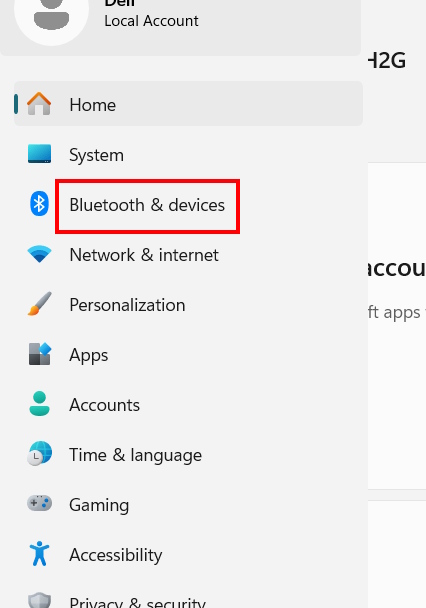
Go to Settings And select Bluetooth & devices .
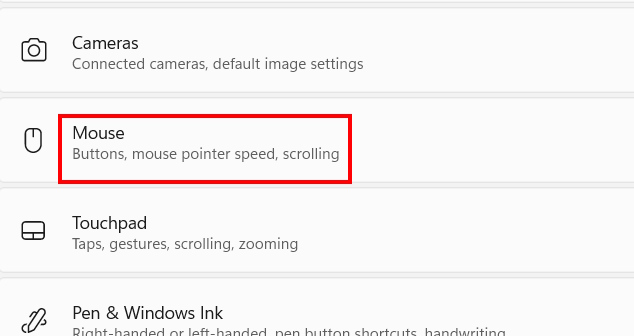
Then click on Mouse To adjust the mouse on the computer.
Step 2:
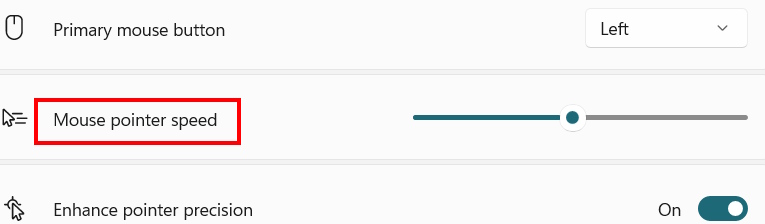
Switch to the new interface in The Mouse Pointer speed section , you Adjust the speed of the pointer .
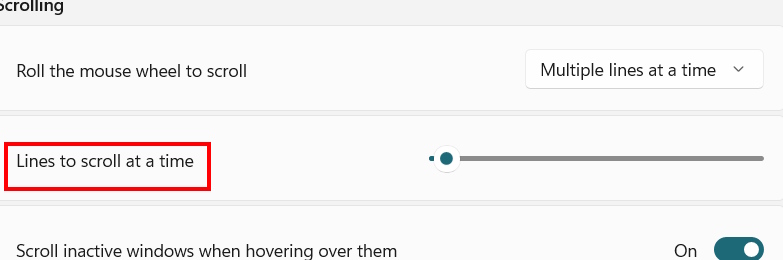
Continue at Line to scroll at a time You also adjust the mouse scroll speed.
Turn off Windows mouse acceleration
Mouse acceleration may cause mouse lag or stutter on your computer.
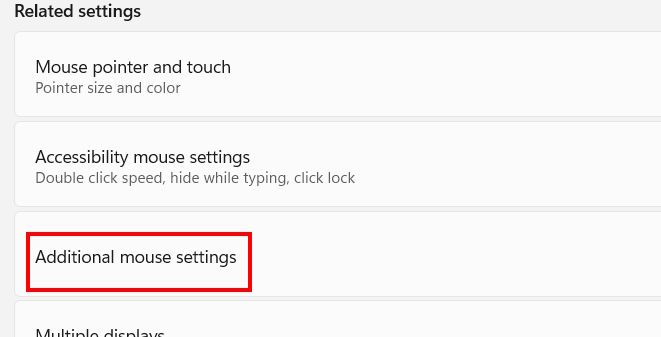
Also in the mouse settings interface on the computer, Click Additional Mouse Settings .
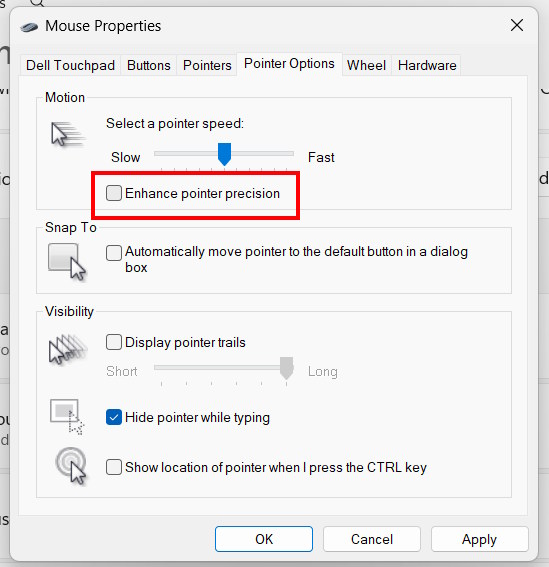
To display the new interface, Click on the Pointer Options tab And Uncheck Enhance pointer precision .
Turn off automatic window scrolling on Windows
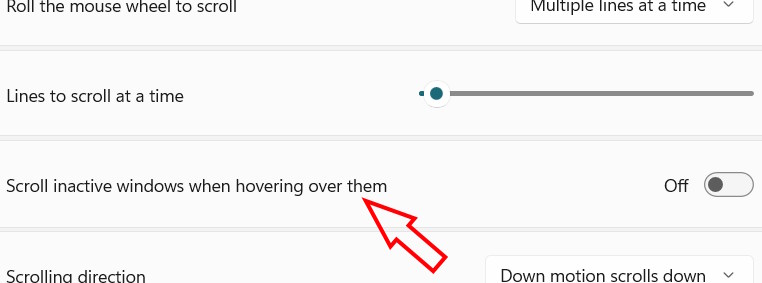
In the computer mouse settings, in The Scrolling section , you just need to Turn off the setting Scroll inactive windows when hovering over them .
Turn off Mouse Trails
Similar to active scrolling windows and mouse acceleration, disabling mouse tracking can also be helpful.
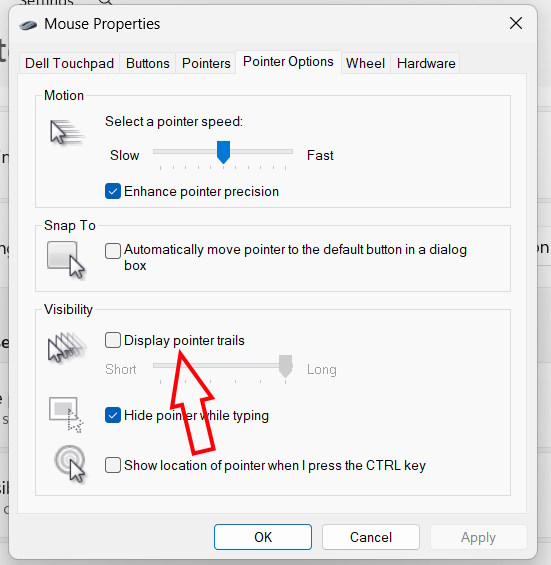
Click Additional Mouse Settings Then Click Pointer Options . Then Uncheck Display Pointer trails .
Turn off battery saving mode on your computer
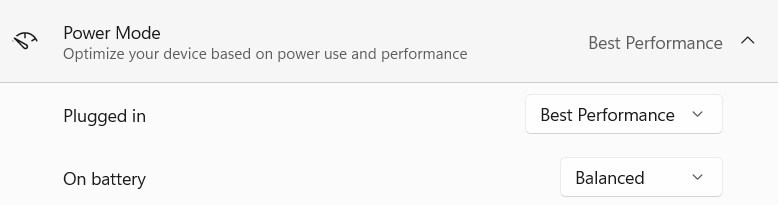
Go to Settings and click on Power & Battery, then in Power mode you choose Balanced or Best Performance.
Update mouse driver
Outdated mouse drivers are also a cause of mouse lag or stuttering.
Step 1:
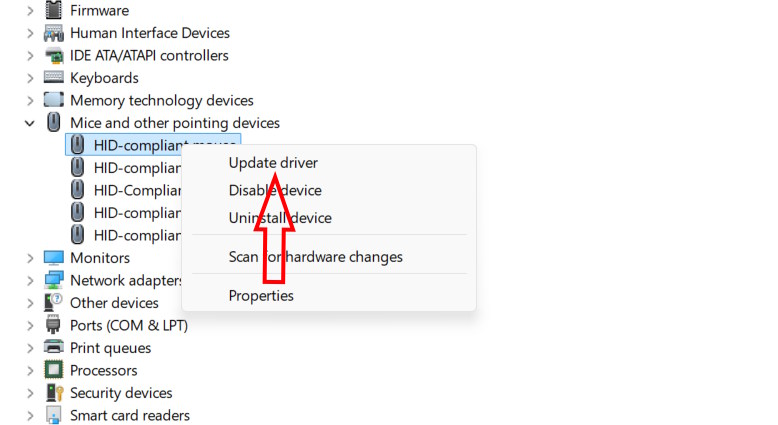
You enter Device Manager in the search bar Then we click on Mice and other pointing devices . We Right click on the mouse and select Update driver .
Step 2:
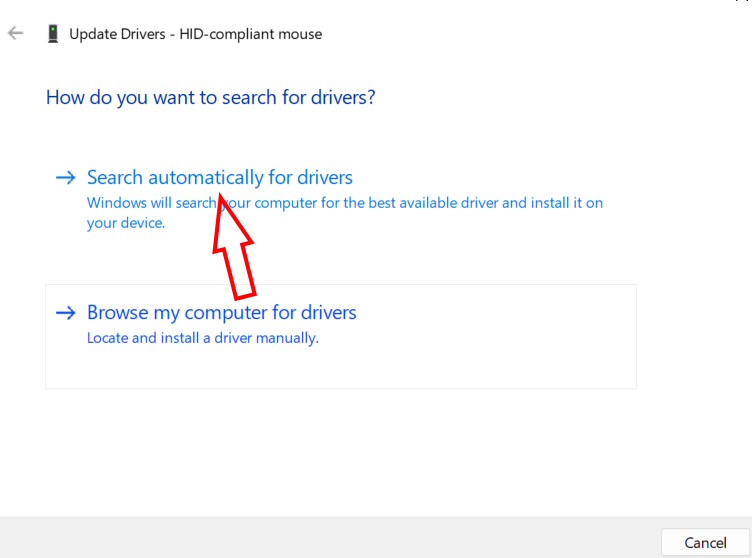
Click Search automatically for drivers To search for new drivers for the mouse.
Reinstall the computer mouse
If updating your mouse driver doesn't fix the problem, you can try reinstalling your mouse.
In the Device Manager interface, Right-click on Mice and other pointing devices And Select Uninstall device To uninstall.
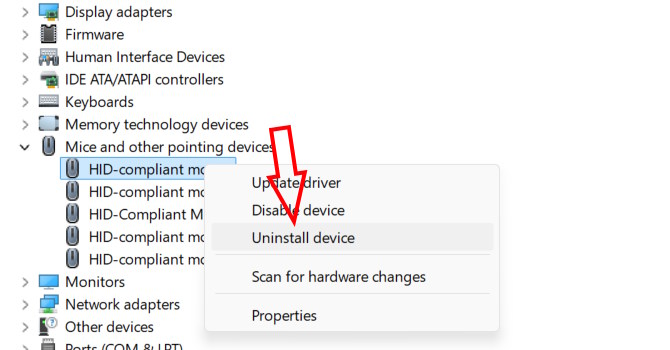
Then Click Uninstall To uninstall the mouse and reinstall it.
FAQ
What should you know about the options in this guide?
In practical terms, mouse lag error in Windows will affect the use of the computer and the work you are doing. Below are 9 ways to fix mouse lag error on Windows computer.
Which option is the best choice?
The best choice depends on your priorities, compatibility, budget, and the specific features discussed in the comparison.
What should you compare before deciding?
Compare core features, limitations, ease of use, compatibility, and long-term value before making a decision.
Related Articles
 How to Fix Mouse Lag in Windows 11/107 minutes read
 Steps to Adjust Mouse Speed on Windows 115 minutes read
 How to Adjust Mouse Speed on Windows 10 and 114 minutes read
 How to Change Mouse Settings in Windows9 minutes read
 2 Ways to Connect Wireless Mouse to Windows or Mac Laptop4 minutes read
 Ways to Make Smart Mouse Traps with Simple Household Items6 minutes read
Reader Comments 0
Sign in with email or Google to join the discussion.