Table of Contents
You may be familiar with some of the functions that the physical buttons on your iPhone can perform, like taking a screenshot or opening the power menu, but that's not all. From controlling the camera to instantly accessing accessibility features, there's a lot you can do without touching the screen.
- How to use iPhones without a Home button
7. The Basics
The side button on your iPhone isn't just for locking or waking the screen. Pressing and holding it will activate Siri. This is handy when you don't want to say "Hey Siri" or are in a noisy place. Now that Siri is integrated with ChatGPT, you can get AI-powered answers without opening any apps.
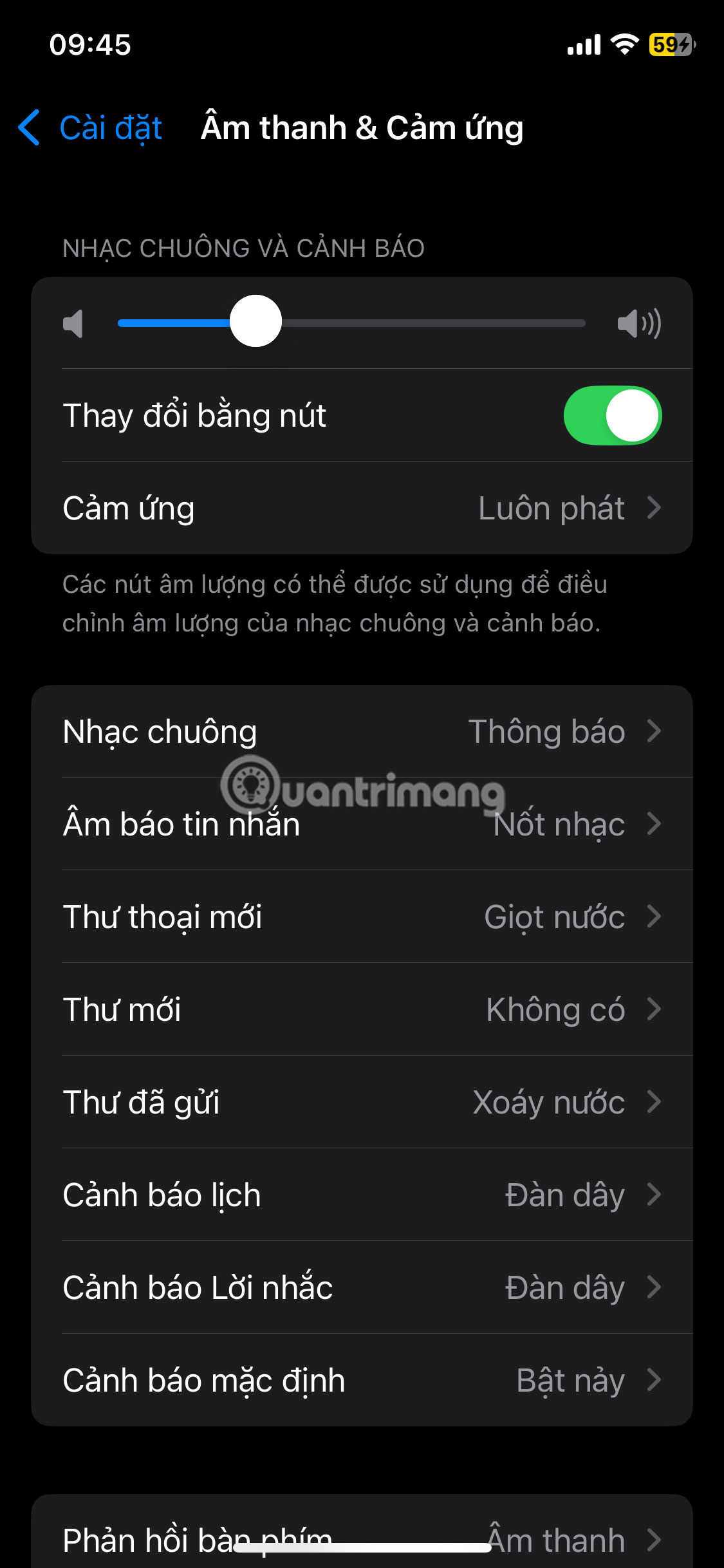
By default, the volume up and down buttons on the left side control music volume. However, when you're not playing music, you can set them to adjust your ringer volume. To change this, go to Settings > Sounds & Haptics and turn on Change with Buttons .
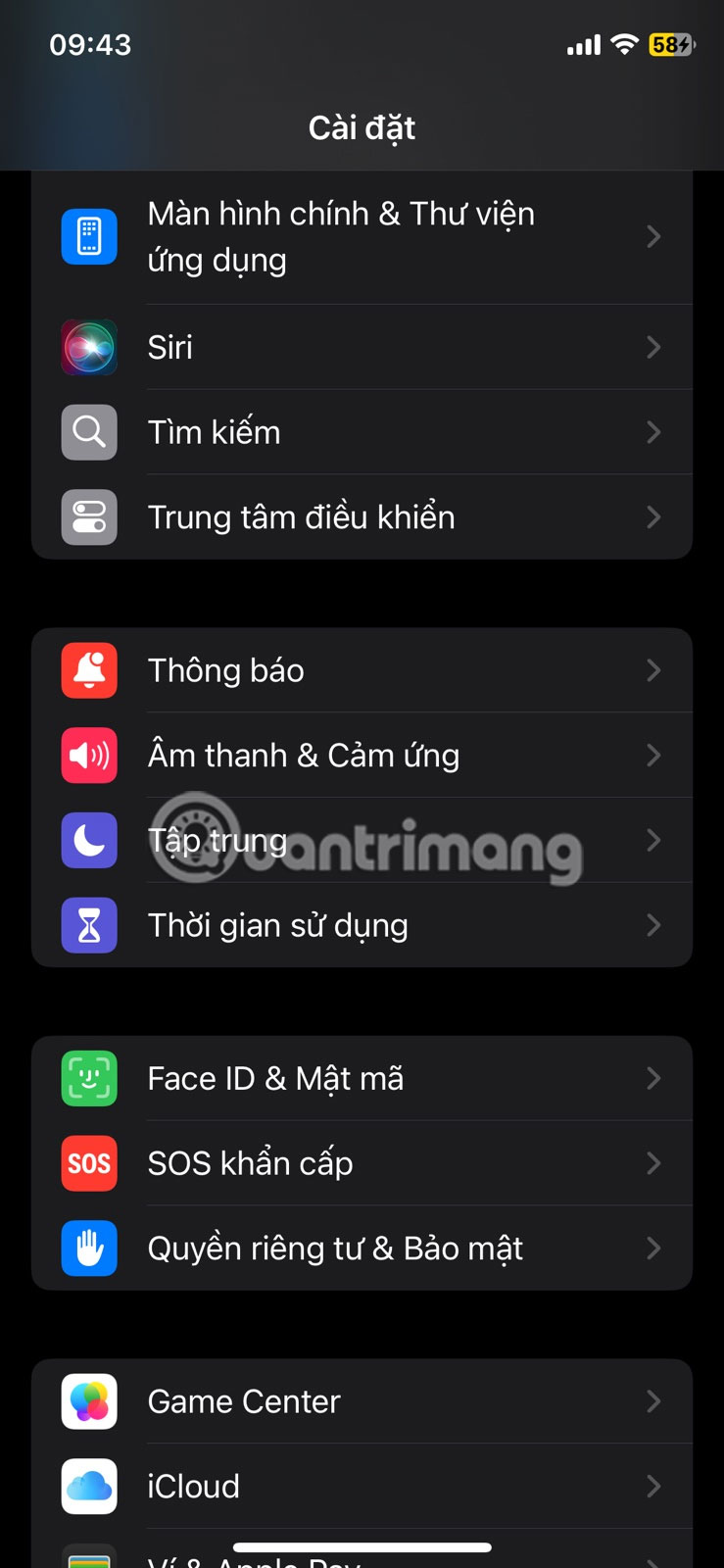
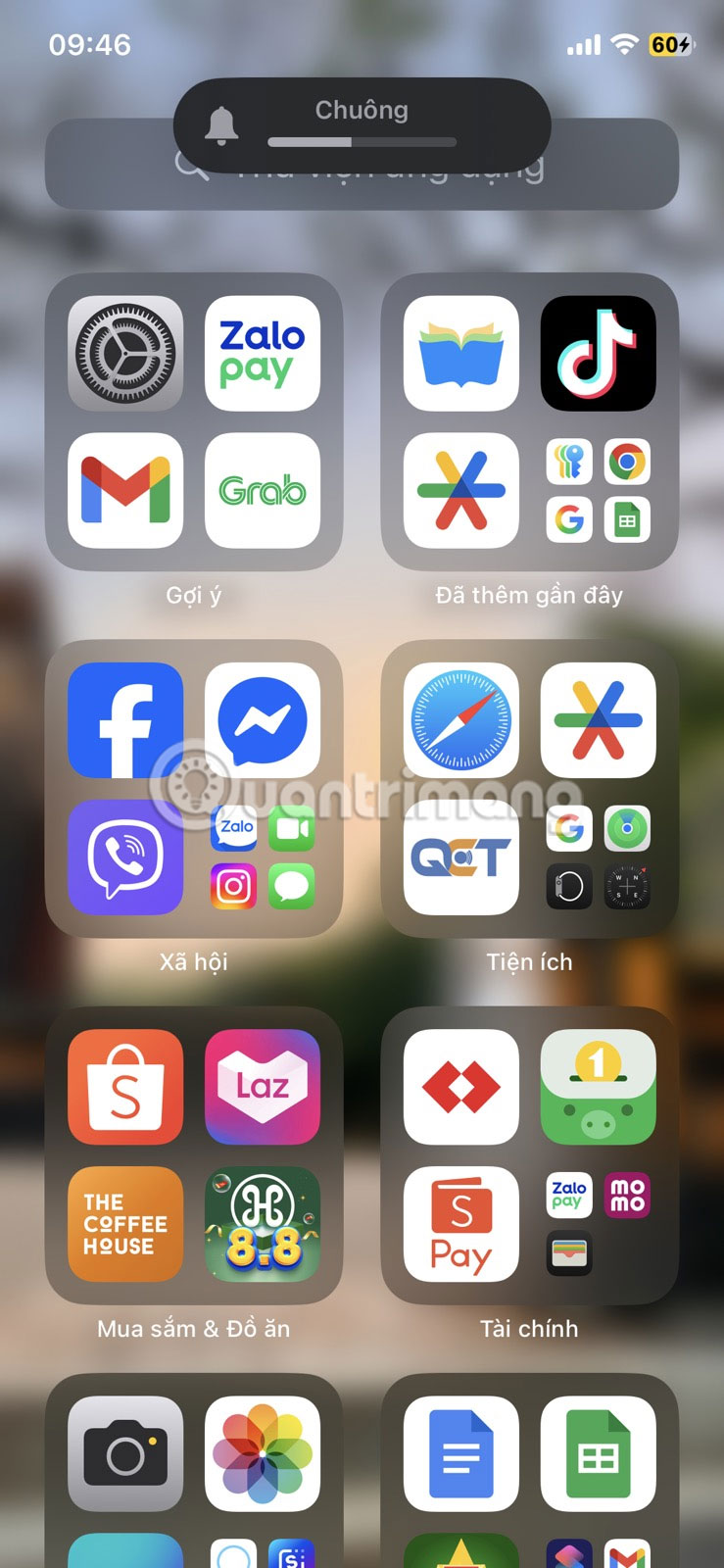
Pressing the volume up button along with the side button will take a screenshot. But if you press and hold this combination, the power menu will appear, from which you can turn off your iPhone. This feature also works if you press and hold the volume down button.
6. Camera Control
If you have one of the latest iPhone 16 models, you'll also get a dedicated Camera Control button right below the side button. A single press will launch the Camera app instantly, so you don't have to hunt for it.
When you enter the Camera app, the Camera Control button turns into a convenient shutter button. This lets you take photos without having to tap the on-screen shutter button. You can also swipe up or down on the button to smoothly switch between zoom levels or switch to the front camera for selfies.
Pressing and holding the Camera Control button launches Visual Intelligence, turning your iPhone into a smart assistant. You can then point the camera at a restaurant to see more information, identify plants and animals, or even translate text instantly.
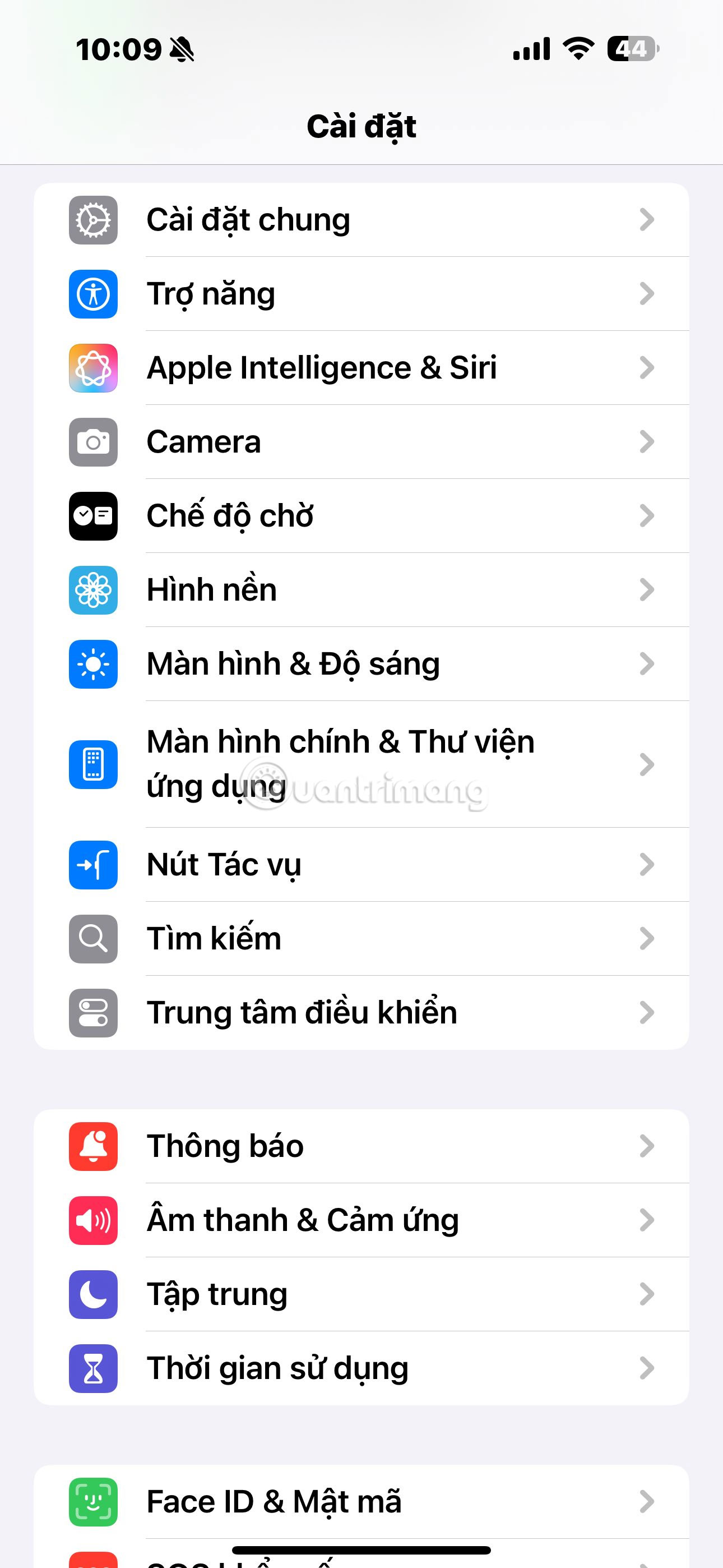
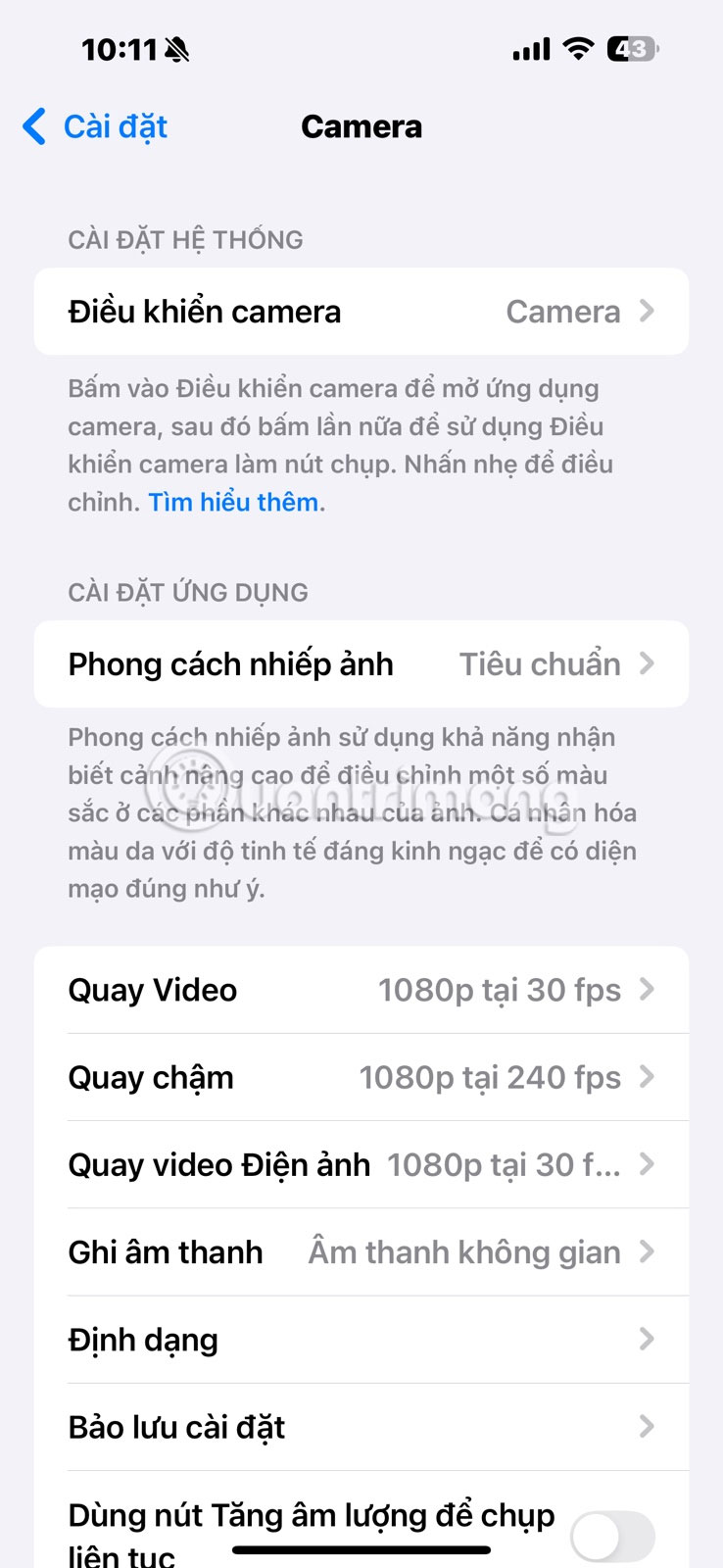
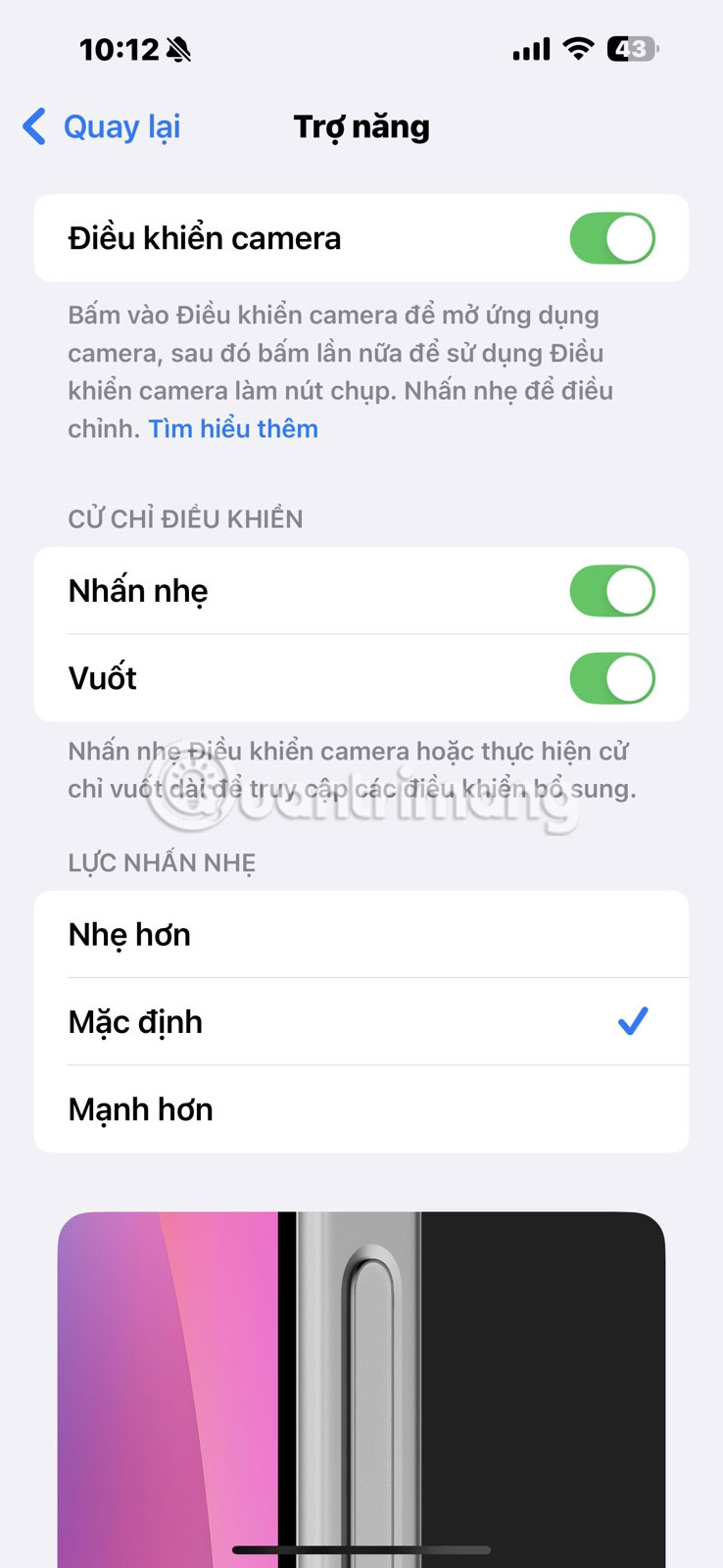
There are also a few other things you can do with the Camera Control button. For example, go to Settings > Camera > Camera Control to change which app opens the shortcut. If you prefer to use a third-party camera app like Snapchat or ProCamera, install that app and it will appear in the list. Additionally, under Accessibility in the same menu, you can adjust the button's pressure sensitivity to your liking.
5. Access your favorite accessibility features
The Accessibility menu on iPhone is packed with powerful tools that anyone can use, like AssistiveTouch, Live Speech, Reduce White Dot, and more. But you don't have to open that menu every time you want to use your favorite accessibility feature.
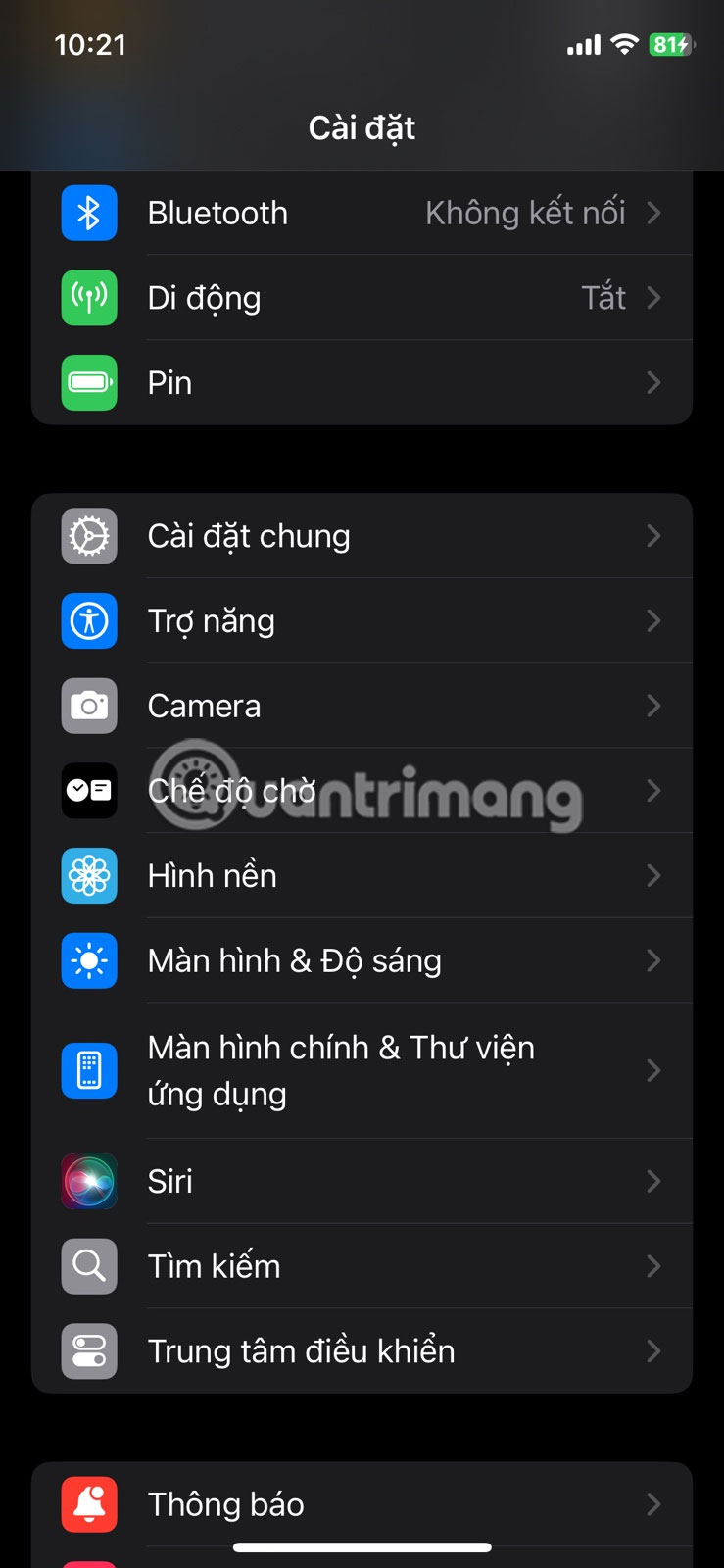
You can quickly turn accessibility features on or off by quickly pressing the side button on your iPhone three times. To set them up, go to Settings > Accessibility > Accessibility Shortcut , then select the feature you want from the list.
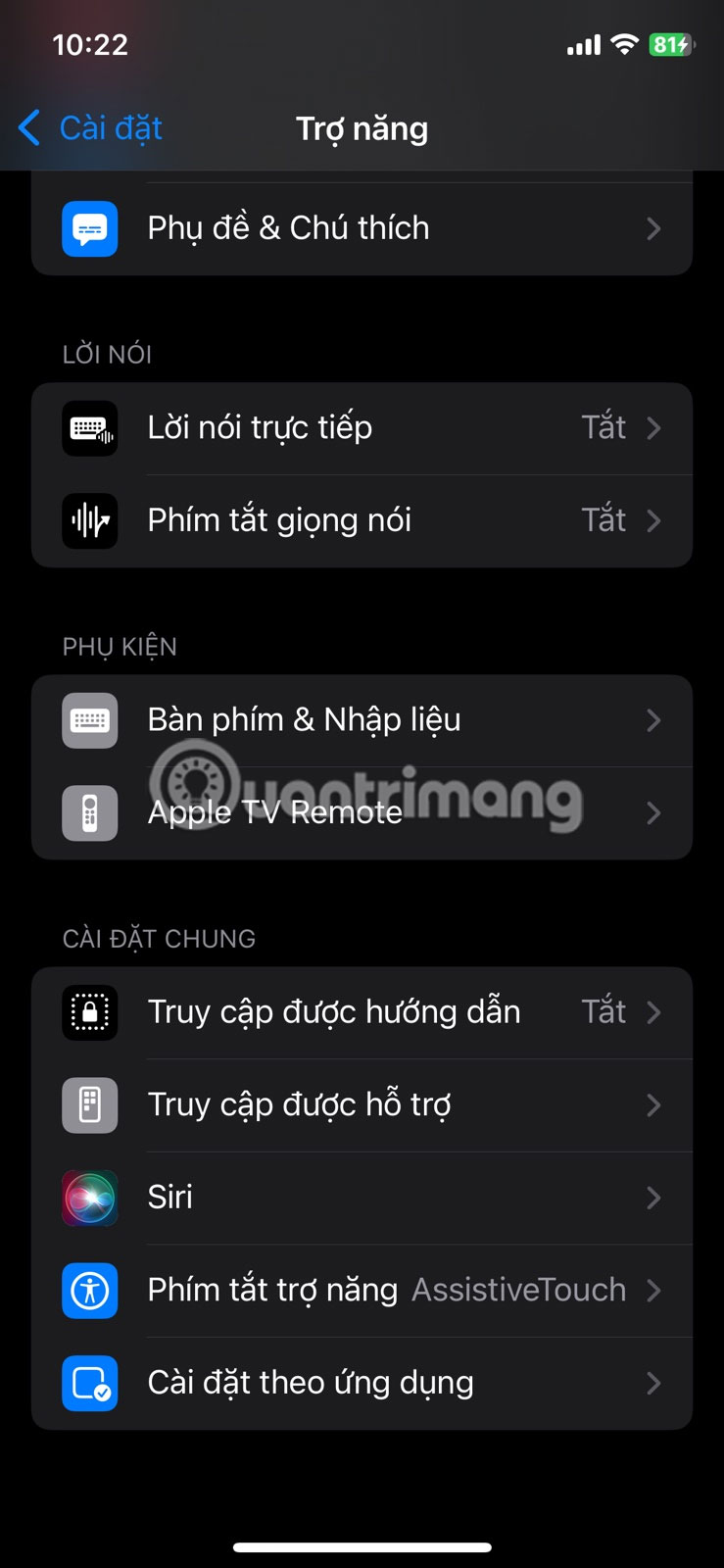
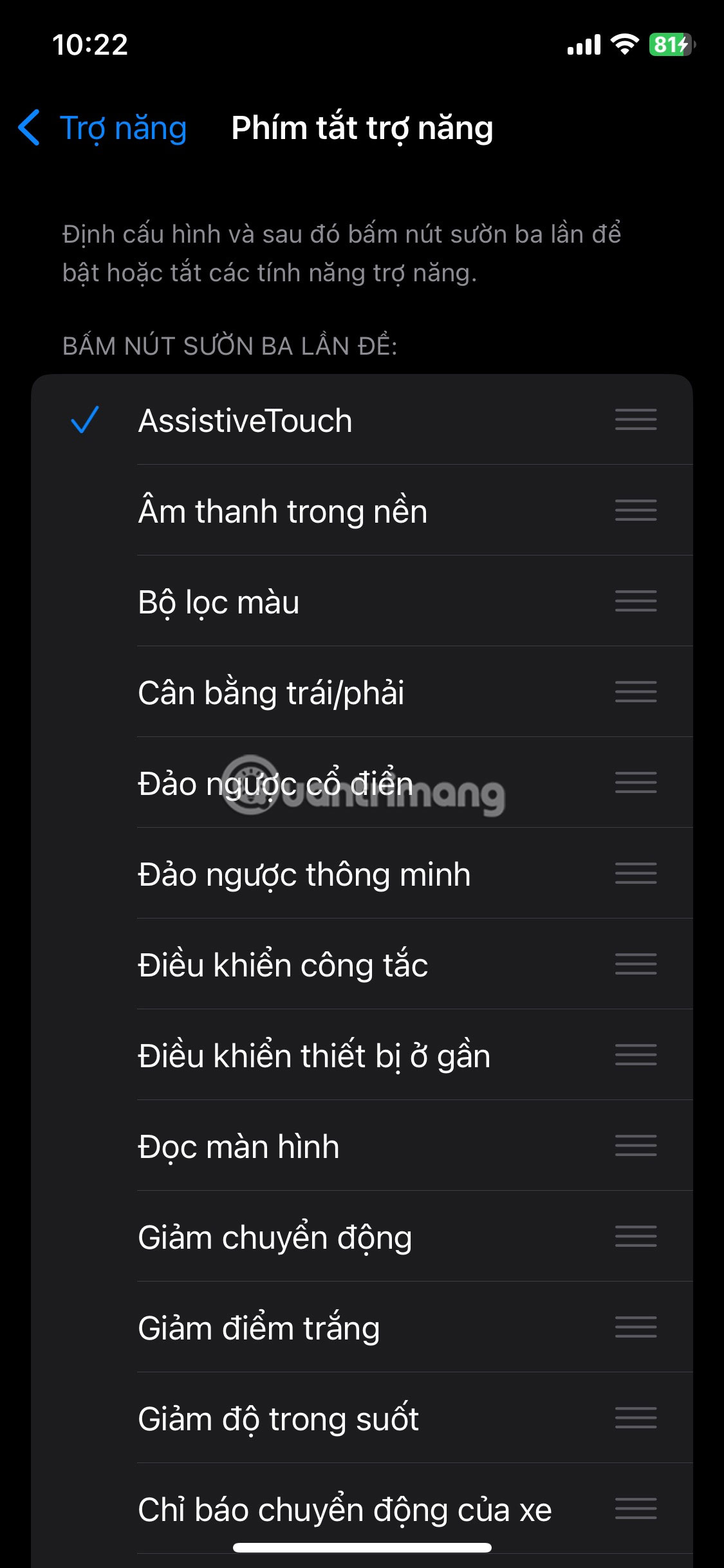
For instance, if you use Magnifier frequently, select it from the list and you can activate it at any time by simply triple-tapping the side button. Similarly, if AssistiveTouch or Vehicle Motion Cues are features you use every day, you can set the side button to launch those features.
4. Apple Pay Payment
While triple-tapping the side button will activate your chosen accessibility feature, a quick double-tap also has another useful function: Apple Pay. When your iPhone is locked, just double-tap the side button to instantly bring up your default payment card.
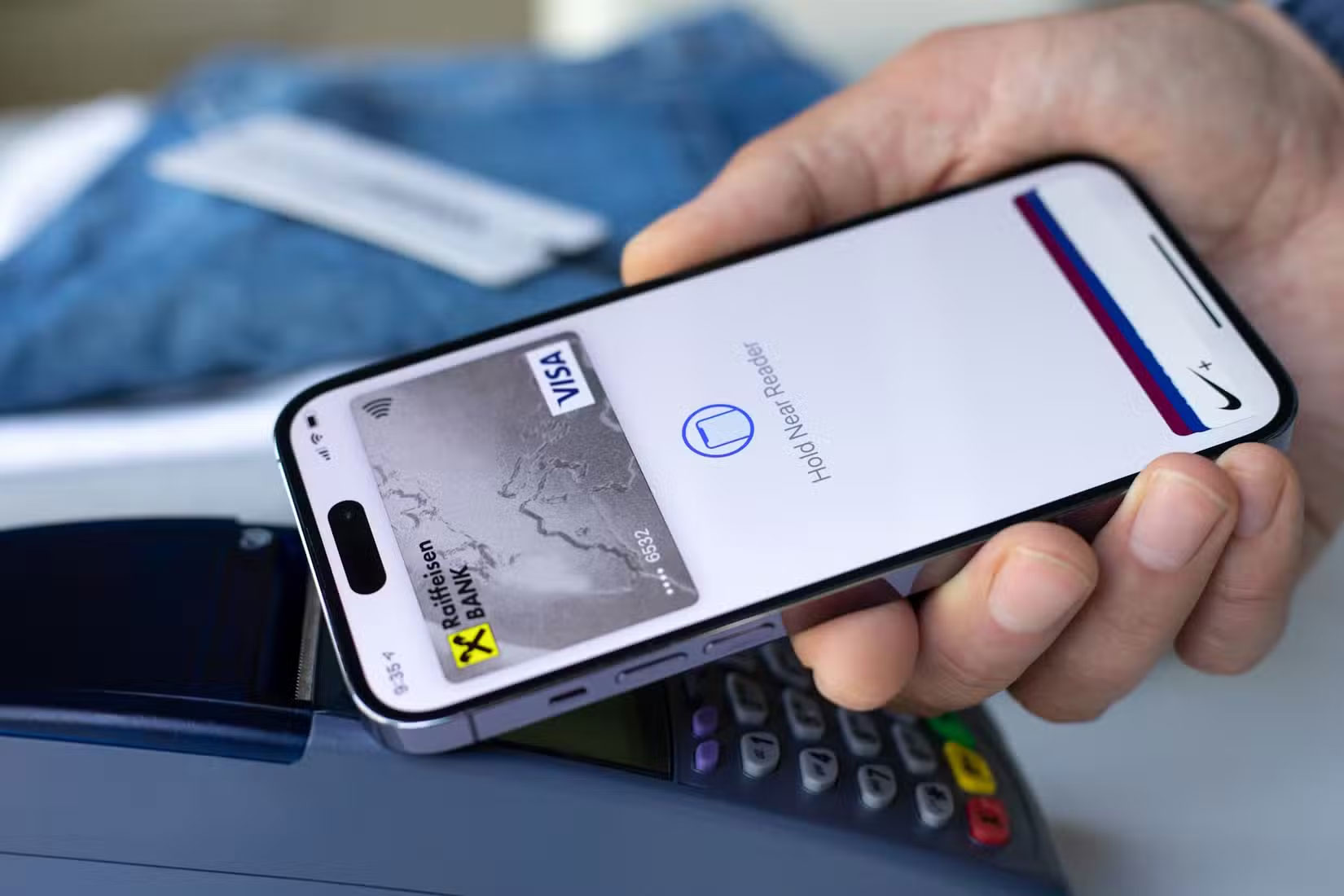
From there, authenticate with Face ID or your passcode, then hold your iPhone near the payment terminal to complete your transaction quickly and securely. If you have multiple cards set up, swipe left or right to select the card you want before paying.
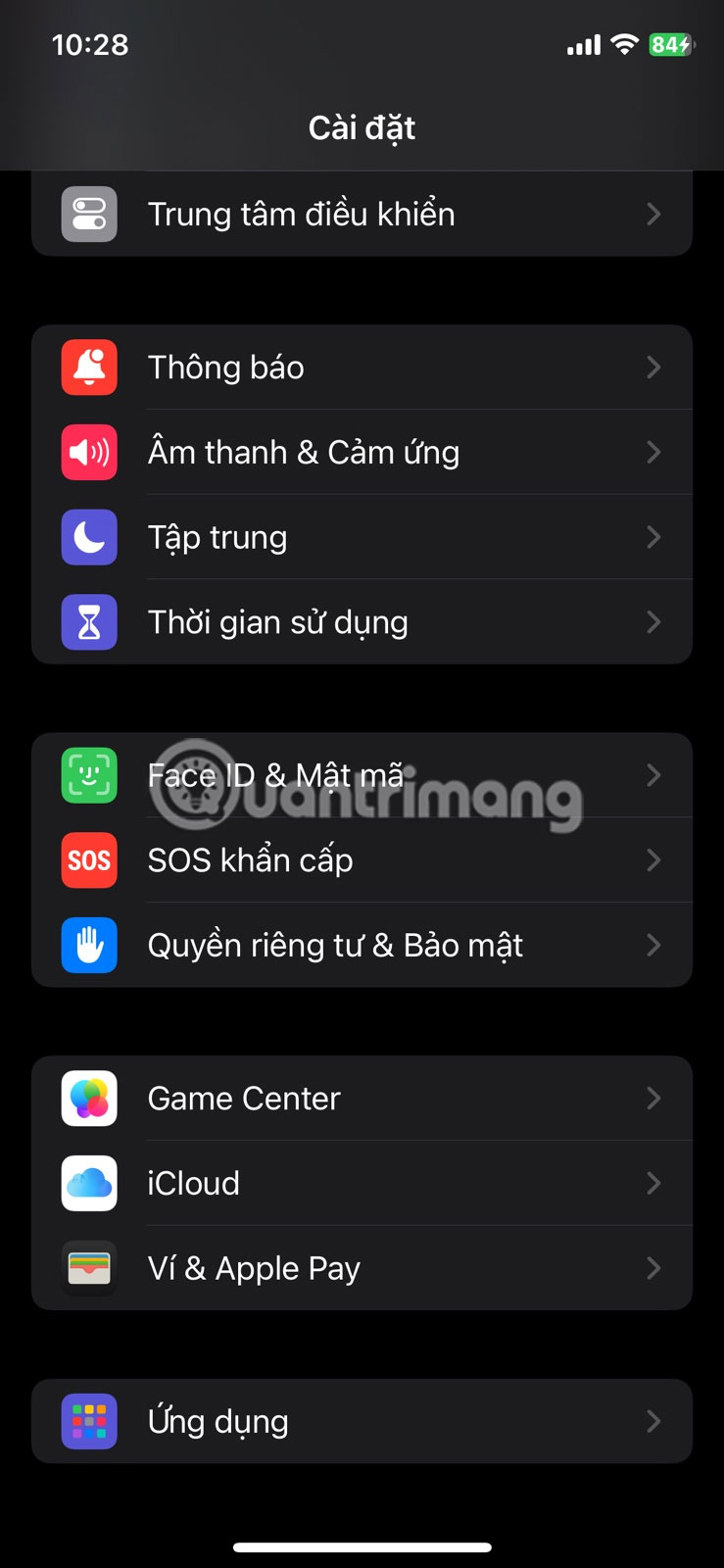
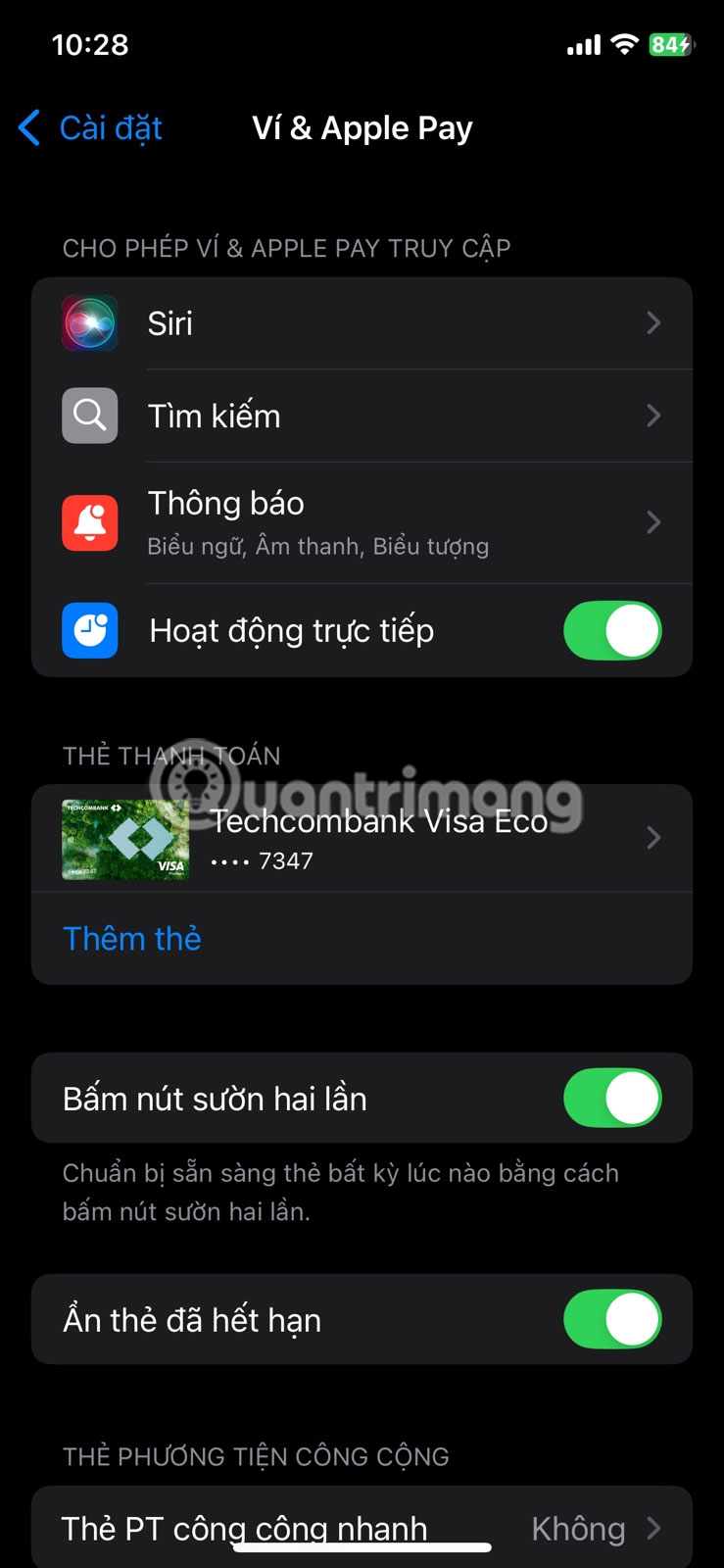
This shortcut makes transactions seamless and quick, especially when you're on the go or in a hurry. To make sure this feature works on your iPhone, go to Settings > Wallet & Apple Pay and turn on the Double-click side button toggle.
3. Activate emergency SOS
The emergency features on your iPhone are something you hope you never need, but knowing how they work can be crucial in an emergency.
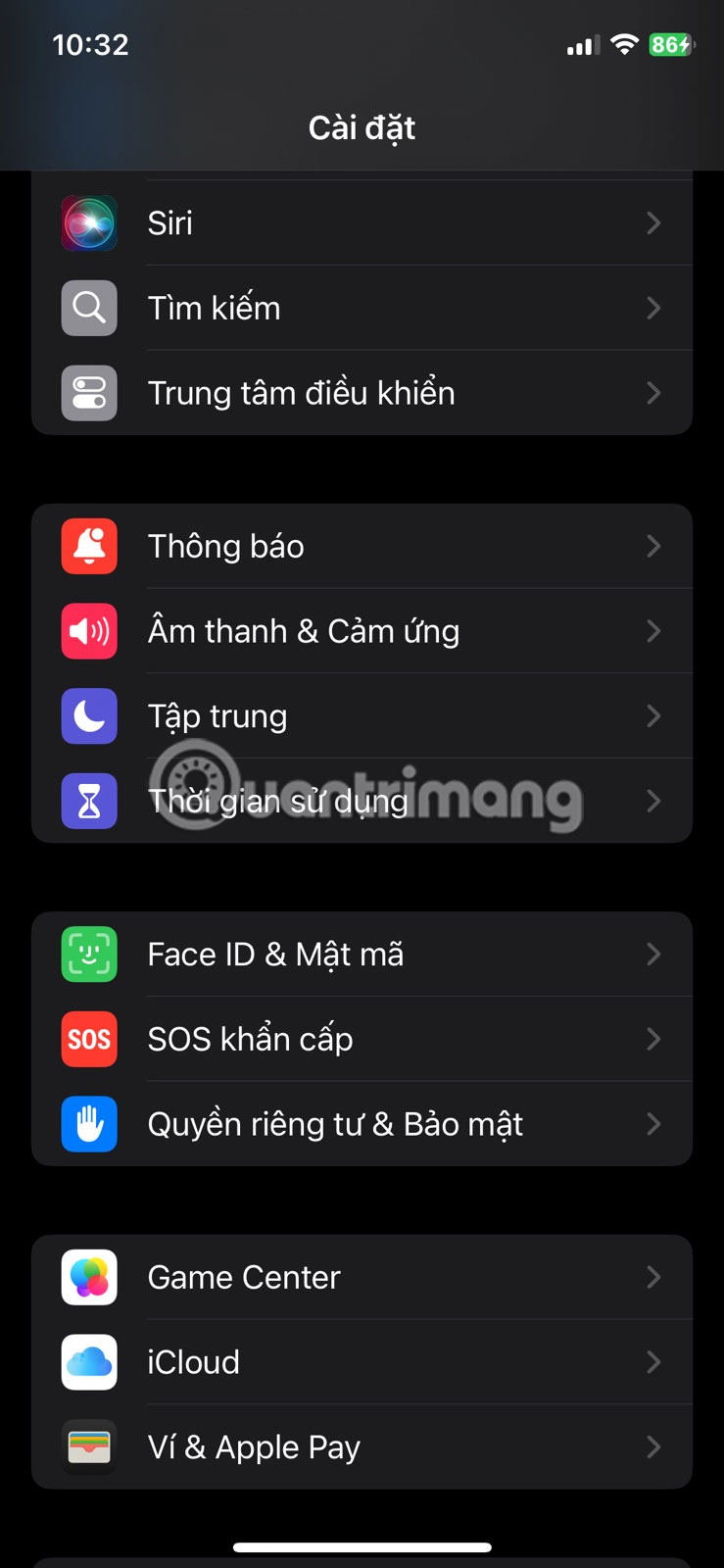
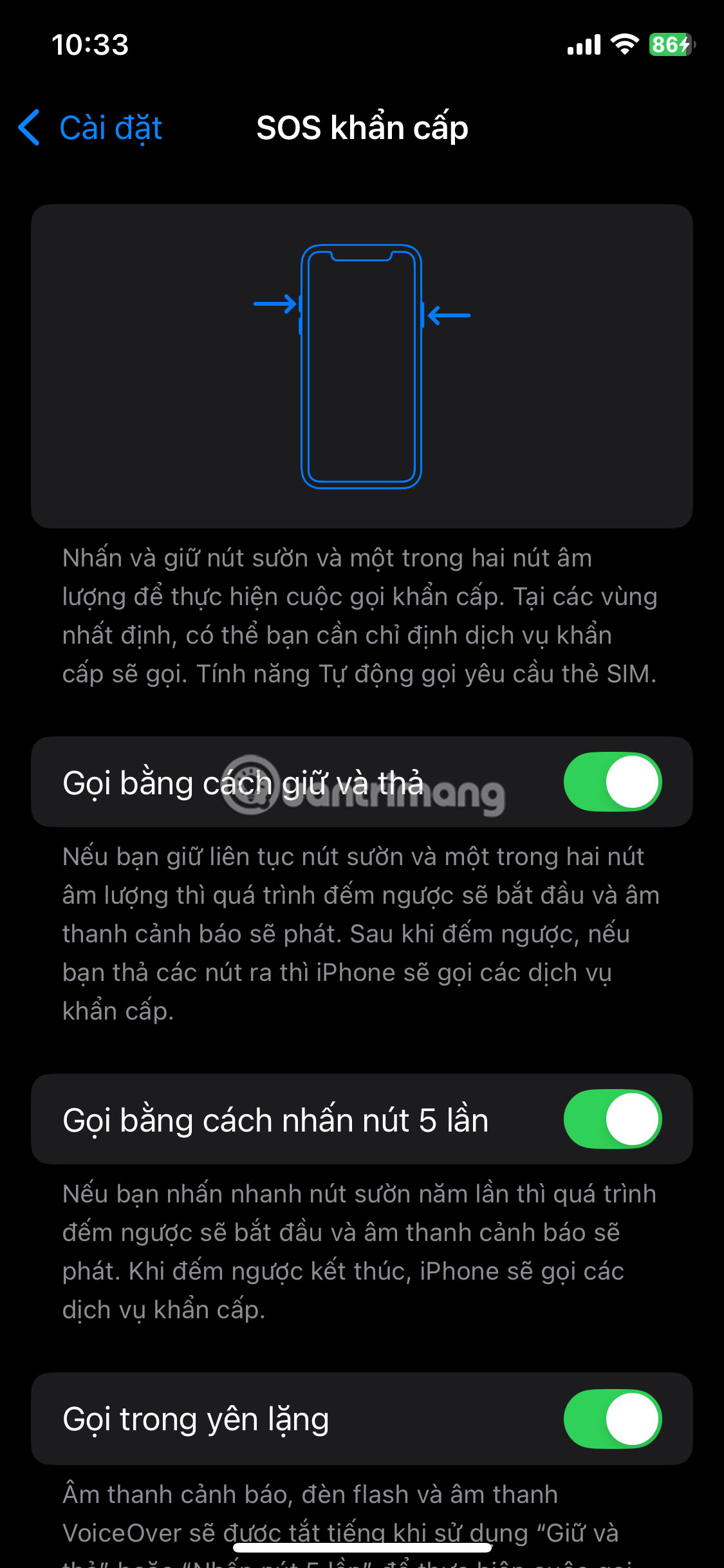
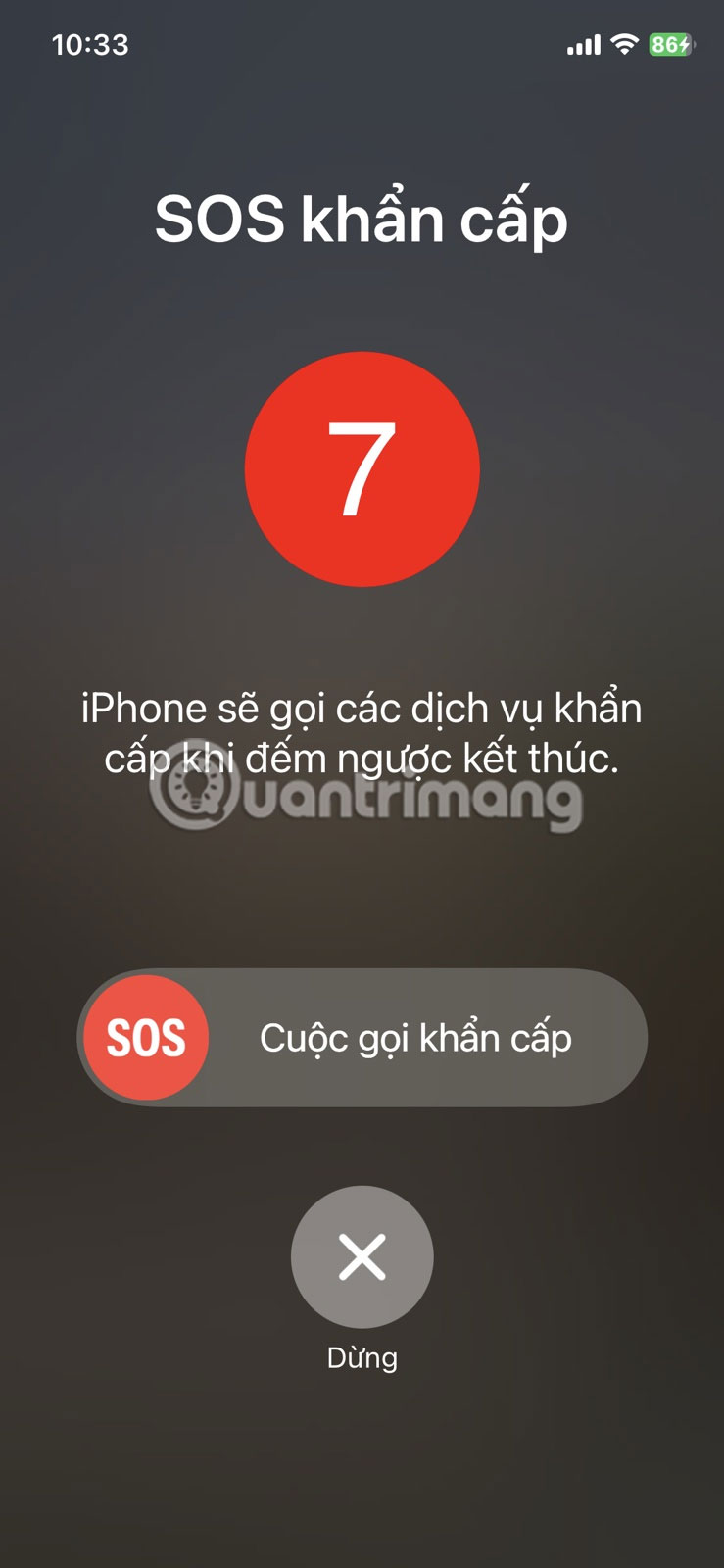
To activate Emergency SOS, press and hold the side button along with the volume up or down button. When the Emergency SOS slider appears on the screen, drag it to immediately call emergency services. This feature works even when your iPhone is locked, so you can use it in any situation.
If you can't see the screen, simply hold the side button and either volume button and your iPhone will automatically call emergency services without you having to slide any buttons.
If the volume buttons aren't working on your iPhone, or if you want a slightly easier option, go to Settings > Emergency SOS and turn on Call with 5 Presses . Once enabled, quickly pressing the side button 5 times will instantly place an emergency call. This way, you'll have the peace of mind that help is just a few taps away.
2. Customize Action button
On the latest iPhone models, the Action button replaces the classic mute button and offers much more flexibility. It sits where the mute button used to be and can be set to perform a variety of useful tasks, such as starting a voice memo, turning on the flashlight, recognizing music, and more.
By default, pressing and holding the Action button switches between Silent and Ring mode. To change, go to Settings > Action Button .
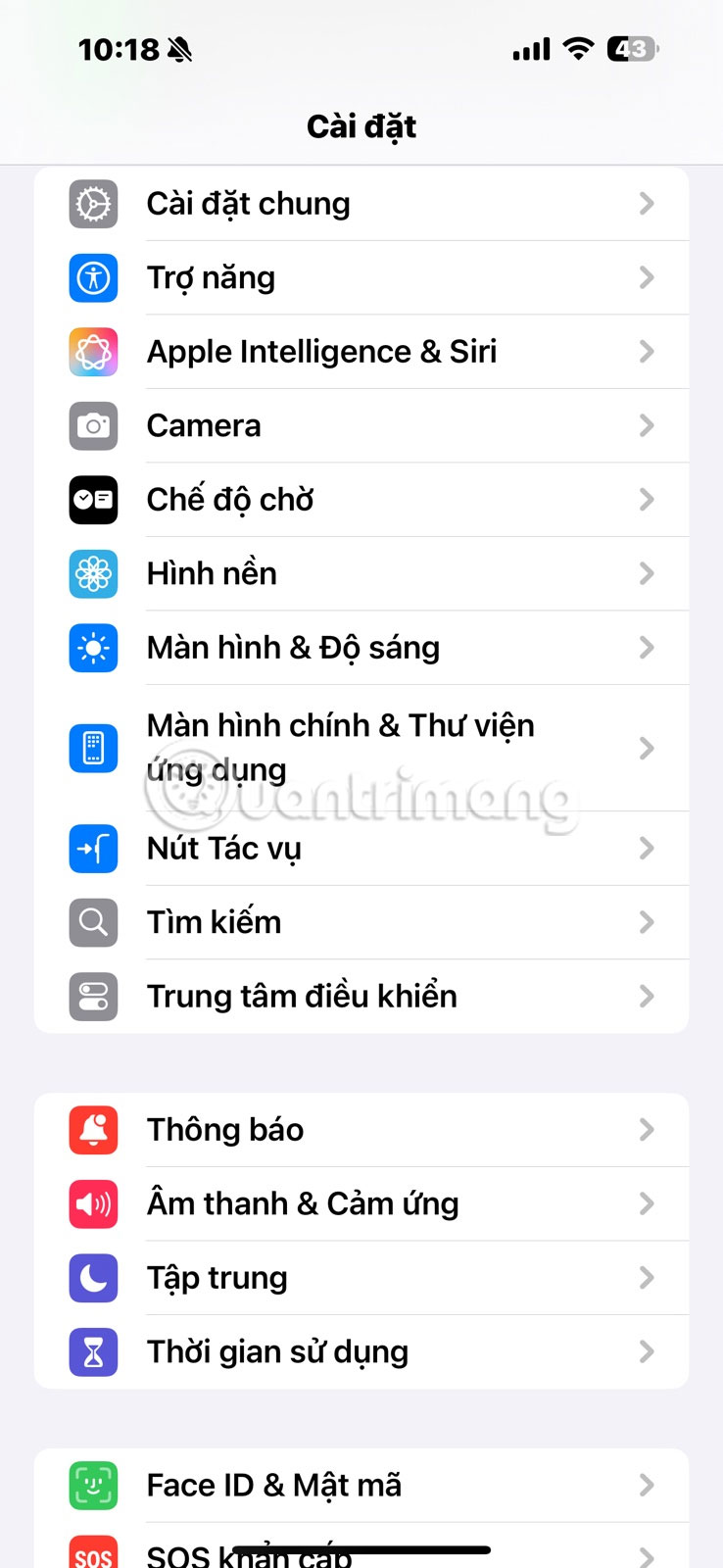
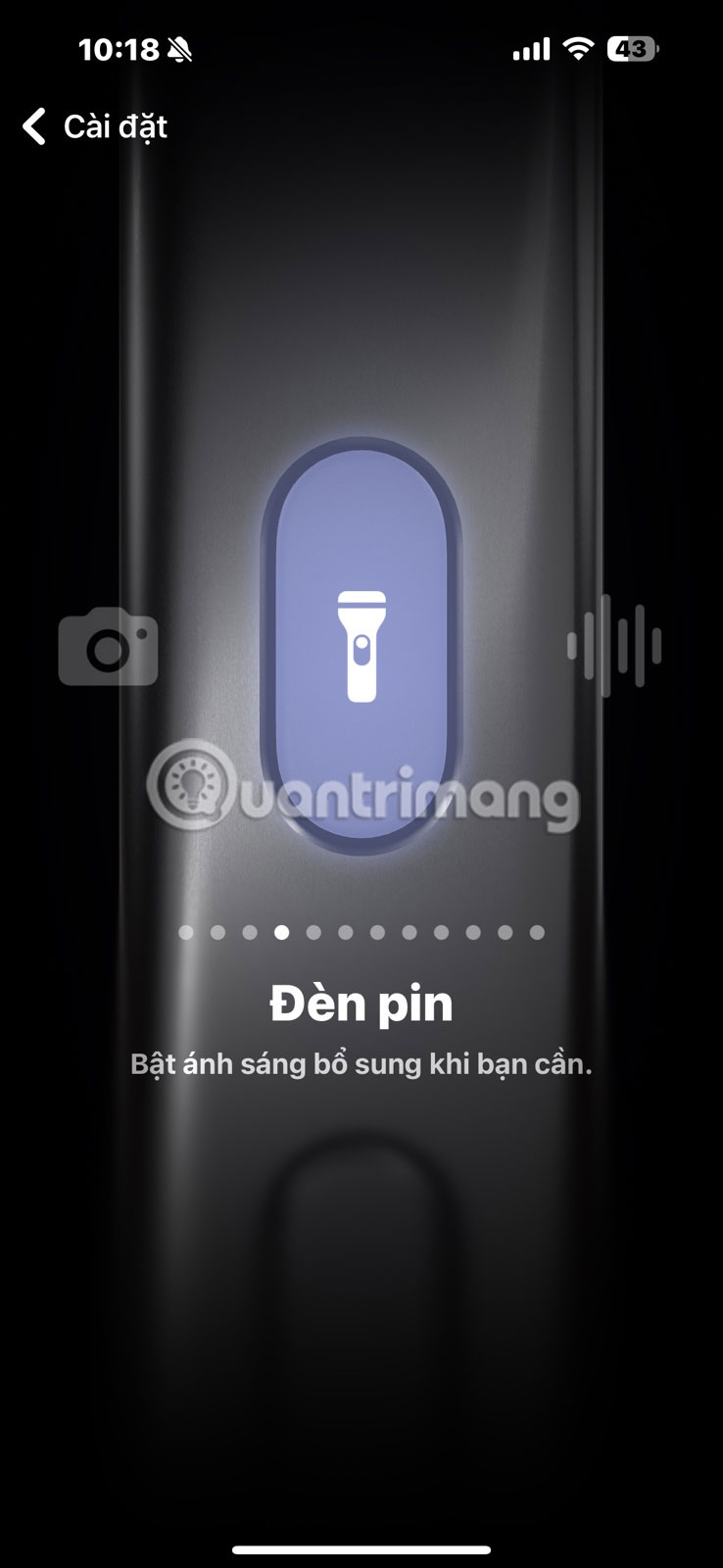
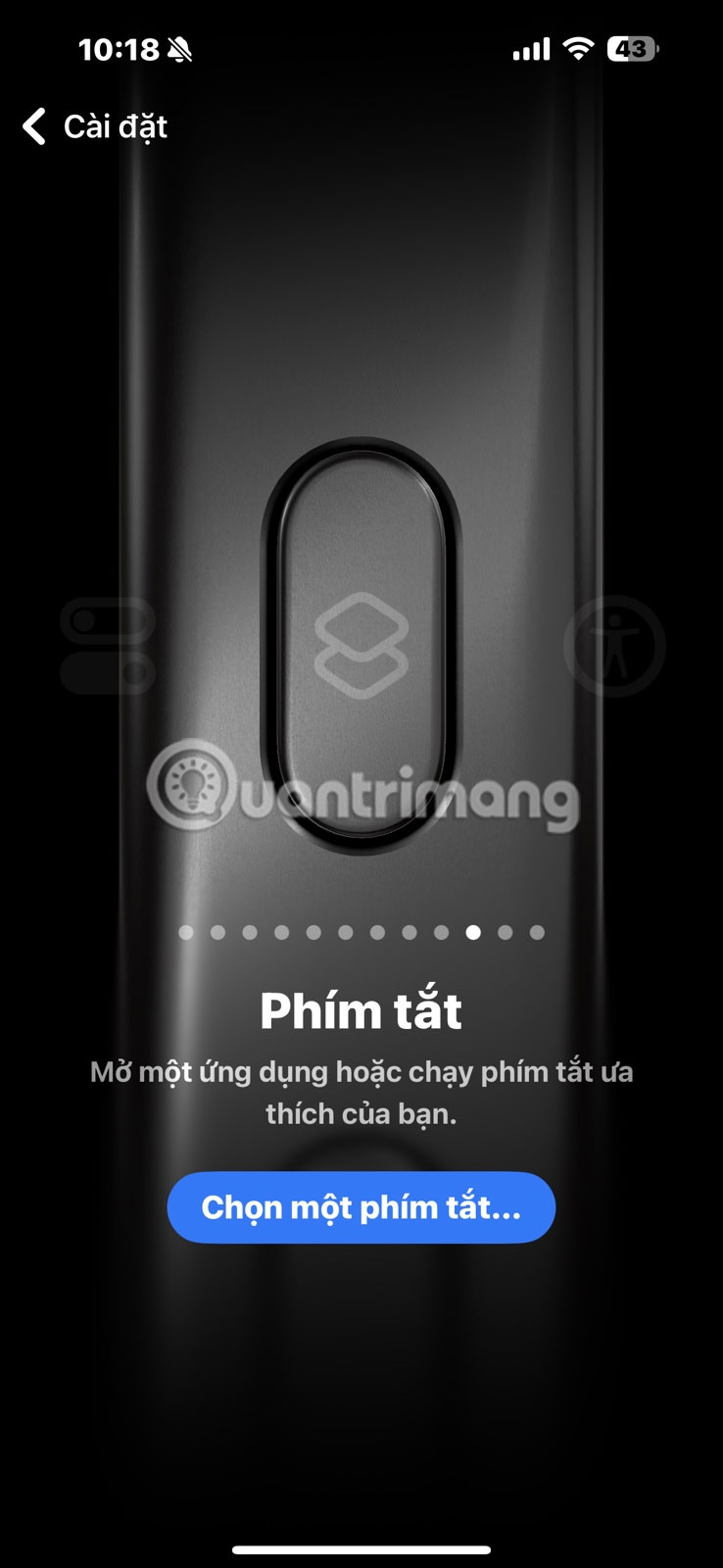
There are a variety of options to choose from, including Voice Memos, Controls, Flashlight, Translate, and Magnifier. For options like Focus, Camera, Controls, Shortcuts, or Accessibility, you can fine-tune exactly what happens when you press or hold a button.
For instance, you can specify which Focus mode to enable or which camera mode to open when you hold the button. And if you don't want the button to do anything, there's an option to set it to No Action .
If you're using the Shortcuts app to automate everyday tasks, you can even use the Actions button to launch any shortcuts you've created. That means you can start a playlist, set a timer, or send a quick message with just a tap.
1. Force restart iPhone
Restarting your iPhone is a classic fix for many temporary issues. Normally, you can press and hold either volume button along with the side button to bring up the power menu. But if your phone is completely frozen and unresponsive, that's not a viable option.
When that happens, a forced restart can save the day. Press and quickly release the volume up button, then press and quickly release the volume down button. Then, press and hold the side button until the Apple logo appears on the screen. When the logo appears, release the button and the phone will restart.
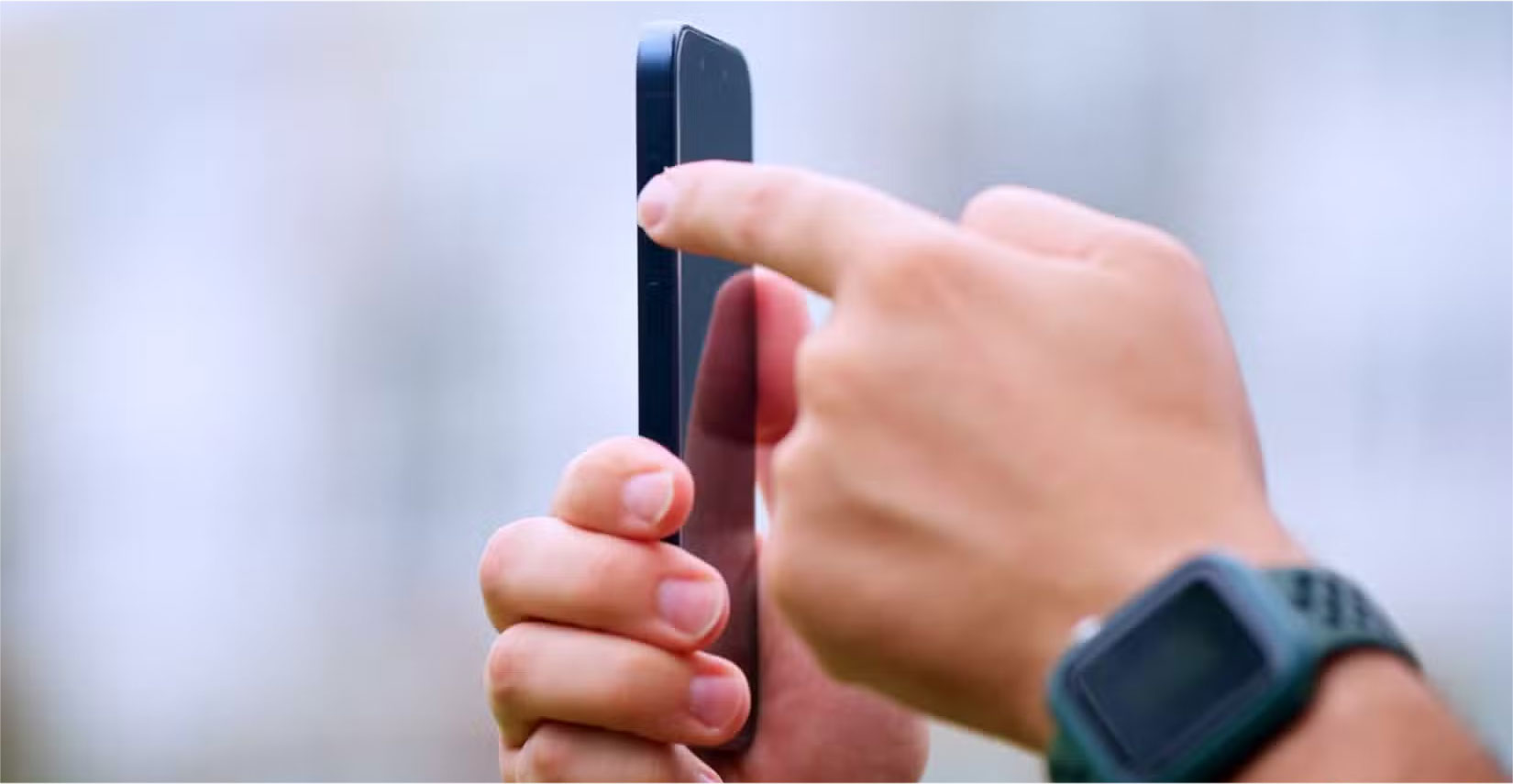
This method is perfect for dealing with unresponsive screens or stubborn apps that won't close. It's usually the first fix you should try before moving on to more complicated fixes like factory resetting your iPhone.
Getting to know the buttons on your iPhone can make certain tasks a lot easier. Depending on your iPhone model, you may not be able to use all of these tips, but you'll definitely discover new ways to speed up everyday tasks.
Final Thoughts
Overall, Here's What the Buttons on Your iPhone Can Actually Do! is best understood by considering the main facts, practical context, and limitations together. Use the details above as a clear starting point and confirm time-sensitive information when necessary.
FAQ
What does this article explain about Here's What the Buttons on Your iPhone Can Actually Do!?
You may be familiar with some of the functions that the physical buttons on your iPhone can perform, like taking a screenshot or opening the power menu, but that's not all.
What should you know about 7. The Basics?
The side button on your iPhone isn't just for locking or waking the screen. Pressing and holding it will activate Siri. This is handy when you don't want to say "Hey Siri" or are in a noisy place.
Should time-sensitive details be verified?
Yes. Software features, game codes, product specifications, prices, and research findings can change. Confirm important details with an official or primary source when accuracy affects your decision.
Related Articles
 Will iPhone 16 Be the First iPhone Without Mechanical Buttons Explained5 minutes read
 Troubleshoot iPhone Volume Buttons Not Working8 minutes read
 Map Shortcuts to Any Mouse Button to Cycle Through Applications: How-To Guide7 minutes read
 How to Enable / Disable the Use Small Taskbar Buttons Option3 minutes read
 How to Create a Bootstrap Button7 minutes read
 Are You Using the Full Potential of the Buttons on Your Android Phone?8 minutes read
Reader Comments 0
Sign in with email or Google to join the discussion.