Table of Contents
When presenting slides on PowerPoint, we can use the laser effect for the mouse pointer, by pressing and holding the Ctrl key and then clicking the mouse to display the laser effect, in addition to using the available PowerPoint effects for the presentation slides. With the laser mouse pointer effect, the audience will focus more on a specific part that you are presenting. And by default, the laser mouse pointer on PowerPoint is in red mode. If you want to change the color of the laser mouse pointer on PowerPoint, it is also very simple and easy. The following article will guide readers on how to turn on the laser mouse pointer and how to change the color of the PowerPoint laser mouse.
PowerPoint laser pointer tutorial
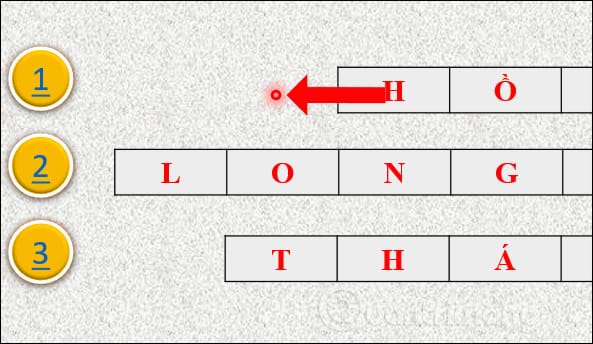
Starting with PowerPoint 2010, Microsoft added the option to have a laser pointer effect during presentations. To switch from a regular pointer to a laser pointer, press and hold the Ctrl key and then left-click. The effect will disappear when we release the mouse.
When this laser pointer hovers over a specific slide area, the viewer will pay more attention.
Step 1:
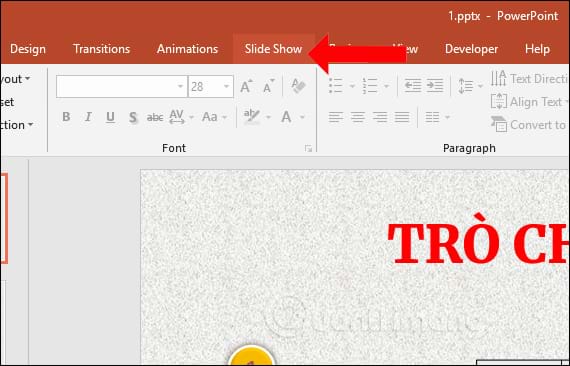
Click the Slide Show section on the ribbon bar in the PowerPoint interface.
Step 2:
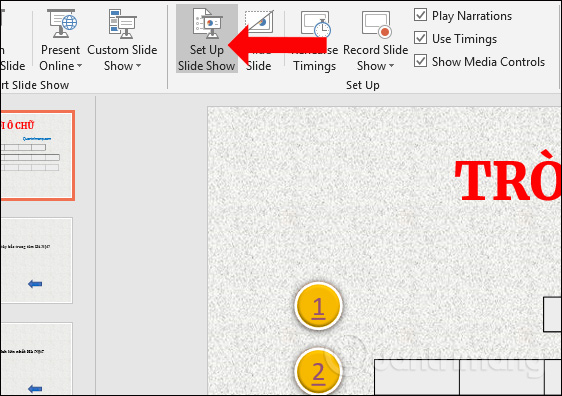
To display more tools below, users select Set Up Slide Show .
Step 3:
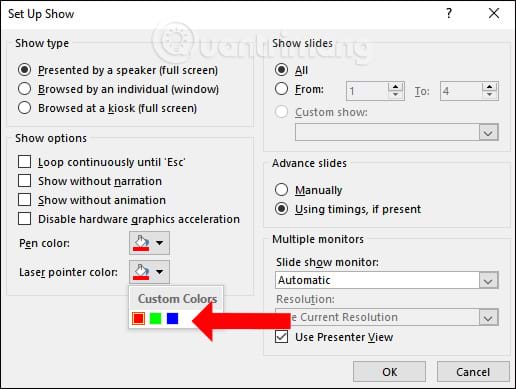
The Set Up Show dialog box appears. In the section below, select Laser pointer color and then select the color you want to change for the laser pointer . There will only be 3 colors to use for the laser pointer. Click OK to save the changes to the mouse.
The new color result of the laser pointer in PowerPoint during presentation has been changed as shown below.
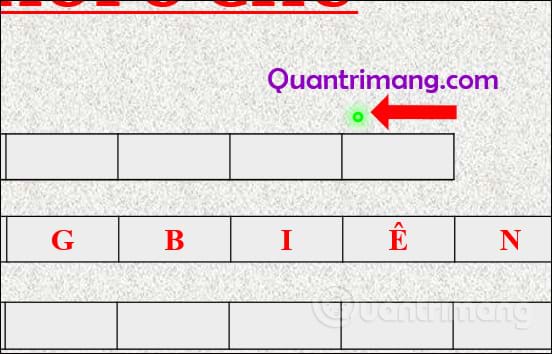
Another way to make your PowerPoint slides stand out for important content. However, to avoid the situation where viewers cannot see the laser pointer while you are presenting, you should choose a background that is not too colorful or has many confusing details when hovering the mouse over the content area that needs to be highlighted.
Video tutorial on changing laser pointer color on PowerPoint
Final Thoughts
Following the steps in order and checking version-specific settings should make it easier to Change Laser Pointer Color on PowerPoint - Mouse Pointer Effect. If an option looks different, verify the device, app, or operating-system version before changing additional settings.
FAQ
What is the best way to Change Laser Pointer Color on PowerPoint - Mouse Pointer Effect?
Start with the requirements described in the article and follow the steps in order. When presenting slides on PowerPoint, we can use the laser effect for the mouse pointer, by pressing and holding the Ctrl key and then clicking the mouse to display the laser effect, in addition to using the available PowerPoint effects for the presentation.
What should you know about PowerPoint laser pointer tutorial?
Starting with PowerPoint 2010, Microsoft added the option to have a laser pointer effect during presentations. To switch from a regular pointer to a laser pointer, press and hold the Ctrl key and then left-click.
What should you do if the instructions do not match your screen?
Check the device, software version, account permissions, and regional settings. Interfaces can change after updates, so use the closest matching option and consult the official support documentation when necessary.
Related Articles
 How to Change the Laser Pointer Color on PowerPoint3 minutes read
 How to Change the Mouse Pointer on Windows 11 with Many3 minutes read
 How to Change the Color and Size of the Mouse Pointer on Windows3 minutes read
 Instructions to Change Mouse Cursor Color on Windows 113 minutes read
 Instructions to Change Mouse Cursor on Windows 113 minutes read
 How to Change the Mouse Pointer Size and Style in Windows 114 minutes read
Reader Comments 0
Sign in with email or Google to join the discussion.