Table of Contents
Windows 11’s Snipping Tool can do more than capture a still image. Its newer controls help you mark up a selection, sample a screen color, copy or redact text, turn a short recording into a GIF, and tighten a screenshot’s crop. Availability varies by Snipping Tool version; Perfect screenshot also requires a Copilot+ PC.
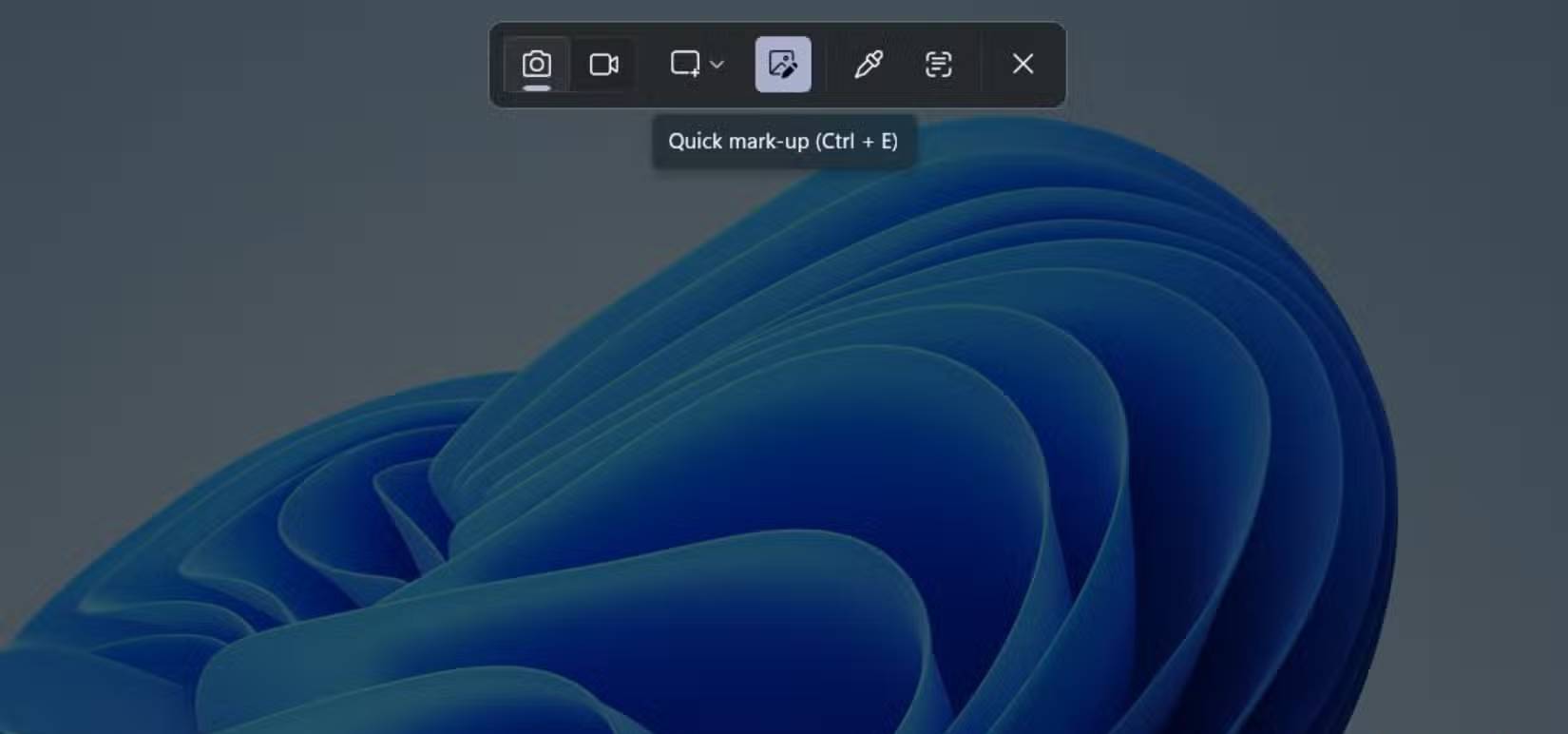
1. Mark up a selection before finishing the capture
Press Win + Shift + S. If Quick markup appears in the capture toolbar, turn it on or press Ctrl + E, then select a rectangular area. Add a pen stroke, highlight, shape, or emoji in the selection area before finalizing the screenshot. This is useful when you need to point to one control without opening a separate editor. If the button is absent, capture first and use Snipping Tool’s pen or highlighter afterward.
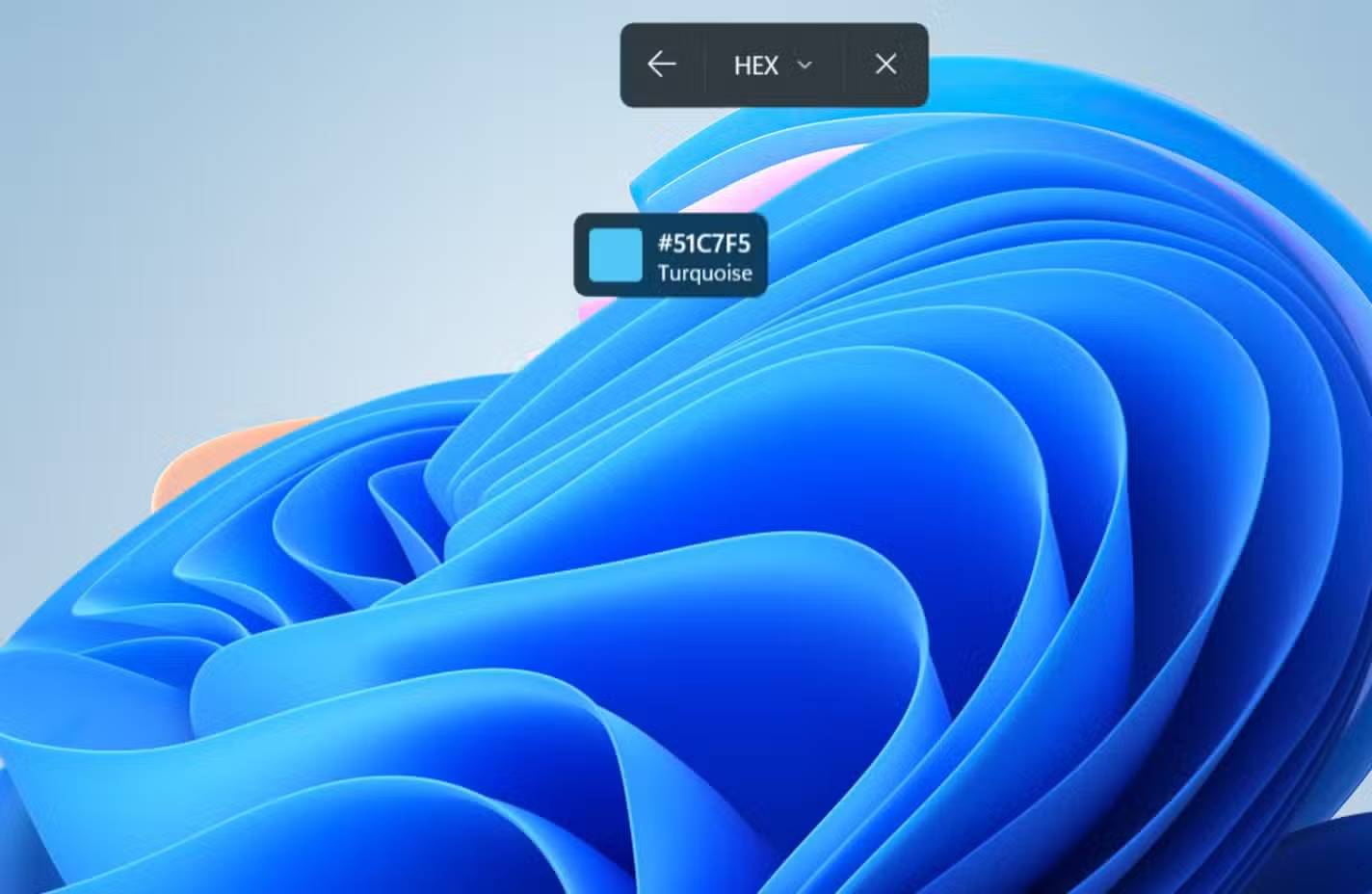
2. Pick a color from the screen
Open the Snipping Tool capture toolbar and select the eyedropper Color picker. Point to a pixel and choose a color value in HEX, RGB, or HSL format. You can zoom in when two adjacent colors are hard to distinguish. Paste or enter the resulting code in your design or CSS; check the value if screen scaling or antialiasing affects the pixel you sampled.
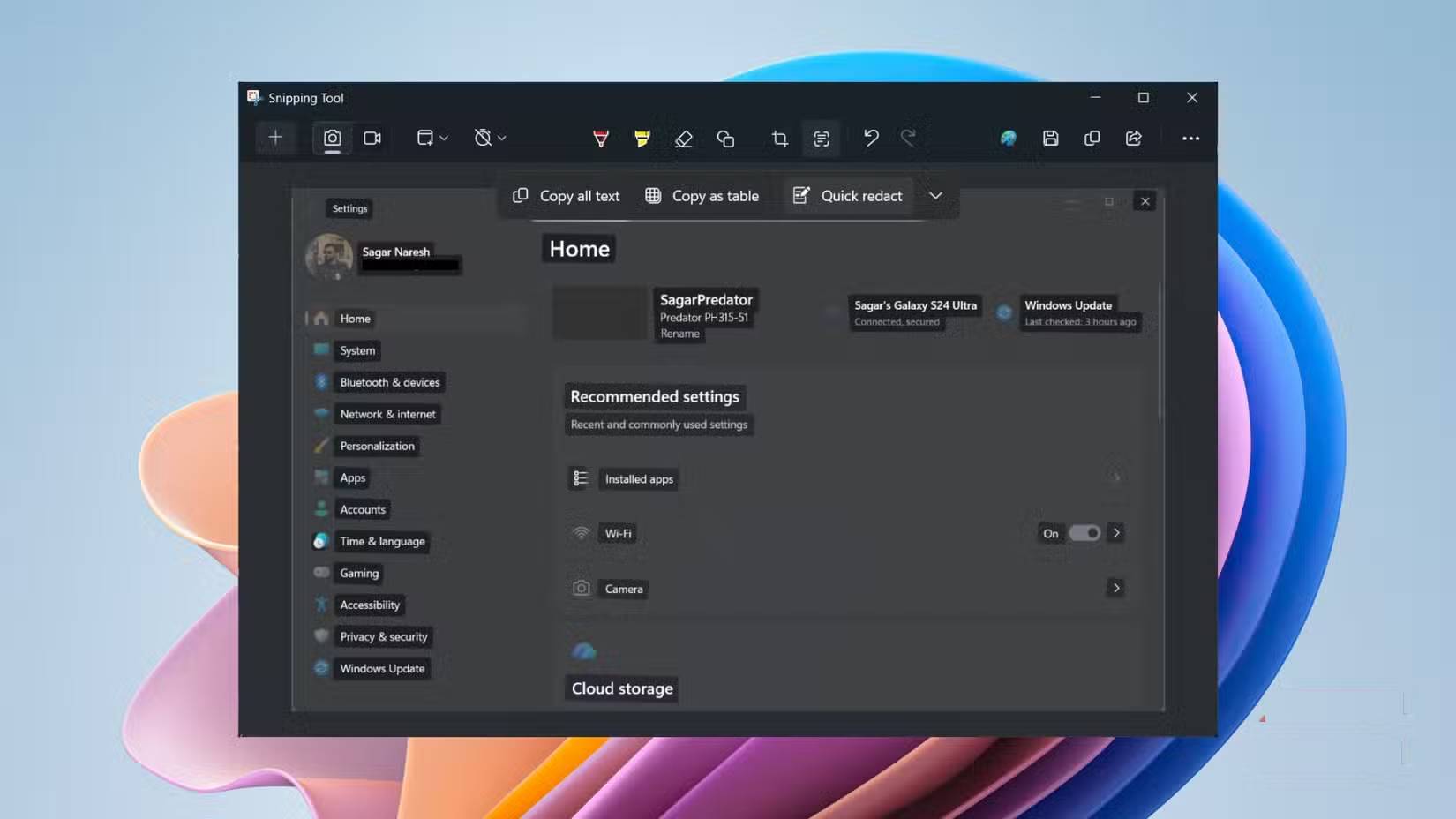
3. Copy text or hide it before sharing
After taking a screenshot, open it in Snipping Tool and choose Text Actions. Select text to copy or use Copy all text. OCR can make an image’s words selectable, but proofread the result, especially for small text and tables; it is not a reliable way to preserve spreadsheet structure.
To hide recognized text, choose Quick Redact for detected email addresses and phone numbers, or select specific text and use Redact Text. Inspect the entire saved image before sending it: names, account numbers, browser tabs, and other private details may still be visible. See how to redact text in a Windows 11 screenshot for more detail.
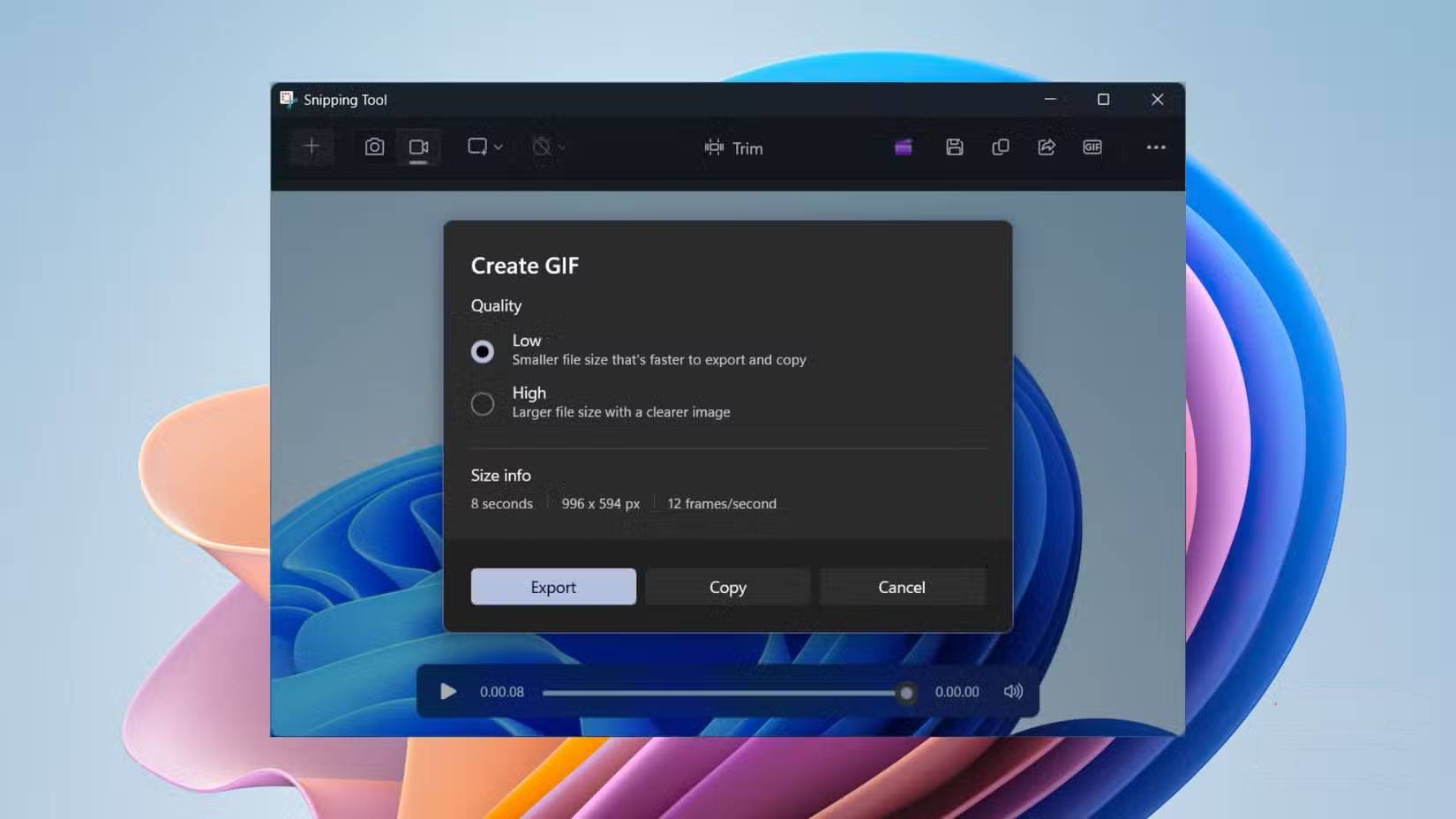
4. Export a short screen recording as a GIF
Press Win + Shift + R or switch Snipping Tool to recording mode, select an area, and record a short action. In the recording preview, choose Export GIF, select low or high quality, then save or copy the result. The GIF exporter handles up to 30 seconds; for a longer recording, it offers the first 30 seconds. For illustrated steps, see the Snipping Tool GIF guide.
5. Tighten a crop with Perfect screenshot
On a Copilot+ PC with the feature available, start a rectangular capture and select Perfect screenshot in the toolbar. Draw around the content; the selection adjusts to the prominent area. Move or resize the crop handles before confirming. Treat the suggested crop as a starting point, especially when nearby text or controls matter to the reader.
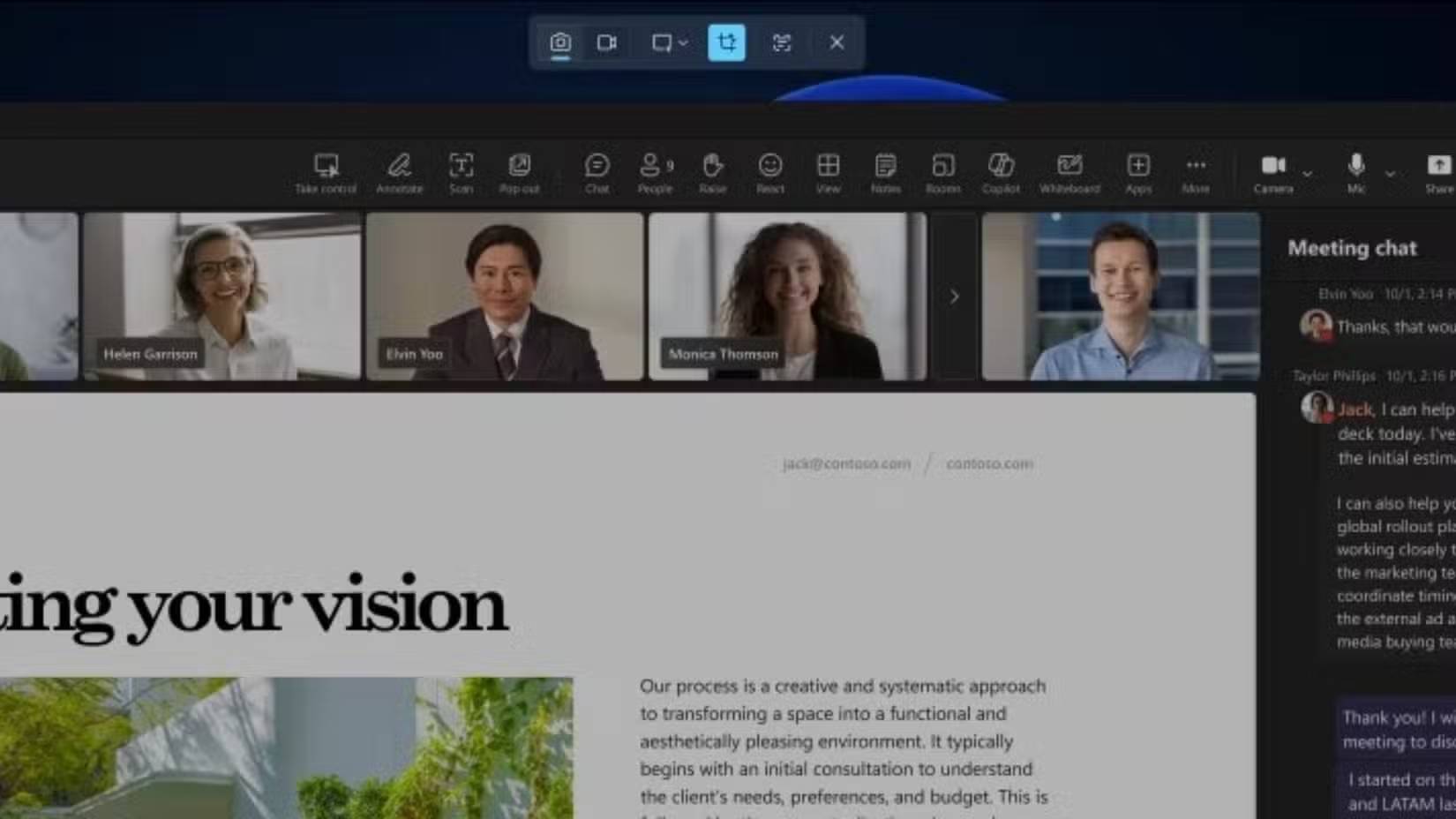
If a control is missing, update Snipping Tool through the Microsoft Store and check your Windows version and device requirements. Microsoft documents Quick markup and Perfect screenshot and Color picker.
Related Articles
 How to Use Snipping Tool on Windows 10 Full Set10 minutes read
 Steps to Fix Snipping Tool Not Working Error on Windows5 minutes read
 Cannot Find Snipping Tool on Windows 10? This Is How to Fix It8 minutes read
 Instructions for Enabling or Disabling Snipping Tool in Windows3 minutes read
 How to Fix Snipping Tool Keeps Showing Error4 minutes read
 Snipping Tool Cannot Be Used, Summarize Effective Ways to Fix It Explained7 minutes read
Reader Comments 0
Sign in with email or Google to join the discussion.