Table of Contents
REGEX and SCAN are not replacements for VLOOKUP or IF, but they are useful tools when text patterns are more important than exact matches.
The SCAN function makes REGEX even better
Combine both to solve complex problems
The SCAN function processes arrays row by row and returns a cumulative result. It goes through the entire range, applying a function to each value while keeping track of previous values, unlike standard functions that only operate on single cells.
It uses the following syntax:
=SCAN([initial_value], array, lambda)Let's analyze the parameters:
- Initial_value (optional): To choose the starting point for your calculation. If omitted, SCAN will use the first element of the array as the initial accumulator value, so lambda function operations will start from that element.
- Array : Range of cells to process.
- Lambda : A custom function that determines how to handle each value. Lambda lets you write the formula like a human and takes two arguments - the cumulative result and the current value.
The SCAN function is useful for summing or conditional processing. But when combined with the REGEX function, you can extract patterns from entire columns and clean up messy data in one formula.
Let's look at a real-world example. In a sales data spreadsheet, column G contains transaction descriptions with amounts hidden within the text—such as "Received $250 Payment" or "Processed $75.50 Refund." You only need the amount in USD.
The standard REGEXEXTRACT formula works with one cell:
=REGEXEXTRACT(D2, "$d+.?d*")But to process an entire column, you would normally have to drag the formula down hundreds of rows. With the SCAN function, you can process it all at once, just use:
=SCAN("", G2:G11, LAMBDA(acc, curr, REGEXEXTRACT(curr, "$[d,]+.?d*")))This formula loops through cells G2 to G11, extracts the amount in USD from each cell, and returns the entire array. The acc value is not needed here since we are just extracting, but SCAN still requires it in the lambda structure.
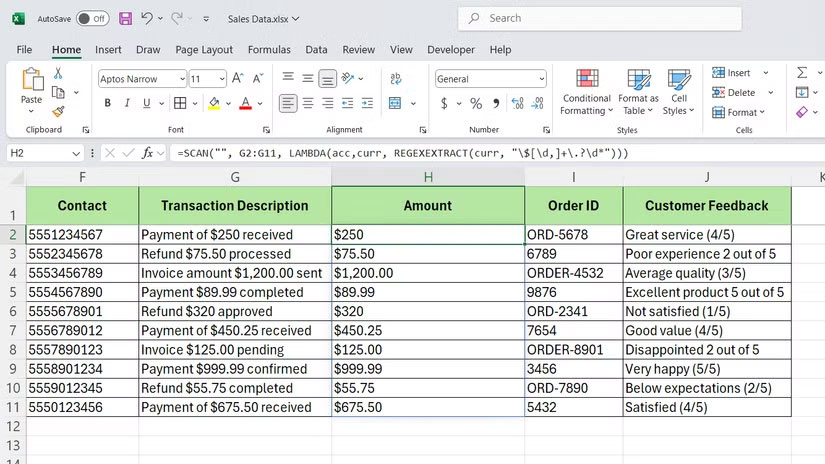
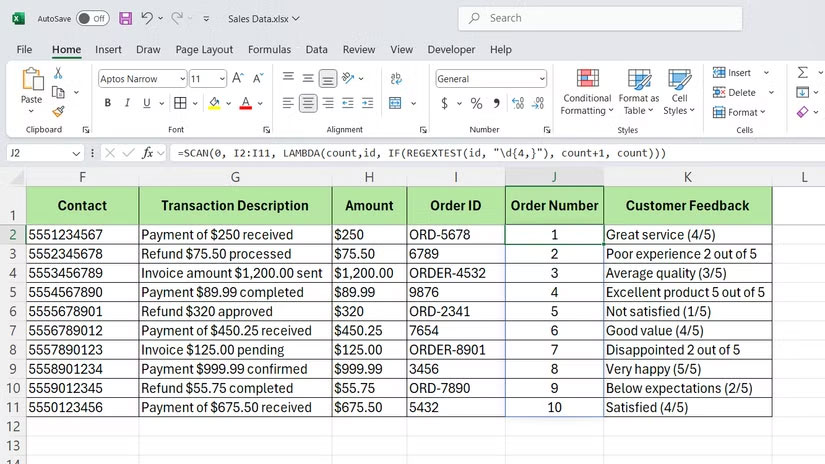
This is useful when You should build on previous results. Let's say column I tracks order IDs that are formatted inconsistently - some have a prefix, some don't. If you wanted to extract the numeric part and create a counter of valid IDs, you would use:
=SCAN(0, E2:E100, LAMBDA(count, id, IF(REGEXTEST(id, "d{4,}"), count+1, count)))The above formula checks each cell for at least four consecutive digits using the REGEXTEST function. If one is found, the function increments the counter; otherwise, it keeps the previous count in column J. The result is a column that shows the cumulative valid IDs as you move down the list.
SCAN also handles multi-step REGEX operations in a single formula. If You should extract, validate, and convert text at the same time, nesting a REGEX function inside a SCAN function will do it without the need for support columns. This is especially useful when working with large data sets, where adding additional columns can slow things down.
When should these functions be used instead of standard formulas?
REGEX and SCAN are not replacements for VLOOKUP or IF, but they are useful tools when text patterns are more important than exact matches. If you are cleaning imported data or extracting specific parts from unstructured text, they will save you time compared to manual editing or nested TEXT functions.
The syntax may seem complicated at first, but once you master a few patterns, like email validation, phone number extraction, and name extraction, you can reuse them across multiple projects. Ideally, you should start with REGEXTEST to test patterns, then move on to REGEXEXTRACT when you need actual text. Add SCAN when You should process entire columns and run results.
FAQ
What should you know about combine SCAN and REGEX functions in Excel to solve complex?
In practical terms, rEGEX and SCAN are not replacements for VLOOKUP or IF, but they are useful tools when text patterns are more important than exact matches.
Why does combine SCAN and REGEX functions in Excel to solve complex matter?
The article highlights that sCAN also handles multi-step REGEX operations in a single formula.
What is the main takeaway?
The main takeaway is that if you need to extract, validate, and convert text at the same time, nesting a REGEX function inside a SCAN function will do it without the need for support columns.
Related Articles
 Use Excel's Regex Function to Power up Your Searches: How-To Guide11 minutes read
 3 Excel Functions That Will Make You a Spreadsheet Expert: Practical Guide8 minutes read
 How to Combine 2 Columns Full Name in Excel Does Not Lose Content5 minutes read
 IMSUM and IMSUB Functions - Sum and Complex Differences in Excel3 minutes read
 Summary of Trigonometric Functions in Excel6 minutes read
 How to Add Computers to Excel: Insert Computer into Excel3 minutes read
Reader Comments 0
Sign in with email or Google to join the discussion.