Table of Contents
You can find a lot of similar 3D scanning apps available for iPhone, but not all are created equal.
A 3D scanner takes a picture of a 3D object or scene, and then converts the scanned information into a digital model. Most 3D scanning apps use a smartphone or tablet camera to capture 3D data. The camera takes multiple pictures of an object from different angles, and the app then processes them to create a 3D model.
You can find many similar 3D scanning apps for iPhone, but not all are created equal. Below, we'll look at five of the best.
1. Qlone
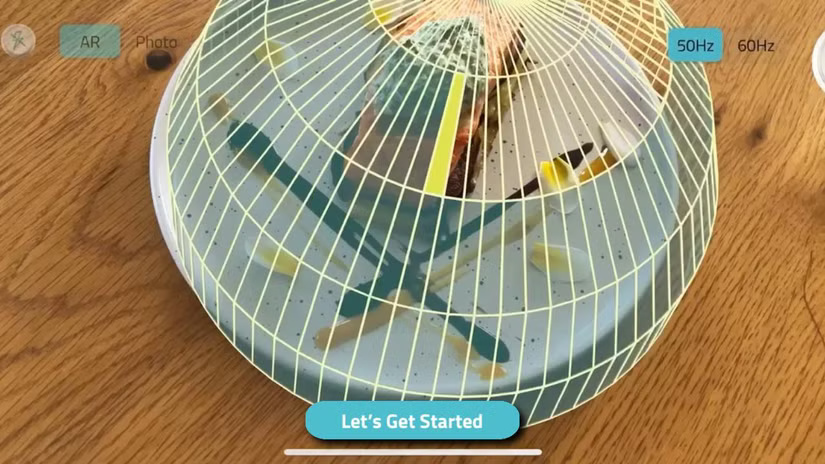
Qlone lets you quickly and easily capture 3D models of physical objects. The app uses the device's camera to take pictures of objects from different angles. There are two main scanning options: Use a Mat And Without a Mat .
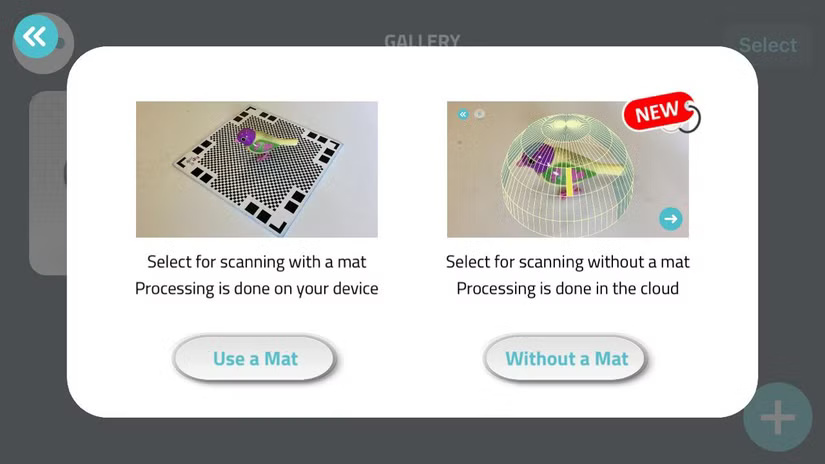
With the Use a Mat Option, you first print a special mat on a piece of paper and place the object on it. The image is then processed on the iPhone to create a 3D model. Alternatively, the Without a Mat Option (requires a Premium upgrade) lets you scan objects without using a mat. In this case, the image is uploaded to Qlone Cloud and processed into a 3D model.
2. Polycam
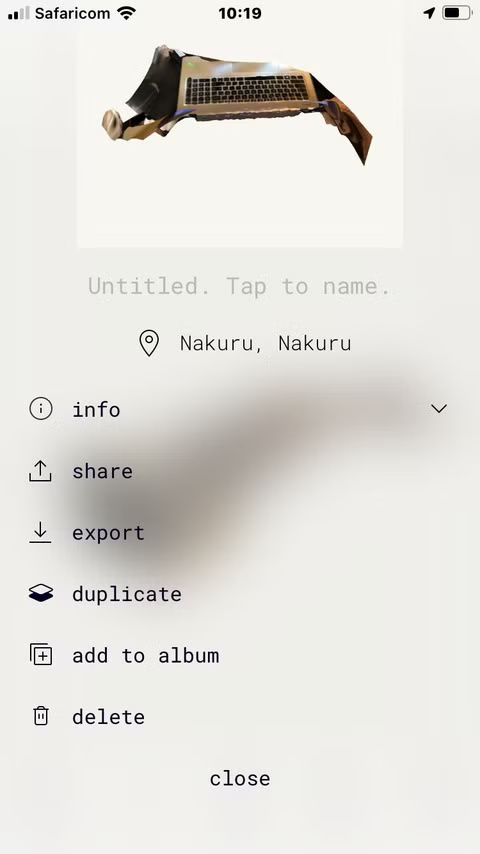
With this app, you can capture high-quality 3D models of almost any object with just a few taps. Polycam is the perfect choice for anyone who needs to 3D scan objects for 3D printing, AR/VR applications, or simply to share with friends and family.
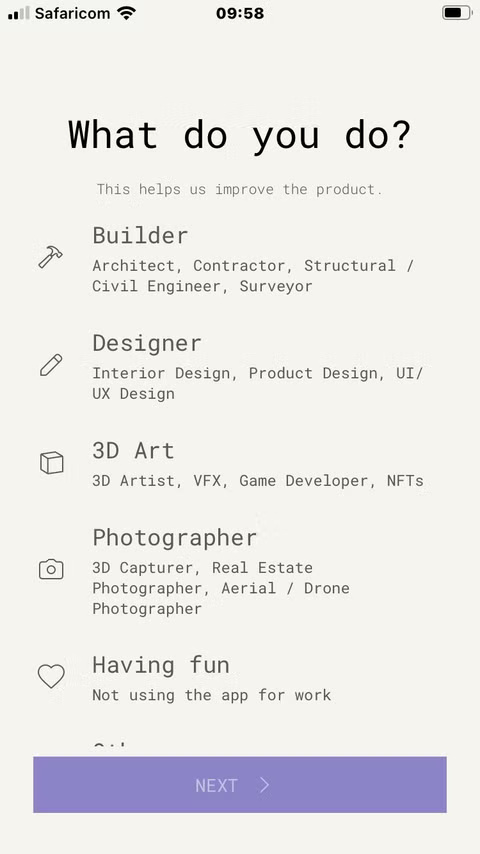
Once you create an account and launch the app, you can choose your job, whether you're a builder, designer, 3D artist, photographer, or just for fun. Once you select a category, you'll be prompted to allow the app to use your location.
To start a 3D scan, hold the camera still and press the record button, then move the camera to scan the object. Once finished, tap the Done Option to view the images captured by the app. You can review and delete any bad images. Then, select Upload To upload the images to the app's server to be converted into a 3D model. When uploading, make sure to keep the app open until the upload is complete.
3. Heges
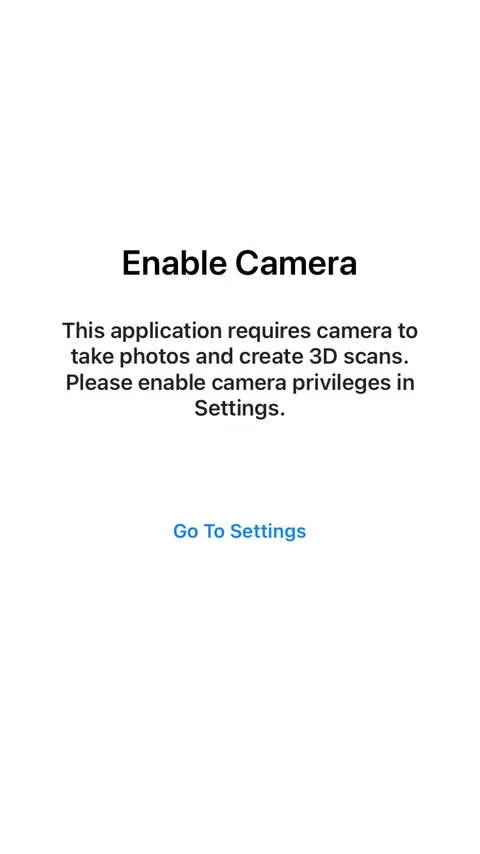
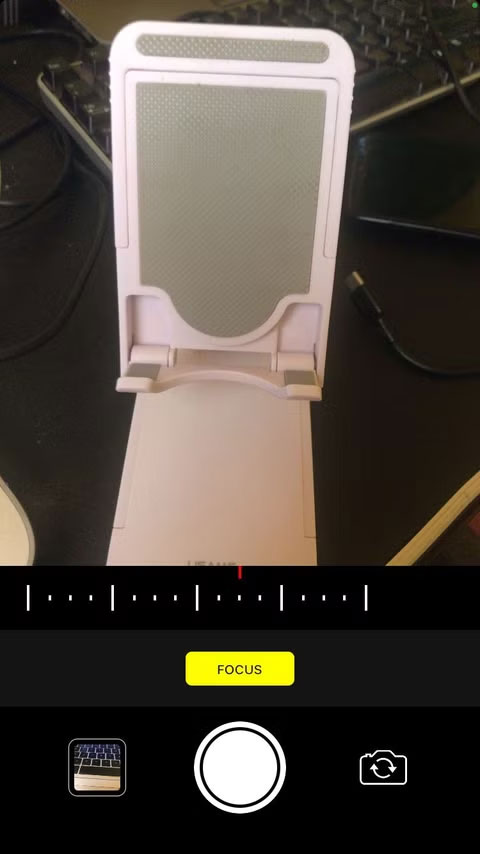
Heges uses your device's built-in camera and sensors to capture data points and create a detailed 3D model. When you launch the app, you'll need to select Go To Settings And allow the app to use your iPhone's camera.
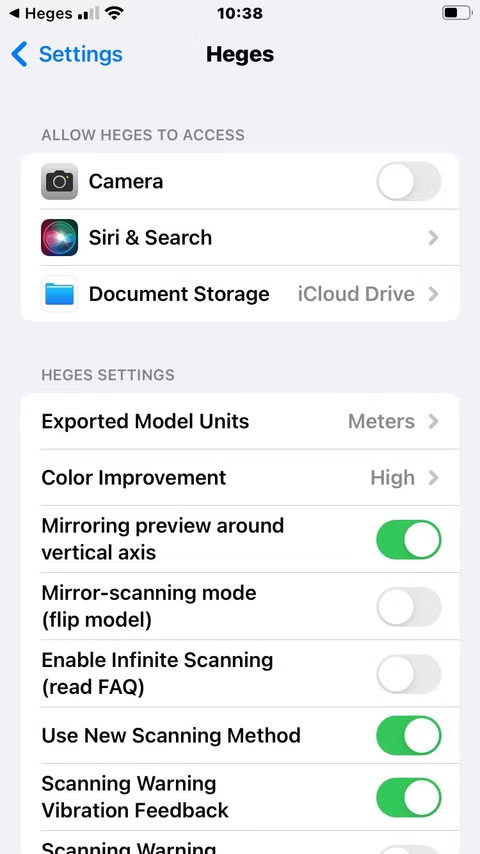
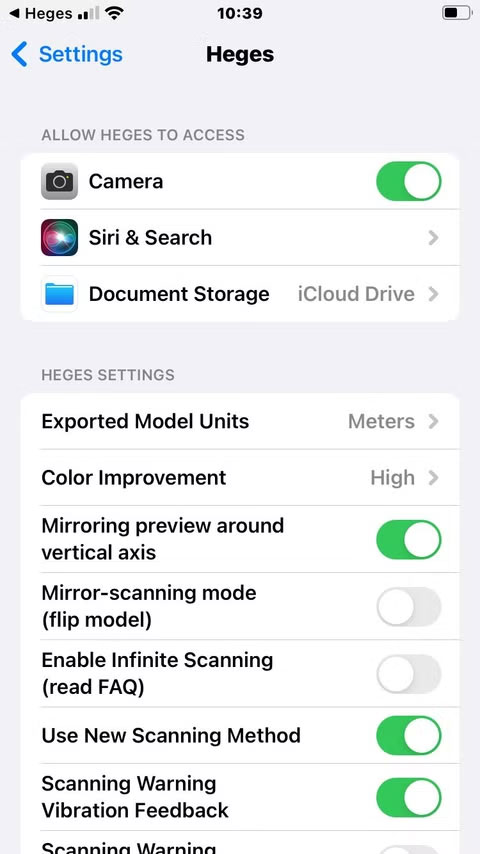
Note : To use Heges, your iPhone must have a TrueDepth or LiDAR camera to work properly. All iPhones with Face ID have a TrueDepth 3D camera.
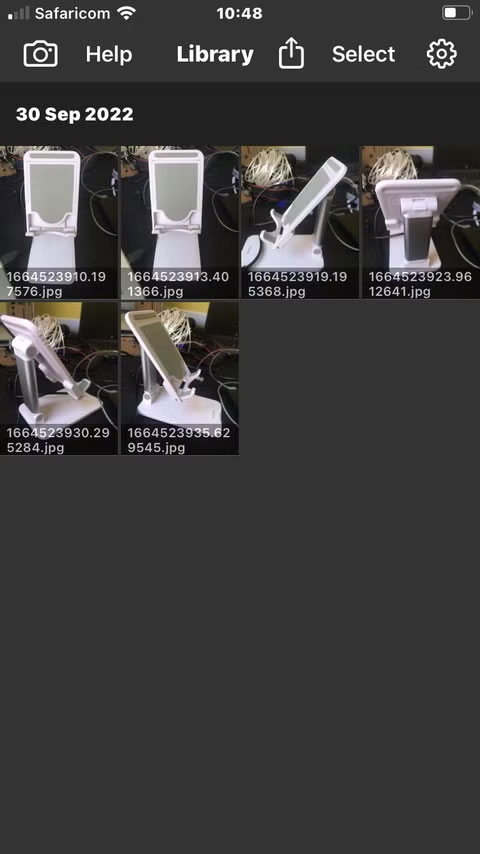
With Heges, you can take photos of your desired design from different angles. Once you're done, you can preview the 3D scans you've taken. Heges is perfect for modeling small objects like coins, jewelry, or sculptures. It's also great for scanning larger projects like furniture or cars.
4. EM3D
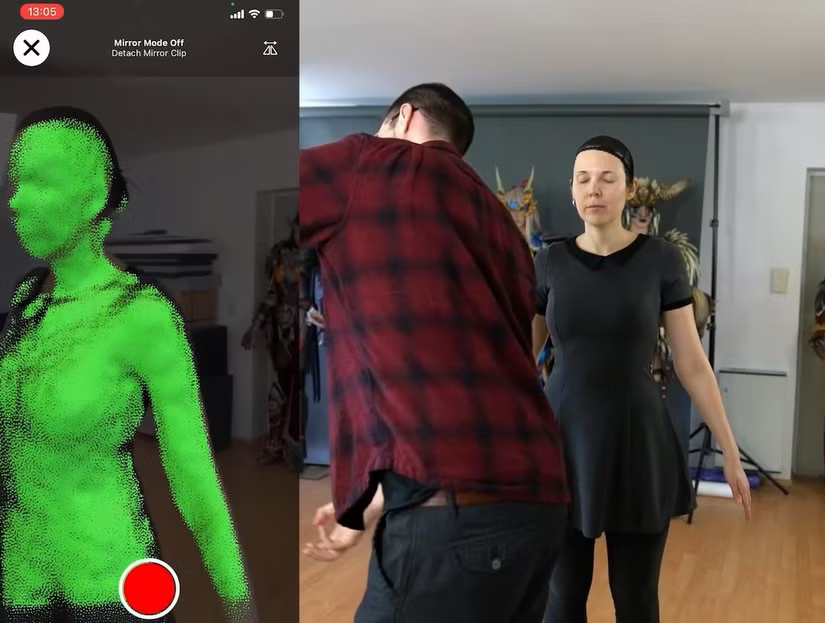
With EM3D, you can 3D scan objects using the TrueDepth camera on your iPhone. Once you download and install the app, you'll see a notification about the new Mirror Saver feature. This feature lets you view your screen on another device, making it easier to 3D scan objects in front of you. Additionally, if you don't have another device to view your screen on, you can download a 3D-printed mirror adapter from Thingiverse to change the camera's orientation.
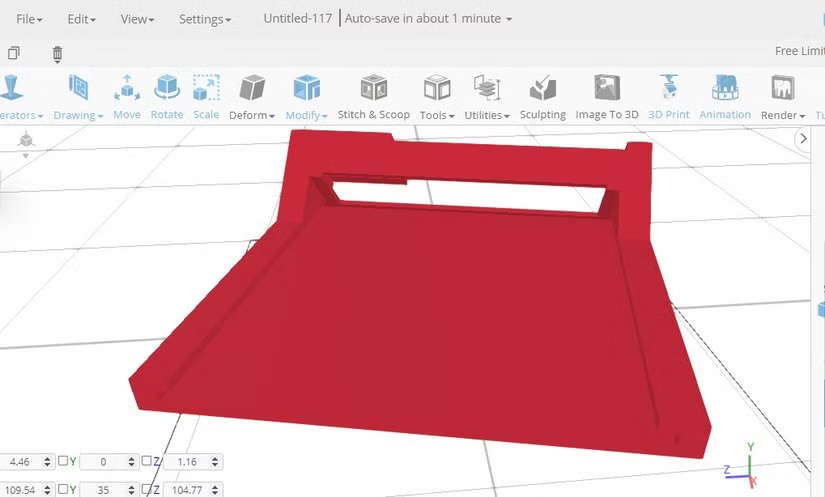
Once everything is ready, select OK To access the app and start 3D scanning. Like Heges, EM3D requires an iPhone with a TrueDepth camera. You can take 360-degree selfies, capture 3D moments, create full color scans, and export them easily with EM3D. The app also supports a Bluetooth shutter button, which is important if you want to 3D scan on a phone tripod.
FAQ
What should you know about the options in this guide?
In practical terms, there are a lot of similar 3D scanning apps available for iPhone, but not all are created equal.
Which option is the best choice?
The best choice depends on your priorities, compatibility, budget, and the specific features discussed in the comparison.
What should you compare before deciding?
Compare core features, limitations, ease of use, compatibility, and long-term value before making a decision.
Related Articles
 How to Use iPhone for 3D Scanning6 minutes read
 Top 3 Best Photo Scanning Apps on Smartphones5 minutes read
 7 Popular Barcode Scanning Apps on Phones Worth Trying10 minutes read
 4 Very Simple Ways to Scan QR Codes on iPhone: Best Options Compared7 minutes read
 Best AI Apps on iPhone10 minutes read
 8 Apps Cost VND 550,000 Being Free for iOS6 minutes read
Reader Comments 0
Sign in with email or Google to join the discussion.