Table of Contents
Regex functions change that. Now you can specify exactly what you need—complex patterns, partial matches, or extracting structured data—without any effort.
Filtering and searching in Excel is no easy task. Regex functions change that. Now you can specify exactly what you need—complex patterns, partial matches, or extract structured data—without the effort.
What is Regex?
Regex is a type of pattern used to search a string of text or characters for a match. Have you ever wondered how websites can tell you that the email pattern you entered on the login page is invalid? That's an example of a regex pattern using an email signature in action.
Regular expressions aren't unique to Excel—they're available in many text editors, programming languages, command-line tools, IDEs, and even Excel's competitor, Google Sheets.
Regex can seem complicated, and it can be if you want to use it to its full potential, but you don't need to be a programmer to use it effectively. In some cases, you can get away with just knowing how to use a few basic symbols and patterns. This guide will keep it as simple as possible so you can get started.
The following are the symbols that will be used in this guide:
|
Symbol |
Describe |
|---|---|
|
- |
Specify the character range in parentheses. |
|
^ |
Matches the beginning of a string. |
|
$ |
Matches the end of a string. |
|
. |
Matches any character except a newline character. |
|
* |
Matches zero or more preceding characters. |
|
+ |
Matches one or more previous characters. |
|
() |
Group matching characters into one. |
|
[] |
Matches any character inside the brackets. |
|
[^] |
Matches any character not within the brackets. |
|
{n} |
Matches exactly n instances of the previous character. |
|
{n,} |
Matches n or more occurrences of the previous character |
Simple regular expression patterns that you can build using these symbols include:
|
Regex Pattern |
Describe |
|---|---|
|
[0-9] |
Matches a digit from 0 to 9 |
|
[a-zA-z0-9] |
This is a range of combinations that matches a single character from lowercase a to z, uppercase A to Z, and 0 to 9. |
|
^pro |
Matches any string starting with Pro . |
|
[^$] |
Matches any character other than $ . |
|
(child) |
Subgroup Sample. |
|
A{3,} |
Matches 3 or more occurrences of the part following A (for example, A , Aa , or Aaa ). |
Regex functions are predefined Excel formulas that helps define a pattern for searching and manipulating text strings. There are currently three regex functions. This guide will see how to use them individually and with other functions.
Search for patterns
The first function this guide will look at is REGEXTEST. This function takes a text string that you want to search against and a regex pattern, then uses the latter pattern to find a match in the former. The function will return True or False.
The syntax of the REGEXTEST function is as follows:
REGEXTEST(string_to_search, regex_pattern_to_use, [case_senstivity])The first two parameters, String_to_search And Regex_pattern_to_use, Are self-explanatory. The [case_sensitivity] Parameter is optional—anything in brackets when talking about Excel syntax is optional—and indicates whether you want the search to be case-sensitive (0) or case-insensitive (1). The default is case-sensitive.
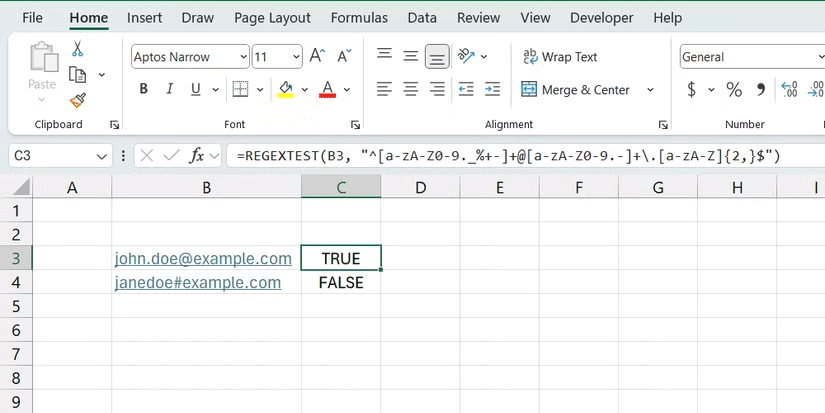
The example will use REGEXTEST to see if the user entered a valid email address using the following formula:
REGEXTEST(B3, "^[a-zA-Z0-9._%+-]+@[a-zA-Z0-9.-]+.[a-zA-Z]{2,}$")Here, we are searching in cell B3 to see if it contains an email address using the regular expression pattern below:
^[a-zA-Z0-9._%+-]+@[a-zA-Z0-9.-]+.[a-zA-Z]{2,}$If you put the formula in cell C3 and enter John.doe@example.com In cell B3, the formula will return True because it matches the email signature.
Additional data using Regex
Next, let's look at the REXEXEXTRACT function. This function returns a substring (a portion of a string) that matches the provided regex pattern.
The syntax of the REXEXEXTRACT function is as follows:
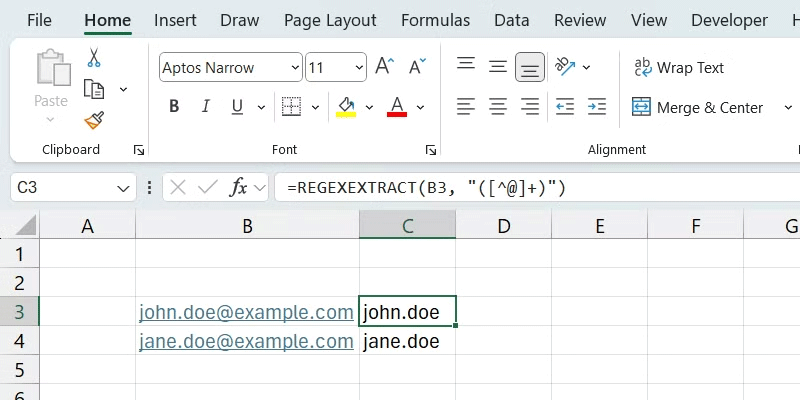
REGEXEXTRACT(string_to_search, regex_pattern_to_use, [return_mode], [case_senstivity])Continuing with the email example, let's add a formula to cell B4 to extract the username of the email part.
The formula would look like this:
=REGEXEXTRACT(B3, "([^@]+)")In this formula, we extract everything before the @ Symbol in the email address entered in B3.
Find and replace with Regex
The last regex function this guide will look at is REGEXREPLACE. This function is similar to Excel's REPLACE function, but also supports RegEx. It takes the text string you want to modify and checks to see if any substrings match the specified regex pattern. If found, it replaces that string with the provided replacement string.
The syntax of the REGEXREPLACE function is as follows:
REGEXREPLACE(string_to_modify, regex_pattern_to_use, replacement_string, [number_of_occurrences], [case_senstivity])Here are the important parameters to note in this function:
- String_to_modify : The text string you want to modify.
- Replacement_string : String to replace the substring with.
- Number_of_occurrences : The exact instances you want to replace.
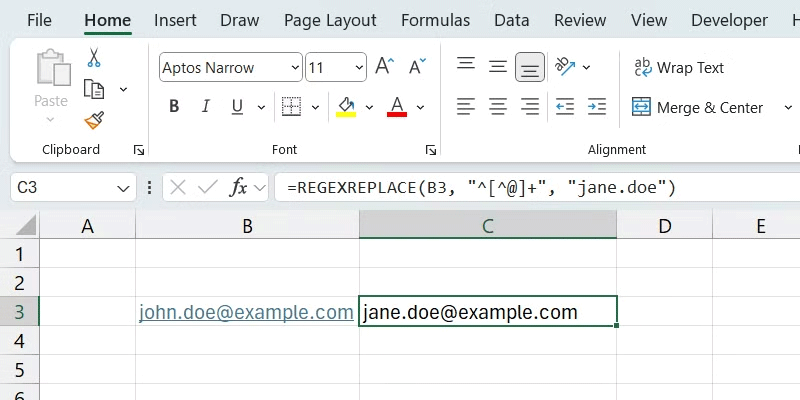
Here's an example of using the function to replace the username portion of an email with another text string:
=REGEXREPLACE(B3, "^[^@]+", "jane.doe")The value of B3 is John.doe@example.com And after we enter the above formula in cell C3, it will return Jane.doe@example.com.
Combining Regex with other functions
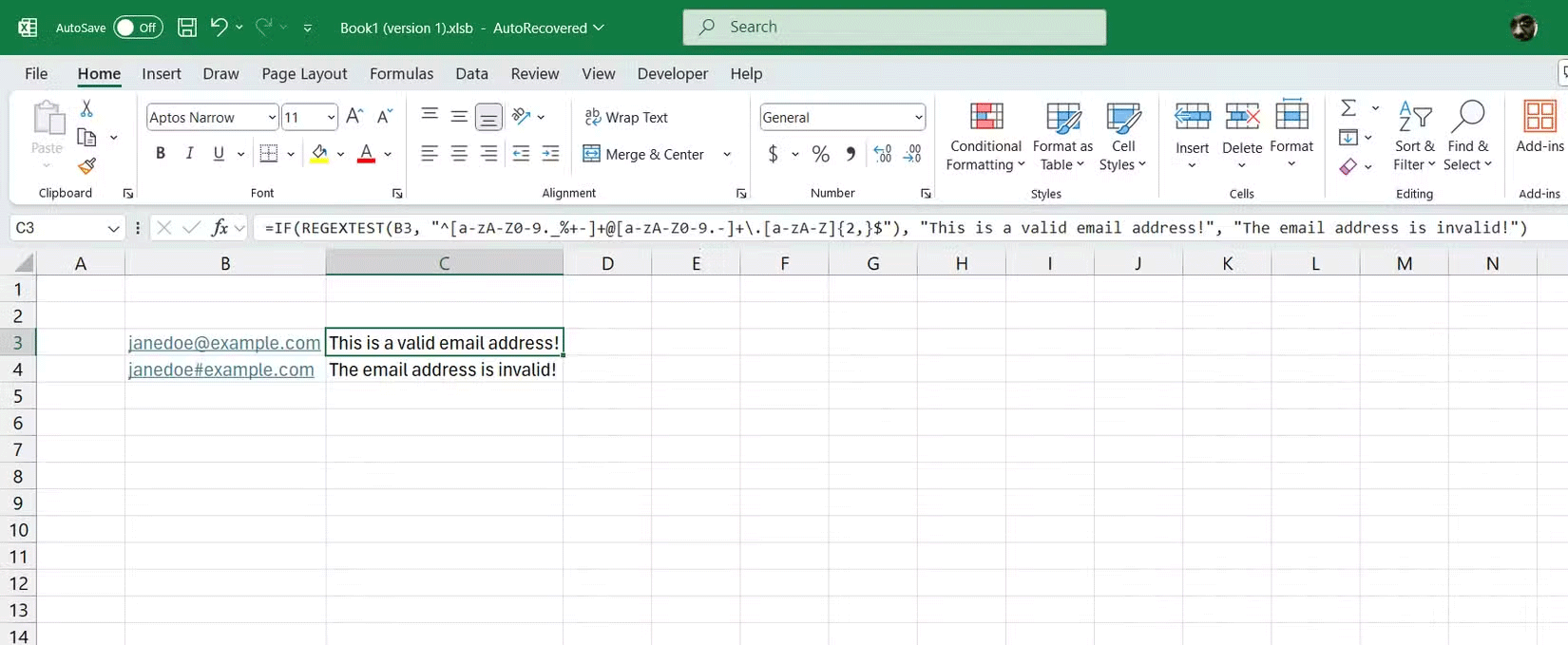
You can also combine regex functions with other Excel functions. For example, you can combine the REGEXTEST function with Excel's IF statement and display appropriate messages based on the results.
Here is an example formula:
=IF(REGEXTEST(B3, "^[a-zA-Z0-9._%+-]+@[a-zA-Z0-9.-]+.[a-zA-Z]{2,}$"), "This is a valid email address!", "The email address is invalid!")This formula uses an IF statement to check if the email address entered in cell B6 is valid and then displays This is a valid email address! If TRUE Or The email address is invalid! If FALSE . Additionally, you can pair this formula with the FIND function to quickly find data in Excel.
This is a great way to get started using RegEx in Excel. The use cases and possibilities are only limited by your imagination.
Excel has 3 REGEX functions you can use
They handle different tasks well.
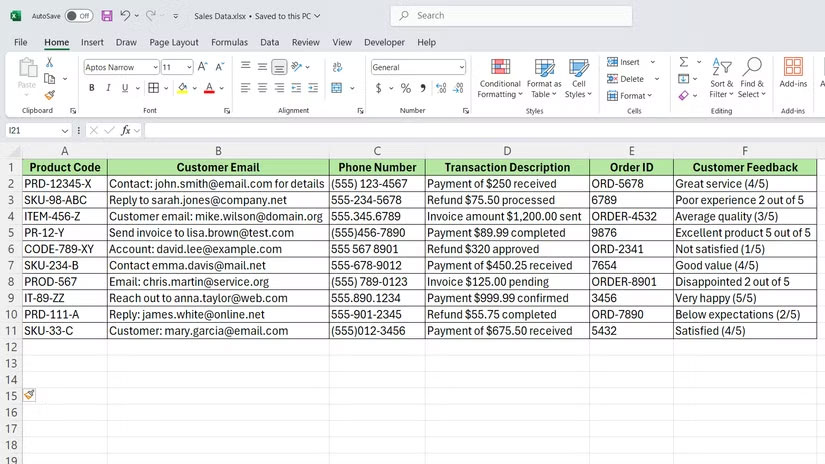
Excel implemented three REGEX functions in 2024: REGEXTEST, REGEXEXTRACT, and REGEXREPLACE. Each function performs a different task, and understanding when to use which one makes all the difference.
REGEXTEST
This function checks if a pattern exists in the text and returns TRUE or FALSE. The syntax is:
=REGEXTEST(text, pattern, [mode])- Text : The cell or string you want to check.
- Pattern : The REGEX pattern to search for.
- Mode (optional): Controls case sensitivity. Use "i" for case-insensitive matching.
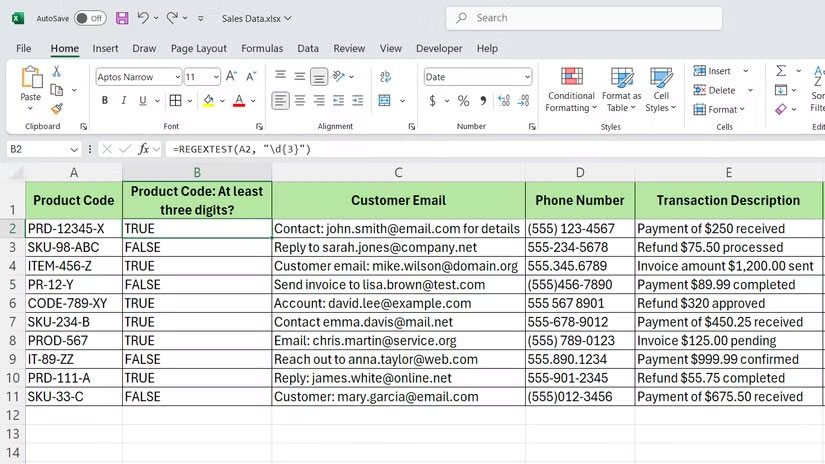
Let's say you have a column of product codes in a sales data spreadsheet and you want to highlight items that contain at least 3 consecutive digits. You could use:
=REGEXTEST(A2, "d{3}")If cell A2 contains "PRD-12345-X", the function will return TRUE in column B because it found 3 consecutive digits.
REGEXTRACT
This function extracts specific text from a string based on a pattern. The syntax is:
=REGEXEXTRACT(text, pattern, [mode], [instance])- Text : Source text.
- Pattern : The REGEX pattern that defines the content to extract.
- Mode (optional): Control case sensitivity ("i" for case insensitive).
- Instance (optional): Which match to return if there are multiple results (1 for the first letter, 2 for the second letter, etc.).
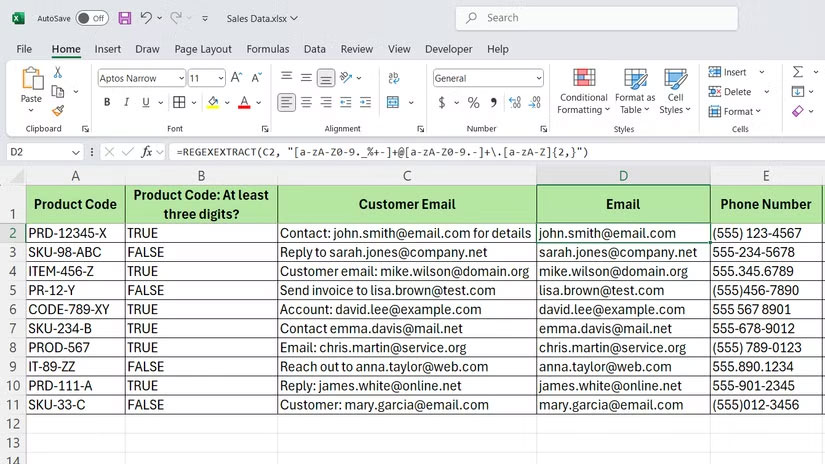
In the sales data, column C contains customer emails mixed with other text. To extract just the emails, we would use:
=REGEXEXTRACT(B2, "[a-zA-Z0-9._%+-]+@[a-zA-Z0-9.-]+.[a-zA-Z]{2,}")This template defines standard email formats and extracts them explicitly in column D.
REGEX REPLACE
It swaps the text matching a pattern with another text. The syntax is:
=REGEXREPLACE(text, pattern, replacement, [mode], [instance])- Text : Original text.
- Pattern : The content to search.
- Replacement : Content to be replaced.
- Mode (optional): Case sensitive.
- Instance (optional): Which instance to replace (leave blank to replace all).
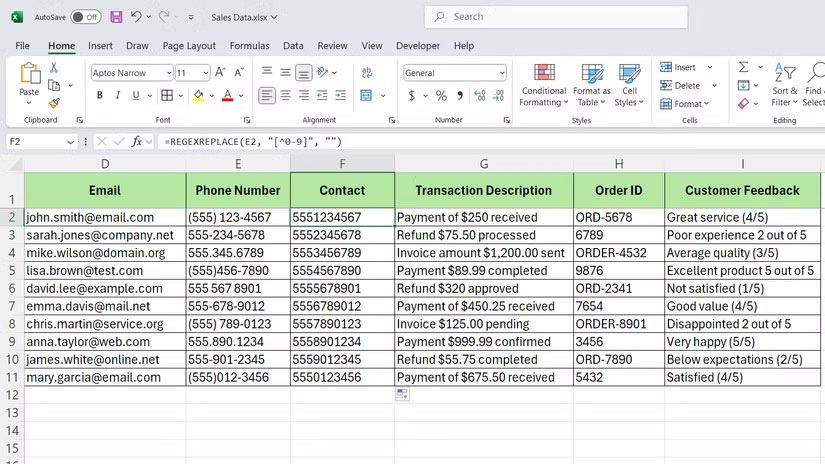
If column E has phone numbers in different formats—some with dashes, some with parentheses—you can normalize them by using the following formula to remove everything but the digits:
=REGEXREPLACE(C2, "[^0-9]", "")The pattern [^0-9] means "anything that is not a number", and replacing it with an empty string only keeps the digits.
These three functions cover most text processing needs. However, you can combine them with the SCAN function for even more flexibility, especially when processing data across multiple rows or extracting repeating patterns.
FAQ
How do you use excel's regex function to power up your searches: how-to guide?
In practical terms, regex functions change that. Now you can specify exactly what you need—complex patterns, partial matches, or extracting structured data—without any effort.
What should you check before getting started?
Review the requirements, compatible device or software version, and any warnings described in the guide before making changes.
What should you do if the steps do not work?
Repeat the steps in order, confirm that your app or system is up to date, and review the troubleshooting details provided above.
Related Articles
 Combine SCAN and REGEX Functions in Excel to Solve Complex: How-To Guide6 minutes read
 LOOKUP Function Searches in Excel: Syntax, Examples, and5 minutes read
 Re.subn in Python: Regular Expression (Regex) in Python8 minutes read
 Power Function (Exponential) in Excel: Syntax, Examples, and2 minutes read
 Regular Expression in Mongodb: Tips and Examples4 minutes read
 The Match Function (the Function Searches for a Specified4 minutes read
Reader Comments 0
Sign in with email or Google to join the discussion.