Table of Contents
Nowadays, most people think that using a good VPN service serves as the only way to protect their privacy online. However, there is another solution: local DNS.
Your Internet Service Provider (ISP) is the first point of connection between you and the Internet. Every time you connect, you pass information to your ISP, including your domain name, IP address, connection timestamp, and any unencrypted HTTP traffic. While this is mostly fine, you may want a little more security and privacy for your online activities.
Nowadays, most people think that using a good VPN service is the only way to protect their privacy online. However, there is another solution: local DNS.
Control DNS with local configuration
A new layer of flexible control
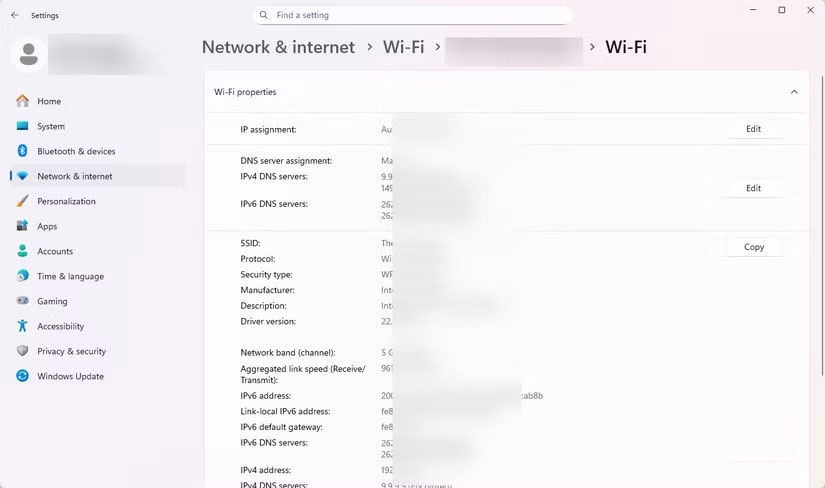
DNS is one of those services that most people outsource by default. Most people either use their ISP's default DNS settings or turn to a third-party DNS provider like Google or Cloudflare. The only problem is that these third parties can see your requests.
That said, one of the most effective ways to change this is to run DNS locally. This way, a small DNS service running on your computer becomes your trusted resolver.
Note : The resolver receives requests for a website and finds the appropriate IP address. This process is usually handled by your ISP's resolver, but if you're setting up local DNS, you'll have control.
This autonomy change lets you decide how to handle your requests. You can resolve them yourself by querying authoritative servers directly or forward them to a trusted resolver. However, requests sent from your computer will not be encrypted and can still be seen by your ISP or upstream resolver if your local DNS setup does not use DNS-over-HTTPS (DoH) or DNS-over-TLS (DoT). You do not have complete privacy without encrypted DNS; you only have control over the cache, filters, and upstream services you trust.
This is a powerful control that lets you apply caching and custom rules to block specific websites from your child's device or get faster access to frequently visited domains. You can even add a hosts file to block known trackers.
How to create local DNS
Free Local DNS on Windows 11
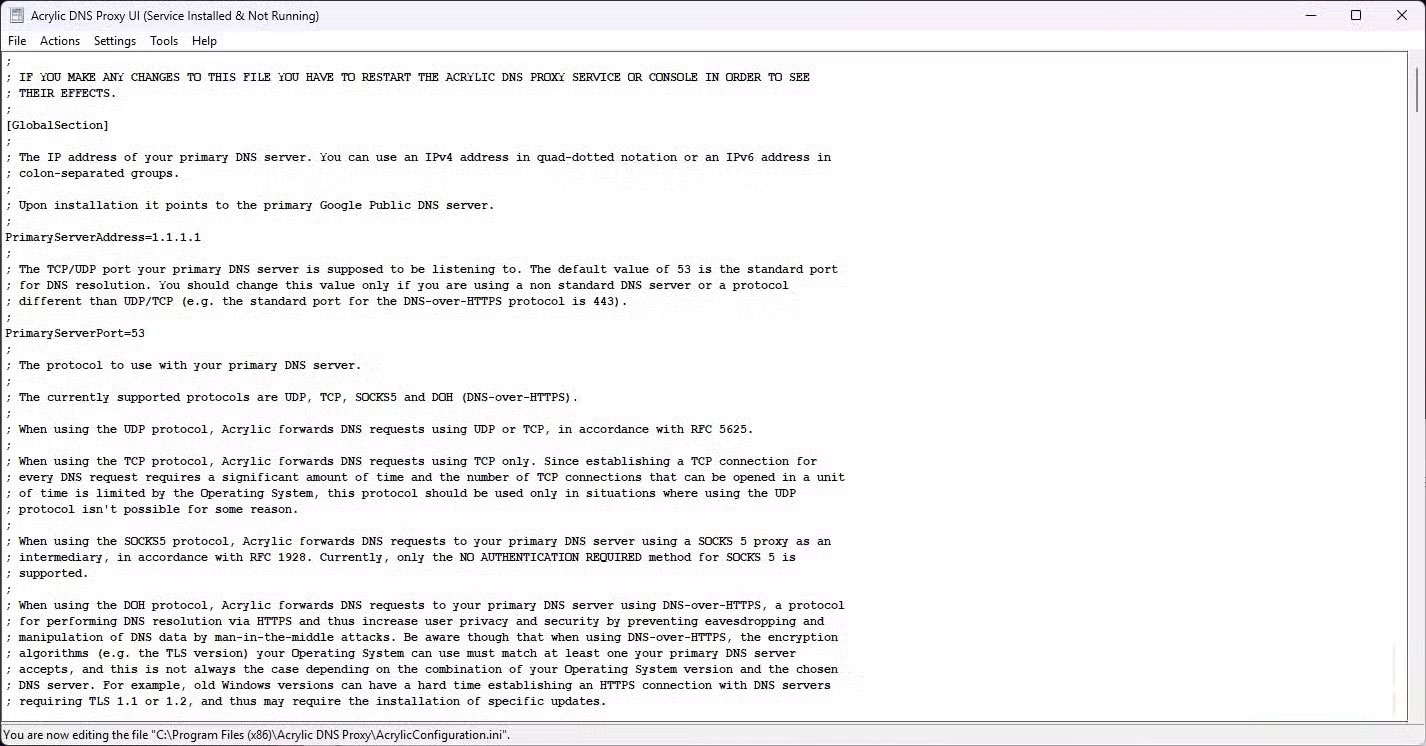
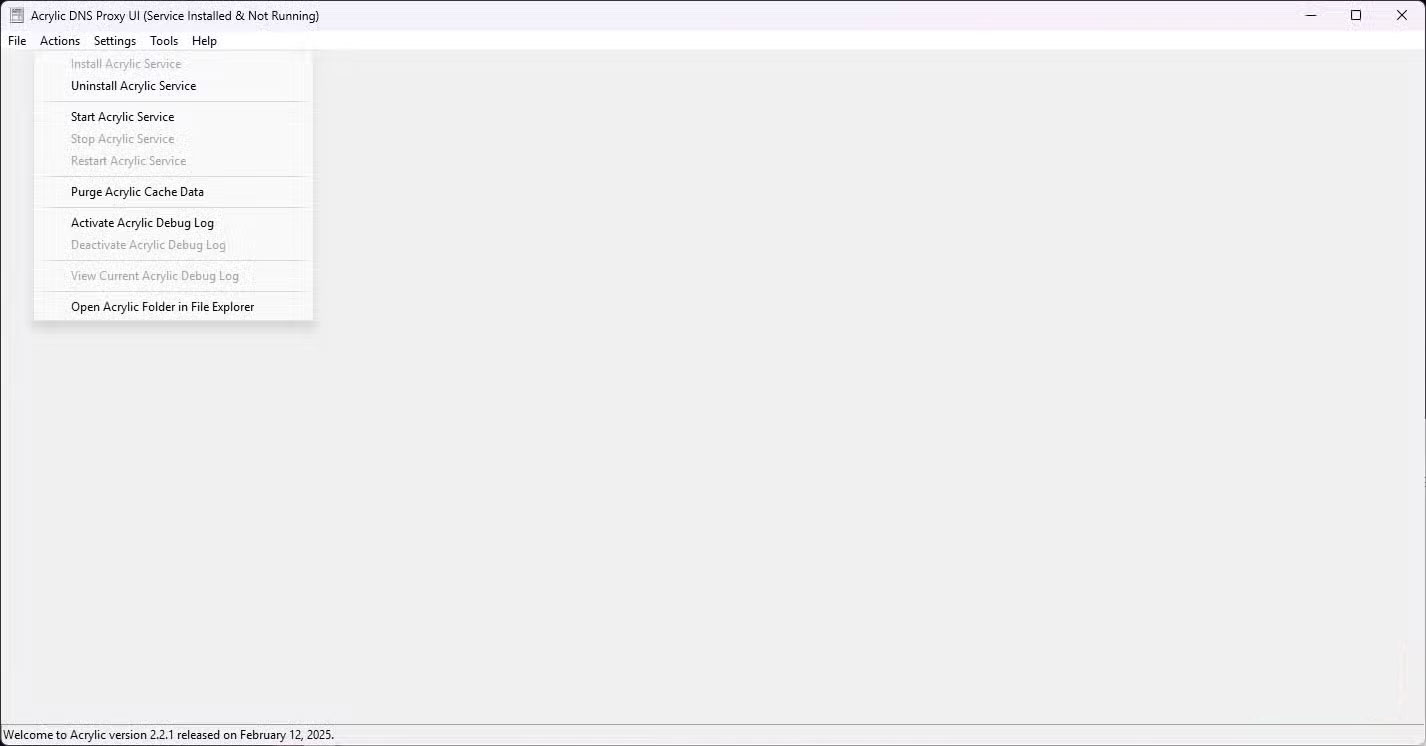
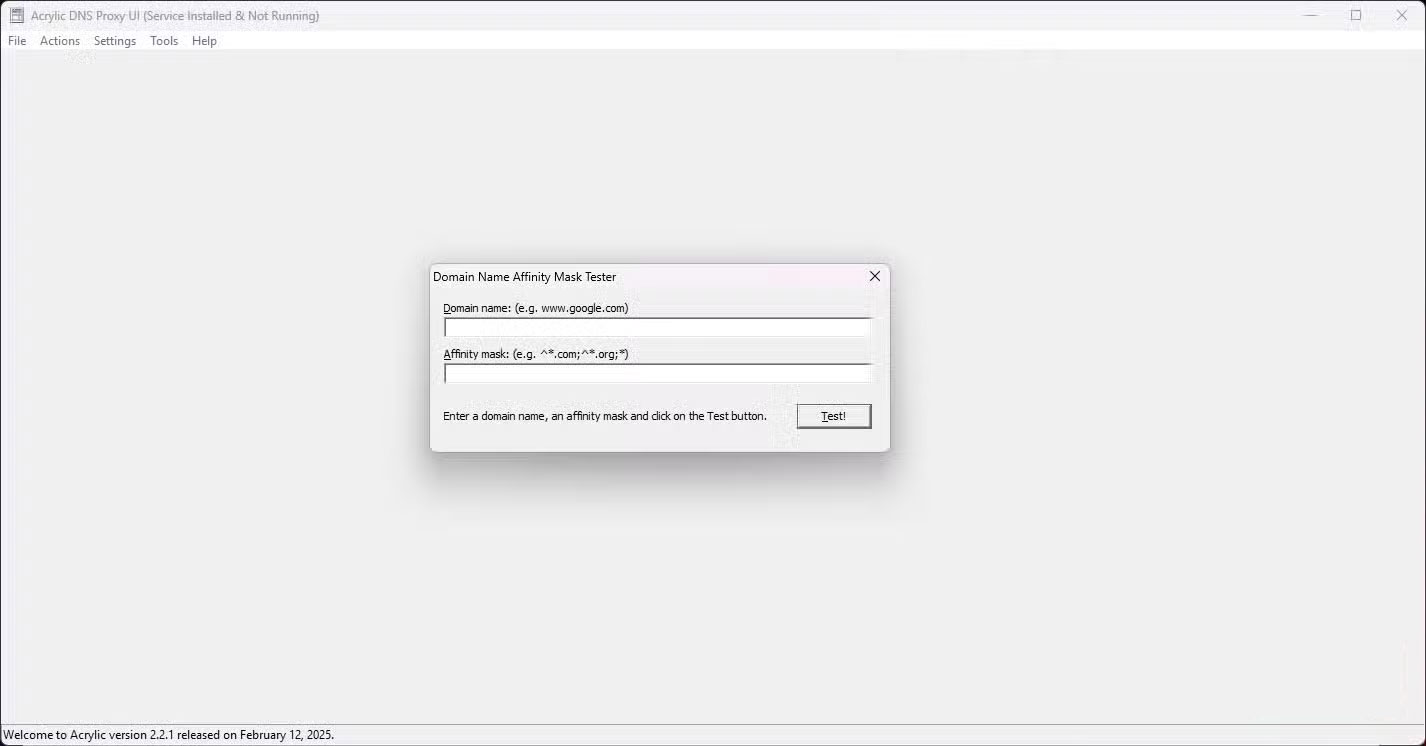
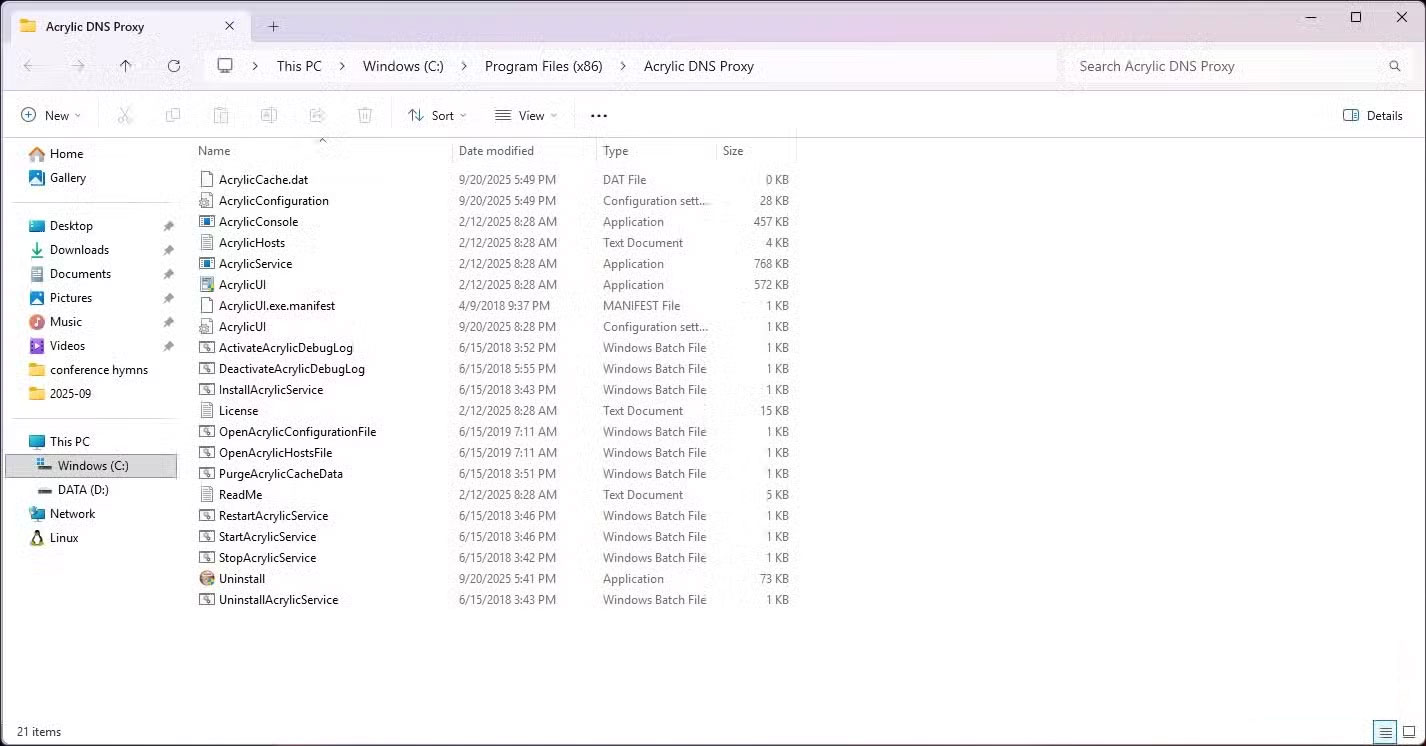
When deciding to set up a DNS server, what people are looking for is something practical and free. So no Raspberry Pi and subscription required – just something that works on Windows 11. Here's exactly what to do:
- Download Acrylic DNS Proxy from the Mayakron website, then install it using the default options. Acrylic is a great choice because it's free and lightweight, and doesn't require any complicated configuration. Note, however, that Acrylic doesn't encrypt your DNS traffic—it just forwards your requests. To encrypt, you'll need a resolver or tool that supports DNS-over-HTTPS (DoH) or DNS-over-TLS (DoT).
- Next, open the network connection settings in Control Panel. Here, right-click on the active connection (Wi-Fi or Ethernet) and select Properties .
- Select Internet Protocol Version 4 (TCP/IPv4) And click Properties . Then, select Use the following DNS server addresses And set The Preferred DNS server To 127.0.0.1 . This way, Windows will always send DNS lookups to Acrylic running locally.
- Then, set Quad9 as the upstream resolver that Acrylic forwards requests to by launching Acrylic, clicking File , then selecting Open Acrylic Configuration And setting the parameters below to the following values:
- Primary Server Address: 9.9.9.9
- Primary Server Port: 53
- Secondary Server Address: 149.112.112.112
- Secondary Server Port: 53
Note : Quad9 is an ideal upstream resolver because it proactively blocks some known malicious domains, but you will need to add a free hosts file or filter list to Acrylic to block known advertising/tracking domains. Of course, you can also use any other DNS server that prioritizes online safety.
This setting makes a real difference. Cached DNS queries are answered locally, which speeds up domain resolution times, especially on slow internet connections, as cached DNS lookups bypass the initial problem. You can also choose to add a free hosts file to block domains known to be used by ad trackers, so intrusive requests don't reach your browser.
Each DNS will have different levels of success. Some are too technical, some are too time-consuming to return results. However, setting up a local DNS is different. It gives you control, filtering, and some speed benefits—but it won't prevent your ISP from seeing the IP address you're connecting to. To do that, you'll need to pair your local configuration with an encrypted DNS, or you can use one of our recommended VPN services to secure your entire connection.
FAQ
How do you build a local DNS to prevent tracking from isps: step-by-step guide?
In practical terms, nowadays, most people think that using a good VPN service is the only way to protect their privacy online. However, there is another solution: local DNS.
What should you check before getting started?
Review the requirements, compatible device or software version, and any warnings described in the guide before making changes.
What should you do if the steps do not work?
Repeat the steps in order, confirm that your app or system is up to date, and review the troubleshooting details provided above.
Related Articles
 How to Stop Windows 11 from Tracking You: Step-by-Step Guide4 minutes read
 Prevent Web Pages from Stopping You on Your Firefox Browser with5 minutes read
 How to Prevent Google from Tracking Your Location8 minutes read
 Turn Off This Hidden Panel to Stop Chrome from Tracking Your Browsing6 minutes read
 Deleting Cookies Is Pointless: This Is the Real Way to Stop Tracking8 minutes read
 Here's What Phone Thieves Do to Stop You from Tracking Your Device!8 minutes read
Reader Comments 0
Sign in with email or Google to join the discussion.