Table of Contents
Learn how to allow applications to access the Windows 11 firewall with clear steps, practical tips, and troubleshooting guidance for a reliable result.
How to allow applications to bypass the firewall through Windows Security
Step 1
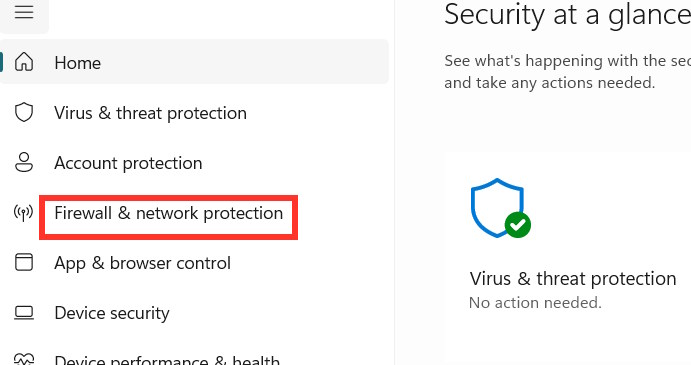
Type "Windows Security" into the search bar to open it. Then click on "Firewall & network protection" .
Step 2
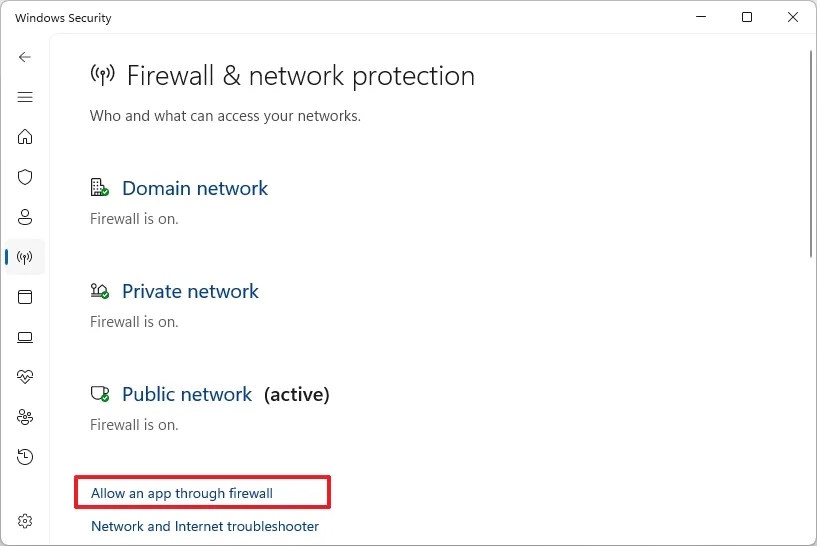
Next, on the new interface, the user selects the "Allow an app through firewall" option to make adjustments.
Step 3
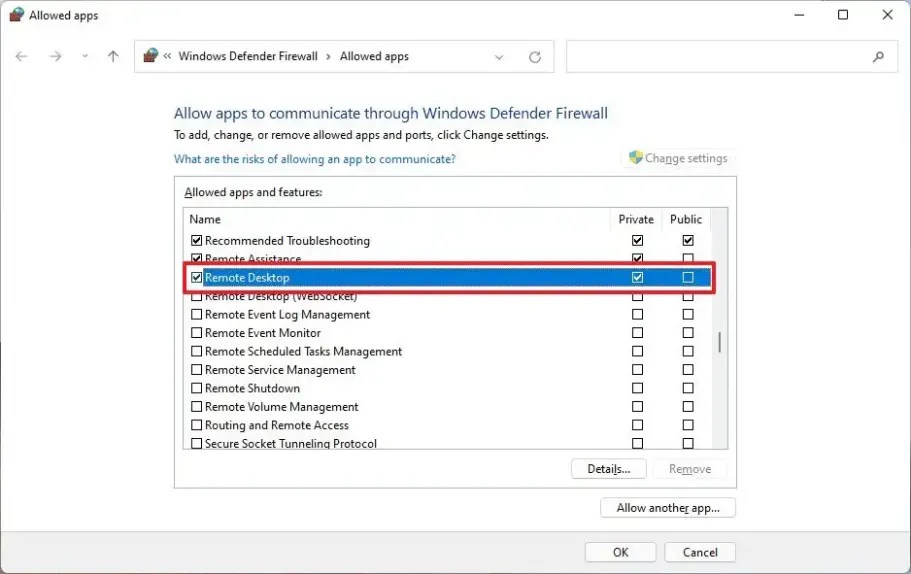
Users then select Change settings to modify the firewall settings. At this point, you can click Private if you want to use it at home or work, or Public to allow the application to be used in public places, such as cafes.
Tap Allow another app if the app is not in the list.
How to allow applications to access the firewall using PowerShell on Windows 11
Step 1
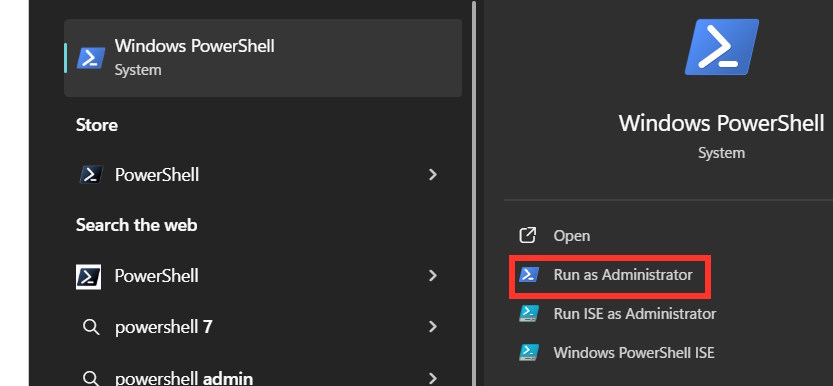
Type "PowerShell" into the search bar , then select "Run as administrator" to run it with administrator privileges.
Step 2
In this interface, enter the command below and then press Enter.
New-NetFirewallRule -DisplayName "RULE-NAME" -Direction Inbound -Program "C:PathToApp.exe" -Action Allow -Profile Domain,Private,PublicIn the command, enter the application name, path, and executable file for the application, and select the firewall configuration to use.
Enter this custom command to test the new rule and press Enter.
Get-NetFirewallRule -DisplayName "RULE-NAME"Enter this custom command to delete the rule and press Enter.
Remove-NetFirewallRule -DisplayName "RULE-NAME"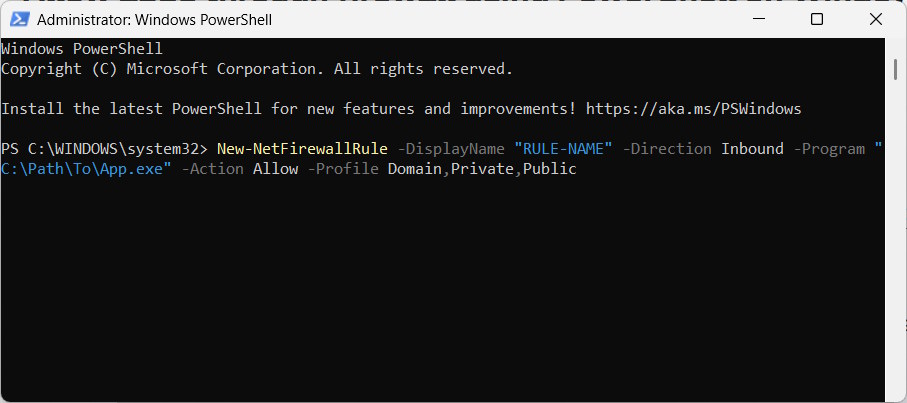
For example, we enter the command for the Zoom application as follows.
New-NetFirewallRule -DisplayName "Zoom" -Direction Inbound -Program "C: UsersUserProfileAppDataRoamingZoombinZoom.exe" -Action Allow -Profile Private, Public
Get-NetFirewallRule -DisplayName "Zoom"
Remove-NetFirewallRule -DisplayName "Zoom"
Final Thoughts
Use this guide as a practical checklist for how to allow applications to access the windows 11 firewall. Work through the steps in order, verify each result, and adjust the options to match your needs.
FAQ
What do you need before following this How to Allow Applications to Access the Windows 11 Firewall guide?
Review the required tools, accounts, settings, or materials mentioned in the article. Learn how to allow applications to access the Windows 11 firewall with clear steps, practical tips, and troubleshooting guidance for a reliable result.
What are the main steps for how to allow applications to access the windows 11 firewall?
Follow the sections in order, especially How to allow applications to bypass the firewall through Windows Security, Step 1, Step 2. Complete each step before continuing and verify the result as you go.
What should you do if the process does not work as expected?
Recheck the prerequisites, update the relevant app or service, review the settings, and repeat the step that caused the issue. Use any troubleshooting notes included in the guide.
Related Articles
 How to Turn on and Off Windows 10 Firewall, Windows 105 minutes read
 What Is a Firewall? General Knowledge About Firewall15 minutes read
 Instructions Allow Applications to Communicate with Each Other4 minutes read
 Firewall Windows 10: How to Use a Firewall in Windows 1011 minutes read
 Instructions to Reset Windows Firewall Rules to the Initial3 minutes read
 Turn Off the Windows Firewall 11: Complete Guide6 minutes read
Reader Comments 0
Sign in with email or Google to join the discussion.