Table of Contents
Firefox has a supported switch for disabling its current and future generative AI features. In desktop Firefox 148 or later, open Settings > AI Controls and turn on Block AI enhancements. Firefox hides the covered tools and their entry points, stops promotional prompts, and blocks new features in this category by default.
This control applies to Firefox's optional AI features. It does not block AI on websites you visit, change your search engine, or stop an extension from contacting its own third-party AI service.
Open Firefox AI Controls
- Open the Firefox menu and select Help > About Firefox to install an available update.
- Restart Firefox if the update requires it.
- Open the menu again and select Settings.
- Select AI Controls in the left sidebar.
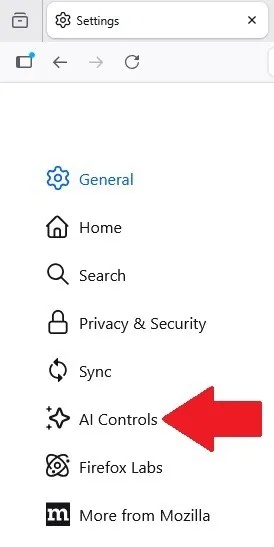
Mozilla introduced the panel in Firefox 148. If it is missing in a newer browser, the feature may be limited by an enterprise policy, a Firefox distribution, a locale or region setting, or a staged rollout.
Block all covered AI features
Turn on Block AI enhancements at the top of the AI Controls page.
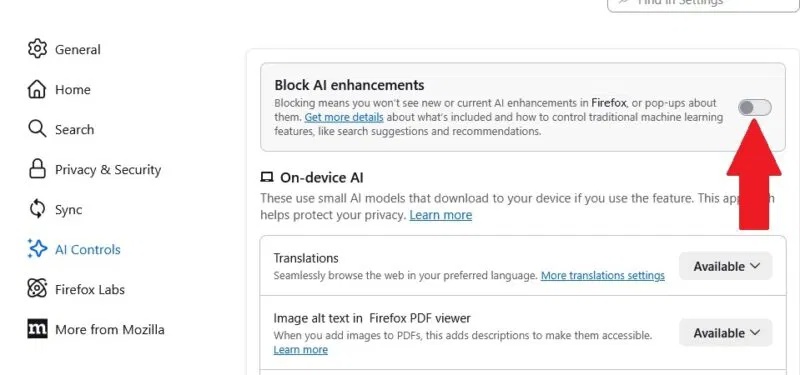
With the master switch enabled:
- Current AI features covered by the panel are blocked.
- Firefox no longer shows their normal entry points, suggestions, or promotional pop-ups.
- Future generative AI features in this control group are blocked by default.
- Extensions that rely on AI supplied by Firefox are affected.
- Downloaded models for on-device features are removed when those features are set to Blocked.
The switch is reversible. Return to the same page and turn it off when you want Firefox to offer the covered features again.
Block or allow individual features
You do not have to make an all-or-nothing choice. Each feature has a menu with one or more of these states:
| Setting | Result |
|---|---|
| Available | The feature is visible and can be used. |
| Enabled | You have opted in to use the feature. |
| Blocked | The feature and its entry points are hidden and cannot be used; an associated local model is removed. |
Firefox can list the following controls, depending on version, language, platform, and rollout:
- Translations for supported webpages and selected text.
- Alt text for PDF images to suggest descriptions for images added to a PDF.
- AI-enhanced tab groups for group-name and related-tab suggestions.
- Speech recognition for supported voice input and caption experiences, processed on the device.
- Key points in link previews for short page summaries.
- AI chatbot in the sidebar for providers such as ChatGPT, Gemini, or Copilot.
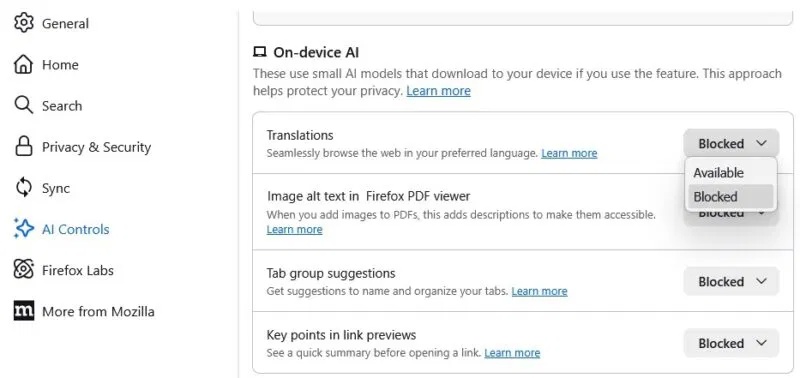
You can keep the master block on and set a specific feature to Available or Enabled. That creates an exception for the feature while leaving future additions blocked. For example, keep Translations available while blocking tab suggestions, link previews, and the chatbot. See how Firefox Translations works before deciding whether to retain it.
Remove the AI chatbot from the sidebar
In Settings > AI Controls, find AI chatbot in sidebar and choose Blocked. Close and reopen the sidebar if the old button remains visible momentarily.
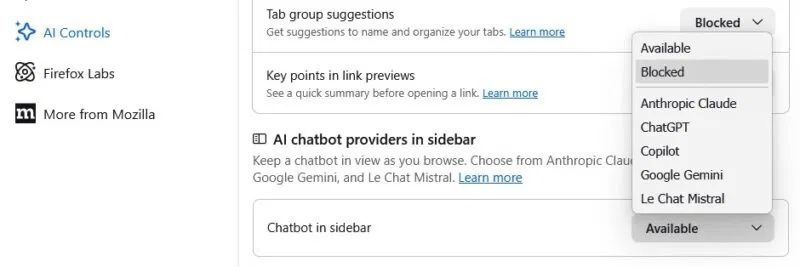
This removes Firefox's integrated chatbot entry point. It does not prevent you from visiting a chatbot's website, and it does not disable an independent chatbot extension. If you keep the feature, this Firefox sidebar chatbot guide explains the provider and selection controls.
Manage downloaded on-device models
Setting an on-device feature to Blocked removes the model that Firefox downloaded for it. If you only want to reclaim storage without blocking the feature:
- Open Firefox Settings and find the On-Device AI model-management page when it is available.
- Review each model's size and purpose.
- Select the trash icon beside a model and confirm removal.
Removing a model does not remove the associated Firefox feature or extension. If you use a feature that requires the model later, Firefox can download it again.
What the master switch does not cover
Mozilla limits AI Controls to newer generative AI and ML features. The panel does not manage:
- AI services on external websites.
- Extensions that independently connect to third-party AI services.
- Search engines or tools such as Google Lens and Perplexity.
- Address-bar history, bookmark, search, and semantic suggestions.
- New Tab recommendations, personalization, or sponsored content.
- Longstanding classification, ranking, autocomplete, and other traditional machine-learning systems.
Review Search, Address Bar, New Tab, and extension settings separately when you want to change those behaviors.
Disable AI features in Firefox for Android
Current Firefox for Android builds also provide a central control:
- Tap the three-dot menu and open Settings.
- Select AI Controls.
- Turn on Block AI enhancements and confirm.
Android can show separate controls for Shake to Summarize, translations, voice search, AI-related notifications, and AI experiments. The list varies by device, region, and Firefox version.
If AI Controls is missing
- Update Firefox through its built-in updater or the official app store.
- Restart the browser after updating.
- Check whether you use Firefox ESR or an organization-managed profile whose policies differ from the regular release.
- Look for an update to the official Mozilla instructions before changing advanced preferences.
Avoid copying old lists of about:config preferences or a third-party script merely to disable features now covered by Settings. Internal preference names can change, a master preference may not cover every entry point, and a persistent user.js file can override later choices without an obvious explanation.
Mozilla's Firefox AI Controls documentation is the current source for included features and exact switch behavior.
Related Articles
 How to Turn Off AI Feature on Firefox3 minutes read
 How to Disable Chatbot AI Firefox3 minutes read
 3 Great New Features on Firefox 59 You Can Use Today4 minutes read
 Hidden Firefox Settings: Best Options and Key Tips4 minutes read
 Firefox 58 and New Features Help Improve Performance5 minutes read
 How to Disable AI Models in Firefox3 minutes read
Reader Comments 0
Sign in with email or Google to join the discussion.