Table of Contents
File Explorer allows users to browse, organize, and manage files and folders on their computers and connected devices. Recent Windows updates allow adding or removing archives, integrating version control, and providing detailed version control information directly in File Explorer. Here's how to add an archive folder in Windows 11.
Instructions for adding storage folders in Windows 11
Step 1:
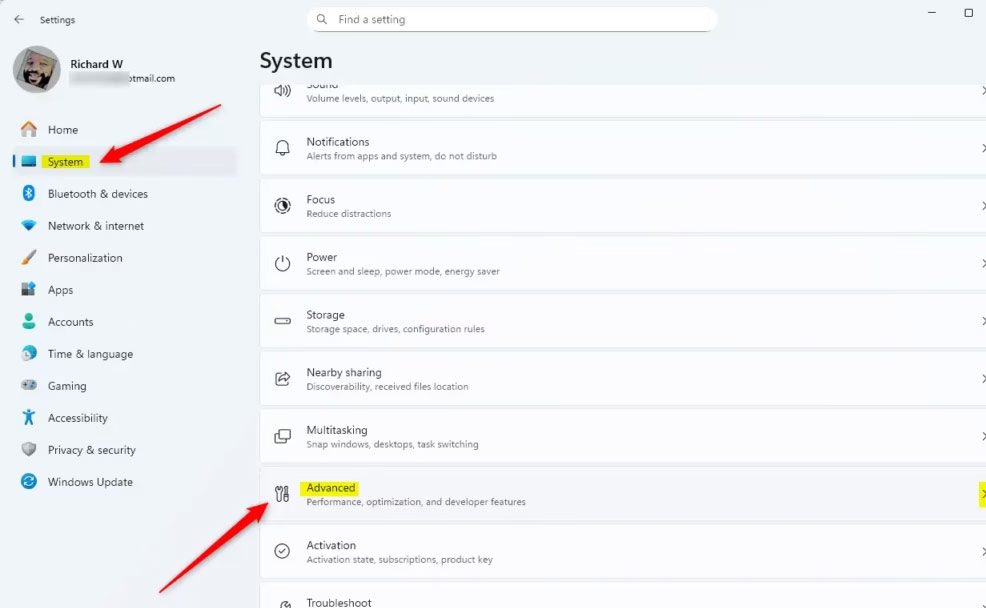
Open Settings on Windows and select System on the left side of the interface. Look to the right and select Advanced to adjust.
Step 2:
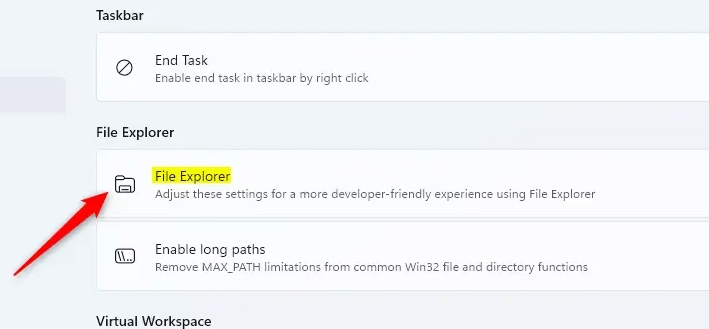
Switch to the new interface, we click File Explorer to expand the settings.
Step 3:
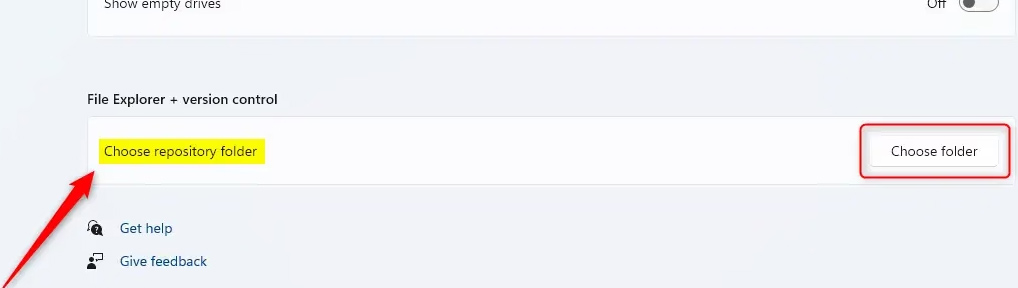
In the File Explorer customization interface on your computer, scroll down below the File Explorer + version control section , at Chosse reposotory This guide will click the Choose folder button to create a folder.
Step 4:
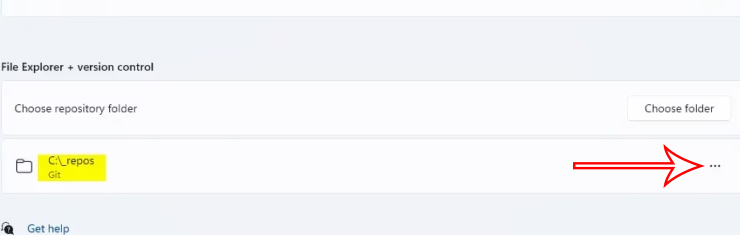
Show folders on your computer for you to choose the archive folder on your computer . You will now see the archive folder you selected. To delete a folder, click the 3 dots icon button next to the archive folder you want to delete, then select Remove to proceed with the deletion.
Final Thoughts
Following the steps in order and checking version-specific settings should make it easier to Add an Archive Folder in Windows 11. If an option looks different, verify the device, app, or operating-system version before changing additional settings.
FAQ
What is the best way to Add an Archive Folder in Windows 11?
Start with the requirements described in the article and follow the steps in order. File Explorer allows users to browse, organize, and manage files and folders on their computers and connected devices.
What should you know about Instructions for adding storage folders in Windows 11?
Open Settings on Windows and select System on the left side of the interface. Look to the right and select Advanced to adjust.
What should you do if the instructions do not match your screen?
Check the device, software version, account permissions, and regional settings. Interfaces can change after updates, so use the closest matching option and consult the official support documentation when necessary.
Related Articles
 How to Archive Folders3 minutes read
 How to Enable / Disable the Archive Apps Feature in Windows 103 minutes read
 What Is the Windows.old Folder and How Do You Delete It?5 minutes read
 Internet Archive: Free Digital Library and How It Works9 minutes read
 How to Set the Default Name of a Newly Created Folder5 minutes read
 What Does the Red ''x'' on Windows Folders Mean?8 minutes read
Reader Comments 0
Sign in with email or Google to join the discussion.