Table of Contents
Hey Copilot in Windows 11 promises voice-activated smart features, like talking to a smart speaker. It sounds far-fetched, but will it make everyday computing easier, or create new privacy issues?
Tired of typing? Hey Copilot in Windows 11 promises smart voice-activated features, like talking to a smart speaker. It sounds far-fetched, but will it make everyday computing easier, or create new privacy issues?
How does "Hey Copilot" actually work and what are the common mistakes?
Hey Copilot in Windows 11 starts by detecting the local mic after enabling it. There's no cloud listening until you say the wake phrase, after which it rings and sends audio streaming to Microsoft's cloud servers for processing.
From there, Copilot handles commands like 'summarize this document,' or combines with Vision to scan the screen for troubleshooting, and Actions to automate tasks without any extra clicks.
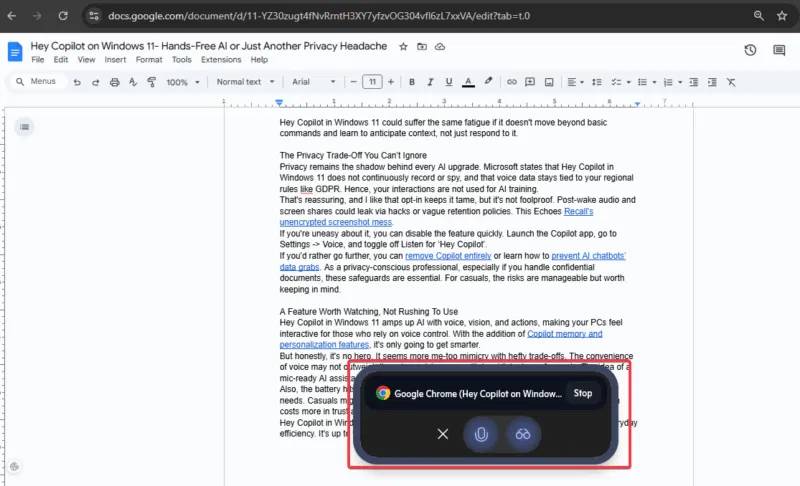
Early adopters on the forums have shared mostly positive feedback in quiet settings. Additionally, there have been no reports of widespread crashes or lags so far, which is a good thing.
It's not perfect, though. It sometimes mishears voices, lags on complex tasks, and feels like it's being scripted rather than conversational. Loud environments can trigger false triggers, like podcasts or chatter, which can turn your workflow into a mess of errors.
While it works fine at a basic level, it's unreliable for any more demanding tasks, at least in testing so far.
When is voice helpful? When is it a hindrance?
Voice activation only makes sense in the right context. This is a huge accessibility advantage, allowing users with limited mobility to use apps or even read notes with ease. Combined with Android Copilot controls, you get a smoother experience across multiple devices.
Common multitasking is also improved, such as editing a file while asking Copilot to summarize the main points of the document.
But here's the problem: It uses an additional 10-15% of your laptop's battery when turned on, which reduces the flexibility of any mobile device. Office users face interruptions from accidental activations or awkward voice commands in meetings. For critical work situations, its latency and mechanical vibration can be distracting, making it a huge hindrance.
Voice assistants are walking a fine line between help and trouble. Siri, Alexa, and Google Assistant have all tried to make conversational computing mainstream, but have ultimately hit the limits of their usefulness.
Hey Copilot in Windows 11 could also suffer from the same problem if it doesn't go beyond basic commands and learn to predict context, rather than simply respond.
The privacy trade-off cannot be ignored.
Privacy remains a shadow behind any AI upgrade. Microsoft claims that Hey Copilot in Windows 11 doesn't continuously record or track audio, and voice data is still tied to your region's rules, like GDPR. So your interactions aren't used to train the AI.
That's reassuring, and many people like the fact that the opt-in keeps it under control, but it's not perfect. Wake-up audio and screen sharing can leak through hacks or obscure retention policies. This is similar to the unencrypted screenshot mess of Recall.
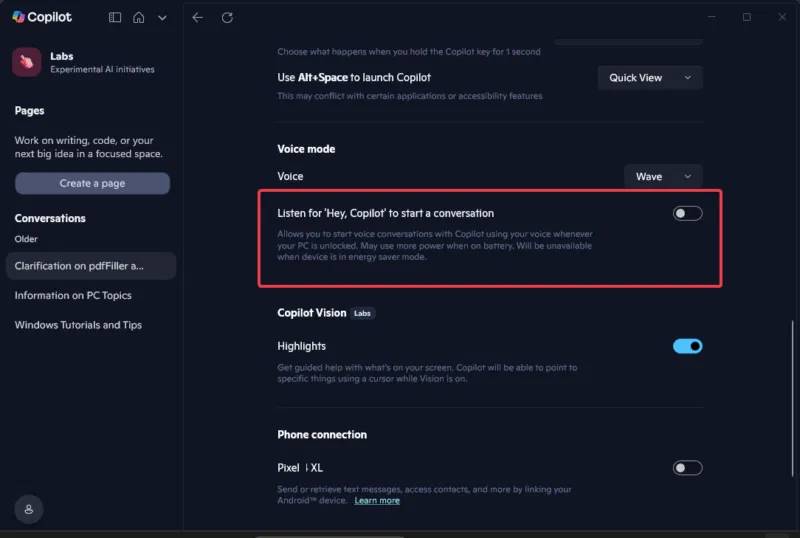
If you're not comfortable with that, you can quickly disable this feature. Launch the Copilot app, go to Settings -> Voice Mode and turn off the Listen for 'Hey Copilot' to start a conversation Option.
To go further, you can delete Copilot entirely or learn how to prevent AI chatbots from collecting data. As a privacy-conscious professional, especially if you handle confidential documents, these safeguards are essential. For the average user, these risks are manageable but worth noting.
A feature worth considering, but not one to rush into using
Hey Copilot in Windows 11 enhances AI with voice, visuals, and actions, making your PC more interactive for users who rely heavily on voice control. With the addition of memory and Copilot's personalization features, it just keeps getting smarter.
But frankly, it's not heroic. It's more like a copycat of habit with costly trade-offs. The convenience of voice may not outweigh the privacy risks, even with local eavesdropping protections in place. The idea of an AI assistant with a microphone at your fingertips 24/7 can be unsettling.
Additionally, battery drain and inconsistent reliability make it a pain, pushing forced AI above the needs of the average user. Casual You can try it, but experts shouldn't rush in. Support often costs more in reliability and tweaking than the benefits.
Hey Copilot in Windows 11 sounds very modern, but it's still not perfect for prioritizing privacy and productivity in everyday work. You decide when it listens.
FAQ
What should you know about hey Copilot on Windows 11?
In practical terms, hey Copilot in Windows 11 promises voice-activated smart features, like talking to a smart speaker. It sounds far-fetched, but will it make everyday computing easier, or create new privacy issues.
Why does hey Copilot on Windows 11 matter?
The article highlights that a feature worth considering, but not one to rush into using Hey Copilot in Windows 11 enhances AI with voice, visuals, and actions, making your PC more interactive for users who rely heavily on voice control.
What is the main takeaway?
The main takeaway is that hey Copilot in Windows 11 sounds very modern, but it's still not perfect for prioritizing privacy and productivity in everyday work.




Reader Comments 0
Sign in with email or Google to join the discussion.