Table of Contents
Learn how to speeding up the context menu on Windows with clear steps, practical tips, and troubleshooting guidance for a reliable result.
Delete File Explorer history
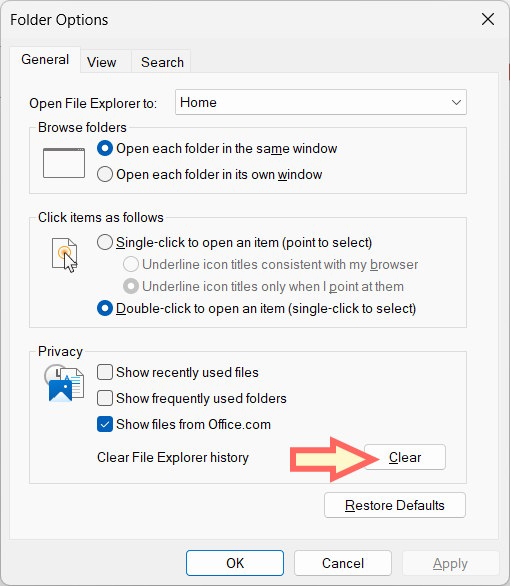
If your File Explorer history is too large, it can cause the context menu to slow down. In the File Explorer interface, click the three-dot icon, then select General, and then click the Clear button under Clear File Explorer history .
Remove unnecessary context menu items
Many third-party applications add their functional items to the context menu for quick access. If you have many such items or an application malfunctions, it can slow down the context menu.
Turn off visual effects for the context menu
If you don't like the slow opening/closing effect of the context menu in Windows 11, you should turn it off.
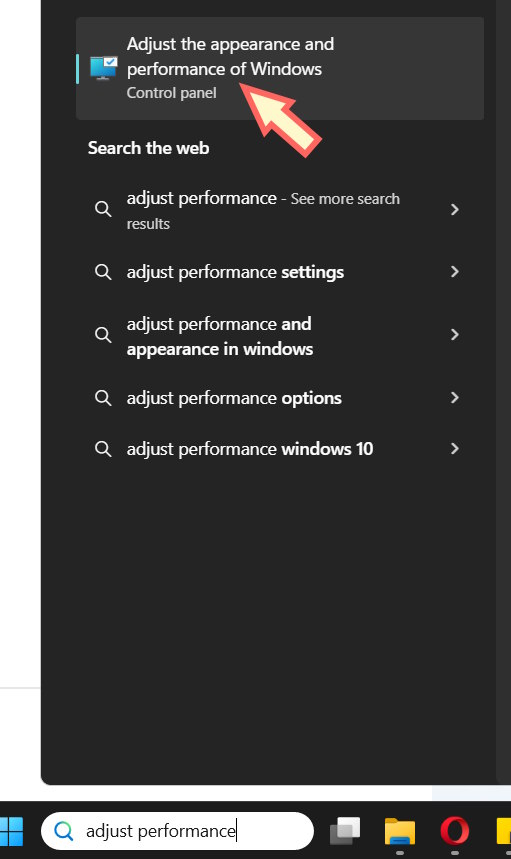
Type "adjust performance" into the search bar and then click on "Adjust the appearance and performance of Windows" to access it.
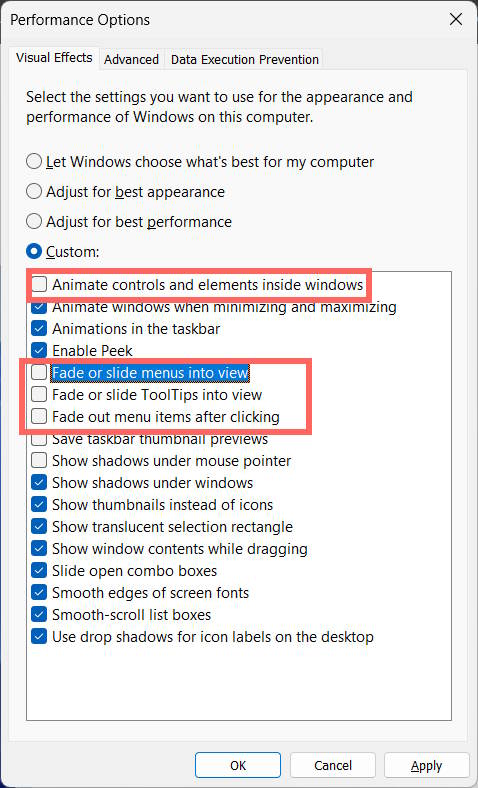
In the new interface, uncheck the settings below .
- Fade or slide menus into view
- Fade or slide ToolTips into view
- Fade out menu items after clicking
- Animate controls and elements inside windows
Use the classic context menu
The new context menu in Windows 11 looks more visually appealing than the context menu in Windows 10. However, it is also slower than the classic context menu.
- How to restore the old context menu in Windows 11
Use ShellExView to remove other application options
You download and launch ShellExView to get started.
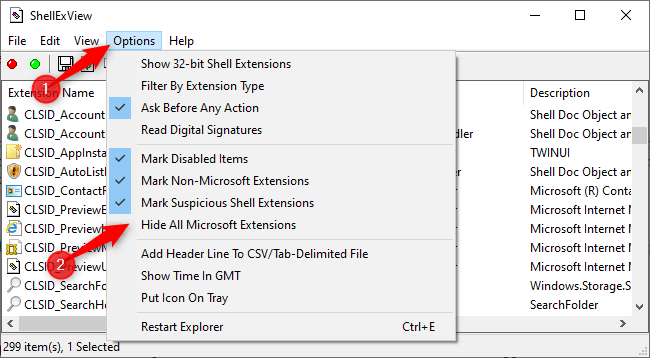
You'll see a long list of Windows shell extensions. However, many of them are created by Microsoft and come with Windows. Those won't slow down your system. To hide all Microsoft extensions, click Options > Hide All Microsoft Extensions .
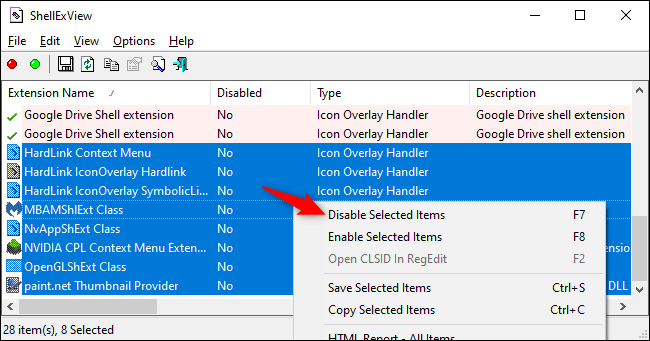
First, select the extensions you want to disable. You can click on each one individually to select them, press Ctrl+ A, or click Edit > Select All to select all, press and hold the key Shiftwhile clicking to select a range, or press and hold the key Ctrlwhile clicking to select multiple extensions.
To disable one or more selected shell extensions, right-click them and select Disable Selected Items , or click File > Disable Selected Items . (To re-enable them, select Enable Selected Items here.)
A disabled shell extension will display "Yes" in the Disabled column.
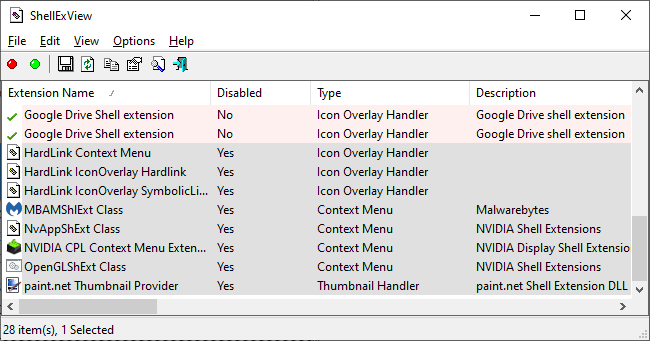
The changes won't take effect until you restart Windows Explorer. You'll see an option for this in the ShellExView Options menu , but you shouldn't do it. It causes Explorer and the Windows taskbar to keep loading until you log out.
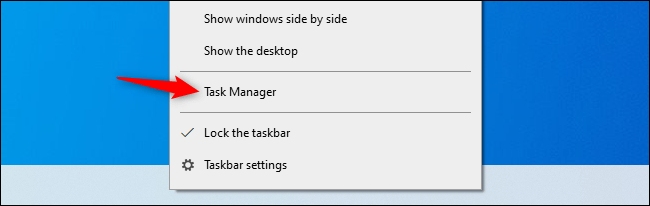
Instead, you should use Task Manager. To open Task Manager, press Ctrl+ Shiftor Escright-click on the taskbar and select Task Manager.
Click on Windows Explorer in Apps on the Processes tab . (If you don't see this tab, click on More Details .) Then, click the Restart button in the lower right corner of the Task Manager window .
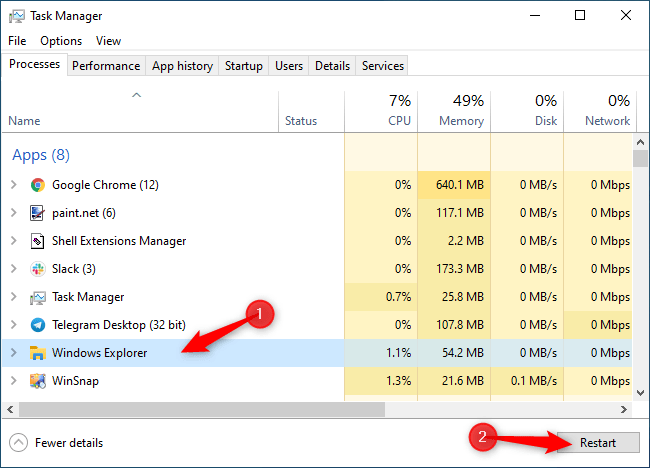
Explorer will restart. Now, try right-clicking on your folder, file, or desktop—anything that was slow before. If it's still slow, you need to try disabling other shell extensions. If it's faster than before, it means you've disabled a shell extension that was slowing it down.
Final Thoughts
Use this guide as a practical checklist for how to speeding up the context menu on windows. Work through the steps in order, verify each result, and adjust the options to match your needs.
FAQ
What do you need before following this How to Speeding up the Context Menu on Windows guide?
Review the required tools, accounts, settings, or materials mentioned in the article. Learn how to speeding up the context menu on Windows with clear steps, practical tips, and troubleshooting guidance for a reliable result.
What are the main steps for how to speeding up the context menu on windows?
Follow the sections in order, especially Delete File Explorer history, Remove unnecessary context menu items, Turn off visual effects for the context menu. Complete each step before continuing and verify the result as you go.
What should you do if the process does not work as expected?
Recheck the prerequisites, update the relevant app or service, review the settings, and repeat the step that caused the issue. Use any troubleshooting notes included in the guide.
Related Articles
 The Context Menu of Windows 11 Will Have a New Eye-catching4 minutes read
 This Small Application Helps Bring the Context Menu3 minutes read
 Windows 11: Complete Guide: Microsoft Is Committed to Improving the3 minutes read
 How to Add Items to the ''create New'' Context Menu in Windows 106 minutes read
 How to Delete Options in the Windows Context Menu11 minutes read
 Restore the Old Context Menu in Windows 11: Step-by-Step Guide6 minutes read
Reader Comments 0
Sign in with email or Google to join the discussion.