Table of Contents
This guide provides a clear, practical overview of "FreeFileSync: Features, Setup, and How to Use It". It organizes the most useful details, explains important considerations, and highlights the steps or choices that matter most.
Get to Know FreeFileSync
FreeFileSync is an open source file synchronization tool that creates exact copies of folders wherever you need them. Unlike dedicated backup apps like Duplicati, which store files in compressed files that require a recovery app, FreeFileSync keeps your files accessible in their original format.
FreeFileSync offers 4 synchronization modes:
- Mirror : Create an exact copy of the source directory
- Two-way : Synchronizes changes in both directions
- Update : Copy only new or modified files
- Custom : Allows you to specify exactly how to handle each type of file operation, for more flexibility
FreeFileSync also handles advanced backup setups with ease. FreeFileSync supports syncing to multiple destinations at once, perfect for adhering to the 3-2-1 backup rule - three copies of your data, on two different media types, with one copy stored off-site. You can connect multiple sync pairs in a single session, allowing you to back up to a local drive and a network location at the same time.
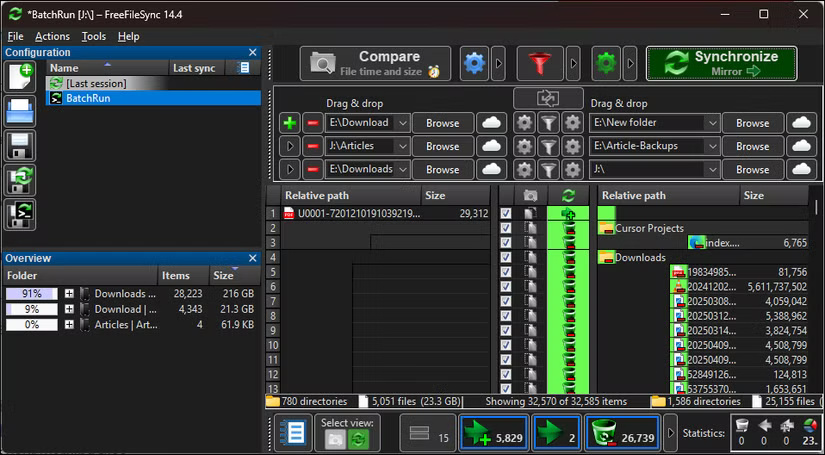
Tools like Duplicati and Macrium Reflect are great for backing up your entire Windows 11 computer system. But if you need a quick, easy way to copy important files and folders, FreeFileSync is a much simpler solution.
While the core software is completely free, FreeFileSync also offers a Donation Edition option that unlocks additional features, such as faster performance through parallel file operations. For most people, the free version is more than enough, as it includes all the necessary functionality. The donation-only features are mainly beneficial for those who frequently sync large data sets or work on slow network connections.
How to use FreeFileSync to automatically back up files
FreeFileSync isn't the most intuitive backup tool and requires some technical knowledge to operate. While powerful and flexible, you may find the interface complex and the setup process confusing without consulting the documentation or community forums.
However, once you get used to FreeFileSync, creating a basic backup is simple. Let's look at a simple example: Copy a folder from your primary storage drive to a secondary drive.
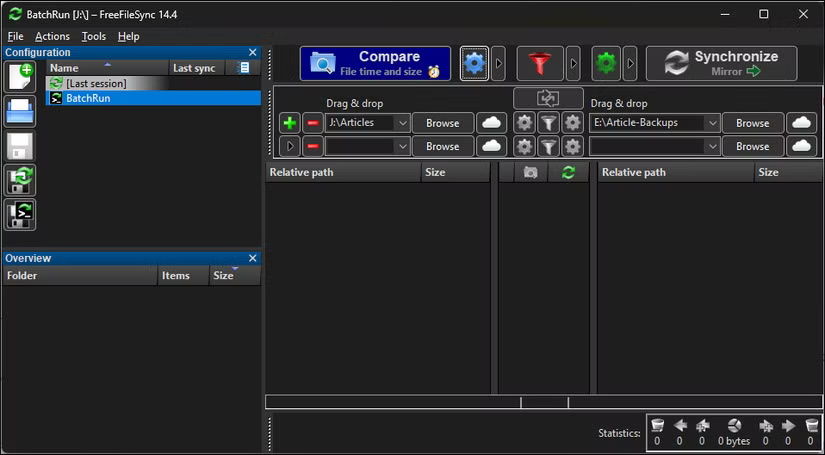
In FreeFileSync, click the + icon to select the source folder on the left - this is the folder you want to back up. Select the destination folder on the right - this can be an external hard drive, network location, or cloud sync folder.
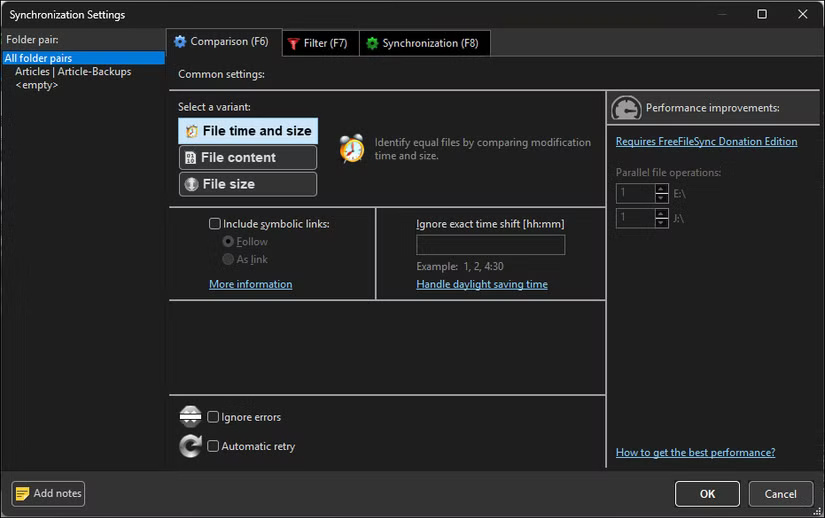
Before syncing, check the compare settings by clicking the gear icon next to Compare (F6) . You can use the default File time and size option, which is fine for most cases. Only switch to File content if you need absolute accuracy and can afford the extra time, as this option is much slower on large folders. Ignore File size unless you know what you're doing.
Tip : If you are backing up photos or videos, enable the Ignore time shift [hours] option in the comparison settings. This helps FreeFileSync avoid recopying files due to small time zone differences (such as when daylight saving time changes or when you copy between Windows and a NAS).
Next, configure your sync settings. Click the green gear icon next to the Synchronize tab and select Mirror mode . This will create an exact copy of the source folder and remove any files that no longer exist in the original backup from the backup.
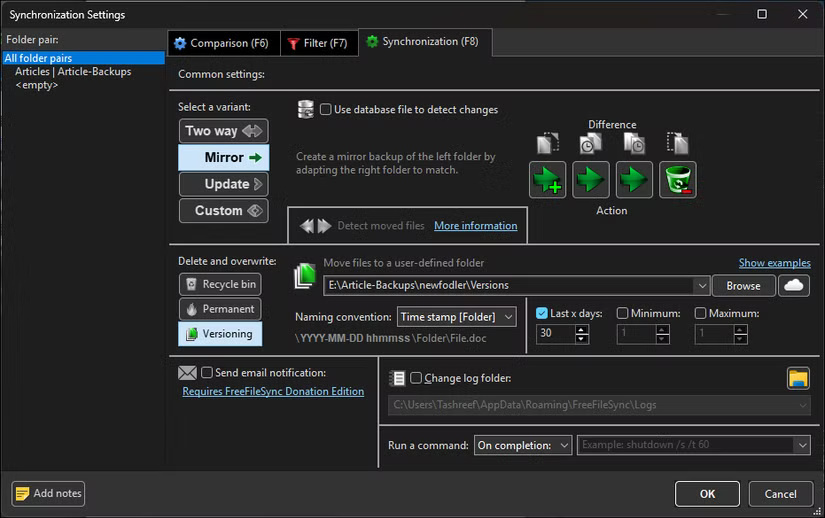
While Mirror mode is useful for keeping your backups clean and preventing old files from piling up, its behavior also means that it will copy corrupted files, files locked by ransomware, etc. And if you delete a file, its 'backup' will be deleted as well. To fix this, you need to set up file versioning, as explained below.
Another option is to choose Update mode, which only adds files to your backup folder and will never delete them.
Tip : Two-way sync also has its own, but more specialized uses. For example, it can be useful to store copies of files in the cloud where someone else can also access them.
Setting up Filters (F7) can save both space and time during backups. Click the funnel icon to open the filter settings. Here you can exclude folders or files that don't need to be backed up, such as temporary files or folders that can be recreated later.
Before performing any sync, always click Compare first to preview exactly what changes FreeFileSync will make before copying or deleting any content.
FAQ
What should you know about get to Know FreeFileSync?
FreeFileSync is an open source file synchronization tool that creates exact copies of folders wherever you need them. Unlike dedicated backup apps like Duplicati, which store files in compressed files that require a recovery app, FreeFileSync keeps your files accessible in their original format.
How to use FreeFileSync to automatically back up files?
FreeFileSync isn't the most intuitive backup tool and requires some technical knowledge to operate. While powerful and flexible, you may find the interface complex and the setup process confusing without consulting the documentation or community forums.
What does this guide cover?
This guide explains FreeFileSync: features, setup, and how to use it, including the main steps, important details, and practical considerations.
Related Articles
 Free Tools for Backing up Data Securely for Your Computer4 minutes read
 How to Sync Folders: Practical Guide12 minutes read
 How to Play Pokémon GO on a Computer6 minutes read
 How to Play Pokémon GO on a Smartphone6 minutes read
 26 Types of Poké Balls Explained: Part 25 minutes read
 How to Earn and Use Stardust in Pokémon GO5 minutes read
Reader Comments 0
Sign in with email or Google to join the discussion.