Table of Contents
These templates save time and inspire layout ideas you wouldn't have thought of on your own.
Let's be honest, building a spreadsheet from scratch can feel like staring at a blank page with no idea where to start. You know you need something to track expenses, plan projects, or manage your calendar, but the formatting, formulas, and constant editing often take up more time than the actual building.
That's why many people turn to ready-made Excel templates. After trying them out for themselves, many find that they don't have to start from scratch every time they launch Excel. Templates save time and inspire layouts that you wouldn't have thought of on your own.
Simple loan calculator and amortization table
Stop guessing!
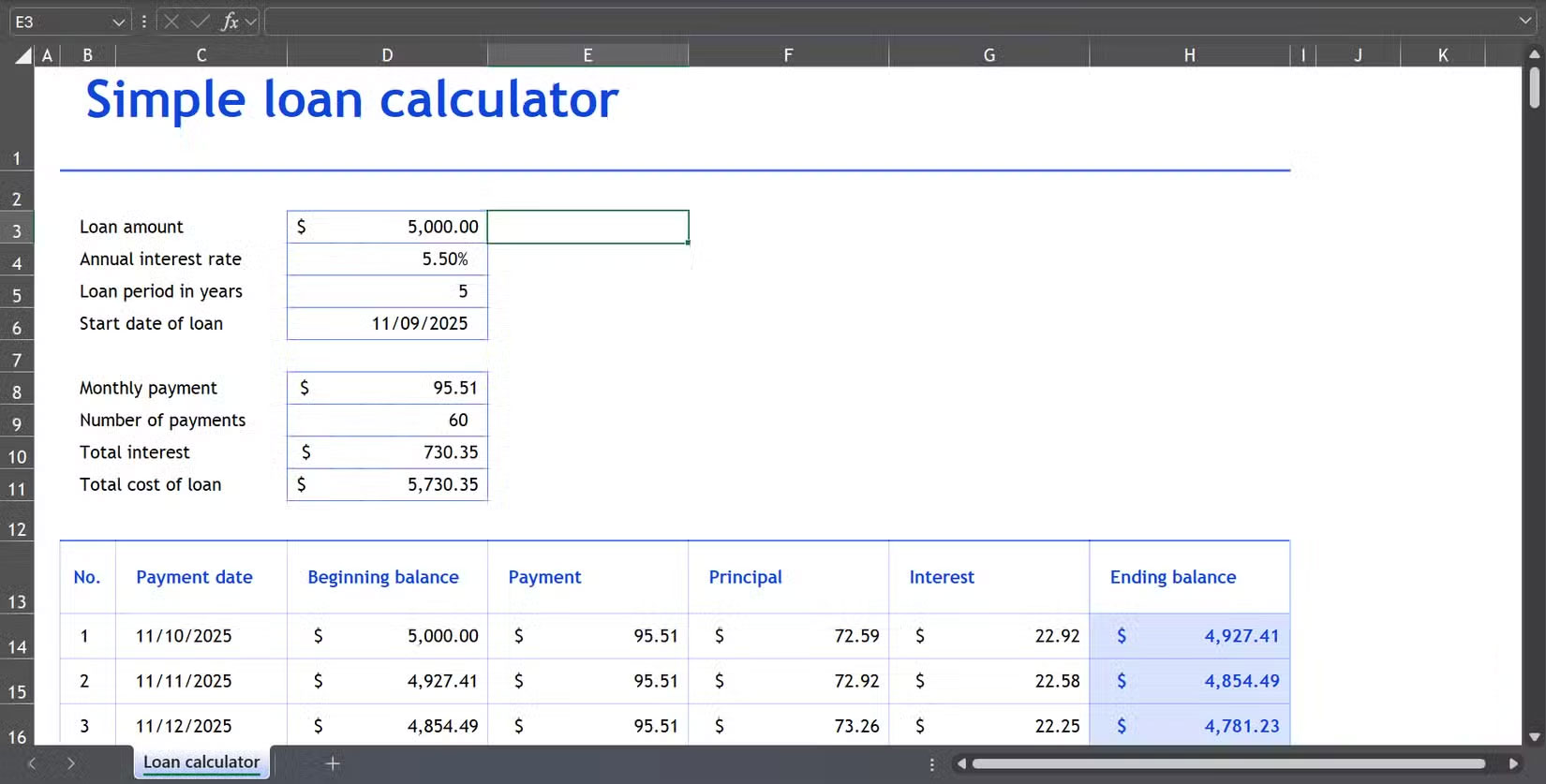
This template is exactly what it promises - simple. It has just one sheet and you only need to fill in 4 pieces of information: Loan amount, annual interest rate, loan term (years) (use decimals for months - for example, 0.5 for 6 months) and loan start date (today is the default, but you can change it).
Once you enter the numbers, Microsoft Excel will automatically do the rest. The template will create a clear payment schedule that shows exactly how much you'll owe each month.
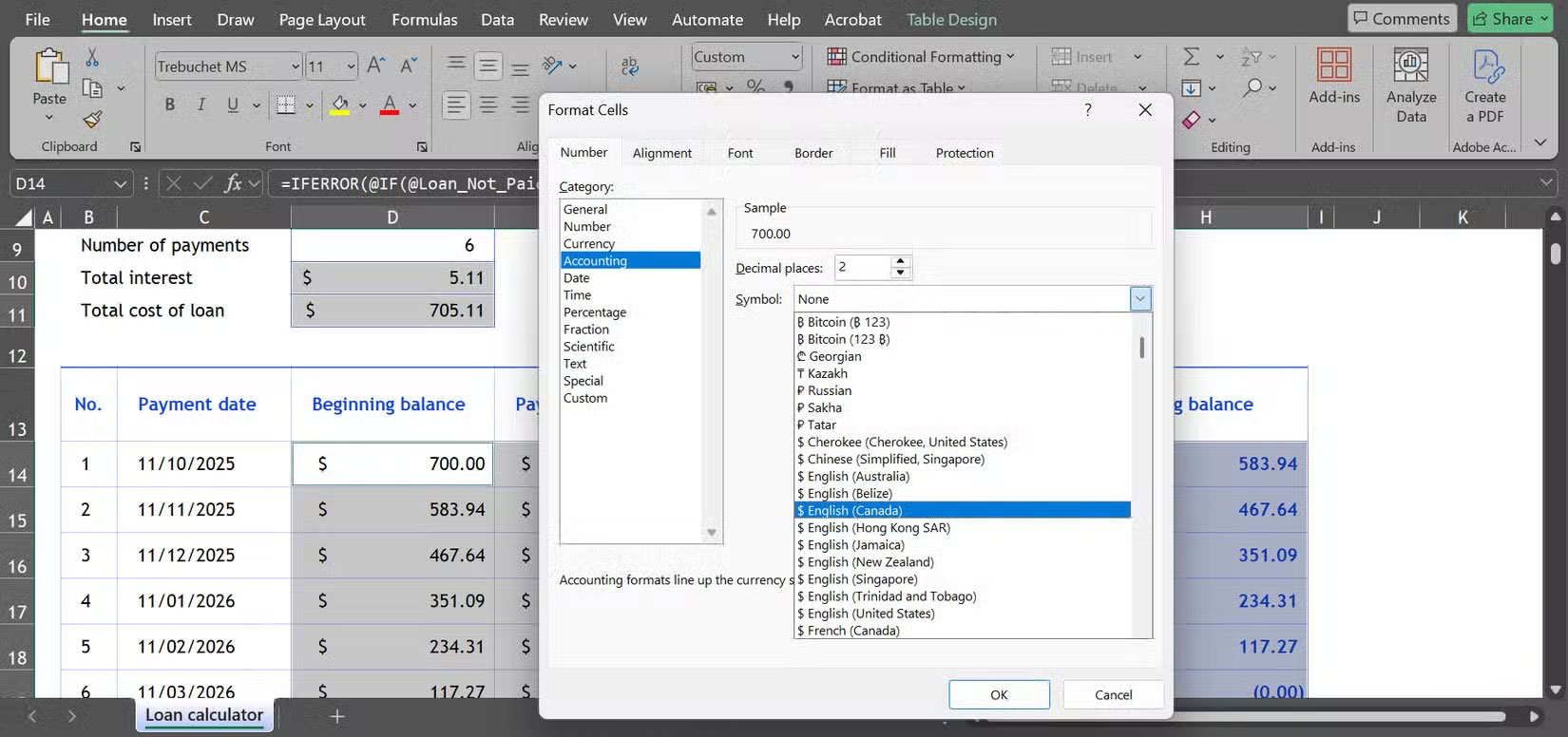
With this template, you don't need to create or adjust formulas yourself. Everything is built in, so after entering the data, you immediately get a simple analysis that you can understand immediately.
Custom calendar for each year
Create a calendar that fits your year
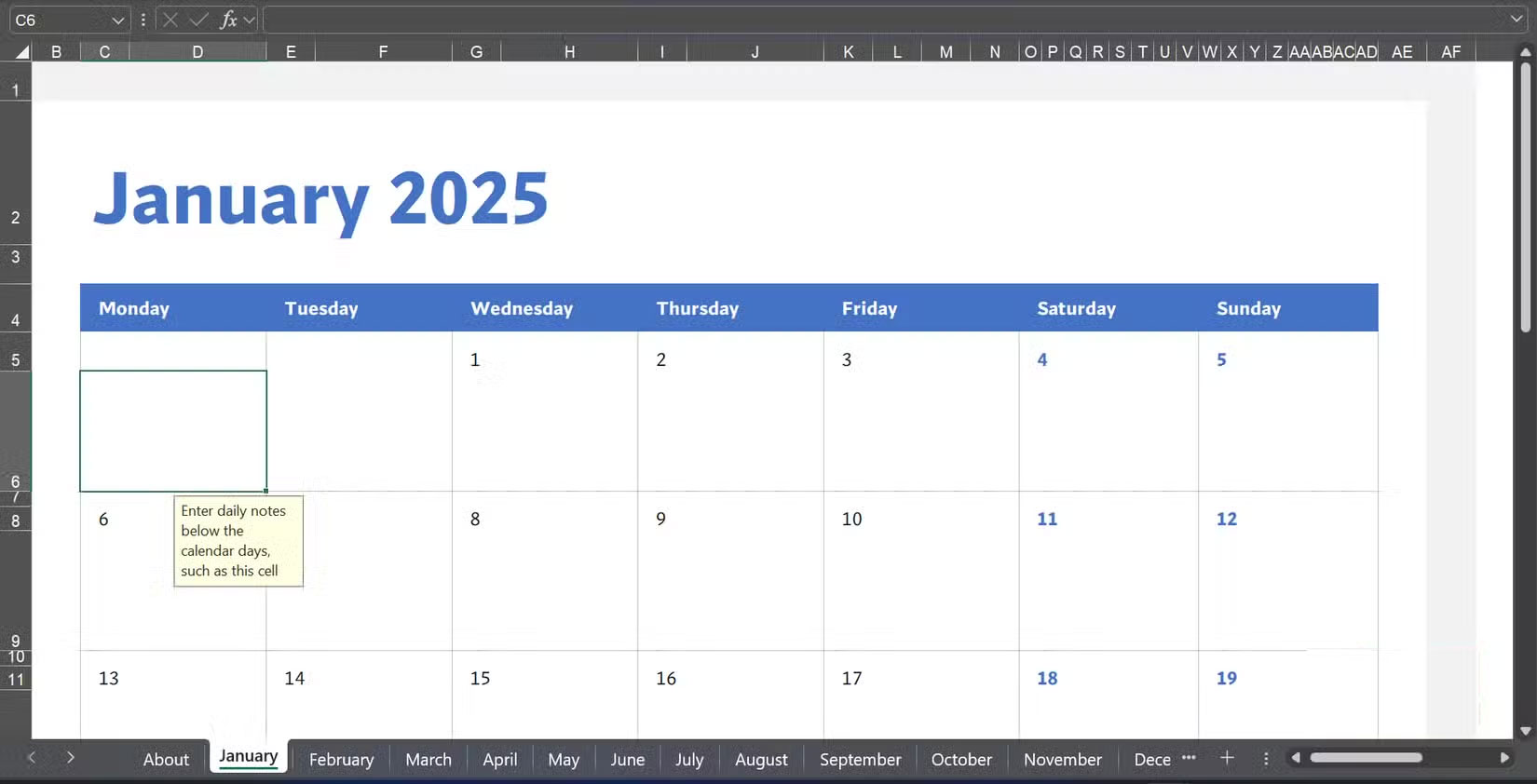
If you like a calendar that you can print, customize, and write on, this template is a great choice. It includes 13 sheets—an introduction page and 12 monthly sheets. The About Page isn't just a guide; it's the driver for the entire calendar. Here, you'll enter the year and choose the day you want the week to start (Sunday is the 1, Monday is the 2, etc.). Don't delete this sheet, as the rest of the calendar depends on it.
You can even add notes directly to the sheet, such as typing in cell C6 for more details, before printing the sheet. This makes it useful as a wall calendar, but with the added bonus of being customizable and diary-like.
Monthly budget tracker
Control your spending
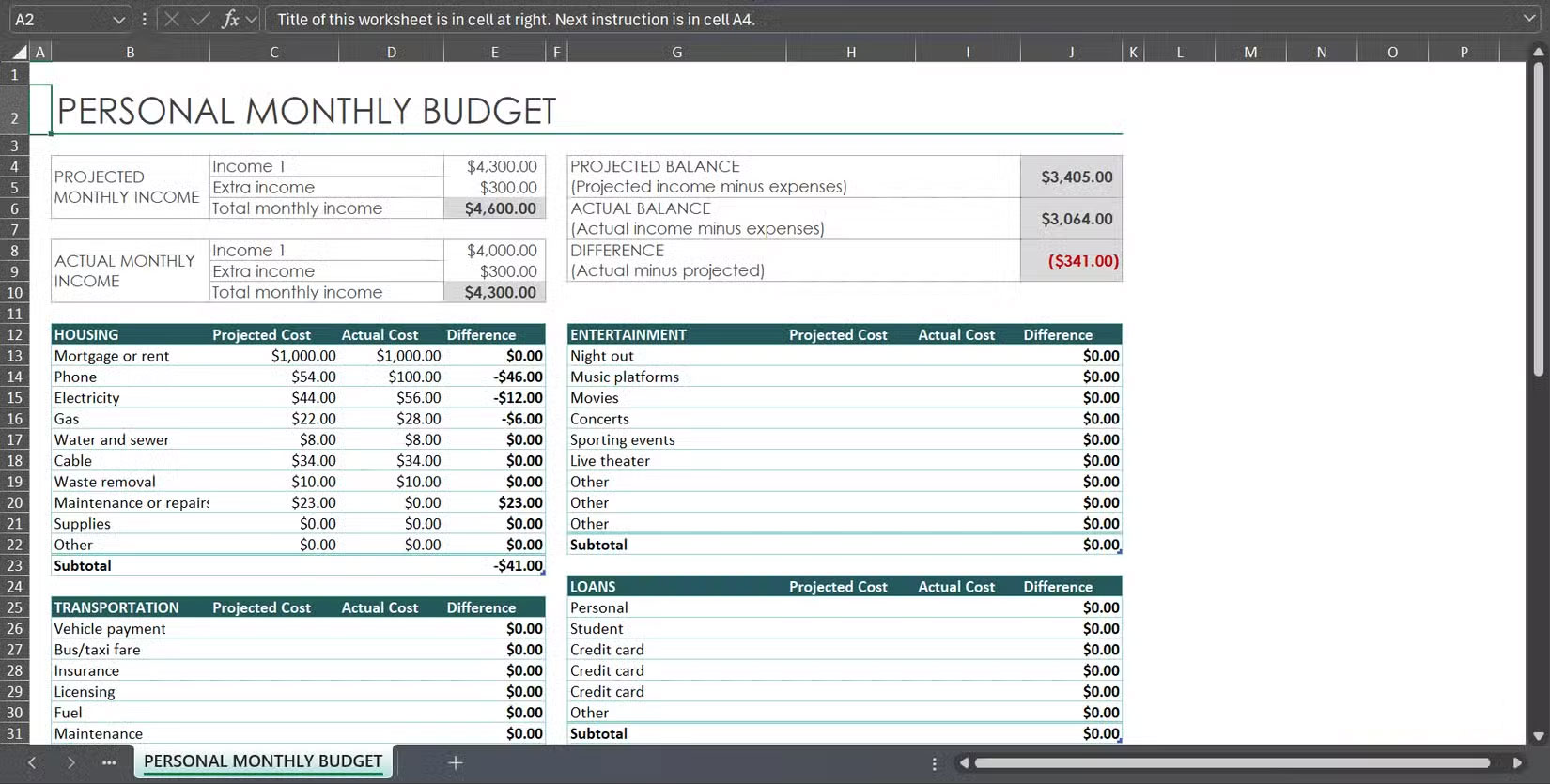
This is the most used template. Every month, you can compare your projected budget with your actual spending, and this spreadsheet makes that process a lot easier. It consists of two tabs: the Start Page (basically the introduction page) and the Tracking Page, where all the activity happens.
The Getting Started page gives a quick overview of how the template works and explains some of the hidden notes built into Tracker. Some people prefer to hide these instructions because it makes for a cleaner layout. If you're curious, just scroll over to column A and Excel will show the hidden text in the input bar. You can also unhide the column, which is pretty easy to do.
What people love most about this template is the organization. The spending categories are logical, and each category has a neat row underneath. You can edit them to fit your expenses.
Sales invoice tracking tool
Take the stress out of billing
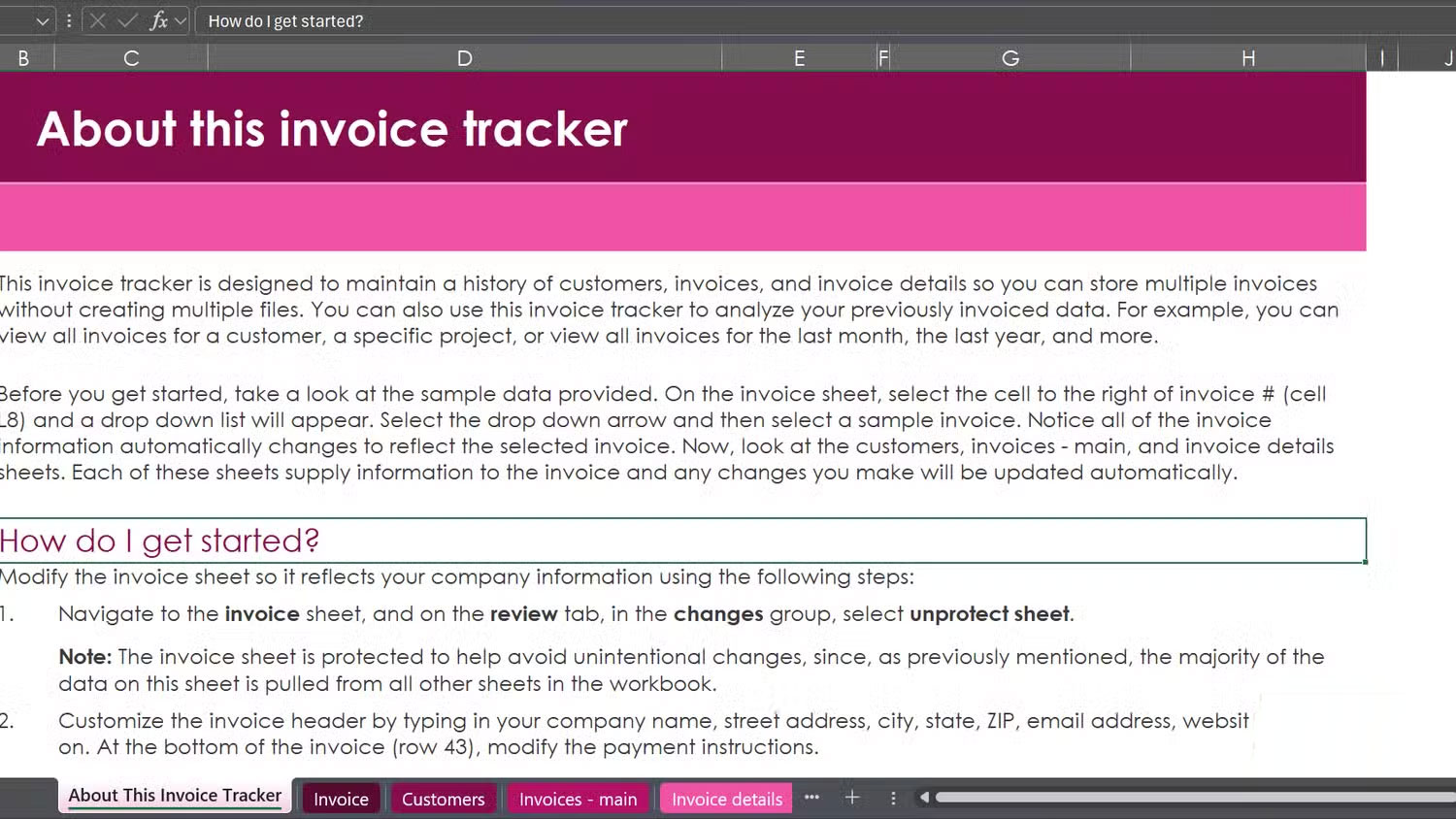
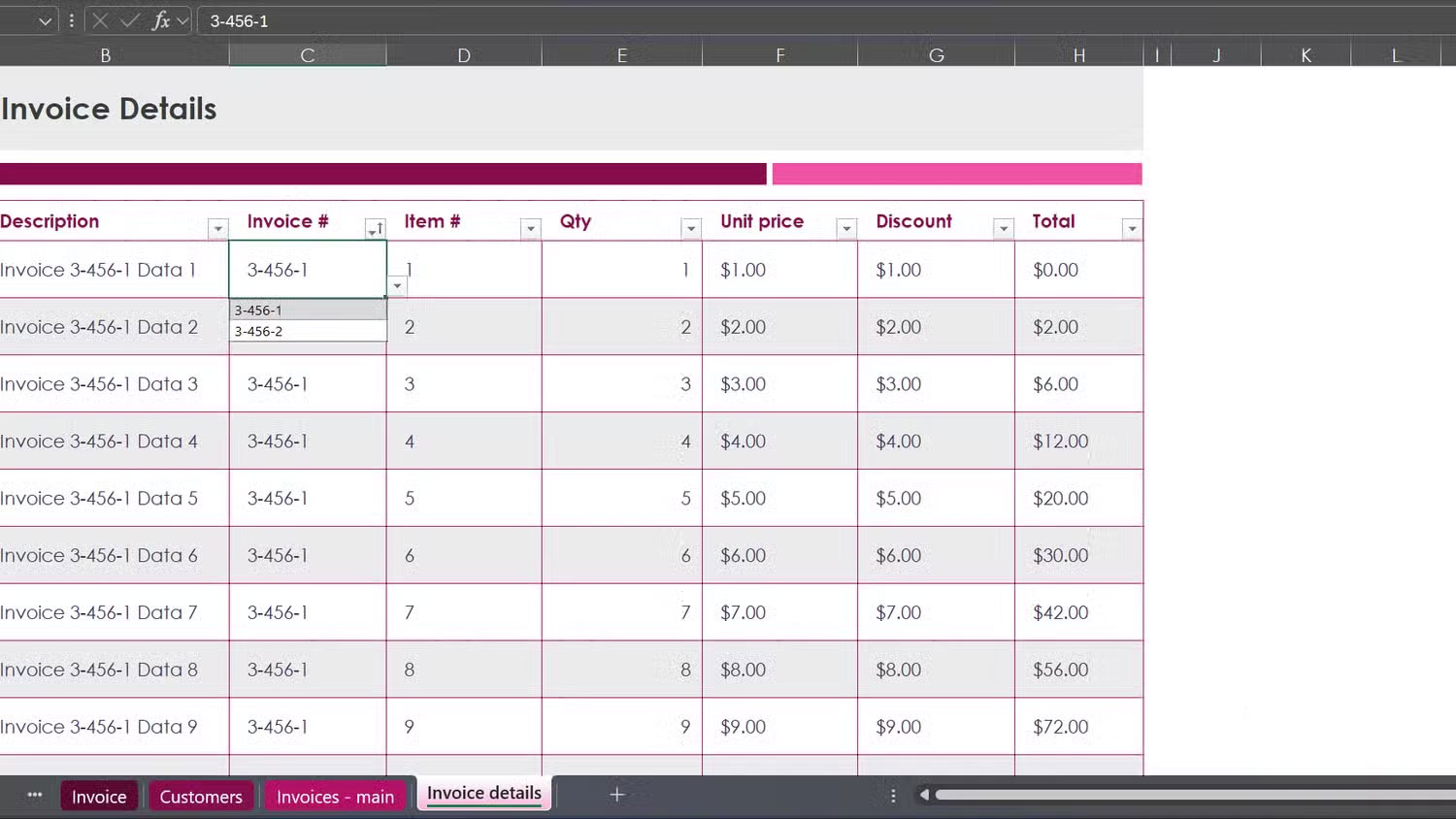
Invoicing is one of those tasks that always seems more difficult than it needs to be. Between keeping track of clients, organizing invoices, and making sure your calculations are correct, it's easy to get overwhelmed. This template takes the stress out of it by simply requiring you to add clients and their purchases.
This workbook consists of 5 worksheets, each with its own task:
|
Table name |
Content |
|---|---|
|
About This Invoice Tracker |
Guide with tips on filtering and navigation. |
|
Invoice |
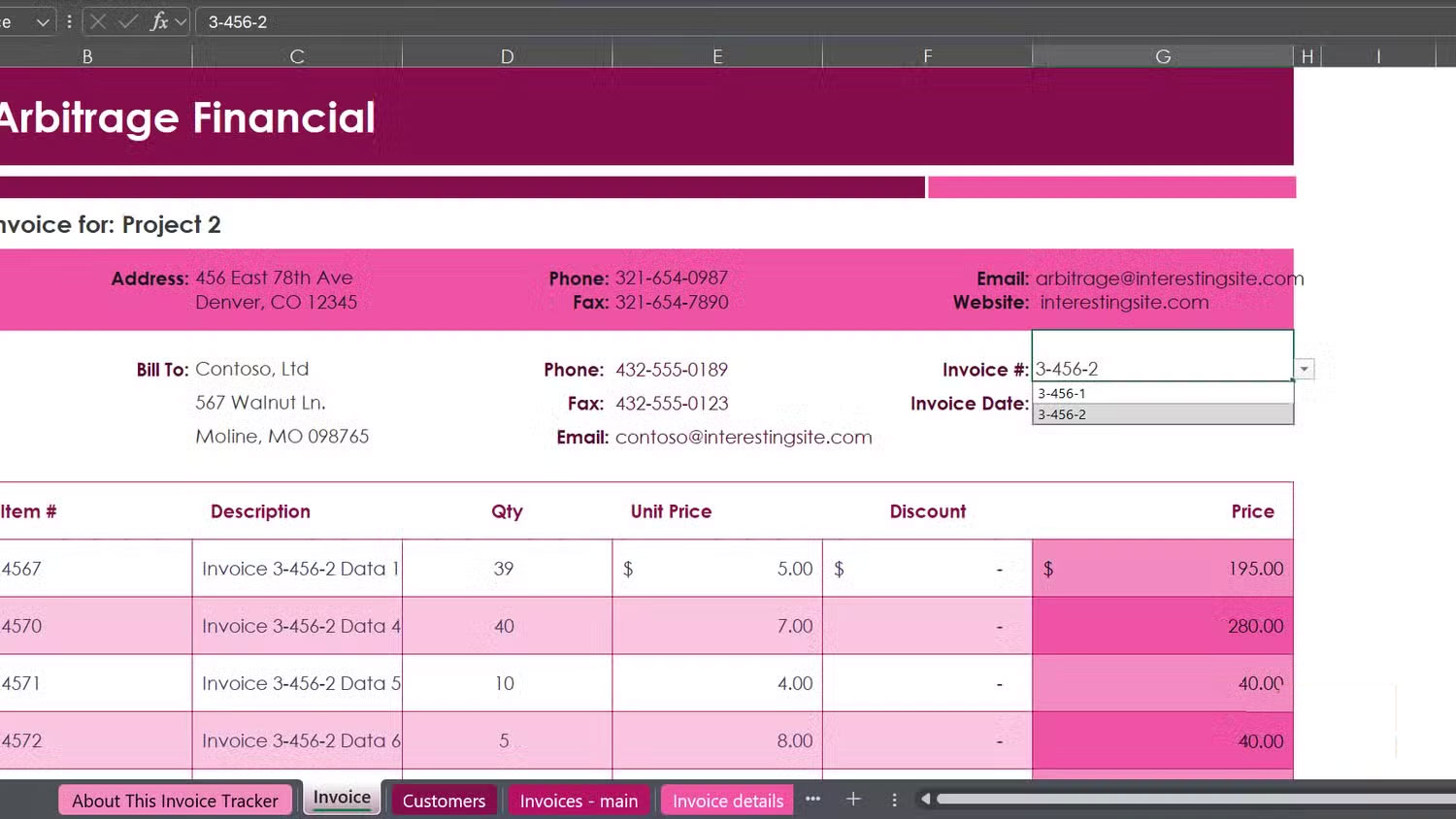
This is the highlight of the program. Select the invoice number in cell G6, Excel will automatically fill in the customer information, item information, and total amount. Just add the company information (name in cell B1, details in rows 4–5, footer in cell B41) and you have a complete invoice ready to print or email. |
|
Customers |
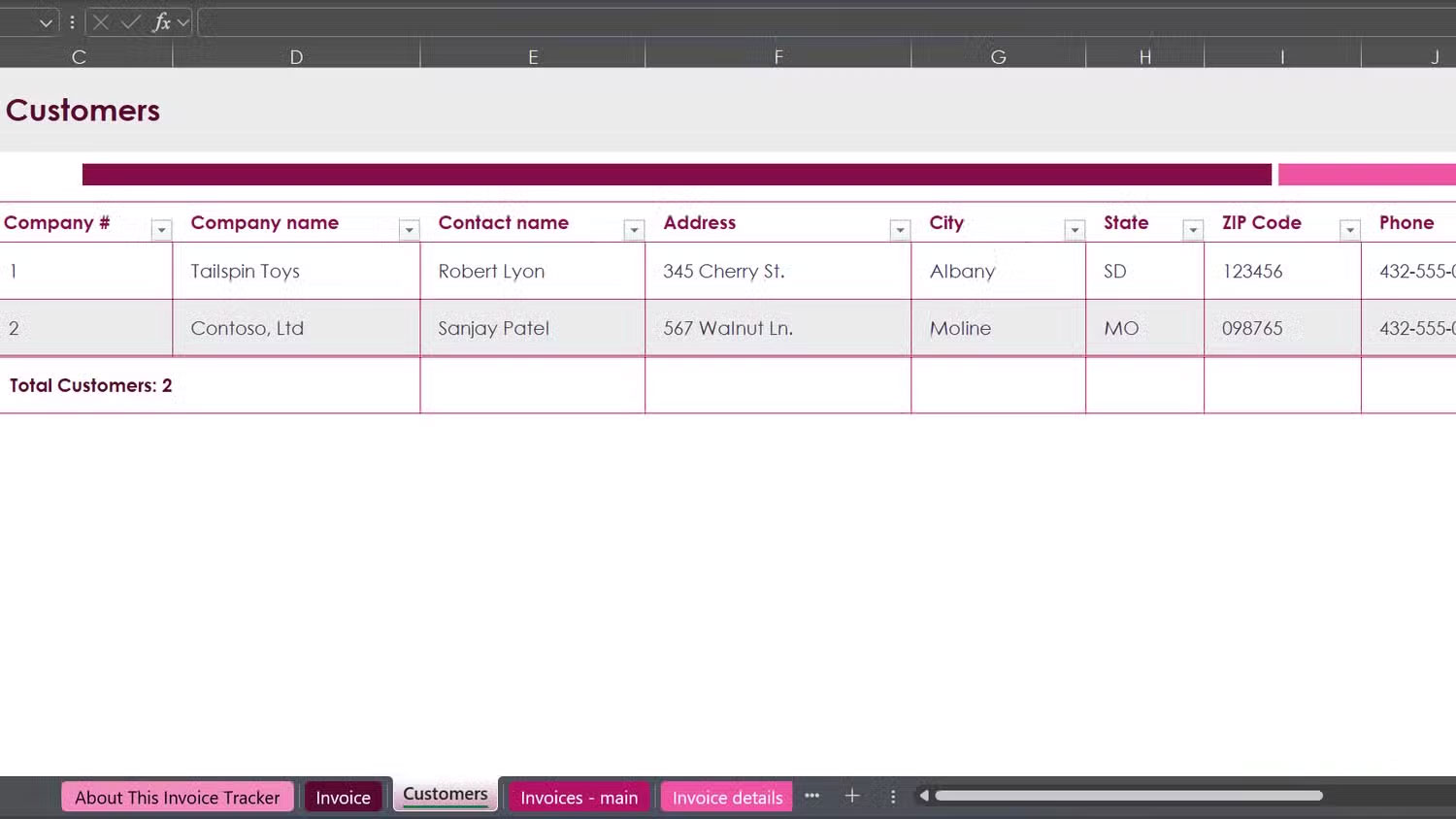
Your customer list is here (ID, name, address, etc.). |
|
Invoices - main |
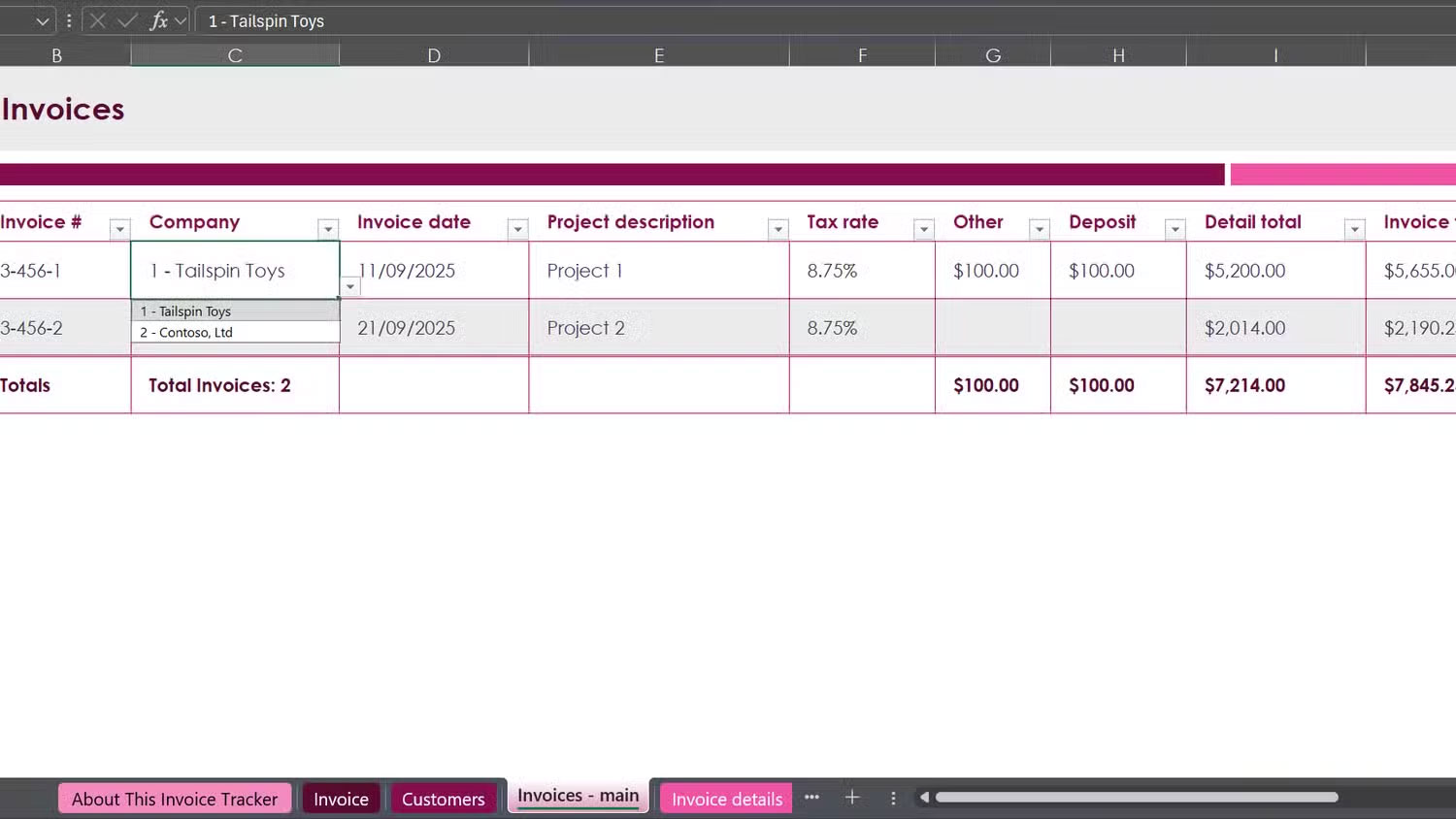
The main journal keeps one row for each invoice, with filters to track date, customer, and payment status. |
|
Invoice details |
This spreadsheet divides each invoice into line items (up to 25 items per invoice). For example, if invoice number 3-456-2 has 12 products, the Invoices – Main Table will display one row, while the Invoice details Table will display 12 rows. |
FAQ
What should you know about Excel templates help you avoid building spreadsheets from scratch?
In practical terms, these templates save time and inspire layout ideas you wouldn't have thought of on your own.
Why does Excel templates help you avoid building spreadsheets from scratch matter?
The article highlights that that's why many people turn to ready-made Excel templates.
What is the main takeaway?
The main takeaway is that after trying them out for themselves, many find that they don't have to start from scratch every time they launch Excel.
Related Articles
 How to Protect Spreadsheets in Excel3 minutes read
 Microsoft Excel: 8 Ways to Use Excel Beyond Spreadsheets9 minutes read
 How to Open Multiple Spreadsheets Side by Side in Excel 20134 minutes read
 How to Cleaning up Excel Data Tables5 minutes read
 8 Excel Spreadsheet Tips for Teams5 minutes read
 Points to Know About the New Scratch 3.0 Version7 minutes read
Reader Comments 0
Sign in with email or Google to join the discussion.