Table of Contents
Excel formulas are powerful, but they have their limitations. People used to rely on complex, nested formulas that were time-consuming to build and difficult to troubleshoot, but now they're starting to rely more on macros. Formulas aren't inherently bad — they're great for precise calculations and data manipulation. But when you're dealing with repetitive tasks that involve multiple steps, formatting changes, or actions that need to be performed across multiple worksheets, macros make more sense.
Macros are often used to replace formulas
3 essential macros to handle repetitive tasks
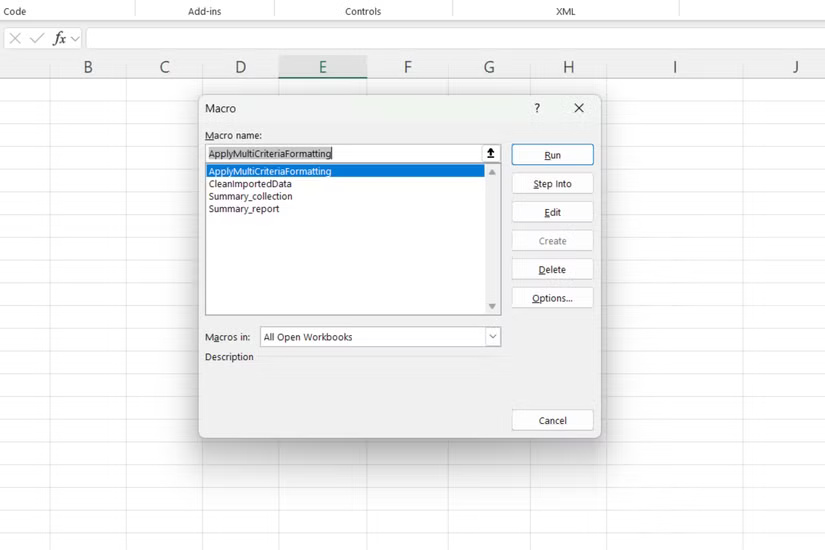
Over time, many people have built up a collection of macros that handle repetitive tasks that they once struggled with. They aren't fancy or complicated, just practical solutions that keep them from doing the same tedious task over and over again.
The most used macro automatically cleans imported data. It can be used to remove extra spaces and clean data using the TRIMRANGE function, convert text to uppercase, and standardize date formats across multiple columns.
Another popular macro is to consolidate data from multiple spreadsheets into one summary report. It takes specific ranges from multiple spreadsheets, applies consistent formatting, and creates a clear overview. This macro is useful when dealing with monthly reports that need the same structure every time.
It's also possible to create a macro that applies conditional formatting rules based on multiple criteria - something that can get tricky when you try to build it using nested formulas. The macro can look at multiple columns, apply different color schemes, and even add data bars or icons depending on the values found.
The great thing about these macros is that once set up, anyone on the team can use them. You don't need to understand the underlying logic - just run the macro and get consistent results every time.
A Little VBA Makes Macros More Powerful
Simple code tweaks to transform basic recorded macros
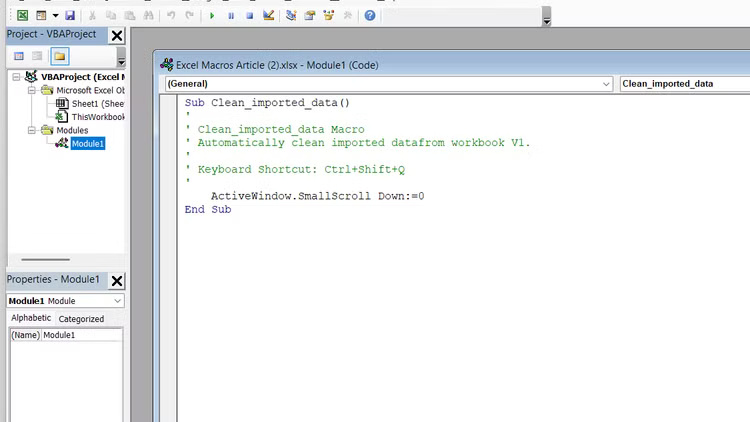
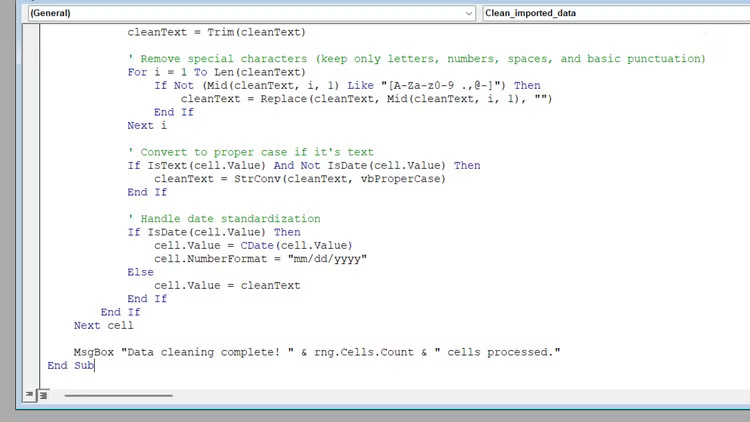
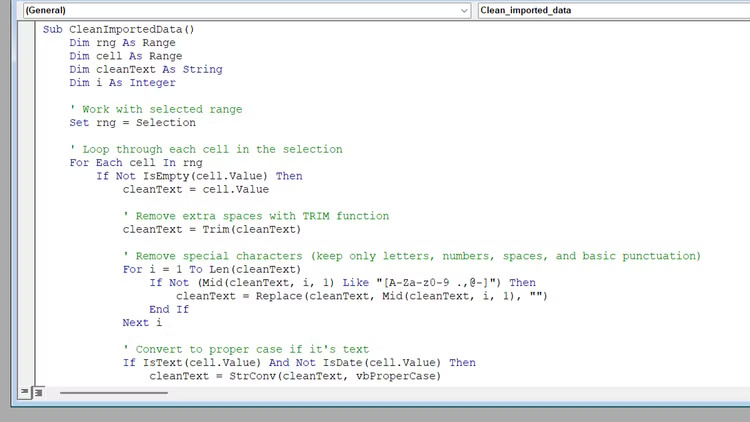
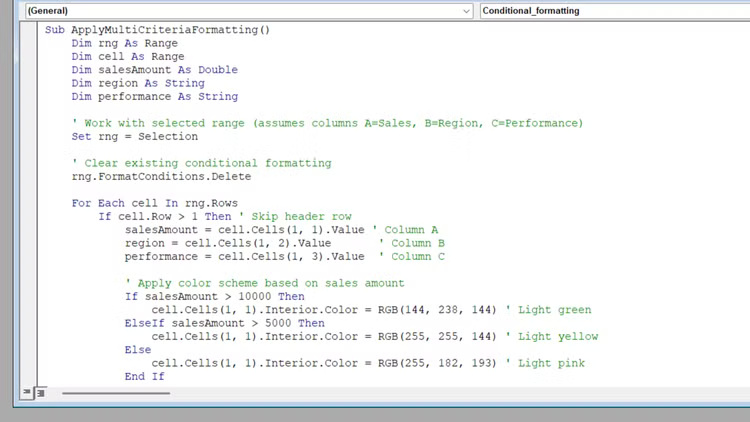
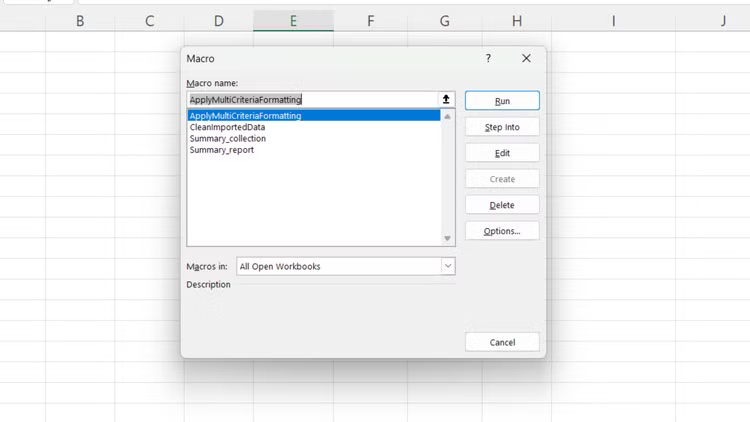
While recorded macros work great out of the box, learning a little Excel VBA programming will take them to the next level. You don't need to be a programming expert - understanding a few basic concepts can make your macros smarter and more flexible.
Macro recorders generate functional code, but they are often inefficient and inflexible. They record absolute cell references and sometimes unnecessary extra commands, which can slow things down. With a little knowledge of VBA, you can tweak your macros to handle different ranges flexibly and run faster.
Here's how to start editing your recorded macros:
- Go to Developer > Macros and select your macro.
- Click Edit to open the VBA editor.
- Finds hardcoded cell references like Range("A1: C10").
- Replace them with dynamic references using CurrentRegion or End(xlDown).
- Add simple error handling with On Error Resume Next .
One of the biggest improvements you can make is to add user input. Instead of using separate macros for different situations, use an InputBox to allow the user to specify ranges or criteria. This turns a rigidly recorded macro into a flexible tool.
Adding basic loops also makes macros more powerful. A simple For Each loop can process multiple worksheets or ranges without having to record separate actions for each worksheet or range.
The VBA editor can seem overwhelming at first, but start small. Change a cell reference here, add a message box there. Once you see how these small changes improve your macro, you'll want to learn more.
Macros aren't magic, but they're close
Finding the right balance between automation and formulas
Macros won't replace every formula in the Excel toolkit, but they're useful for handling repetitive, multi-step tasks that would otherwise take up a lot of your time. The key is knowing when to use each tool. Formulas are perfect for calculations that need to update automatically. Macros excel at complex workflows that involve multiple operations on different parts of a workbook.
Start with a simple macro recorder, then gradually add VBA tweaks as you get more comfortable. Before long, you'll have a collection of custom automations that make Excel work exactly the way you need it to.
Final Thoughts
The development covered in this article is worth following, but specifications, dates, and feature details may change until the relevant company or organization publishes an official confirmation.
FAQ
What is the main development covered in this article?
Excel formulas are powerful, but they have their limitations. People used to rely on complex, nested formulas that were time-consuming to build and difficult to troubleshoot, but now they're starting to rely more on macros.
What should you know about 3 essential macros to handle repetitive tasks?
Over time, many people have built up a collection of macros that handle repetitive tasks that they once struggled with. They aren't fancy or complicated, just practical solutions that keep them from doing the same tedious task over and over again.
Is every reported detail officially confirmed?
Not necessarily. Product leaks, preview builds, research reports, and early announcements can change. Confirm important specifications, dates, and availability through an official source before making a decision.
Related Articles
 How to Use Macros in Excel7 minutes read
 The Easiest Way to Use Macros in Excel8 minutes read
 MS Excel 2007 - Lesson 7: Create Macros in Excel 20072 minutes read
 How to Delete Macros in Excel, Quickly Disable Macros3 minutes read
 How to Hide Formulas in Excel3 minutes read
 Instructions on How to Create and Use Macros in Excel Create Macros, Save6 minutes read
Reader Comments 0
Sign in with email or Google to join the discussion.