Table of Contents
Microsoft Excel has a lot of useful built-in functions, but that doesn't mean you should use them indiscriminately.
Microsoft Excel has many useful built-in functions, but that doesn't mean you should use them indiscriminately. One of the things you can do when Excel is slow is to check certain formulas to make sure you're using them effectively. Even seemingly simple functions can have a significant impact on performance and cause headaches.
While there are many causes, formulas that use volatile functions, array functions, and lookup functions are the biggest culprits. This article will explain why they can slow down your spreadsheet, as well as some tips on how to fix them to optimize performance, or when to avoid them altogether.
Formulas with volatile functions
There is a reason why experts limit their use.
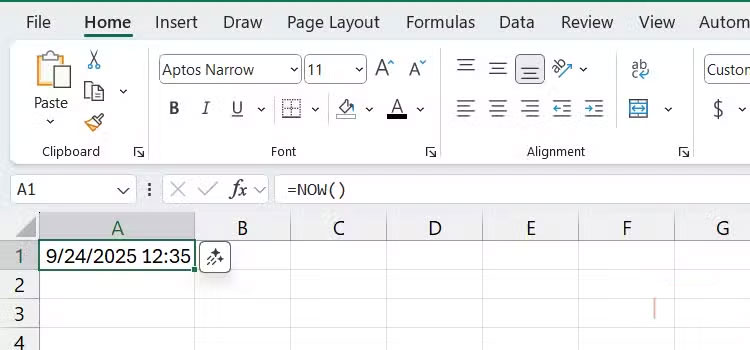
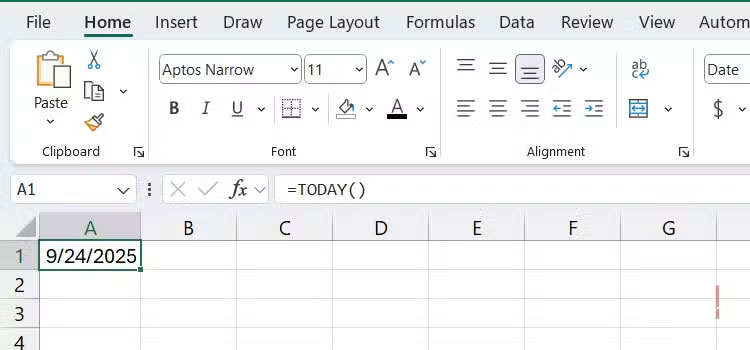
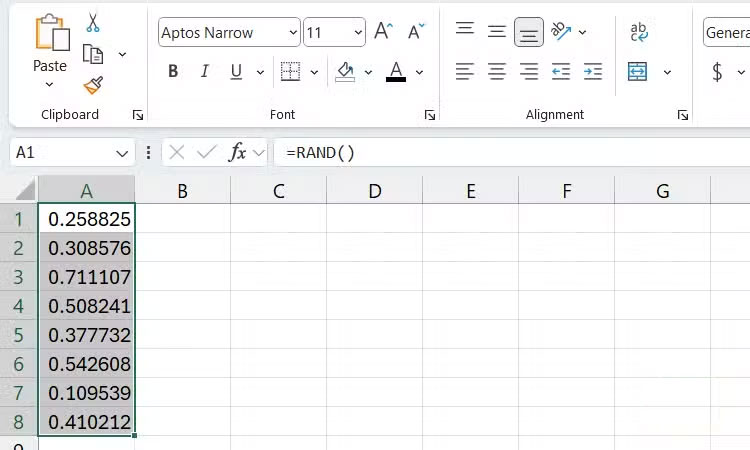
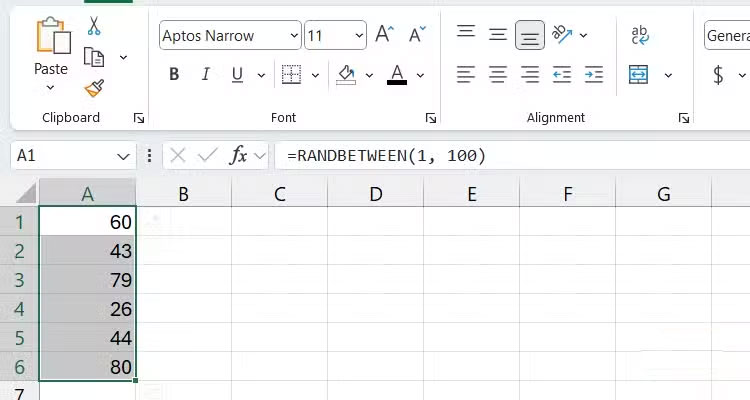
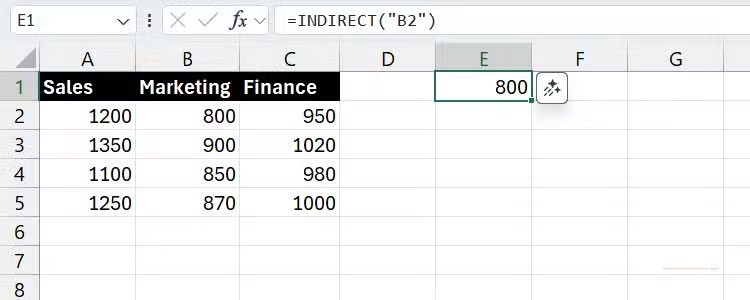
If you find that your Excel spreadsheets recalculate every time you make a change and it affects performance, volatile functions may be the cause. Volatile functions force a recalculation to update their results. They do this even if the change does not affect any of the referenced cells or their output.
A popular volatile function is NOW, which returns the current date and time and is useful for situations like calculating deadlines, inserting timestamps, and updating dashboards in real time. Another function is INDIRECT, which uses a text string to construct a cell reference and is useful for dynamic range referencing, among other things.
While they are effective at maintaining dynamism, they should only be used when necessary. This is especially true for large models with dozens of sheets or thousands of rows. It is best to use non-dynamic alternatives where possible (for example, manually entering dates instead of using the NOW function).
If you can't avoid volatile functions and they slow down your workbook, you can turn off automatic recalculation. That way, you can trigger a recalculation manually instead of every time there's a small change, but the downside is that you're more likely to forget. F9 Recalculates all open worksheets, and Shift + F9 Only recalculates the active worksheet.
Old array formulas
Working with array formulas isn't always straightforward.
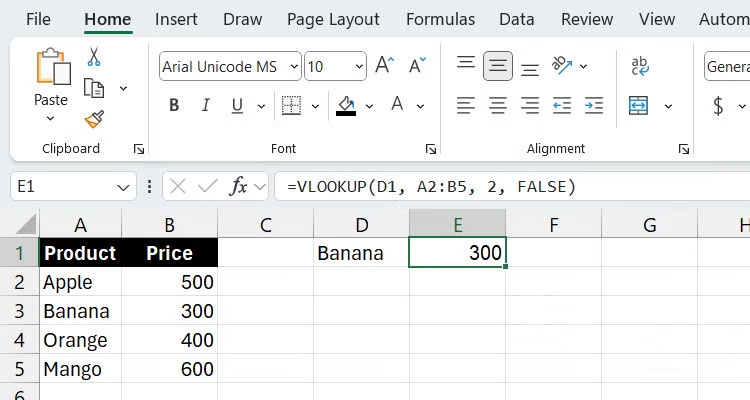
You create an array formula by writing the formula and pressing Ctrl + Shift + Enter Instead of just pressing Enter . You'll know you've created it successfully if the formula is automatically enclosed in curly braces.
Array formulas are especially useful when your calculations involve multiple values, saving you the step of creating a helper column. They can also return multiple results.
Array formulas are a legacy feature, especially since Microsoft introduced more powerful dynamic array functions in Excel for Microsoft 365. However, they still have their uses, especially when you want to ensure compatibility with older versions of Excel (2019 and earlier). For this reason, they are not going away anytime soon.
Even though everything is neatly packaged on one line when you use an array formula, Excel will process the formula multiple times to get the result. This can be computationally expensive, especially in large Excel spreadsheets.
To avoid using array formulas, you might consider using multiple helper columns, which spread the calculations across multiple cells. If this is unavoidable, try not to use them with dynamic functions. If compatibility isn't an issue, you can simply use dynamic array functions if possible.
Lookup formulas
They are convenient but can be expensive.
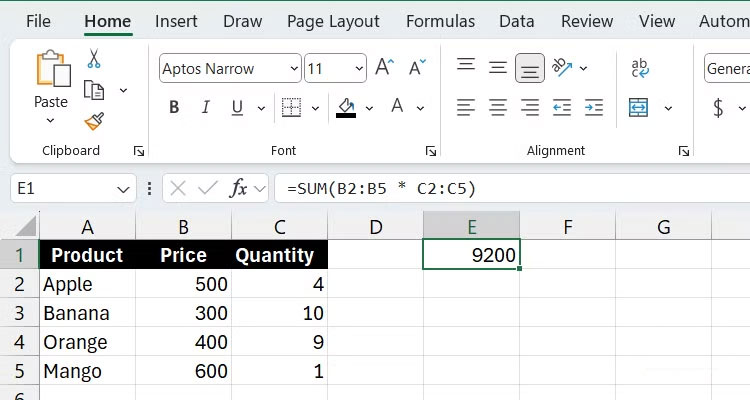
If You should find a specific value in an Excel worksheet, the fastest way is to use a lookup formula. The most common functions used in these formulas are VLOOKUP and HLOOKUP, which search across columns and rows, respectively. For example, you can easily find the price of a product in a vertical list by using its name with the help of VLOOKUP.
The problem is that these lookup formulas can suffer performance degradation if they have to search large data sets, especially when the data being searched is spread across multiple worksheets. This process is time-consuming and can put a strain on Excel.
Unless you use lookup functions excessively, this probably isn't a big deal in the Microsoft 365 version of Excel, as it creates a temporary index that speeds up repeated lookups. Additionally, there's a more efficient (and flexible) alternative lookup function called XLOOKUP that you can use instead.
If you must use a lookup formula in older versions of Excel, it's more efficient to use the formula in the same worksheet as the lookup array. You should also limit the lookup range to include only the cells needed (e.g., B2:B100) - avoid referencing the entire column (e.g., B:B). Also, use an approximate match instead of an exact match, as an approximate match doesn't have to search every cell to find the value you need.
FAQ
What should you know about the options in this guide?
In practical terms, Microsoft Excel has a lot of useful built-in functions, but that doesn't mean you should use them indiscriminately.
Which option is the best choice?
The best choice depends on your priorities, compatibility, budget, and the specific features discussed in the comparison.
What should you compare before deciding?
Compare core features, limitations, ease of use, compatibility, and long-term value before making a decision.
Related Articles
 Guidelines for Importing Chemistry Formulas in Excel4 minutes read
 How to Hide Formulas in Excel3 minutes read
 MS Excel - Lesson 5: Excel Formulas and Functions7 minutes read
 Instructions on How to Copy Formulas in Excel: Excel Functions4 minutes read
 How to Hiding Formulas in Excel: Step-by-Step Guide3 minutes read
 Excel 2019 (Part 12): Introduction to Formulas9 minutes read
Reader Comments 0
Sign in with email or Google to join the discussion.