Table of Contents
Learn how to change this setting now to prevent email data leaks with clear steps, practical tips, and troubleshooting guidance for a reliable result.
These concerns are why many people switch to a different email app. If you still prefer using Gmail but are concerned about how your data is being used, you can adjust a few privacy settings.
Limit email tracking
A single setting can vary greatly
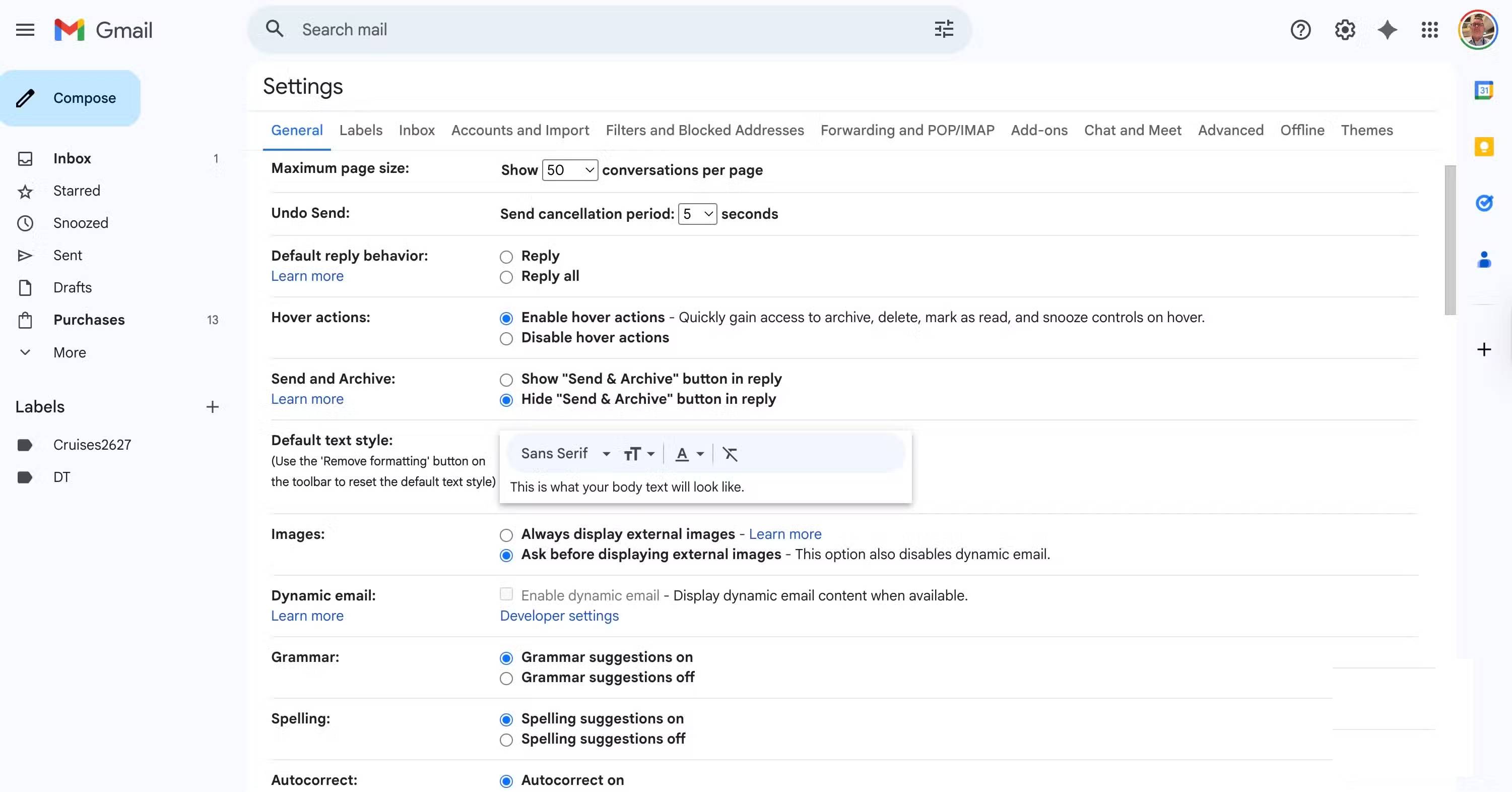
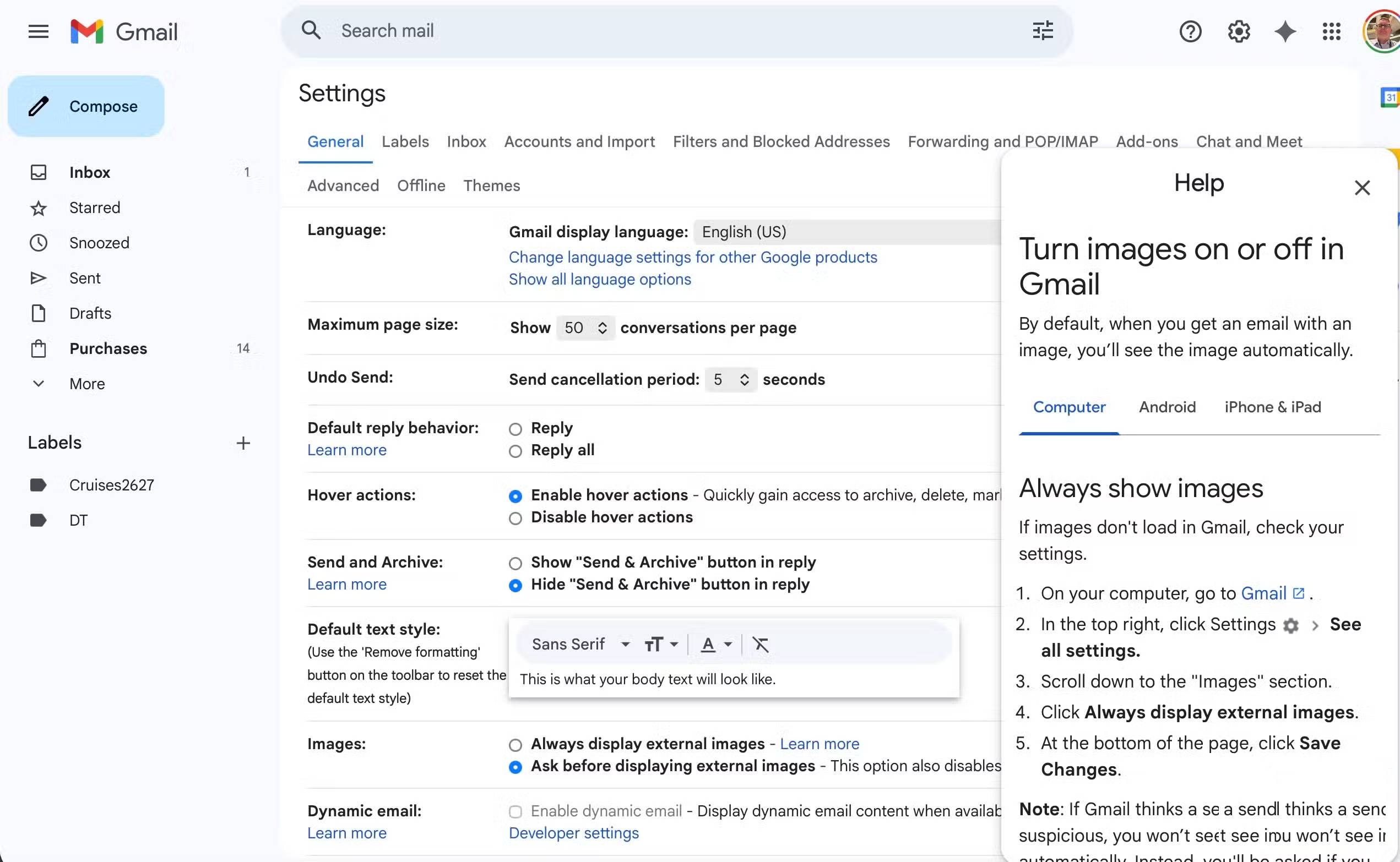
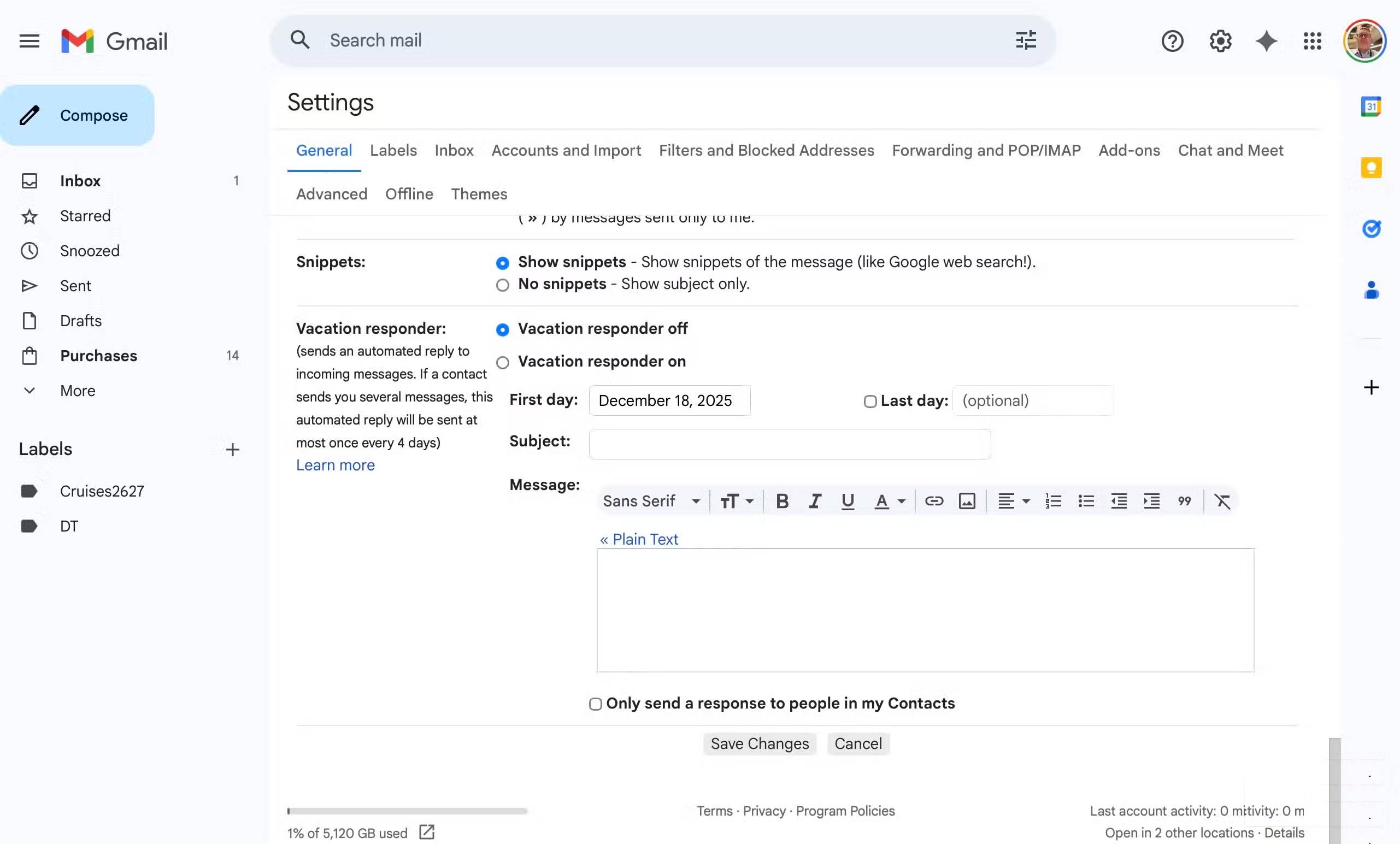
The easiest way to prevent marketers from tracking when and where you open emails is to enable Gmail's "Ask before showing external images" feature. When enabled, Gmail won't automatically load images, blocking the tiny tracking pixels often hidden in marketing emails. This simple change can protect your privacy and reduce the risk of potential malware from unknown senders.
Image tracking pixels are invisible 1x1 images in emails, websites, or advertisements that, when uploaded, send requests to a server to record user data. This includes information such as the user's IP address, device, location, and time, allowing marketers to track opens, views, conversions, and behavior. This often raises privacy concerns, which are mitigated by blocking images or using ad blockers.
After enabling the "Ask before showing external images" setting, Gmail will no longer automatically load images. Instead, you'll see a "Show images below" prompt in each email, allowing you to choose which images you want to see. This gives you better control and prevents unwanted tracking pixels from intruding.
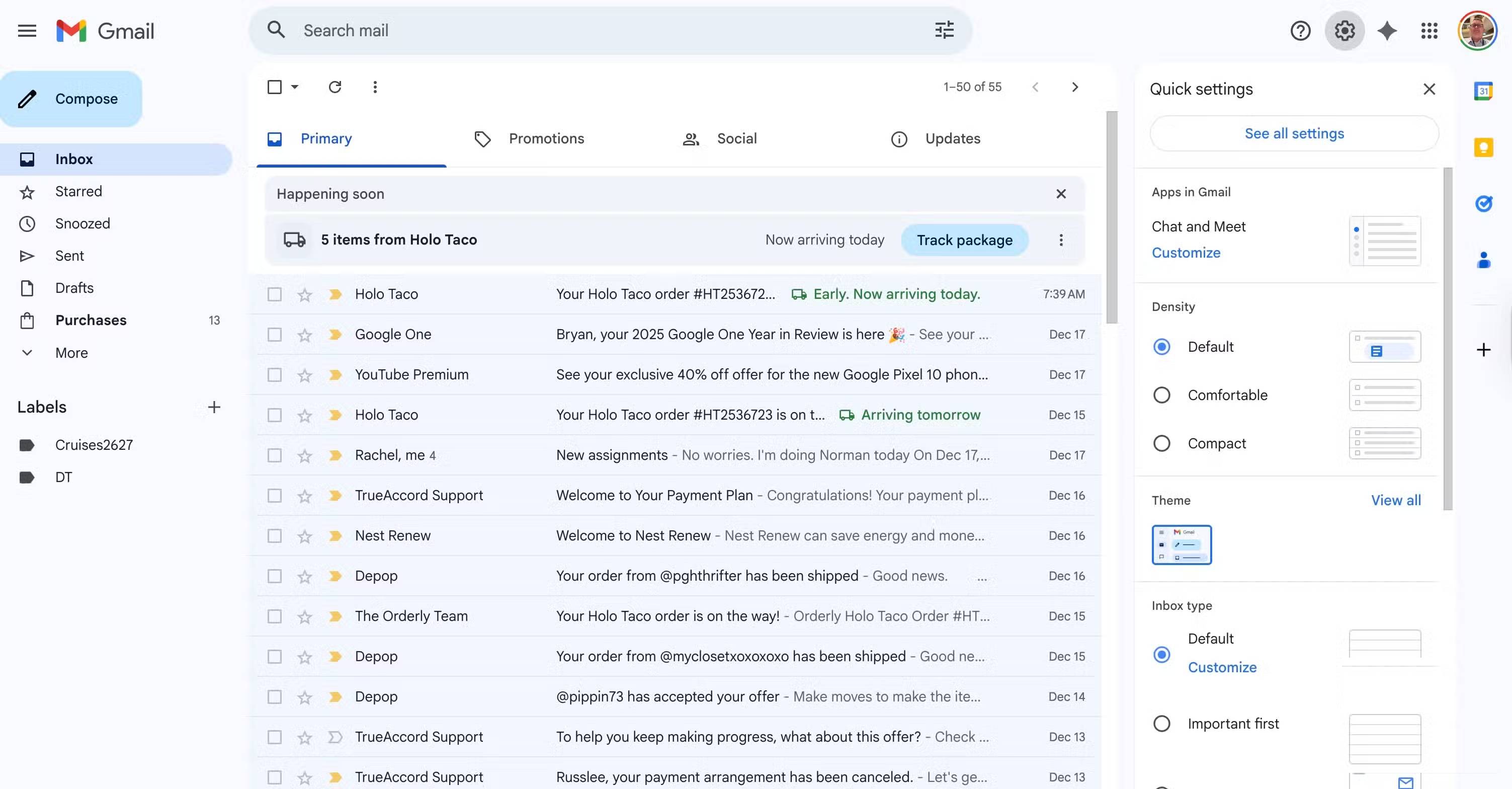
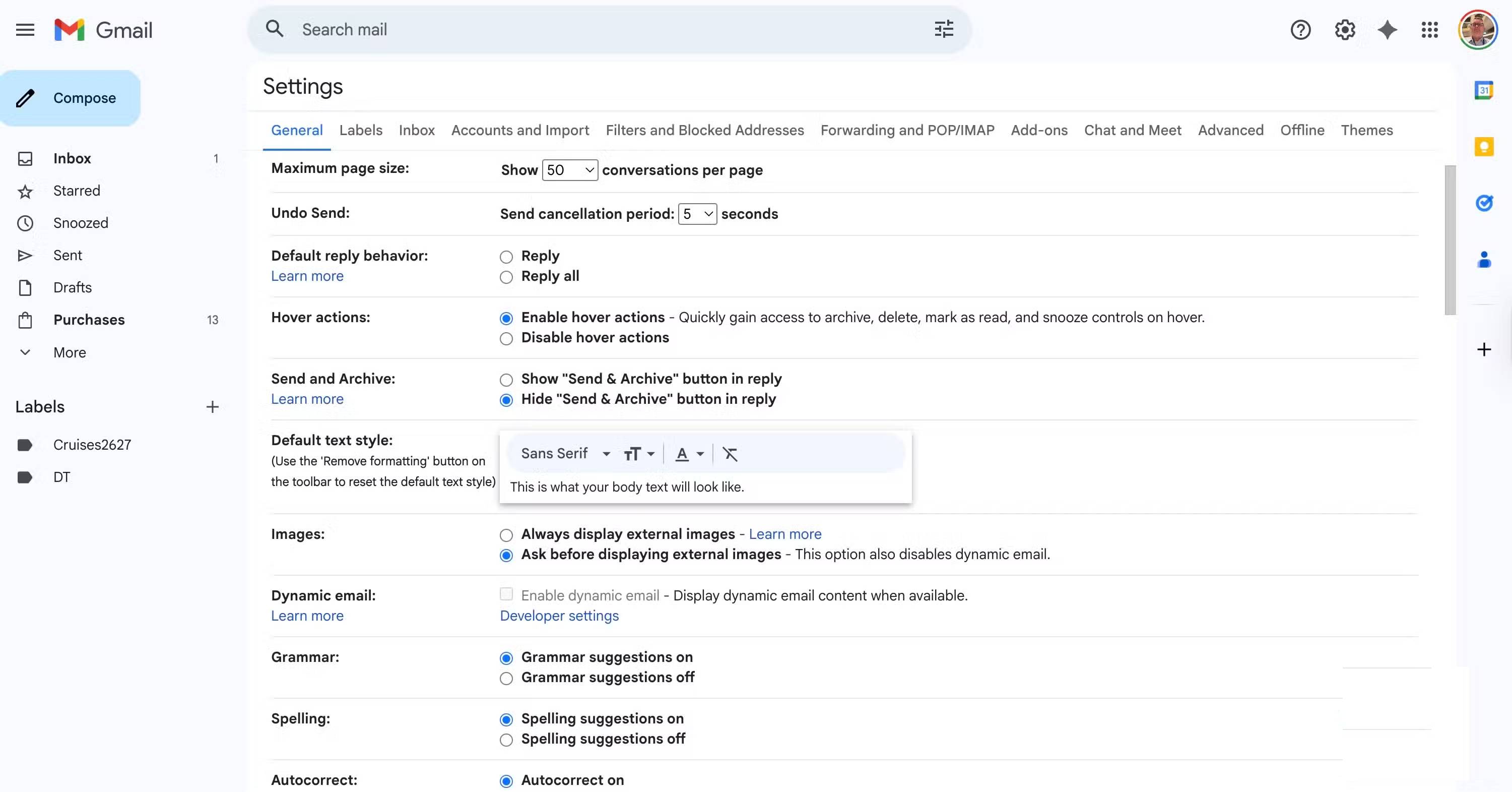
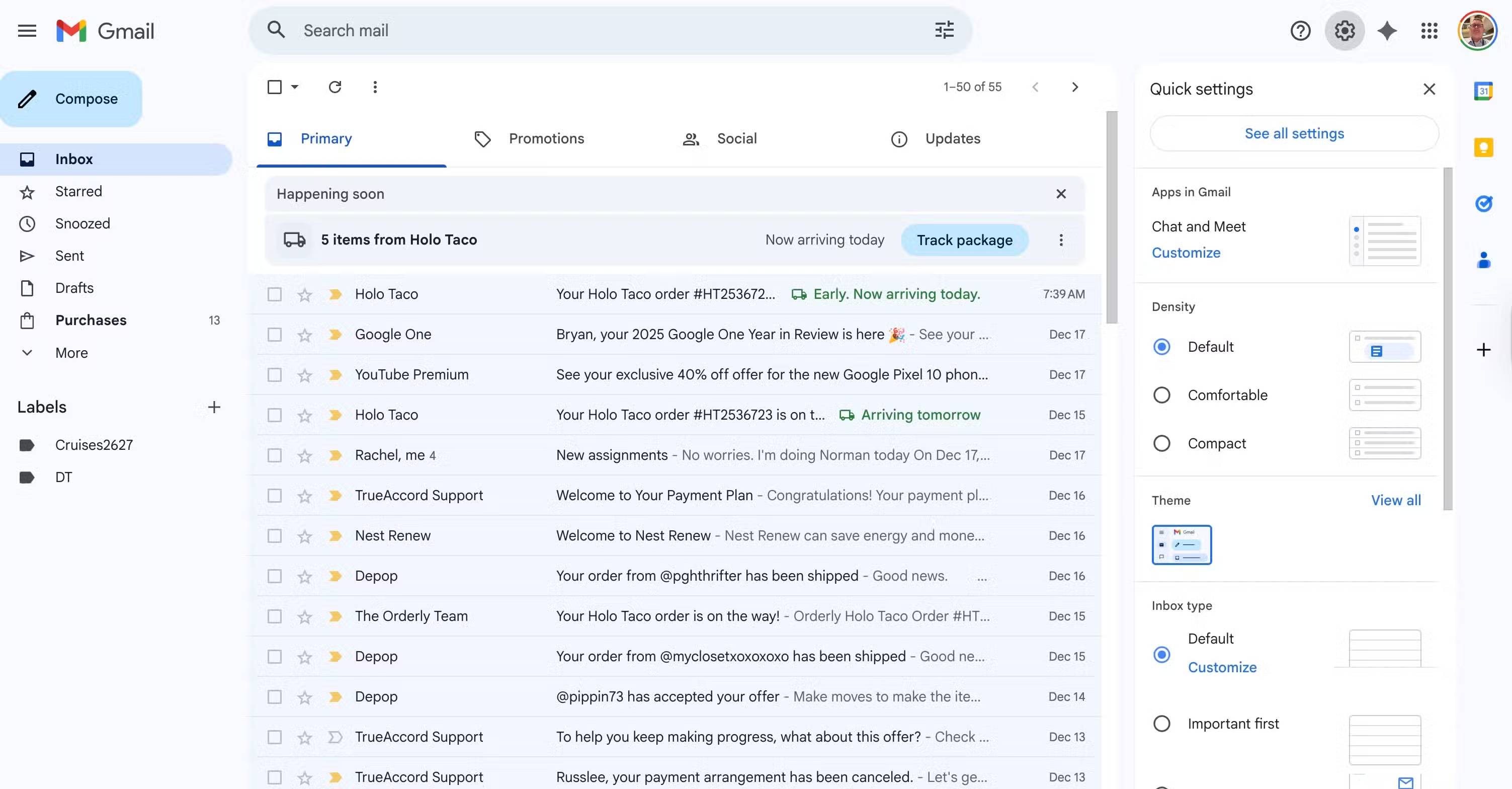
To enable the new setting, open Gmail in your web browser, select the Settings icon in the upper right corner, then click Show all settings . Scroll down to the Images section and turn on the Ask before displaying external images option. Select Save Changes at the bottom of the screen.
Main limitations
The "Ask before showing external images" setting in Gmail only applies to Gmail on the web and the Gmail app on iOS and Android, and not to third-party apps.
"Automatically delete" your emails
This is another useful tool to try
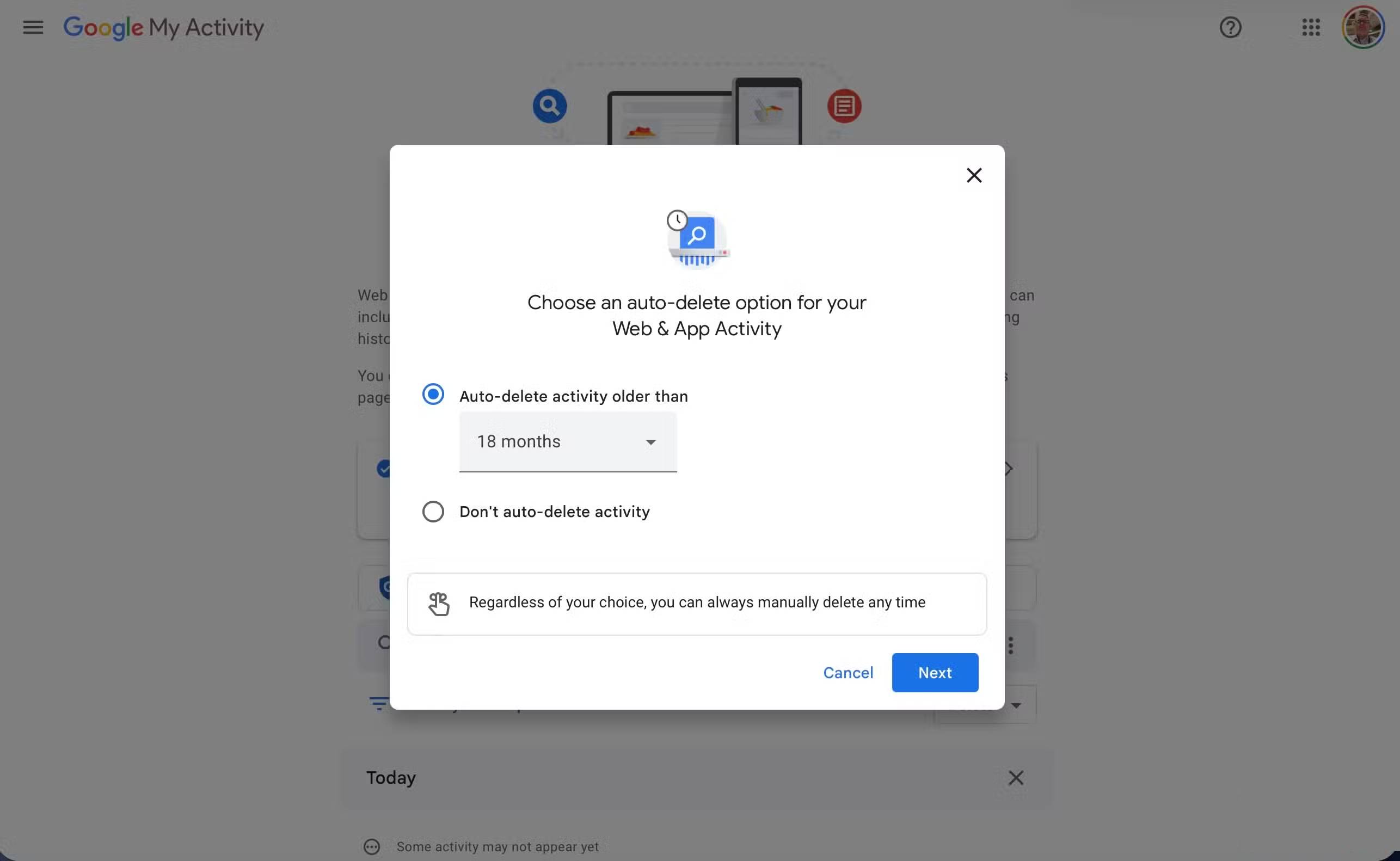
There are several other ways you can better protect the data in your Gmail account, starting with a few proactive privacy settings.
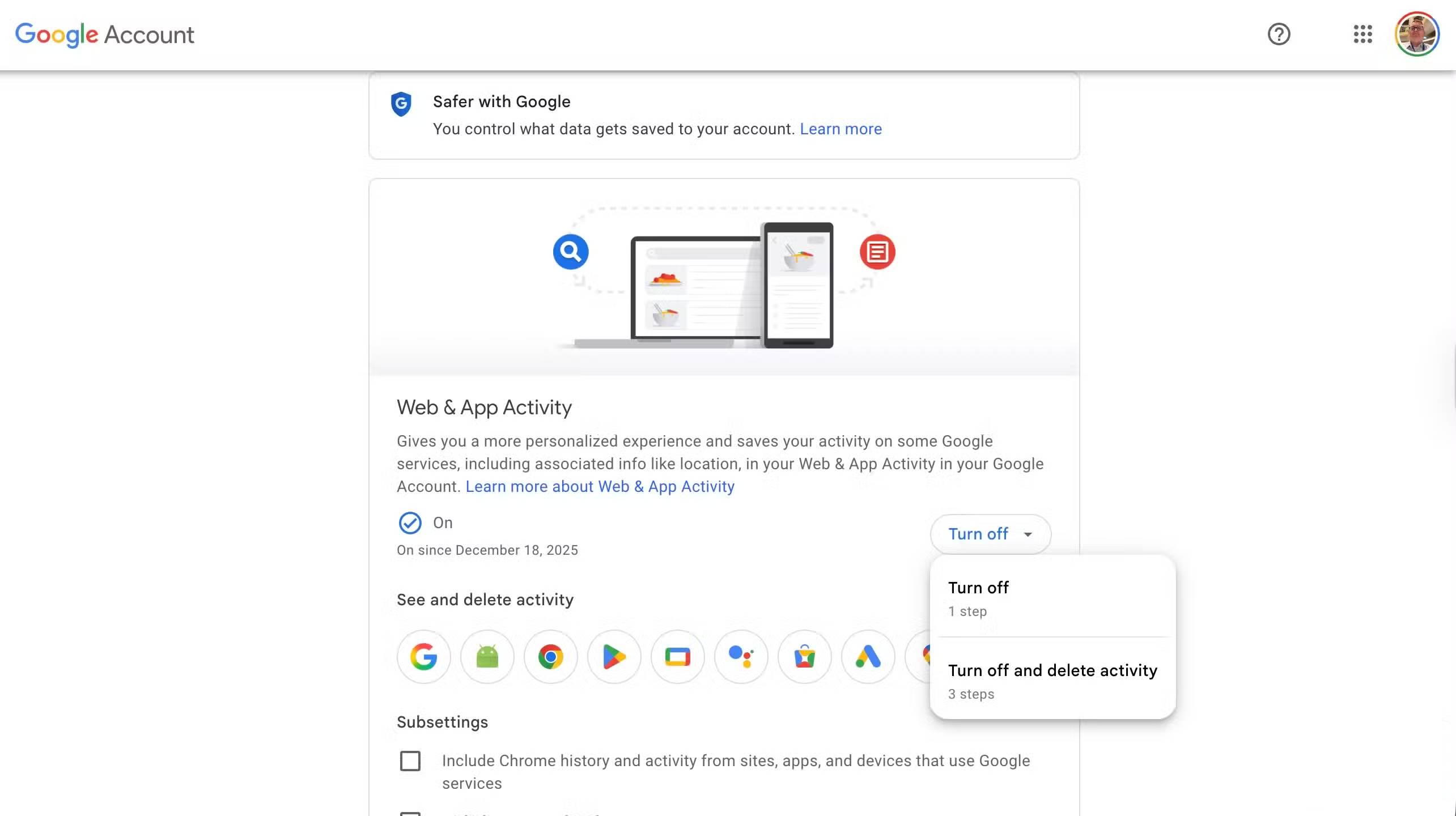
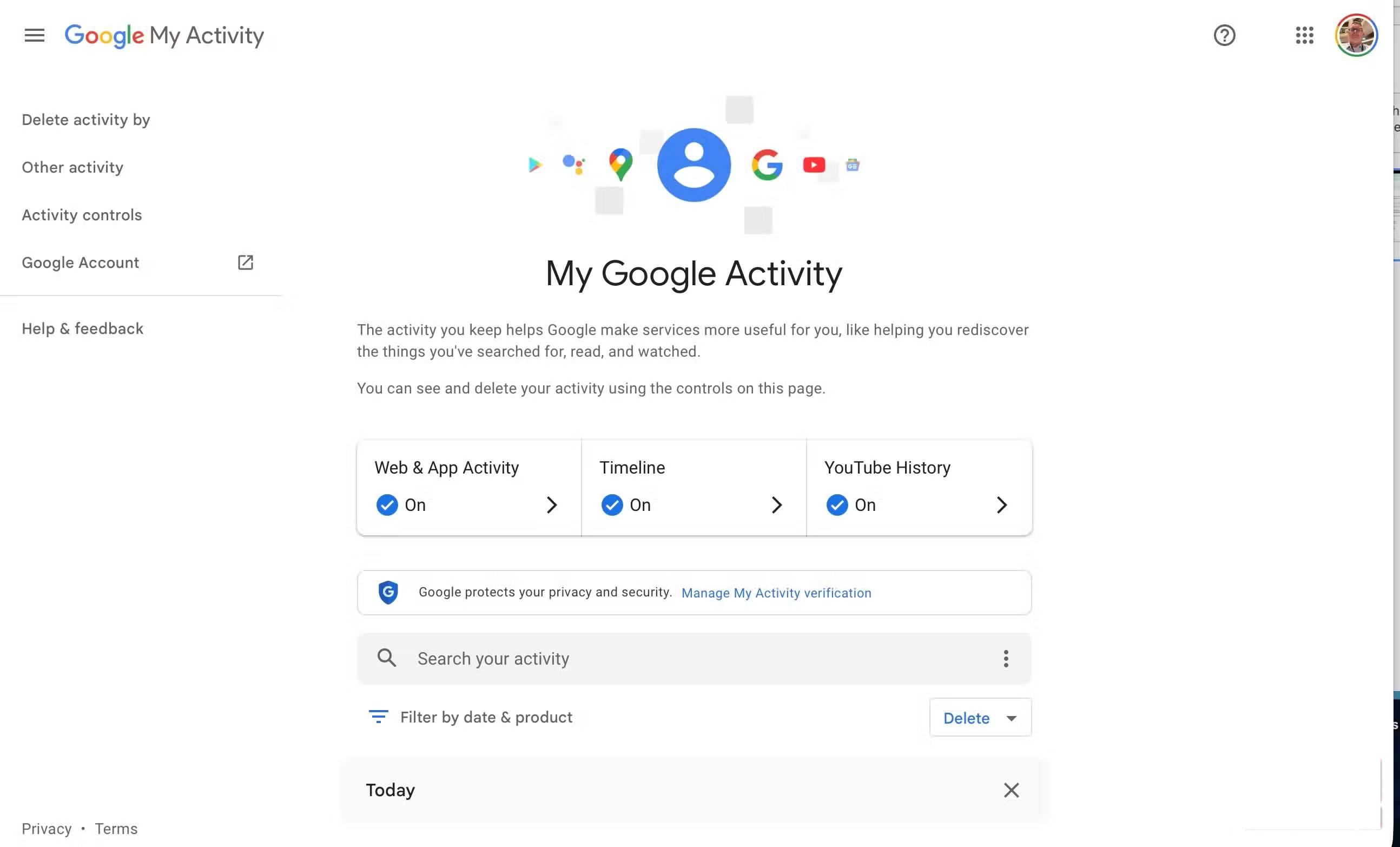
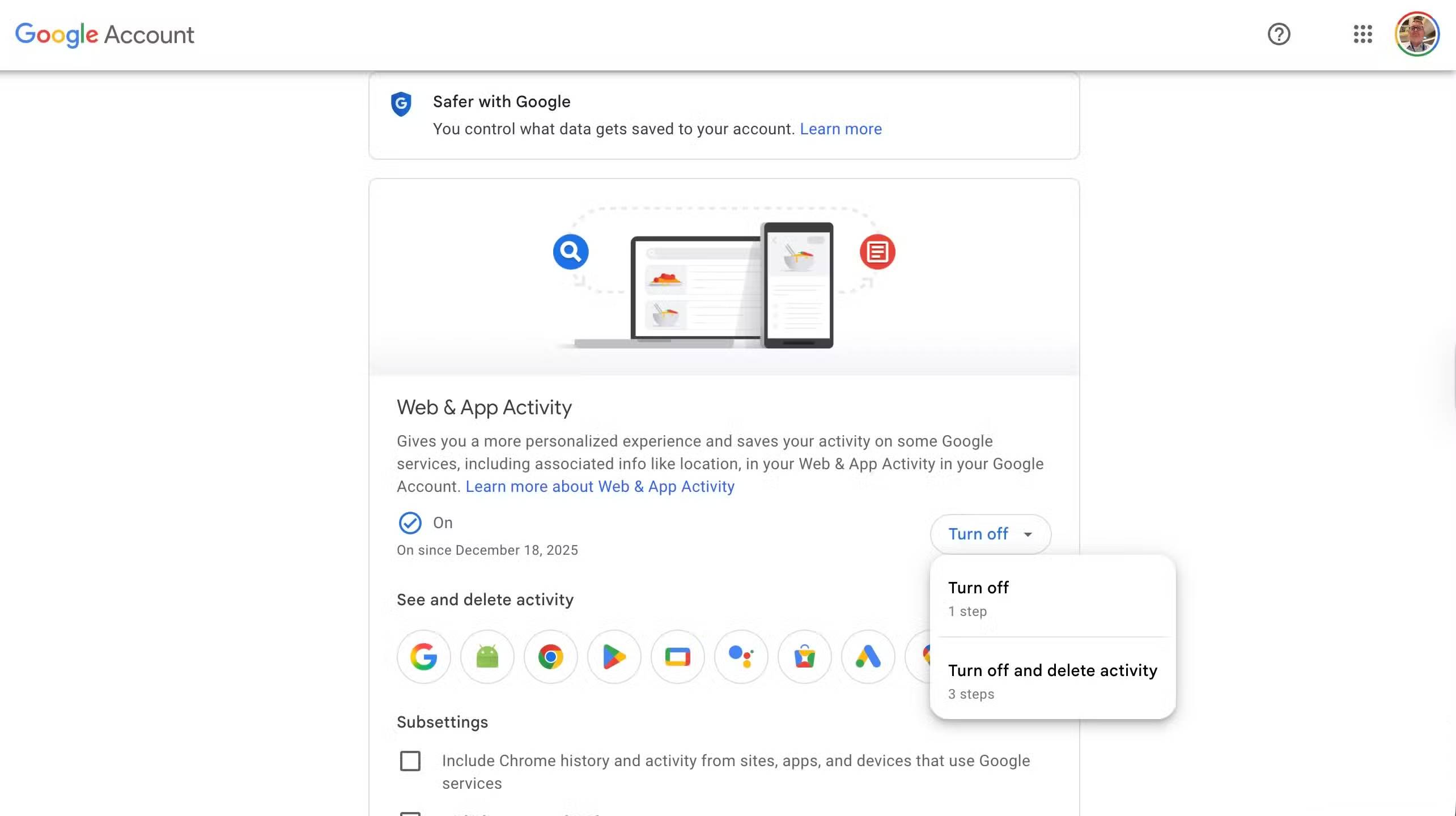
Let's start by reviewing Gmail's data retention and activity settings. Google's My Activity and Data & Privacy tools allow you to view, manage, and personalize the data collected across their services. If you don't need them, you can turn off Web & App Activity and location tracking settings. You can also enable automatic deletion for older emails and activity logs.
To adjust these settings, go to the Activity Controls page in your Google account. After signing in, turn off Web & App Activity and Location History if needed. On that same page, you can also set your data to be automatically deleted every 3, 18, or 36 months instead of being stored indefinitely.
Keep in mind that Gmail doesn't have a built-in option to automatically delete old emails. However, you can create a simple filter to do this, or use a third-party cleanup tool.
To create a filter to delete emails older than 2 years:
1. In Gmail on the web, open the search bar and select Show search options .
2. In the " Has the words" field, enter ` older_than:2y` , then select "Create filter ".
3. Select Delete it and confirm by selecting Create filter again.
Once the filter is activated, emails older than two years will automatically be moved to the Trash and permanently deleted after 30 days.
There are other Gmail filters you should consider using to improve your email workflow.
Reduce personalized advertising
Another tool to consider
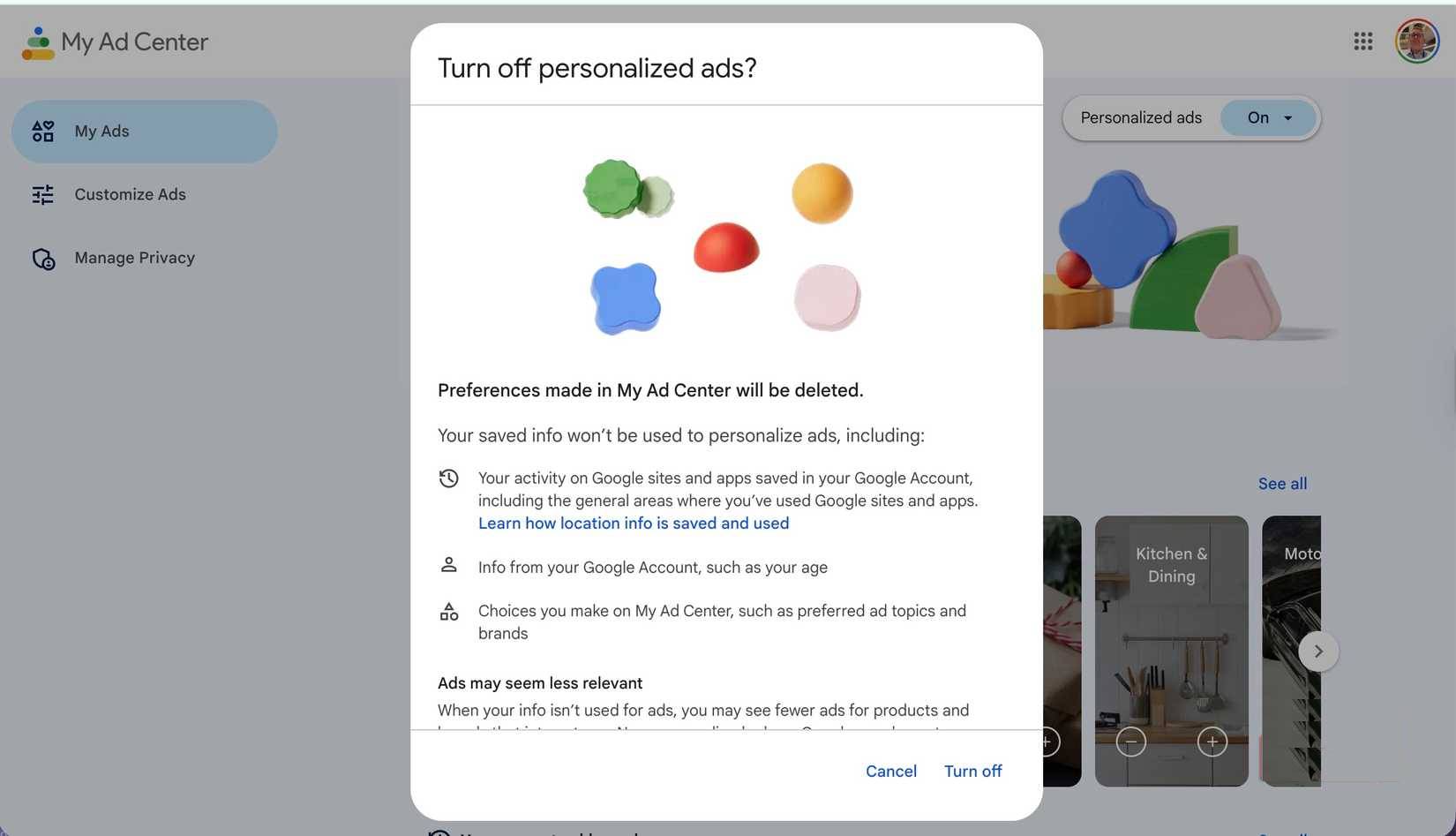
Turning off Gmail's ad personalization is also helpful. When you do this, marketers will have less information about you.
To begin, open My Ad Center in Google while signed in to your account. Switch the Personalized ads option to Off and confirm. Once completed, Google will no longer be able to use your information, activity, and preferences across certain services, including YouTube, Search, and Maps.
If you still want to see ads but want to adjust them, you can make changes in My Ad Center. From there, go to Customize Ads to adjust the topics or brands displayed, or to limit sensitive content.
Final Thoughts
Use this guide as a practical checklist for how to change this setting now to prevent email data leaks. Work through the steps in order, verify each result, and adjust the options to match your needs.
FAQ
What do you need before following this How to Change This Setting Now to Prevent Email Data Leaks guide?
Review the required tools, accounts, settings, or materials mentioned in the article. Learn how to change this setting now to prevent email data leaks with clear steps, practical tips, and troubleshooting guidance for a reliable result.
What are the main steps for how to change this setting now to prevent email data leaks?
Follow the sections in order, especially Limit email tracking, A single setting can vary greatly, Main limitations. Complete each step before continuing and verify the result as you go.
What should you do if the process does not work as expected?
Recheck the prerequisites, update the relevant app or service, review the settings, and repeat the step that caused the issue. Use any troubleshooting notes included in the guide.
Related Articles
 How to Change Your Computer Password for the Most Popular Operating Systems7 minutes read
 Here's What Hackers Hope You Never Do with Your Email!7 minutes read
 How to Change Email in Facebook - Change Email Account3 minutes read
 Profile of More Than 267 Million Facebook Accounts for Sale4 minutes read
 Outlook May Not Encrypt Your Email If You Use S / MIME Encryption4 minutes read
 How to Prevent Email Forwarding in Outlook and Gmail4 minutes read
Reader Comments 0
Sign in with email or Google to join the discussion.