Table of Contents
Customizing your Gmail background serves as a quick and easy way to freshen up your inbox, whether you want a soothing photo, your favorite color, or a simple dark mode.
Customizing your Gmail background is a quick and easy way to freshen up your inbox, whether you want a soothing photo, your favorite color, or a simple dark mode. Whether you want to choose from Google's pre-made themes, upload a custom image, or switch to dark mode, it's easy to do. Here's how to change your Gmail background.
Instructions for changing Gmail background image
Step 1:
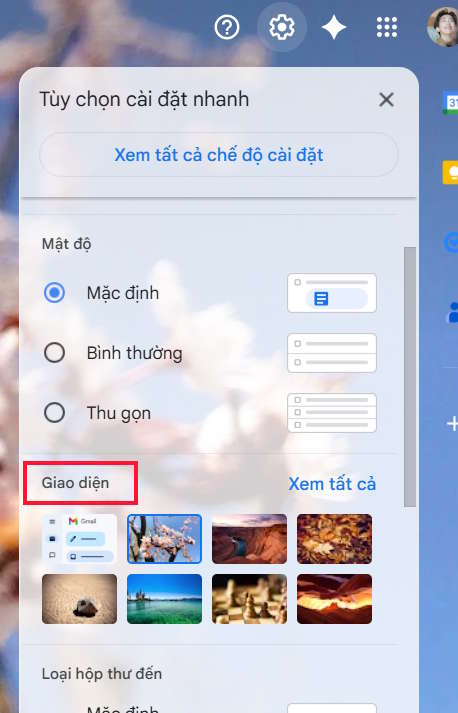
At the Gmail interface, click on The gear icon , then scroll down to The Interface section And click See all .
Step 2:
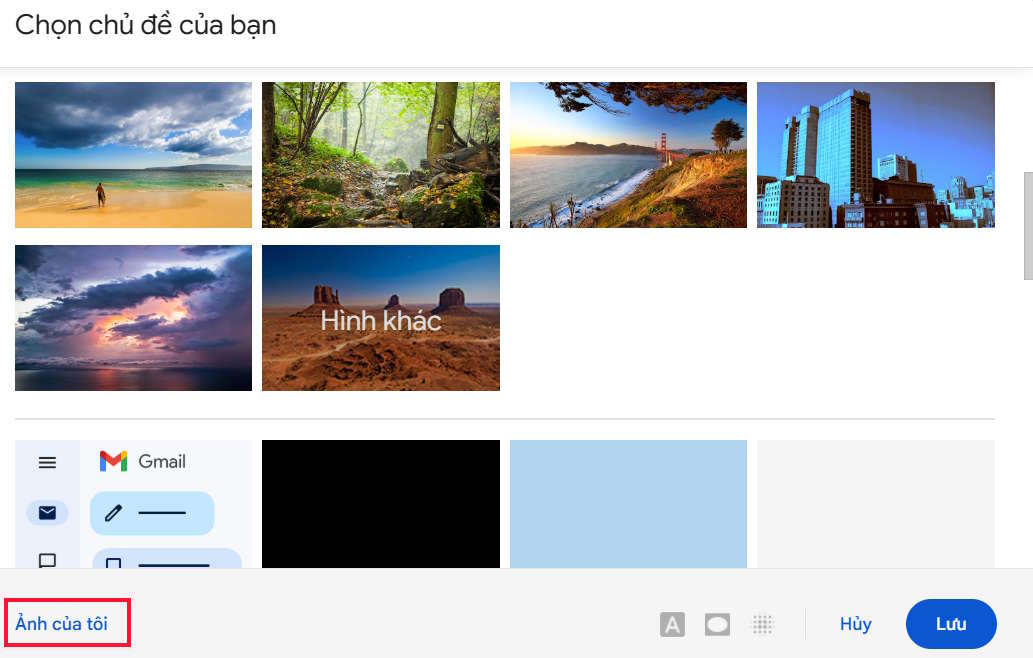
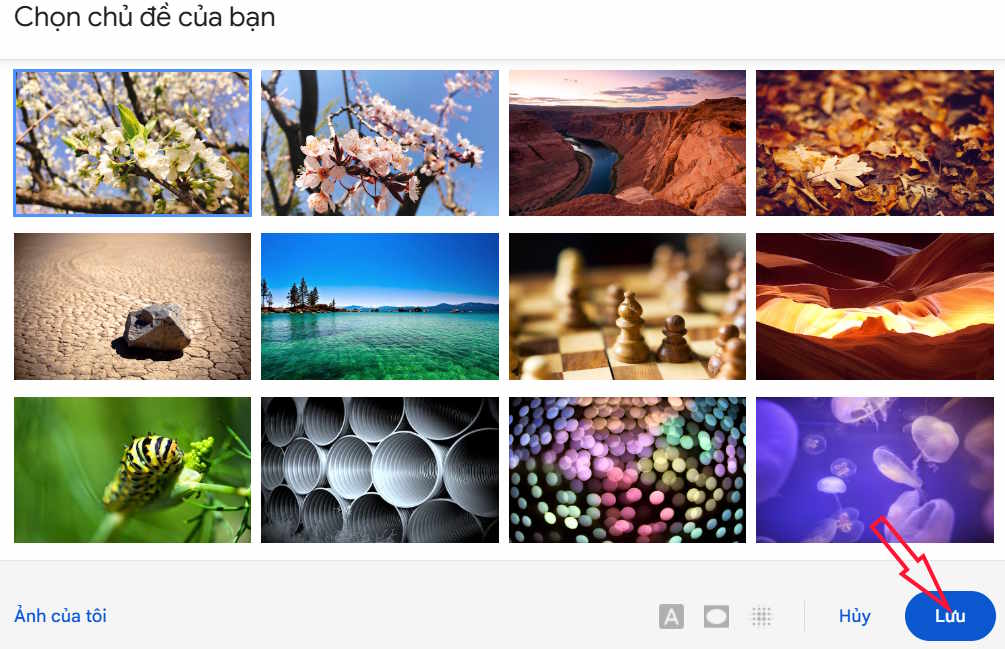
Switch to the new interface, you will see All the wallpapers For you to choose. If you like any wallpaper, click to select it and then click Save below. Or you can Click My Photos To upload a personal photo.
Step 3:
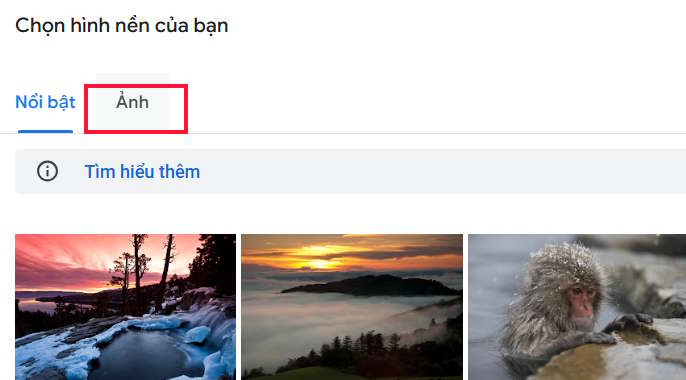
Switch to the new interface, click on Photos To open photos in Google Photos.
Here you select a photo in Google Photos to set as the Gmail interface.
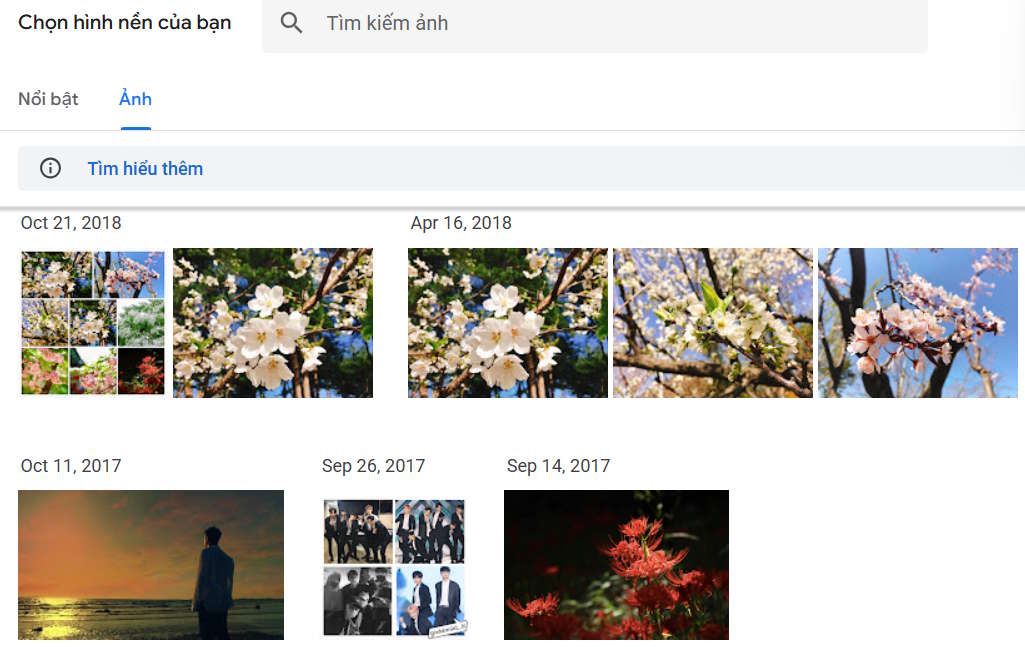
Scroll down below the user Press Insert To complete the background image for Gmail.
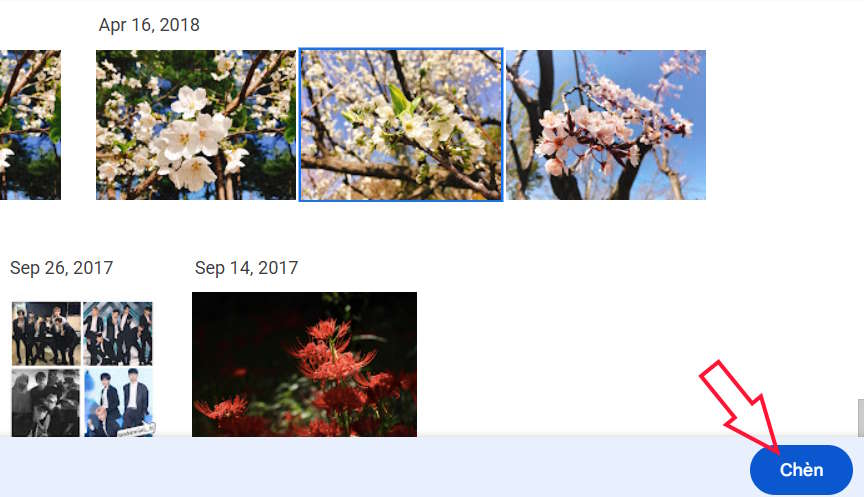
Finally, Click Save To save the new interface for Gmail.
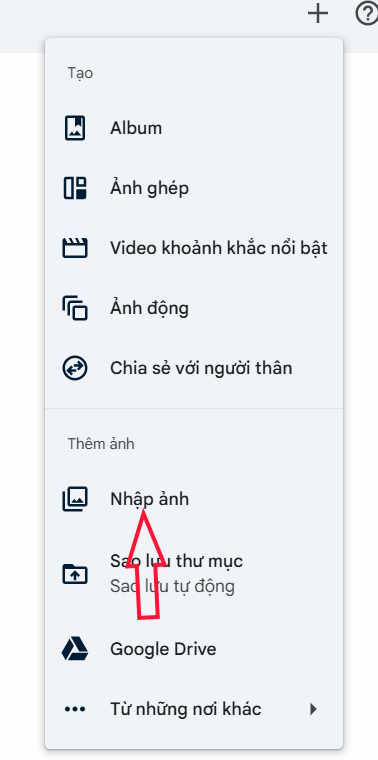
In case you don't like any photo, You should upload the photo you want to Google Photos and then reselect the photo as before.
Step 4:
After you have selected the background image for Gmai, you can continue to adjust The text background interface To light or dark.
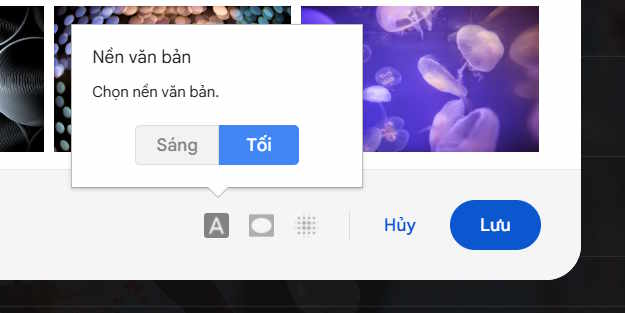
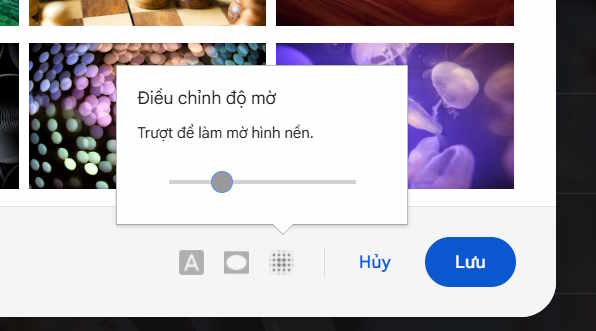
Continue setting up the blur effect for the Gmail background image.
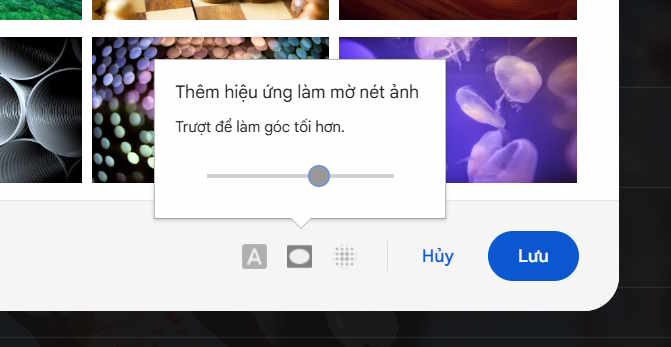
Finally, you can add a blur effect to Gmail background images when the background image has too many colors that affect the content viewing.
Step 5:
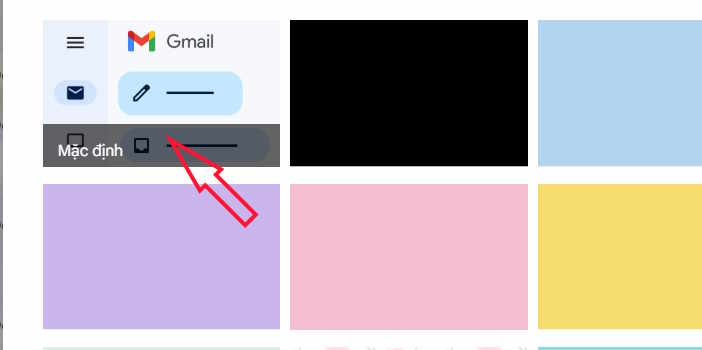
In case you want To return to the default Gmail interface , just click on the default interface as shown.
FAQ
How do you change Gmail wallpaper to your liking: change default wallpaper?
In practical terms, customizing your Gmail background is a quick and easy way to freshen up your inbox, whether you want a soothing photo, your favorite color, or a simple dark mode.
What should you check before getting started?
Review the requirements, compatible device or software version, and any warnings described in the guide before making changes.
What should you do if the steps do not work?
Repeat the steps in order, confirm that your app or system is up to date, and review the troubleshooting details provided above.
Related Articles
 How to Change Gmail Wallpaper as You Like4 minutes read
 Change Wallpaper, Set Wallpaper Wallpaper for Computer3 minutes read
 How to Change Coc Coc Browser Wallpaper: Cup Wallpaper3 minutes read
 Change the Display Name When Sending Gmail: Gmail Display Name2 minutes read
 Gmail Allows You to Change Your Wallpaper Freely4 minutes read
 How to Change the Wallpaper on Win 105 minutes read
Reader Comments 0
Sign in with email or Google to join the discussion.