Television
5 Ways to Connect a Phone to a Smart TV Wirelessly
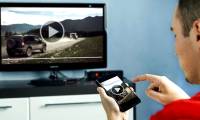
Use a phone as a TV remote, cast photos and videos, mirror your screen, control playback, or play supported games.
Browse more Find practical guides, troubleshooting advice and buying tips for electronics, household appliances and everyday electrical devices.
Use a phone as a TV remote, cast photos and videos, mirror your screen, control playback, or play supported games.
Match smart TV accessories to the right port, from media drives and LED strips to karaoke systems, consoles, and personal speakers.

Keep a good 4K TV, add a compatible streaming stick or box if needed, and identify the HDMI, HDR, and audio features that matter.
Choose smart TV apps by what you want to do, and check whether they work with your exact Roku, Android TV, Google TV, or Fire TV device.
Confirm HDR playback in your TV's built-in apps, then troubleshoot HDMI settings if a console or streaming device still outputs SDR.
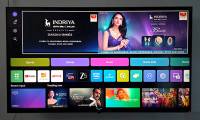
Turn off automatic content recognition, review voice and camera permissions and decide whether the TV needs its own internet connection.
Decide whether your TV is worth the space, subscriptions and maintenance. Try a short test before selling it or switching it offline.
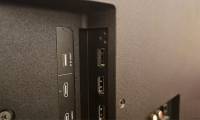
Match HDMI, eARC, USB, Ethernet and legacy inputs to your console, soundbar, antenna and other devices before choosing a TV.
Find TV apps for podcasts, local file transfers, file browsing, casting, remote shortcuts and a VPN when you need one.
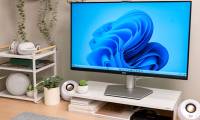
Connect a keyboard, webcam, drive, or audio device to your monitor's USB hub. Check which ports carry data, supply power, or support another display.

Extend your Windows or Mac desktop to a TV with HDMI, Miracast, or AirPlay. Fix blurry text, cropped edges, missing audio, and wireless lag.
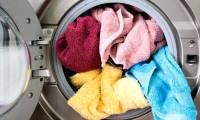
Protect your washer from pocket debris, crumbling mats, unbalanced loads, and excess detergent. Check when waterproof items, foam, and delicates need another method.
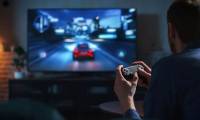
Set up your console's HDMI input for low lag, check 120 Hz and VRR support, and fix dim HDR or sound that arrives late.
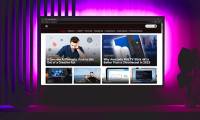
Make websites easier to read and control on a TV with bookmarks, zoom, a compatible keyboard or screen mirroring.
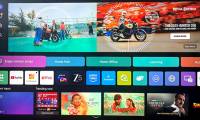
Confirm your TV is receiving HDR, configure the correct HDMI input, and fix an HDR picture that looks dim or washed out.
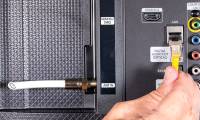
Find out when a wired connection can stop buffering, how to connect your TV, and when Wi-Fi may still be faster.
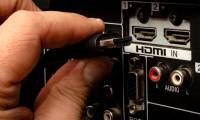
Connect consoles, laptops, phones, soundbars, and more to your TV. Find out which devices need an adapter, a specific HDMI port, or separate power.
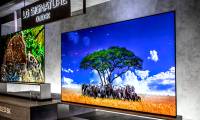
Let your OLED TV run its automatic cleaning cycle in standby. Learn when LG or Sony may recommend a manual refresh and what to check first.
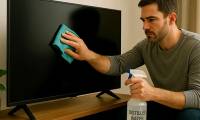
Clean your TV without damaging the screen, avoid strain on HDMI ports, keep it ventilated, and use the right standby and software update settings.
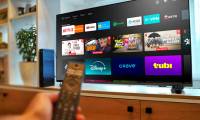
Fix slow menus and app launches on Google TV with a restart, updates, and storage checks. See what to do if only one app or streaming is slow.