Table of Contents
This guide provides a clear, practical overview of "Redesigned Google Messages Library: Here's How to Disable It If". It organizes the most useful details, explains important considerations, and highlights the steps or choices that matter most.
Redesigning the Google Messages library
Previously, the gallery opened in a half-page view with a small camera viewfinder on the left and 2-3 recent photos on the right (scrollable). You could see the entire message and text fields, and even interact with messages while browsing the gallery. In the redesign, Google Messages has moved to a full-screen gallery with a large camera viewfinder at the top and 3-6 recent photos at the bottom (scrollable).
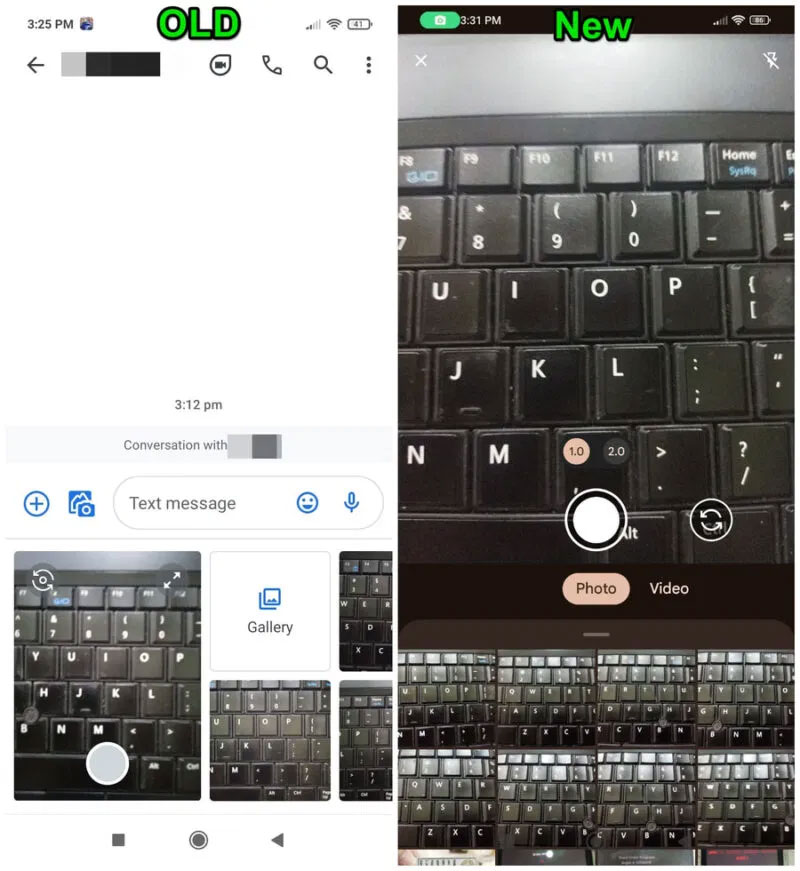
This takes up the entire screen and the only way to review the message is to close the gallery window. Overall, it makes it easier to take photos on the spot with a large camera viewfinder and you can also preview the entire photo right in the gallery interface.
More importantly, it comes with two long-awaited new features: Photo captions and the option to send full-resolution photos. Here's how they work:
Note : Both of these features require RCS messaging to be enabled to work.
Add captions to photos
You can now add captions to photos in the gallery view that will be attached to the photo. Just open the gallery in Google Messages and select a photo or take a new one. The photo will appear in a large preview at the top with a 'Write a caption' field at the bottom. You can fill in this field to add your caption.
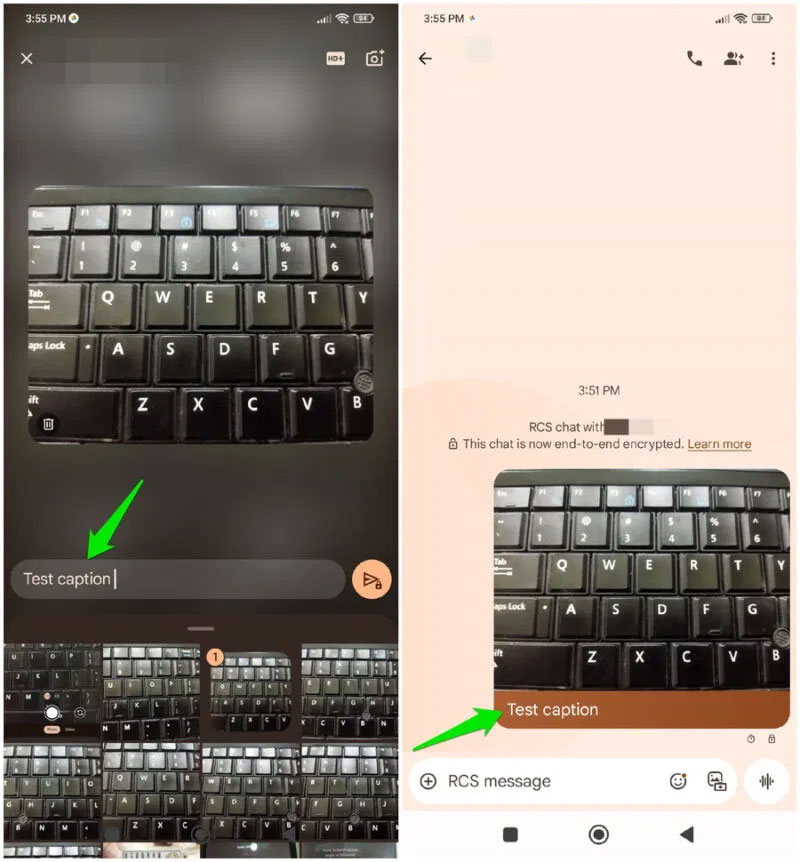
If you select multiple photos, you can only select a single caption for all photos and that caption will be displayed with the top photo.
Select image quality
Google Messages used to have a 'Send photos faster' setting that removed compression from all photos. In the redesign, Google added the option to choose photo quality as you send (the old option has been removed). This makes it easier to choose your preferred option on the spot for each photo.
In the gallery, select a photo or take a new one to see it in the preview pane. At the top, tap HD+ and you'll have the option to choose between Optimized for chat and Original Quality . Original Quality will send the photo as is, and Optimized for chat will compress the photo to send it faster and use less data.
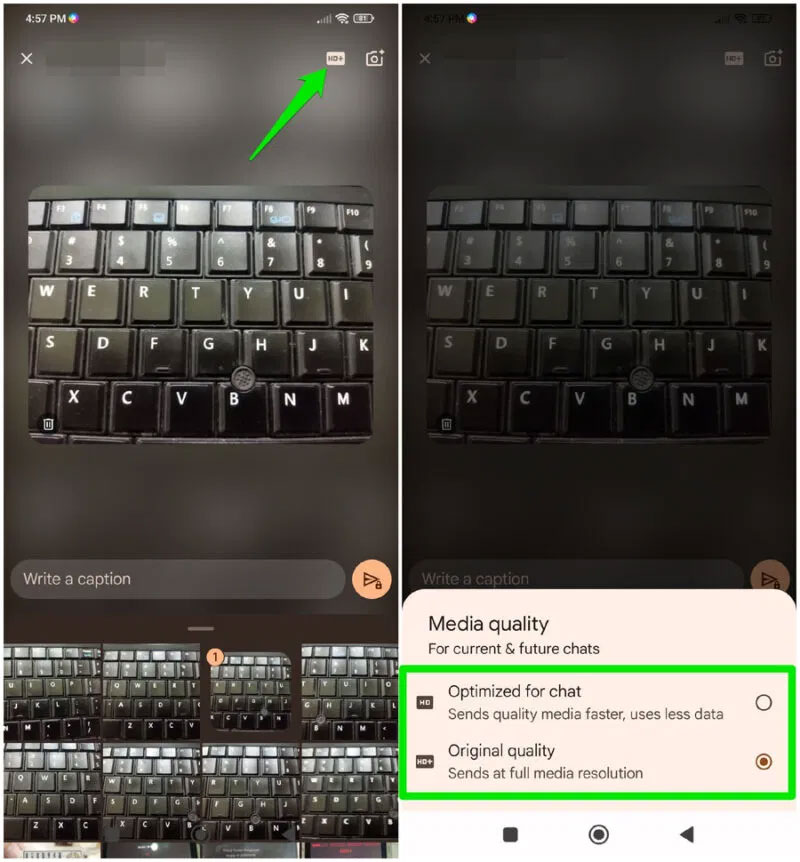
The quality setting will apply to all selected photos and be disabled for videos.
Turn off camera viewfinder in Google Messages gallery
While the new redesign adds some much-needed features and a completely new gallery experience, that doesn't mean everyone is on board with the changes. In fact, the addition of a large camera viewfinder has been criticized by many on Reddit and other social media sites. Many people find the camera viewfinder too distracting, and some even have concerns about using it in public with the camera pointed at people.
If you don't like the large camera viewfinder either, you can turn it off by removing Google Messages' camera access. Here's how:
Press and hold the Google Messages app icon, then tap the App info button.
Here, go to App permissions -> Camera and select Don't allow . Select Don't Allow Anyway when prompted to confirm.
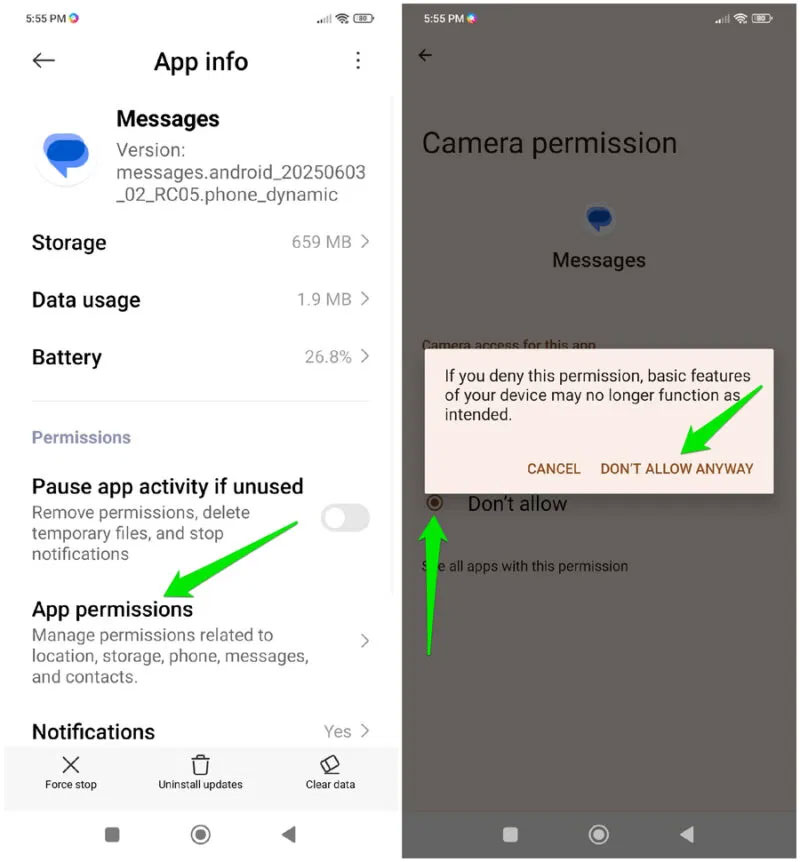
Now open the gallery again in Google Messages and it will ask to enable camera permission, select Don't Allow here. This will disable the camera until you enable camera permission again.
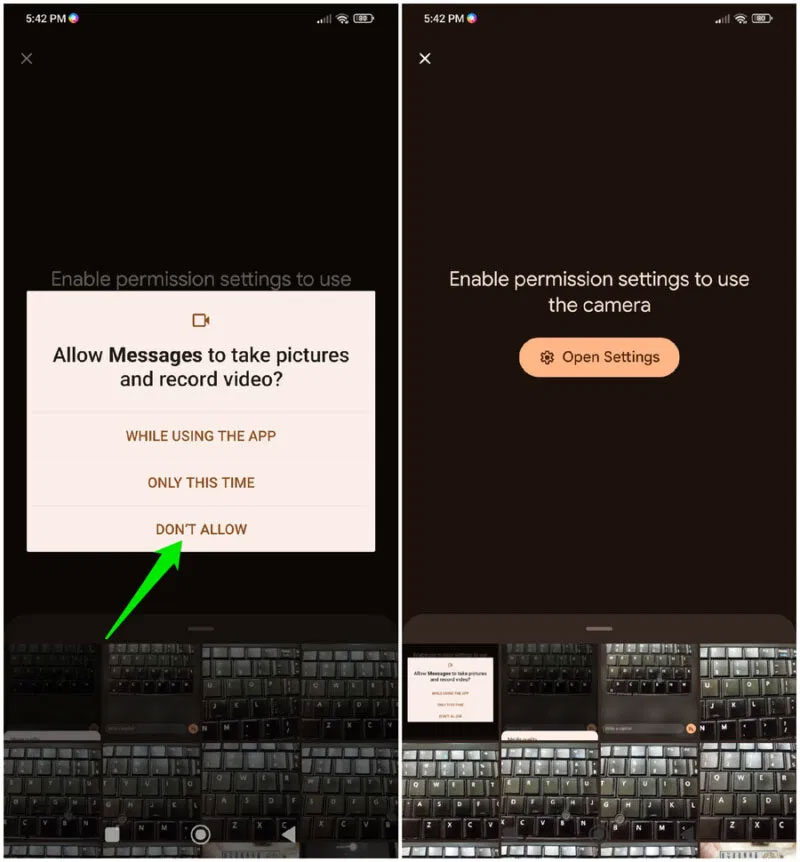
The redesigned Google Messages gallery makes sharing media easier, eliminating the need to dig through a file manager or open the camera app. While you can turn off the camera viewfinder, you're still stuck with the full-screen gallery.
FAQ
What should you know about redesigning the Google Messages library?
Previously, the gallery opened in a half-page view with a small camera viewfinder on the left and 2-3 recent photos on the right (scrollable). You could see the entire message and text fields, and even interact with messages while browsing the gallery. In the redesign, Google Messages has moved to a full-screen gallery with a.
What should you know about add captions to photos?
You can now add captions to photos in the gallery view that will be attached to the photo. Just open the gallery in Google Messages and select a photo or take a new one. The photo will appear in a large preview at the top with a 'Write a caption' field at the bottom. You can fill in this field to add your caption.
What should you know about select image quality?
Google Messages used to have a 'Send photos faster' setting that removed compression from all photos. In the redesign, Google added the option to choose photo quality as you send (the old option has been removed). This makes it easier to choose your preferred option on the spot for each photo.
What should you know about turn off camera viewfinder in Google Messages gallery?
While the new redesign adds some much-needed features and a completely new gallery experience, that doesn't mean everyone is on board with the changes. In fact, the addition of a large camera viewfinder has been criticized by many on Reddit and other social media sites. Many people find the camera viewfinder too distracting.
Related Articles
 Google Released the API Set for the. NET Framework3 minutes read
 How to Cancel Sent Messages on Google Messages5 minutes read
 Google Set up an Electronic Library of Street Art5 minutes read
 How to Export Google Photos Library5 minutes read
 New Year Greetings Messages Love Words: Happy New Year8 minutes read
 Instructions for Using the Google Messages Application on Computers3 minutes read
Reader Comments 0
Sign in with email or Google to join the discussion.