Table of Contents
Android TV and Google TV are good choices if you want a wide selection of TV apps and the option to use a separate streaming device. Before you buy, check that the exact model supports your streaming services, picture and audio formats, and the interface you prefer.
1. Check the apps you actually use
Start with your streaming services, local broadcasters, and any media player you use. An app on a phone may not have a TV version, and availability can vary by region and device. Look up each of your essentials before choosing a TV or streaming box.

2. Install apps from the TV interface
On Android TV, look for Google Play or the Apps area. On Google TV, search for the app from the Apps tab or use the on-screen search. See how to install apps and games on Google TV for the steps. Apps installed from outside the store may lack TV remote controls, updates, or streaming support.
3. Look at the exact home screen
Preinstalled apps, promotions, and recommendations vary by manufacturer. Check whether you can move your favorite apps to the top and remove any preinstalled apps you do not need. A store demonstration can help you judge how many steps it takes to open a service.
4. Choose the interface you prefer
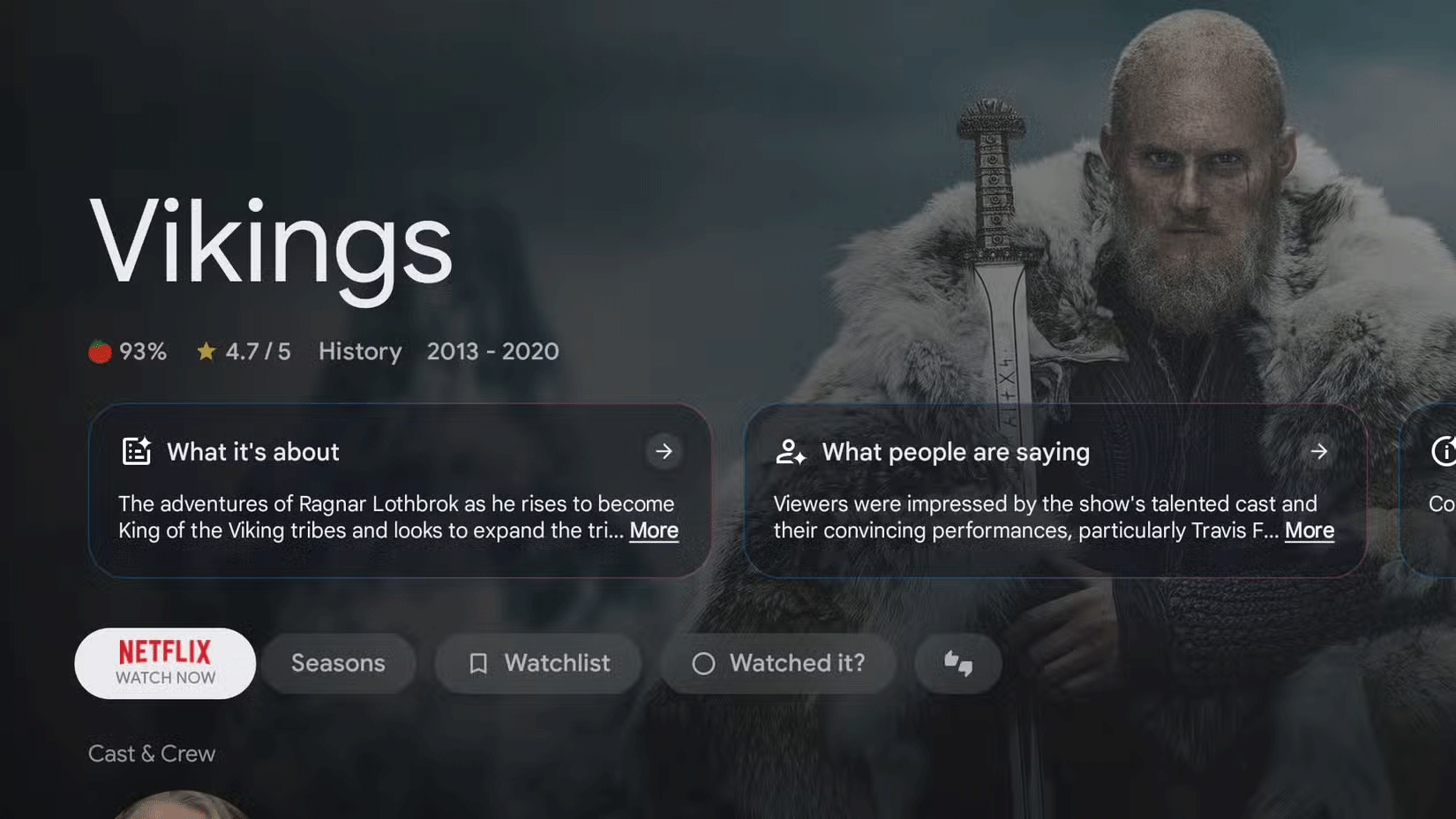
Google TV builds on Android TV and can show recommendations from supported services on its home screen. Classic Android TV generally gives apps a more prominent role. See the differences between Android TV and Google TV if you are comparing two models.
5. Check voice controls and hardware support
A supported remote can help you find a film without typing. Available commands and the assistant may vary by model, language, and region. If you like your existing TV, you can add an HDMI streaming device. Check that the device, TV, and sound system all support the features you want, such as 4K, HDR, or a particular audio format.
Related Articles
 Qualcomm introduces a smart sound platform with Cortana promising to explode
 Own application page for Android Wear on CH Play
 Is Google about to change Android logo?
 6 important things to consider before choosing a smart home platform
 Google announced Android One platform in India
 Google launched new promotional videos on Android Wear
Reader Comments 0
Sign in with email or Google to join the discussion.