Table of Contents
From instant file sharing to creating multiple workspaces and customizing gestures, these built-in tools can change the way you use your PC.
Even if you've been using a Windows PC for years, there are still features that are unfortunately easy to overlook. Some of these tools don't get much attention, because they're hidden in settings or simply overshadowed by more popular apps.
Windows 11 PCs include features that can dramatically improve your productivity, organization, and everyday convenience. From instant file sharing to creating multiple workspaces and customizing gestures, these built-in tools can change the way you use your PC.
8. Nearby Sharing
Send files to nearby PCs without cables
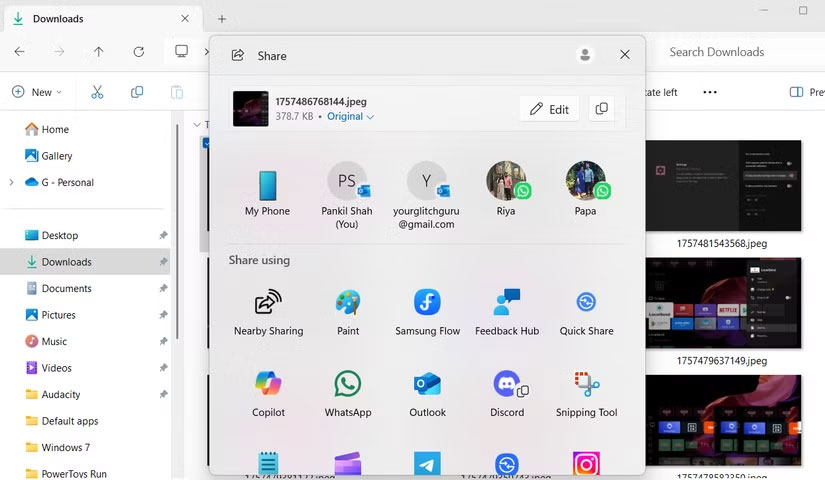
If you've ever fumbled with a USB drive or email just to send something to a nearby PC, Nearby Sharing can help you do it quickly. This built-in Windows feature lets you share files between two nearby PCs without a network connection, so you don't need to download any third-party apps.
This feature doesn't break speed records when it comes to large file transfers, but for small documents, photos, or quick sharing, it's extremely convenient.
7. Virtual Desktop
Create multiple desktops for work, gaming, or personal use
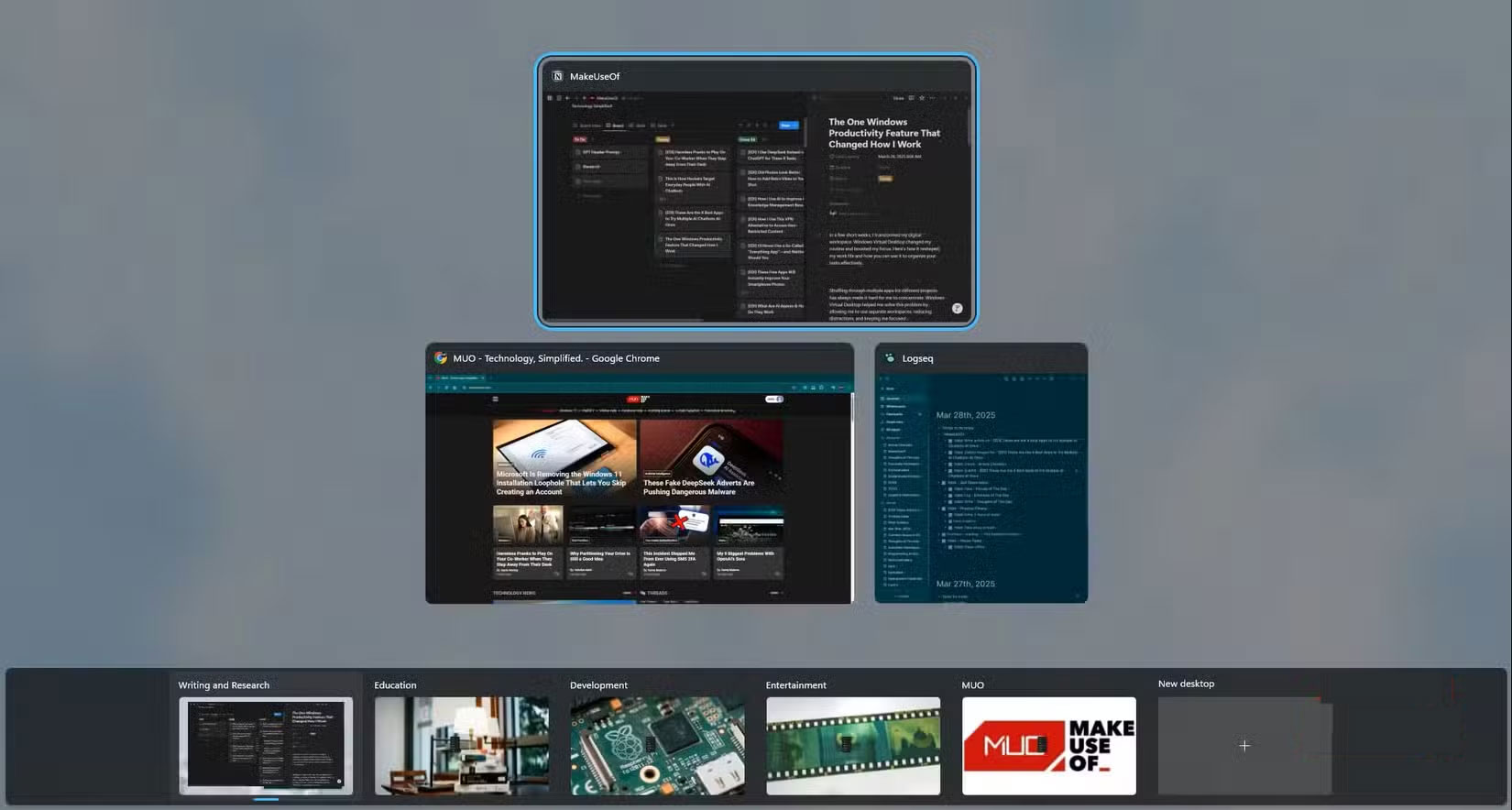
If you've ever wanted more workspace without buying an extra monitor, virtual desktops are the way to go. They provide separate workspaces for different tasks, all on a single computer.
With virtual desktops, you can create multiple workspaces for different purposes. One desktop can hold work applications, another for personal web browsing, and another for countless research tabs. Switching between them is easy using the Task View Button or the keyboard shortcut Win + Ctrl + Left Or Right Arrow.
6. Snap Layouts
Professionally arrange windows
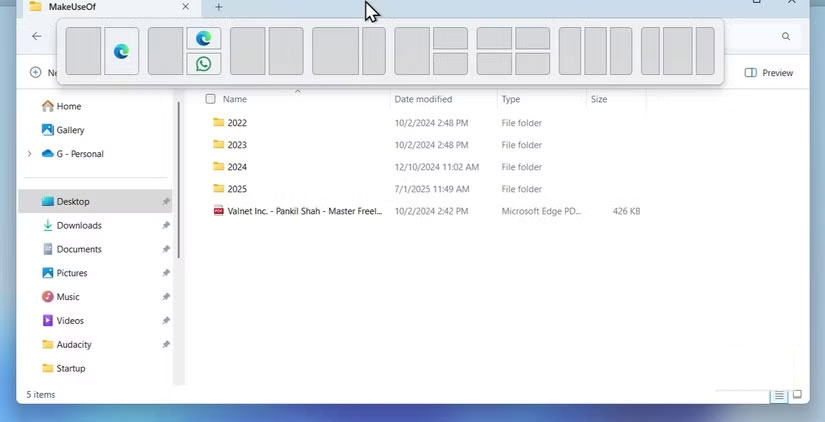
Windows has many multitasking features, but if there's one that stands out, it's Snap Layouts. If you've ever struggled to arrange multiple windows on your screen or spent time trying to get them to size perfectly, this feature could change everything.
With Snap Layouts, simply hover over any window's maximize button and a variety of grid options will appear. You can instantly dock a window to the side, a quarter, or even a third of the screen.
5. Custom touchpad gestures
Swipe, pinch, and tap for faster navigation
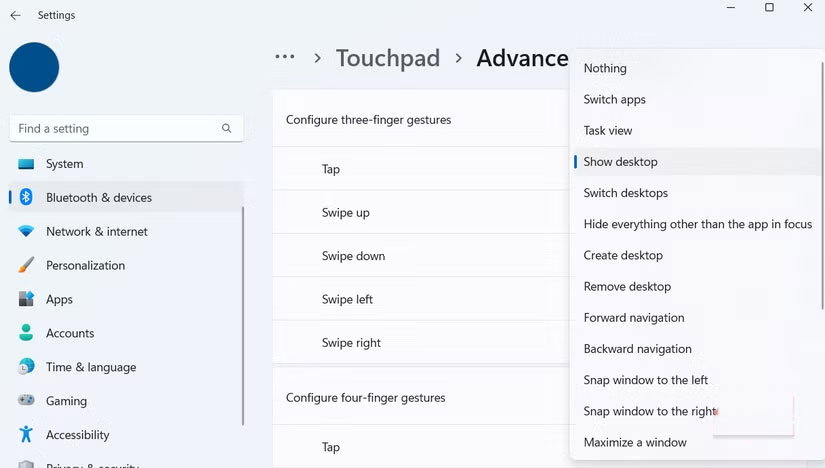
Your laptop's touchpad is something you use every day without thinking much about, but it's more powerful than you think. Go to Settings > Bluetooth & devices > Touchpad And you'll see all the options for customizing gestures.
Swiping with three or four fingers can switch between apps, show the desktop, act as a middle click, or even activate a virtual desktop.
4. OCR
Turn screenshots and photos into editable text
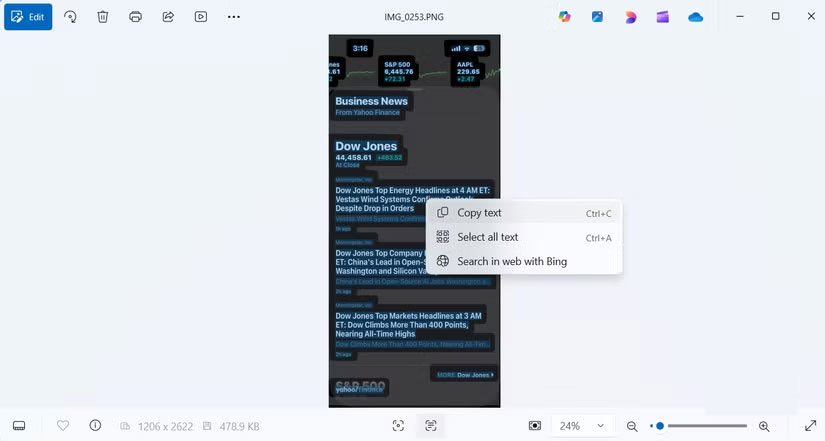
If you've ever taken a photo of a document, receipt, or piece of text you want to copy without retyping it, Windows now has a surprisingly powerful OCR (Optical Character Recognition) feature built in.
It's simple to use. Take a screenshot of the text you want to copy, then click the OCR Option in the Snipping Tool window. If you already have a photo with text, open it in the Photos app and click the text manipulation icon at the bottom. Windows will immediately extract the text for you to paste wherever you want.
3. Clipboard History
Access everything you've copied
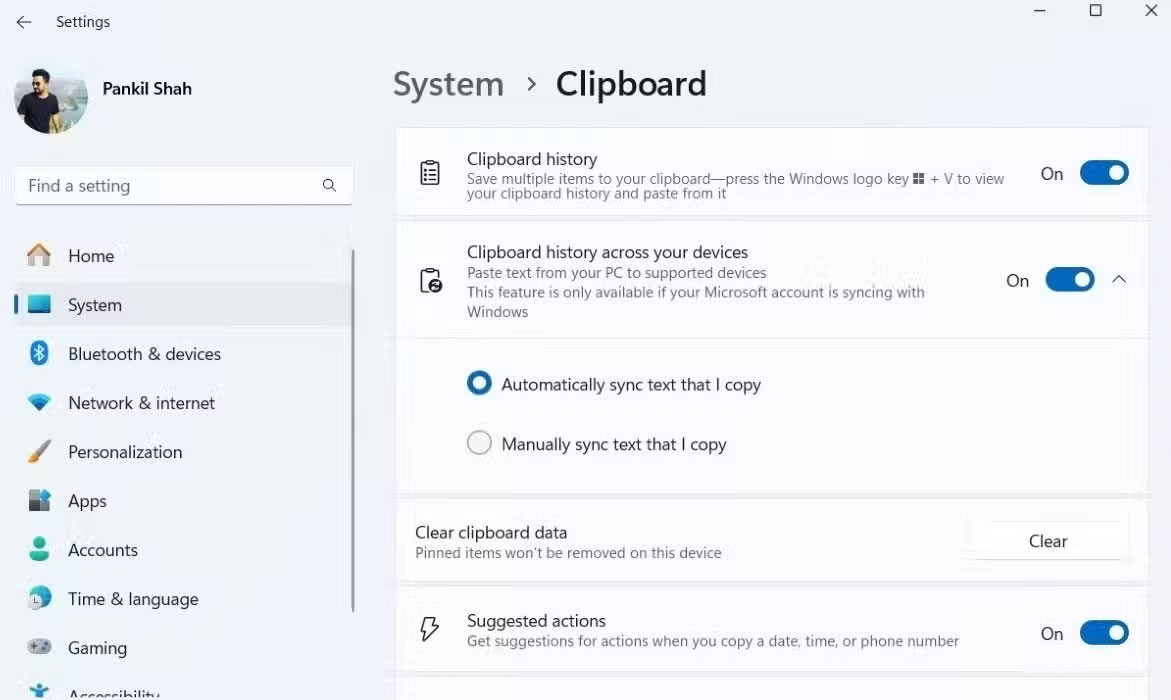
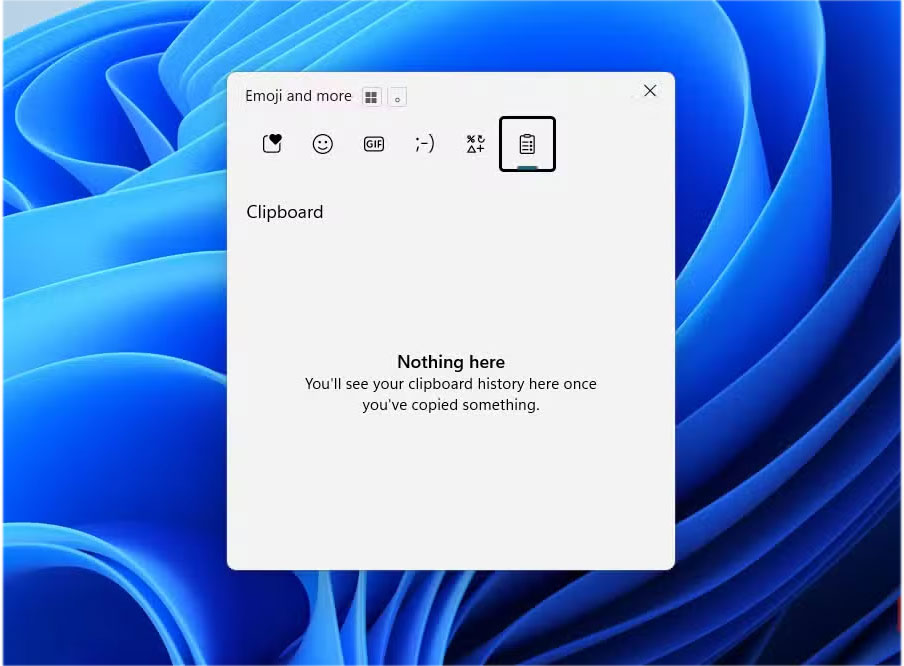
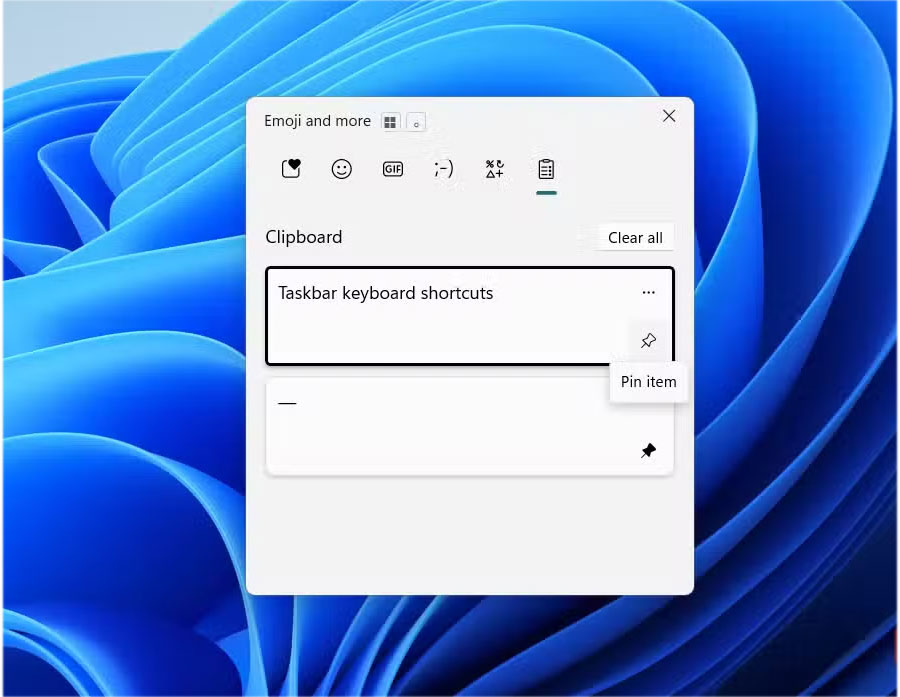
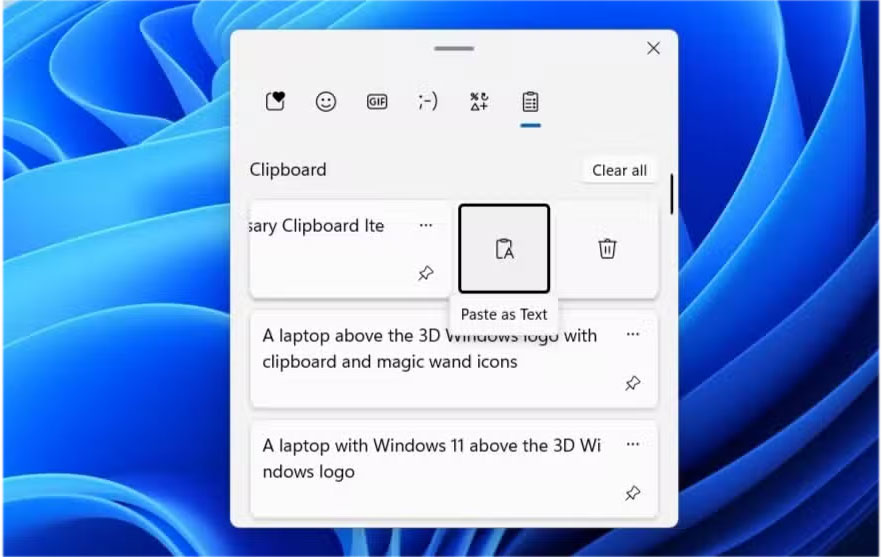
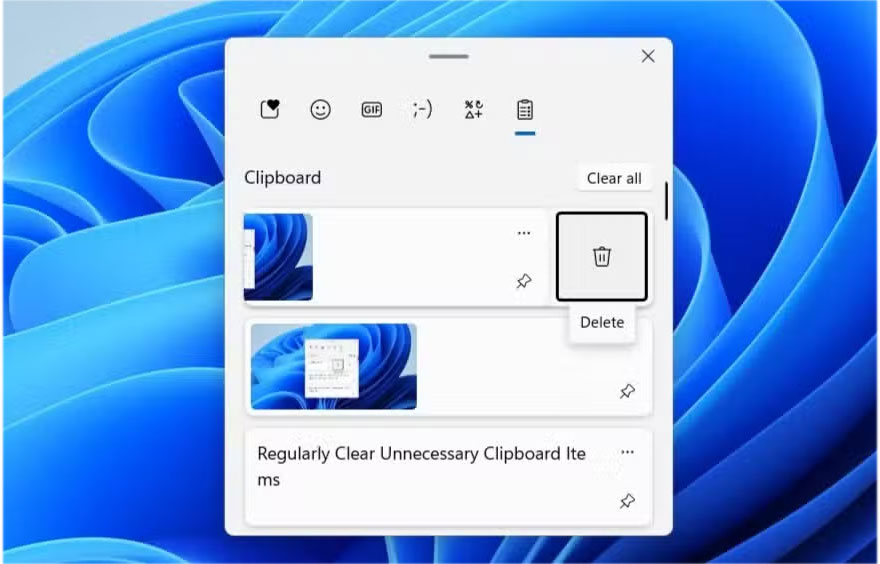
Copy, paste, repeat—it's something we all do regularly, but the standard clipboard only remembers the last thing you copied. Windows' Clipboard History changes that. Instead of losing previous copies, you'll have a persistent list of everything you've copied recently, ready to paste whenever you need it.
To enable it, go to Settings > System > Clipboard And turn on Clipboard History. From there, press Win + V And a panel will appear showing recently copied items, including text, images, and even links. You can click to paste any item or pin your favorites so they're always there.
2. Dynamic Lock
Automatically lock your computer when you leave
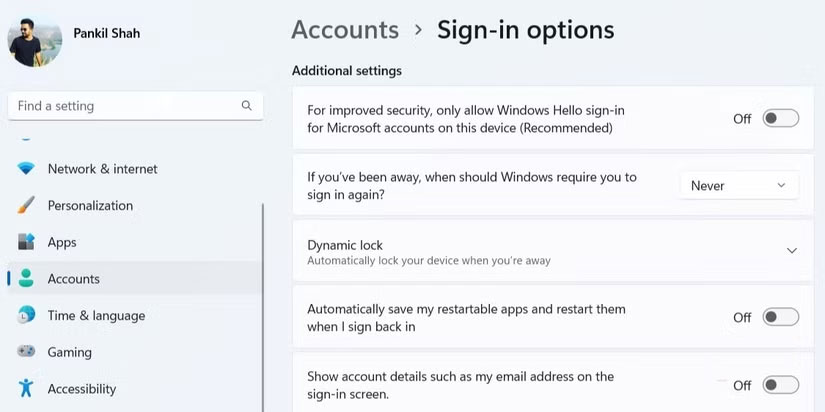
Dynamic Lock is one of those great Windows features you don't realize you need until you try it. It automatically secures your PC when you step away.
Go to Settings > Accounts > Sign-in options , and under Dynamic Lock , select The Allow Windows to automatically lock your device when you're away Check box. If you haven't paired your phone with your PC, Windows will ask you to do so first.
1. Shortcut keys on Taskbar
Open apps and windows faster than ever
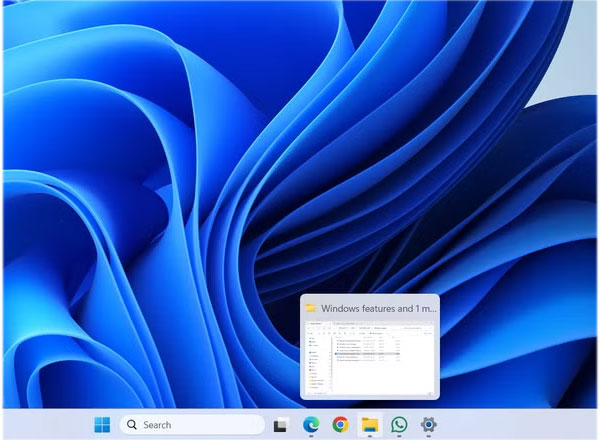
Pinning your favorite apps to the Taskbar is the fastest way to open them on your computer. But did you know you don't even have to click on an icon to launch them? Windows has built-in keyboard shortcuts that make it easy.
Press Windows + a number key (1–9) And Windows will launch or switch to the app pinned in that position on the Taskbar, starting from the left.
Even better. Holding Shift + Windows + a number key Will open a new instance of that app, while Ctrl + Shift + Windows + a number key Will launch that app with admin privileges. This is just a glimpse of what you can do with keyboard shortcuts on Windows.
FAQ
What should you know about the options in this guide?
In practical terms, from instant file sharing to creating multiple workspaces and customizing gestures, these built-in tools can change the way you use your PC.
Which option is the best choice?
The best choice depends on your priorities, compatibility, budget, and the specific features discussed in the comparison.
What should you compare before deciding?
Compare core features, limitations, ease of use, compatibility, and long-term value before making a decision.
Related Articles
 8 Android Features You Wish You Knew Sooner10 minutes read
 Tips to Play Sky: Children of the Light Gamers Need to Know7 minutes read
 10 Great Windows Features That Many People Don't Use7 minutes read
 27 Things I Wish I Knew Before Programming10 minutes read
 Useful AI Features in Windows 118 minutes read
 7 Windows 11 Features That Should Be Used More Often5 minutes read
Reader Comments 0
Sign in with email or Google to join the discussion.