Table of Contents
This guide organizes the entries in "8 Excel Spreadsheet Tips for Teams" and explains what each option, idea, or example offers. It also highlights practical details that matter when comparing the choices.
Add general menu sheets
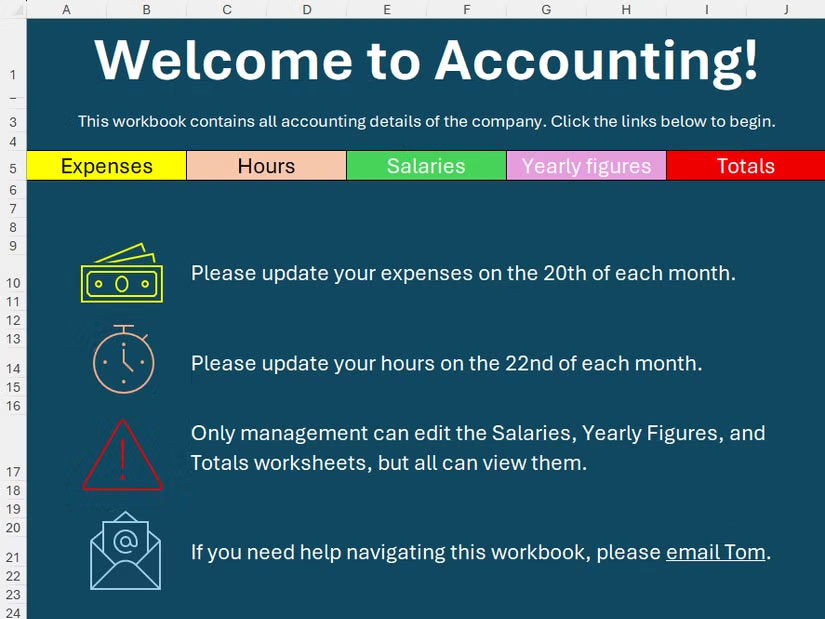
One of the most effective ways to make it easier for members to navigate an Excel workbook is to add a menu sheet overview. This is the first page people will see when they open the workbook, including a title that summarizes the content of the workbook, links to some of the main worksheets, and more.
Naming worksheets, tables, and ranges
When working on Excel with many people, naming worksheets, tables and ranges is necessary so that everyone knows the detailed content, avoiding confusing the content they need to perform.
- 5 ways to rename sheets in Excel
- How to use Name Box in Excel
Using Excel Notes
Notes in Excel are simple annotations linked to individual cells that provide additional context. These notes provide information and guidance to team members.
- How to use notes in Microsoft Excel
Hide sheets that are not working in groups
If there are sheets that are not intended for joint work, you should hide the sheets in Excel to avoid team members accidentally clicking on the sheets that they need to work on.
- How to hide, hide sheets in Excel and show them again
Lock Cells Prevent Editing in Excel
Locking cells or locking a range of data in an Excel table will protect the spreadsheet and also let people know that this area cannot be entered or edited while working.
- How to lock columns in Excel
Color Cells Using Conditional Formatting in Excel
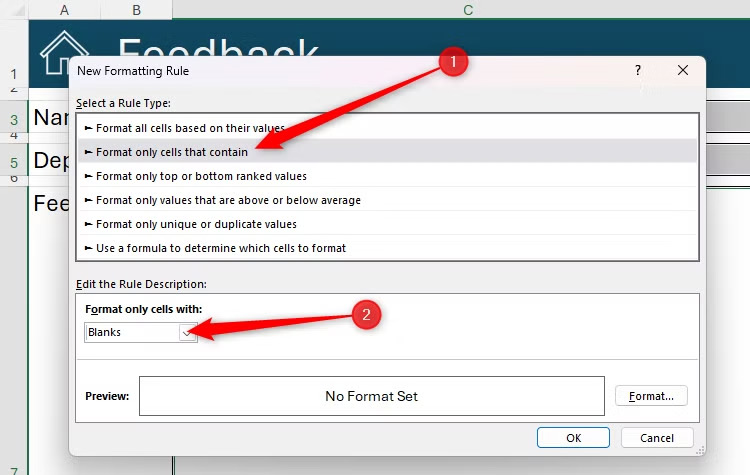
One way to quickly guide members to the cells you want them to edit is to use conditional formatting combined with color. By using conditional color formatting, members will immediately notice that area of data.
You click Conditional Formatting > New Rule, then you enter the condition as Format Only Cells That Contain and under Format Only Cells With select Blanks. Finally you choose the color for the blank cell. When entering data, the cell is no longer green because it is not blank.
Add data entry rules in Excel
Microsoft Excel's data validation tools help ensure people enter the right type of information into certain cells. When members enter data that exceeds the rules, they receive a warning.
- How to limit input values using Data Validation Excel
FAQ
What should you know about add general menu sheets?
One of the most effective ways to make it easier for members to navigate an Excel workbook is to add a menu sheet overview. This is the first page people will see when they open the workbook, including a title that summarizes the content of the workbook, links to some of the main worksheets, and more.
What should you know about naming worksheets, tables, and ranges?
When working on Excel with many people, naming worksheets, tables and ranges is necessary so that everyone knows the detailed content, avoiding confusing the content they need to perform.
What should you know about using Excel Notes?
Notes in Excel are simple annotations linked to individual cells that provide additional context. These notes provide information and guidance to team members.
What should you know about hide sheets that are not working in groups?
If there are sheets that are not intended for joint work, you should hide the sheets in Excel to avoid team members accidentally clicking on the sheets that they need to work on.
Related Articles
 How to Print an Excel Spreadsheet in a Page9 minutes read
 Complete Guide to Excel 2016 (Part 9): Working with Multiple6 minutes read
 Add a Checkbox to the Excel Spreadsheet4 minutes read
 Instructions for Inserting a PDF File into Excel Spreadsheet4 minutes read
 Instructions on How to Automatically Open a Workbook When You Open5 minutes read
 How to Change Worksheet Size in Excel: Clear Instructions6 minutes read
Reader Comments 0
Sign in with email or Google to join the discussion.