Table of Contents
Google Drive is a great tool for storing and sharing files, but finding the file you need can sometimes be a challenge, especially if you don't remember the file name. Luckily, there are smarter ways to search, filter, and navigate Drive that can help you quickly find exactly what you need.
7. Filter files by type for quick search
Search PDFs, documents, spreadsheets in a snap
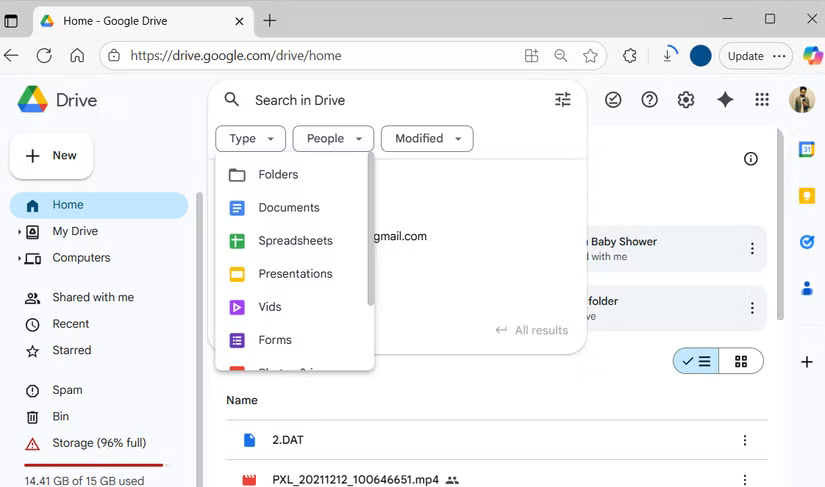
A simple but effective way to narrow down your search results in Google Drive is to search by file type. Instead of scrolling through a long list of results, you can ask Google Drive to focus on the type of file you're actually looking for.
Google Drive lets you filter by documents, spreadsheets, presentations, PDFs, images, videos, and even folders.
6. Find files by owner or last modified date
Track files by date, not by memory
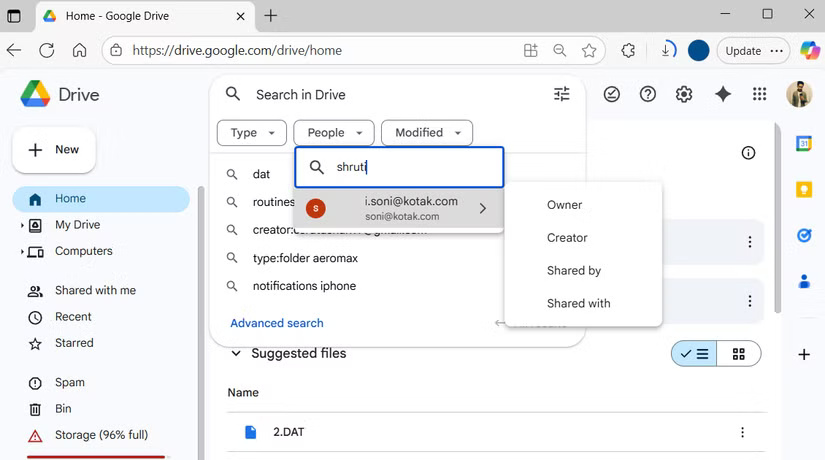
Sometimes, filtering by file type alone isn't enough, especially if your Google Drive is full of similar files. That's where searching by user or last modified date can come in handy.
If you remember who created or shared the file, the People drop-down menu is your best bet. Type the person's name, hover over the name, and select options like All , Owner , Creator , Shared by, or Shared with .
5. Search inside the file to find exactly what you are looking for
Not just about file names
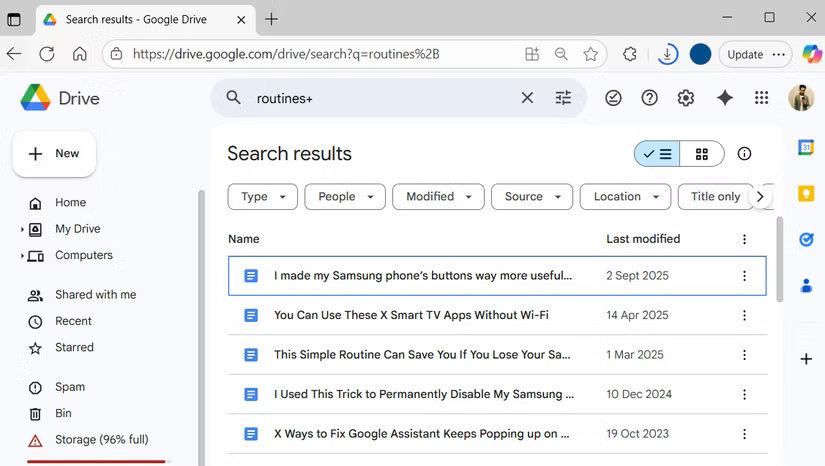
Even if you have trouble remembering the file name, you may remember a word or phrase from it. The good news is that Google Drive's search bar can help you find files based on that information. It can scan the contents of your documents, spreadsheets, and presentations for words or phrases you remember.
You can combine this with other filters like file type, user, or last modified date. Finding that elusive file is less like looking for a needle in a haystack and more like flipping straight to the right page in a neatly organized file.
4. Master Google Drive's Advanced Search tool
Advanced Search isn't scary at all
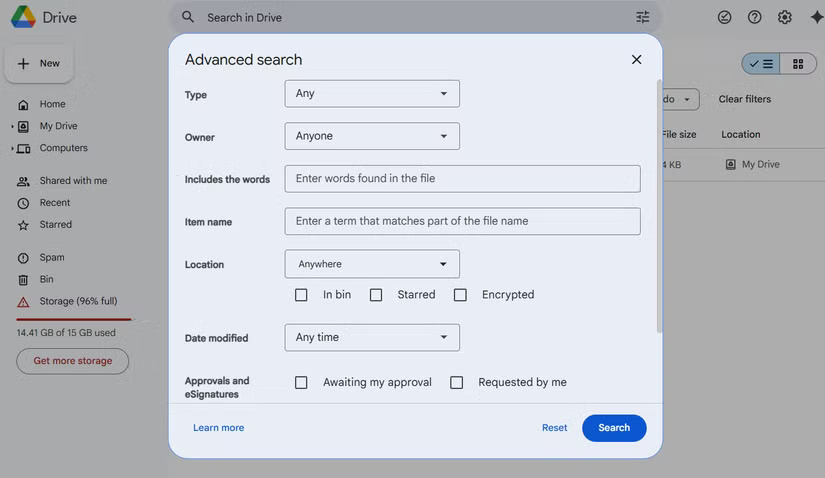
Most of the time, basic search filters are enough to find what you need. But when they aren't, Google Drive's Advanced Search can help. Click the Advanced Search icon next to the search bar and you'll be able to combine all your filters into one place.
From this menu, you can narrow your search by file type, owner, location, date modified, and even keywords within the file. This feature is perfect for those times when you remember some details about a file but don't remember the exact file name.
3. Using search operators
Turn keywords into search superpowers
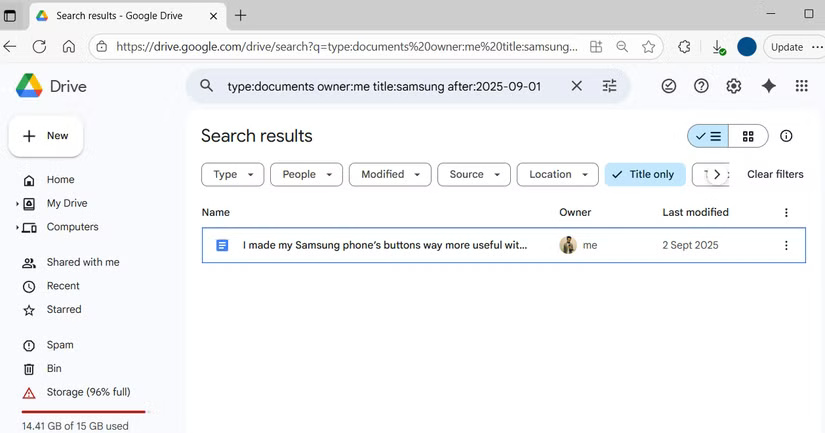
Like Gmail, Google Drive also supports Boolean operators. If you don't want to click through the menus, you can type specific keywords into the search bar for highly accurate results.
For instance, type: pdf will only show PDF files, while owner: me will limit results to files you own. If you remember something from the title, use title: followed by your keyword. You can also search by word within a file using the content: operator. The real magic happens when you combine these operators, for example: type: docx owner: me content: routine to find Word documents you've created that contain the word "routine."
2. Access files via recent and starred folders
Shortcuts to the files you use most
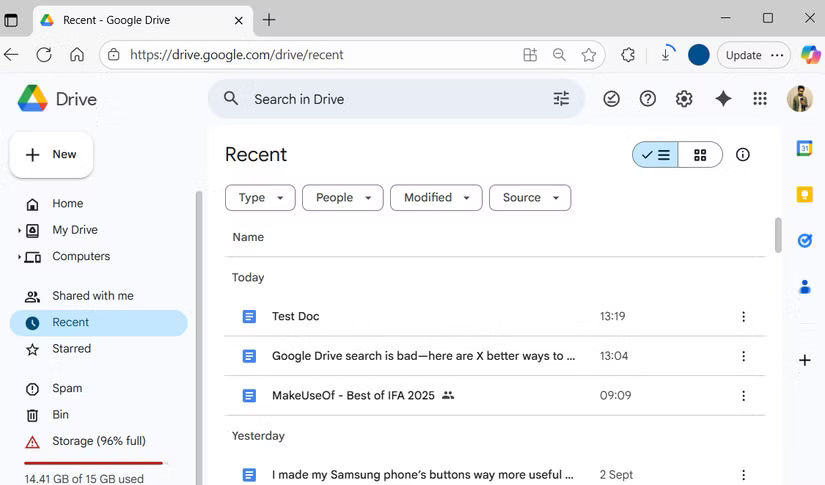
Sometimes the fastest way to find a file isn't to search. Both the Recent and Starred folders are easy to overlook, but they can save you a lot of time.
Google Drive's Recent folder lists the files you've most recently opened or edited, which is great when you're working on new projects and can't remember the exact file name.
Another handy feature is Starred folders. If there are files you need to access frequently — like monthly reports, team presentations, or reference materials — you can star them for easy access. You can also, of course, create folders and color-code your Google Drive files to organize them.
1. Search directly from the browser's address bar
Skip extra clicks
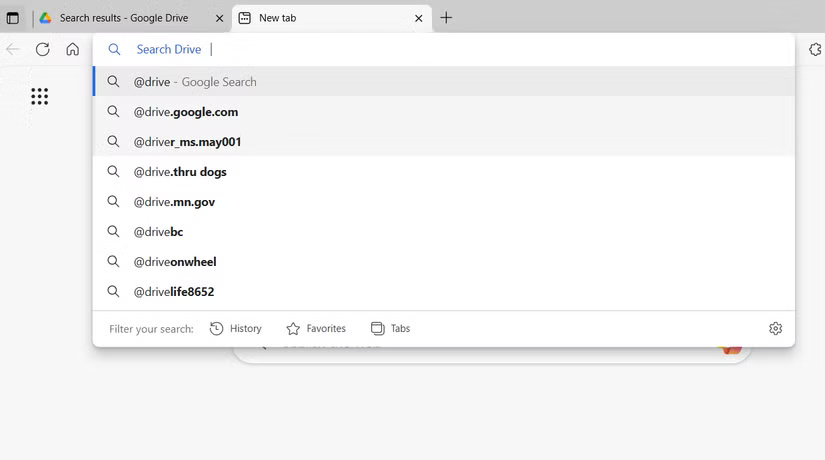
You don't always need to open Google Drive to start searching. Most browsers let you search Drive directly from the address bar. That way, you can open a new tab, type @Drive followed by a file name or keyword in the address bar, and jump straight to the results.
In Chrome, you can set this up by going to Settings > Search engine > Manage search engine and site search . Under Site search , click Add . Enter Google Drive as the search engine name, @Drive as the shortcut, and paste the following address into the URL field.
https://drive.google.com/drive/search?q=%sFinally, click save and you're ready to search in no time. This trick also works in Edge and most other browsers.
- Tricks to know with PDF files on Google Drive
Final Thoughts
Overall, 7 Tips for Better File Searching on Google Drive is best understood by considering the main facts, practical context, and limitations together. Use the details above as a clear starting point and confirm time-sensitive information when necessary.
FAQ
What does this article explain about 7 Tips for Better File Searching on Google Drive?
Google Drive is a great tool for storing and sharing files, but finding the file you need can sometimes be a challenge, especially if you don't remember the file name.
What should you know about Search PDFs, documents, spreadsheets in a snap?
A simple but effective way to narrow down your search results in Google Drive is to search by file type. Instead of scrolling through a long list of results, you can ask Google Drive to focus on the type of file you're actually looking for.
Should time-sensitive details be verified?
Yes. Software features, game codes, product specifications, prices, and research findings can change. Confirm important details with an official or primary source when accuracy affects your decision.
Related Articles
 How to Hide Data on Google Drive: Google Drive Tips5 minutes read
 Restore, Retrieve Deleted Data on Google Drive3 minutes read
 How to Update Files on Google Drive Does Not Change the Shared Link3 minutes read
 Keep the Sharing Link Intact When Renaming the Google Drive File4 minutes read
 Trick to Create a Copy of Text for Recipients When Sharing a Google4 minutes read
 Support Tools for Using Documents from Google Drive7 minutes read
Reader Comments 0
Sign in with email or Google to join the discussion.