Table of Contents
This updated guide compares hidden Windows services that are silently eating up your CPU and highlights the details that matter most. Windows comes with many extra features and if your PC isn't powerful enough to handle it, you'll find your CPU being hogged by hidden Windows services. Still, not all of these services are essential, meaning you can disable some of them and give your CPU some breathing room.
1. Runtime Broker
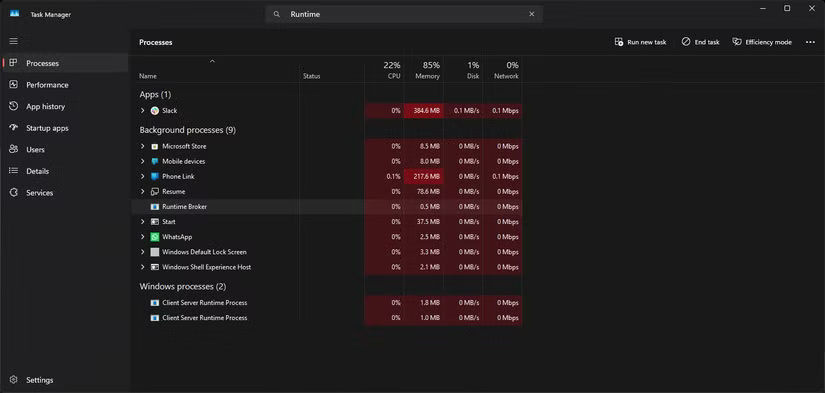
Windows Runtime Broker manages permissions for Microsoft Store apps in the background. The service is said to only use about 20 to 30 percent of your CPU at best, but it frequently spikes in usage. These unusual spikes can be triggered by a Microsoft Store app you might be using or an app that has requested permissions in the background.
In any case, this can slow down your PC for a few seconds and is quite annoying when it happens repeatedly. If you do not have enough RAM, it can even freeze your system to the point where a hard reset is needed.
As long as you do not use any Microsoft Store apps, disabling Runtime Broker will not affect your Windows usage and will save you a significant amount of CPU resources.
2. Windows Search Indexer
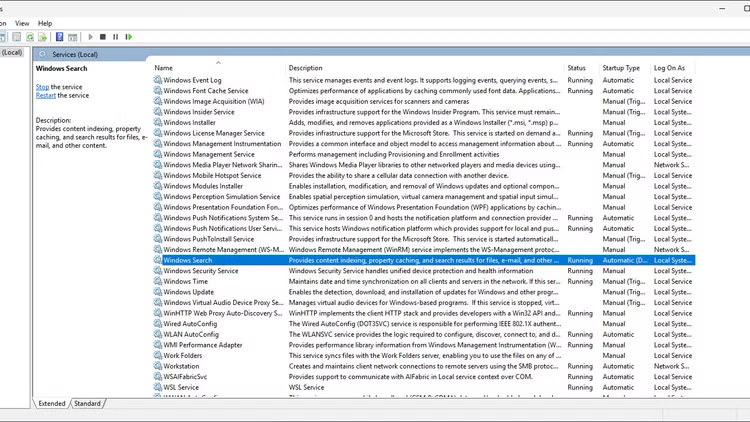
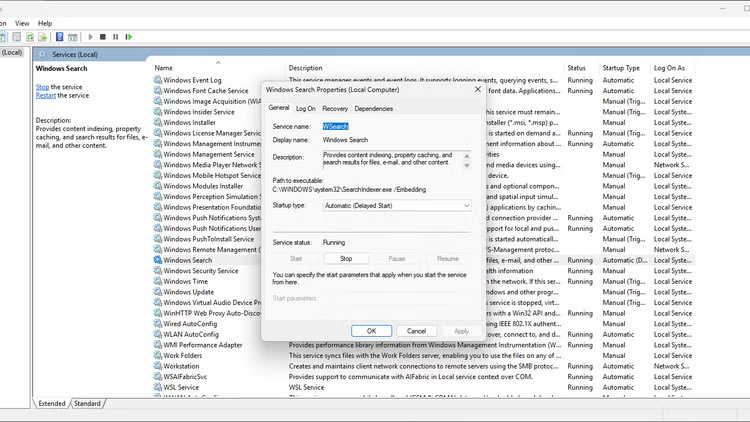
As its name suggests, Windows Search Indexer runs in the background to maintain a searchable and up-to-date index of files, documents, images, videos, and emails stored on your PC. So while Windows Search Indexer is a great help when you're searching for a lost file, it tends to increase CPU usage when indexing large files or doing basic index repairs.
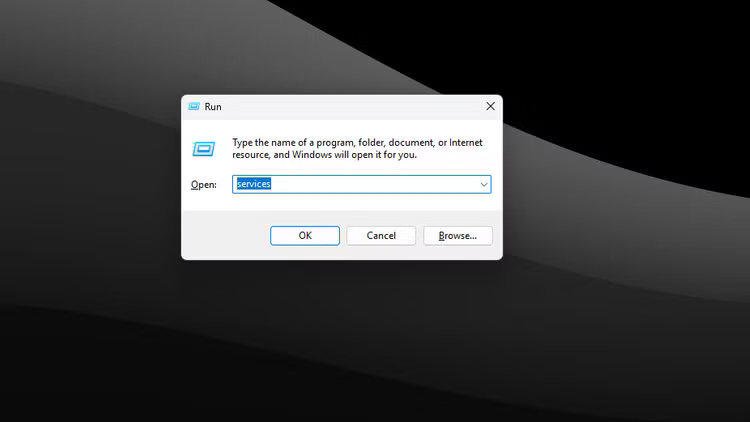
If you do not have enough CPU, this service alone can slow down Windows significantly. Unless you're constantly searching for files, It is best to disable this service.
3. Antimalware Service Executable
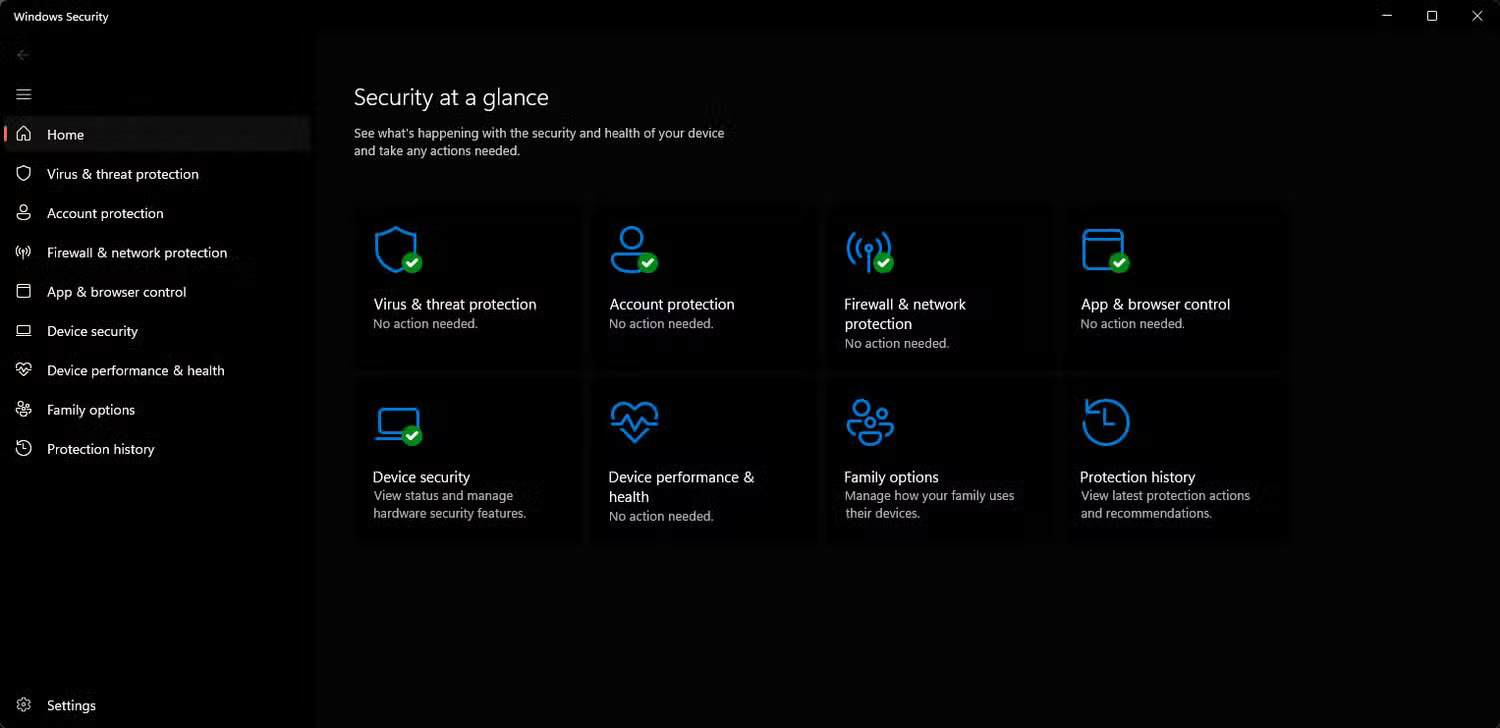
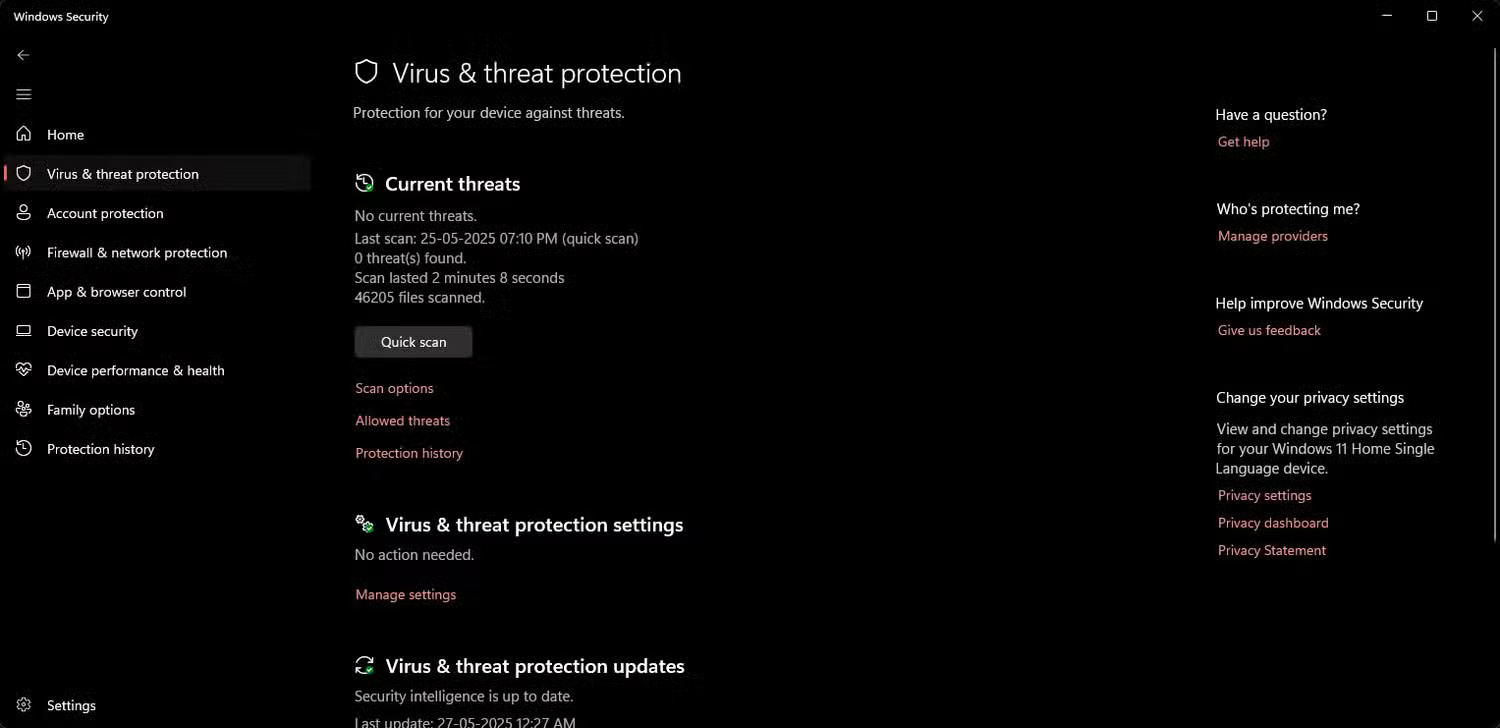
Antimalware Service Executable or MsMpEng.exe is a Windows Security service that constantly runs in the background and scans your PC in real-time for any threats. Still, sometimes this service tends to scan large files or folders, which can cause a spike in CPU usage.
If you store many large files on your system, Windows Search Indexer and Antimalware Service Executable can take up to 50% of your CPU.
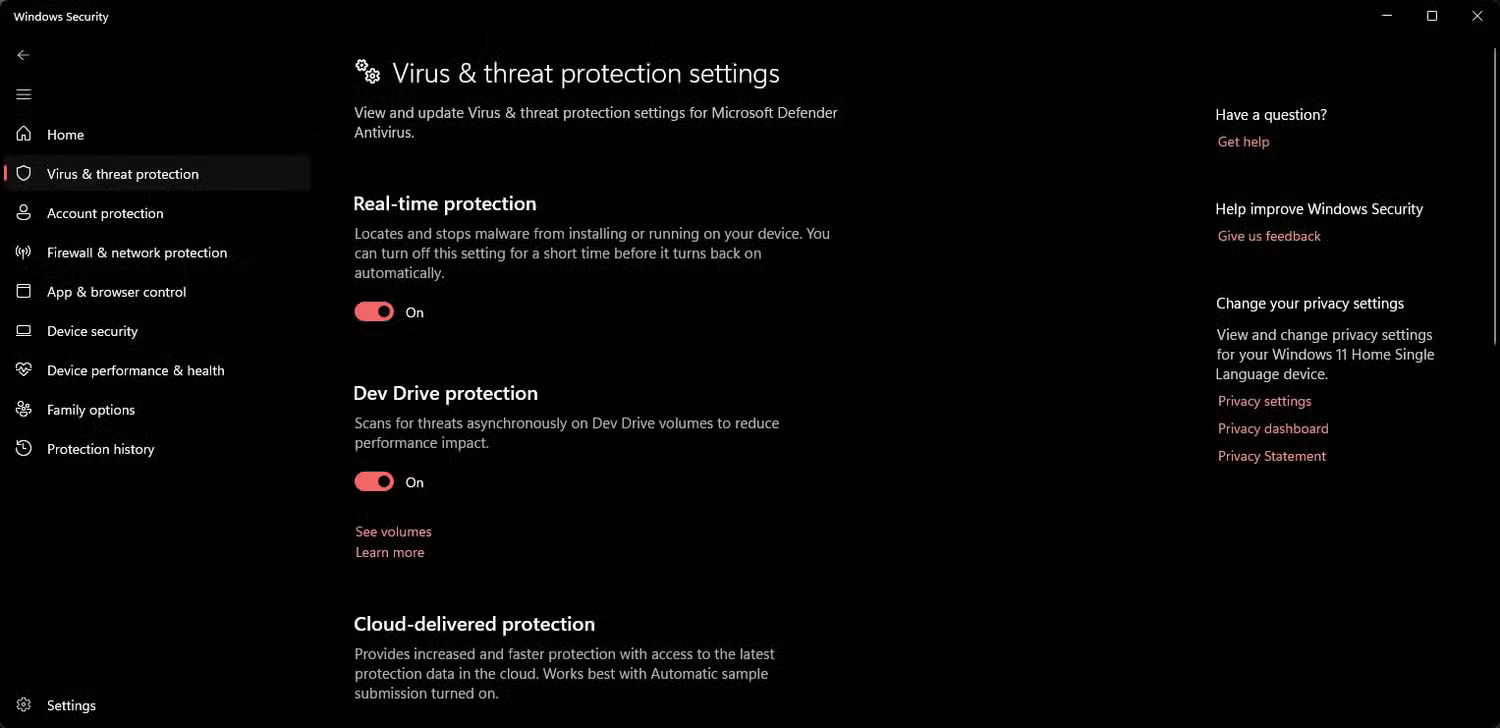
You can disable the service, but it leaves you vulnerable to viruses and malware. You can disable it temporarily from Task Manager, but it will take longer than expected. To disable it permanently, you'll have to disable real-time protection in Windows Security.
4. CTF Loader
CTF Loader supports alternative text input methods such as speech recognition and handwriting. If you do not use those features, you're wasting CPU resources on this process that keeps running in the background.
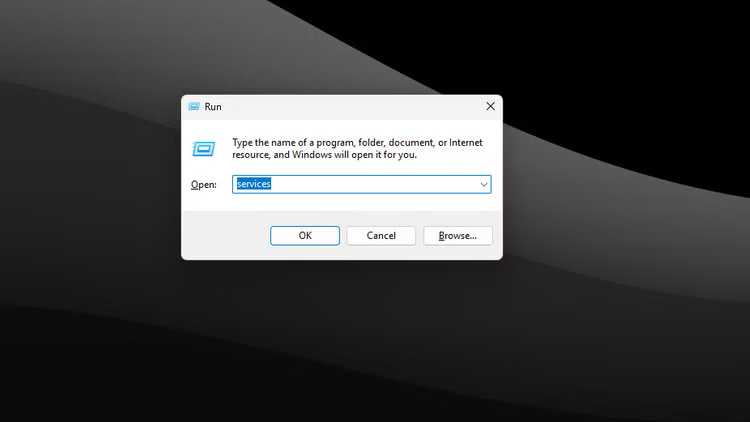
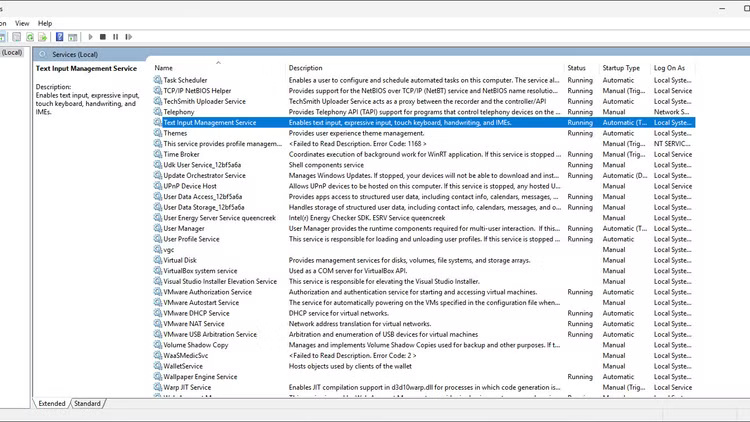
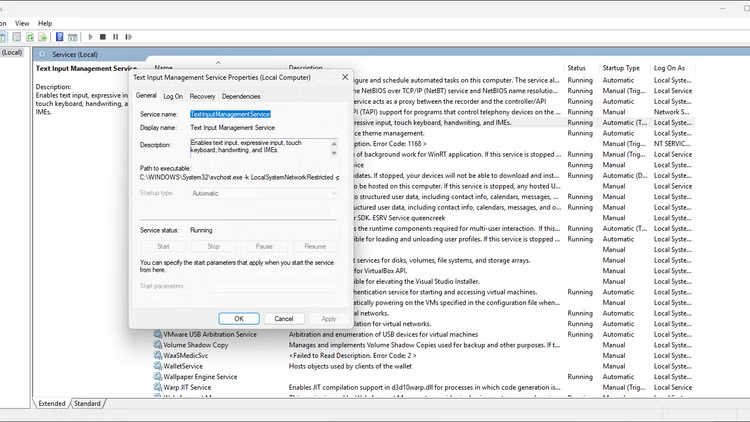
Disabling CTF Loader or ctfmon.exe can be a bit tricky. You can close the process from Task Manager, but it may automatically re-launch and start running again. A more permanent solution is to disable the service through Windows Services.
5. Microsoft Store Background Apps
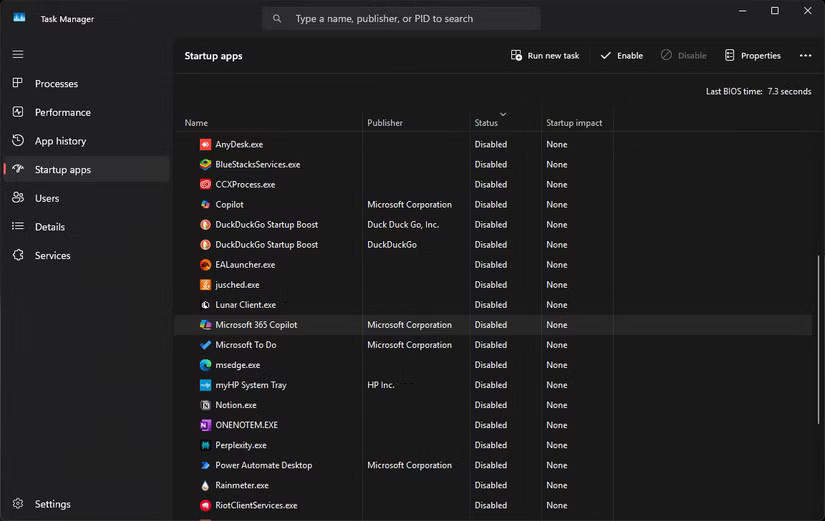
By default, Windows comes with many junk software pre-installed. Among them are some Microsoft Store apps, like Outlook, Teams, Copilot, etc. that you may not use on a daily basis. Still, all of these apps are enabled by default and will continue to run in the background and consume system resources.
The best way to solve this problem is to uninstall all these applications immediately. TipsMake.com has mentioned many ways to uninstall software on Windows if you need a reference. to keep them, you can disable them from automatically starting up with Windows.
Windows 11 may seem like it is taking a toll on your CPU, there's a lot going on under the hood, not all of it useful. Turning off some background services and other tweaks can give you the extra hardware resources you need to enjoy using Windows.
FAQ
How were the hidden windows services that are silently eating up your cpu options evaluated?
The comparison focuses on practical features, ease of use, limitations, compatibility, and the type of user each option is most likely to help.
Which option is best for beginners?
Beginners should prioritize a clear interface, useful documentation, reliable support, and the core features needed for their first project.
Should I choose a free or paid option?
Start with a free option when it covers your needs. A paid plan may be worthwhile when you need advanced tools, commercial rights, collaboration, or professional support.
Related Articles
 5 Absolute Things Should Not Be Done After Eating8 minutes read
 Search and Activate Hidden Features in Windows 10 with Mach2 Tool9 minutes read
 Exploiting Services in Windows 2000, XP, 2003 Improves18 minutes read
 Misconceptions When Eating Shrimp That Many People Have5 minutes read
 7 Ways to Open the Services Application in Windows 117 minutes read
 How to Hide Hidden Wi-Fi Network Ssid on Windows 105 minutes read
Reader Comments 0
Sign in with email or Google to join the discussion.