Table of Contents
You can certainly learn commands to take the fear out of the terminal, but there are also a few tricks that can make your workflow inside the terminal much faster.
No matter how much you want to deny it, if you're switching to Linux, you're probably going to have to use the terminal at some point. There's simply no way around it. While modern Linux distributions let you do many things from the UI, there will always be things that are quicker, cleaner, or even just possible to do through the terminal.
You can certainly learn commands to take the fear out of the terminal, but there are also a few tricks that can make your workflow inside the terminal much faster.
- 18 Interesting Linux Commands in Terminal
Switch between words quickly
Why did people stop using the arrow keys?
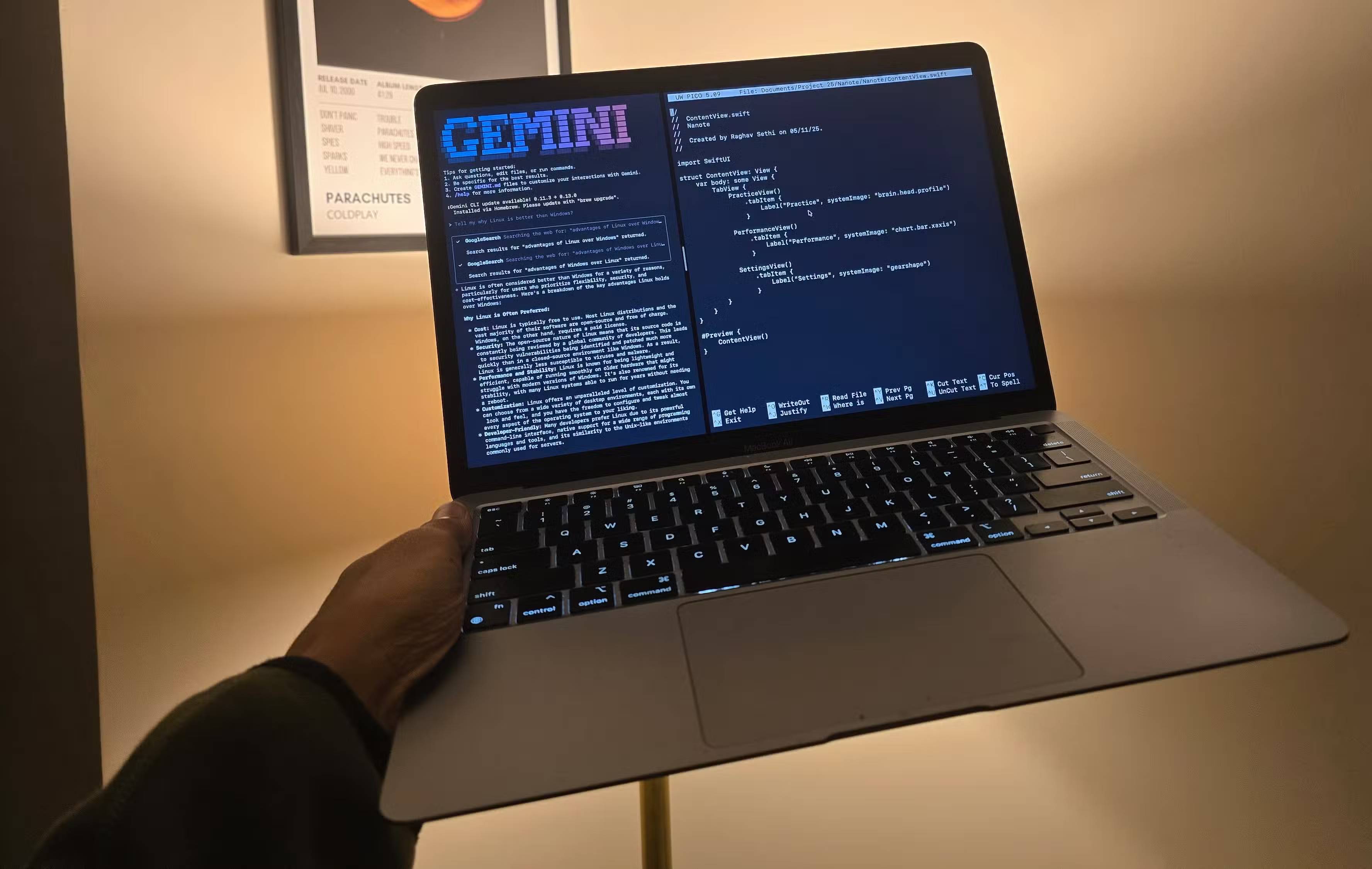
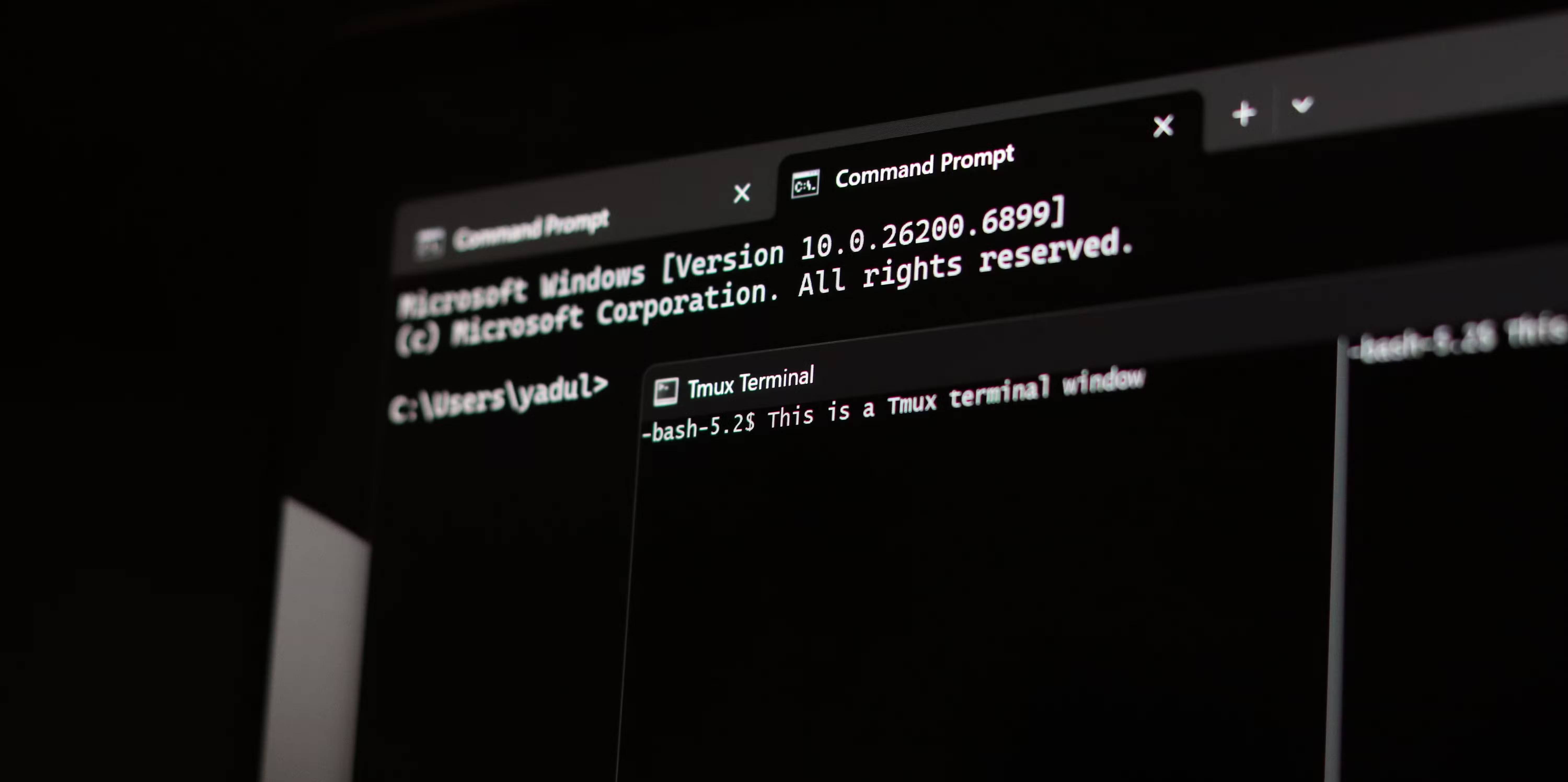
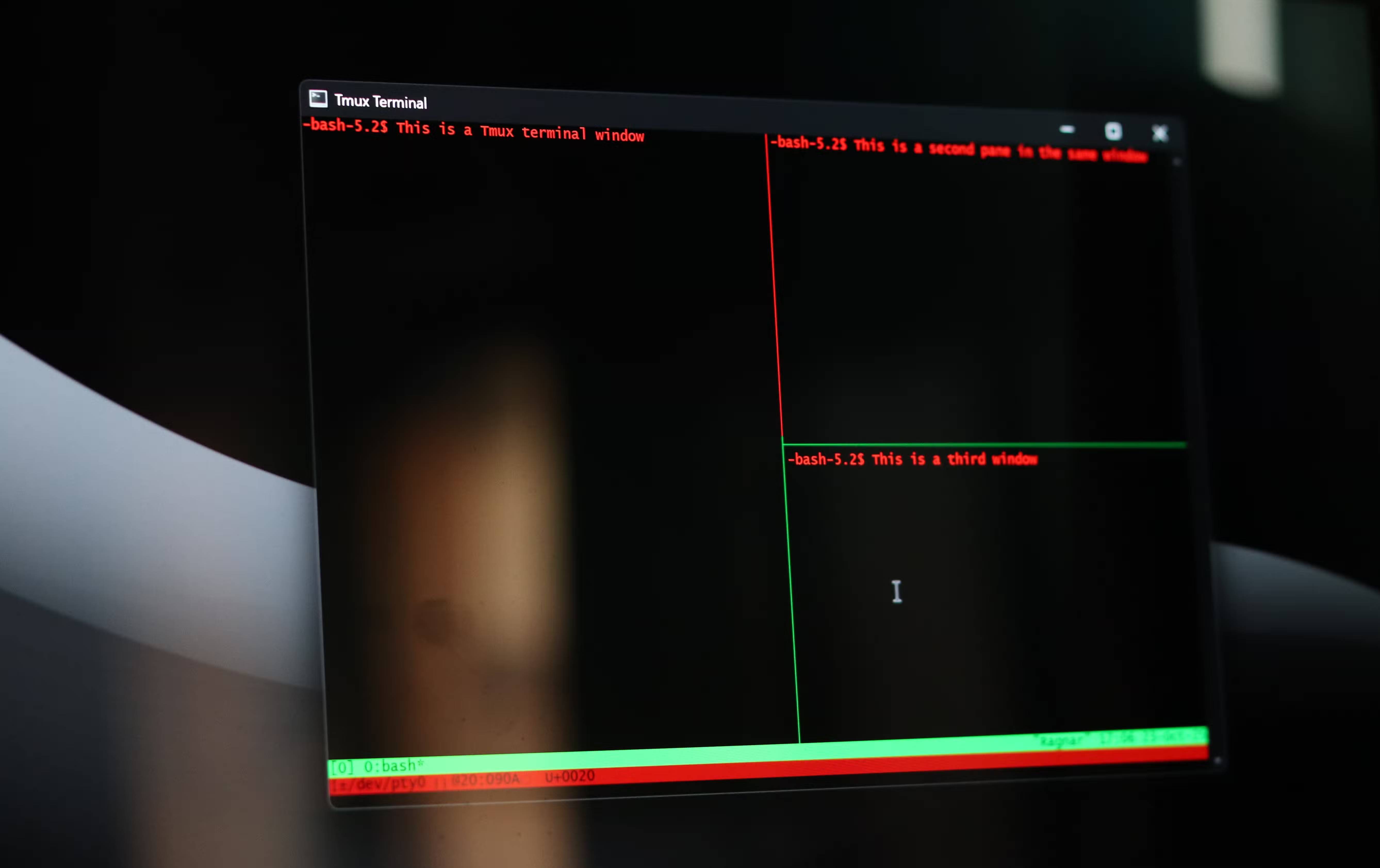
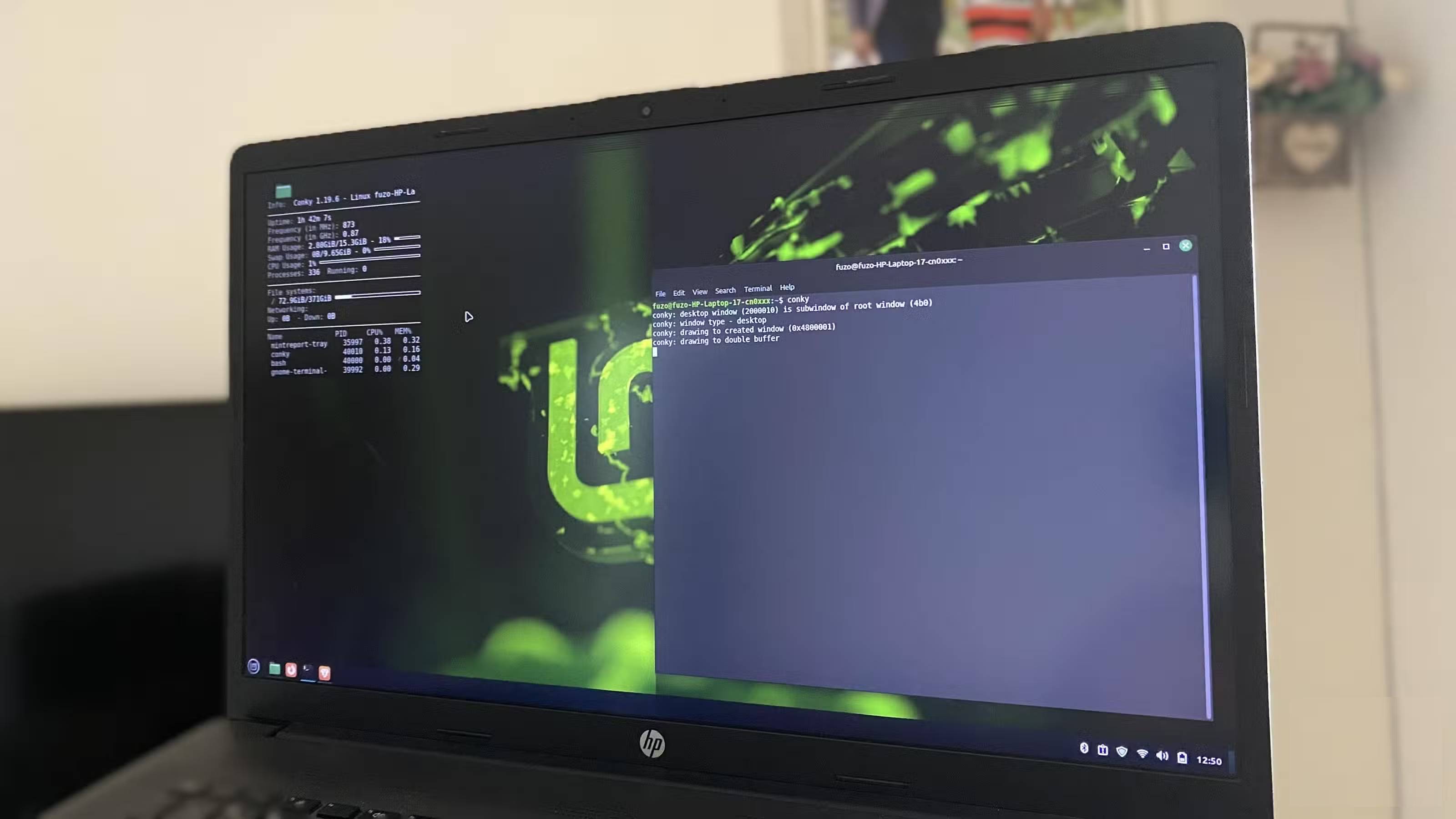
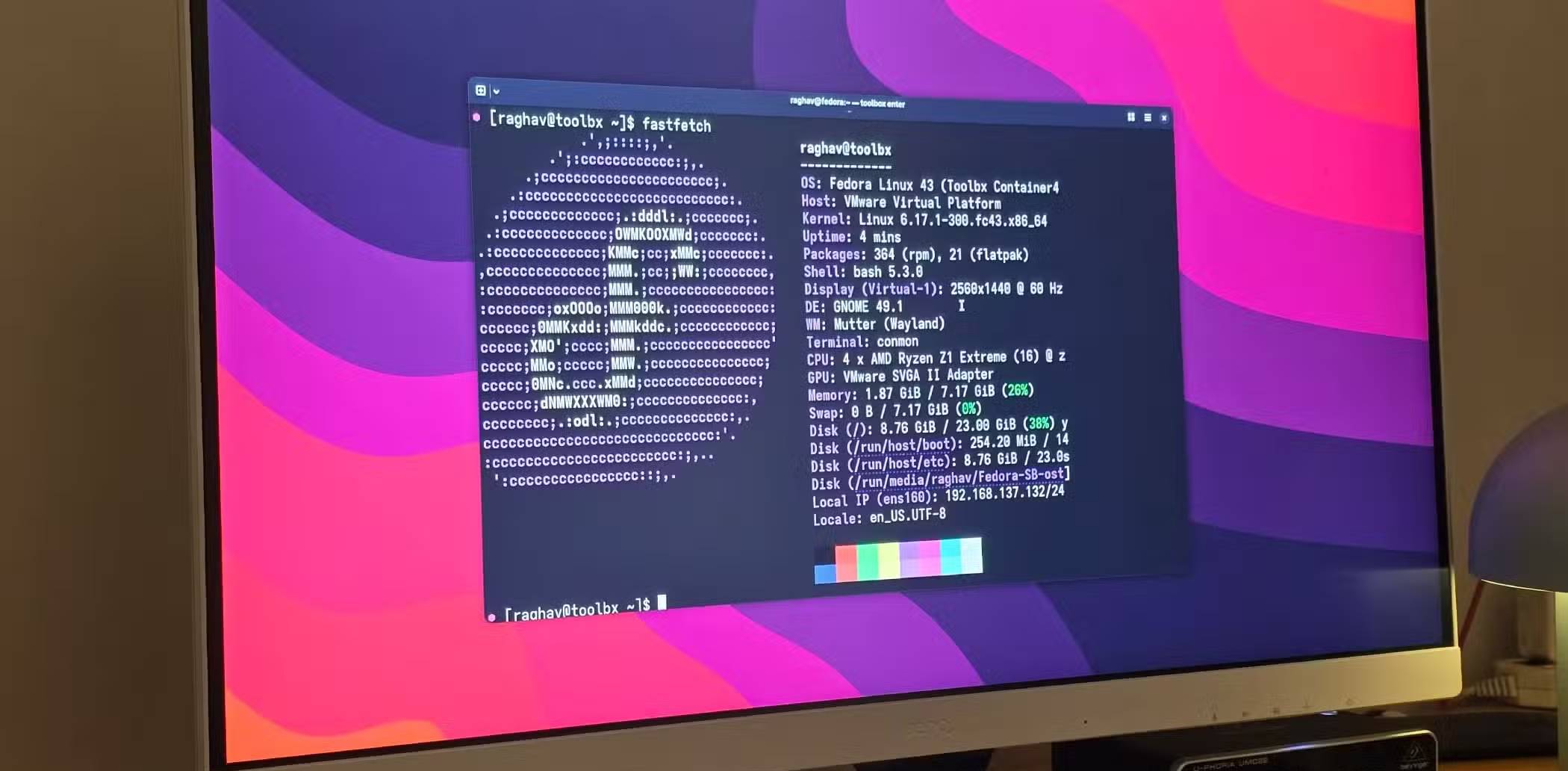
You can switch between words in the command line using Ctrl + Left/Right Arrow (or Option + Left/Right Arrow On macOS). This will instantly move the cursor word by word, making it much easier to fix typos or adjust arguments in the middle of a long command. This is really useful when you copy a command from somewhere and need to change a file path or argument. Instead of slowly moving the cursor across the entire line, you can jump straight to that part and edit it right away.
You can also use Ctrl + A And Ctrl + E To jump to the beginning and end of a line instantly. Once you start using these shortcuts, you'll wonder how you ever worked without them, as editing in the terminal suddenly becomes smoother and more efficient.
Search reverse command history
Search old orders instantly
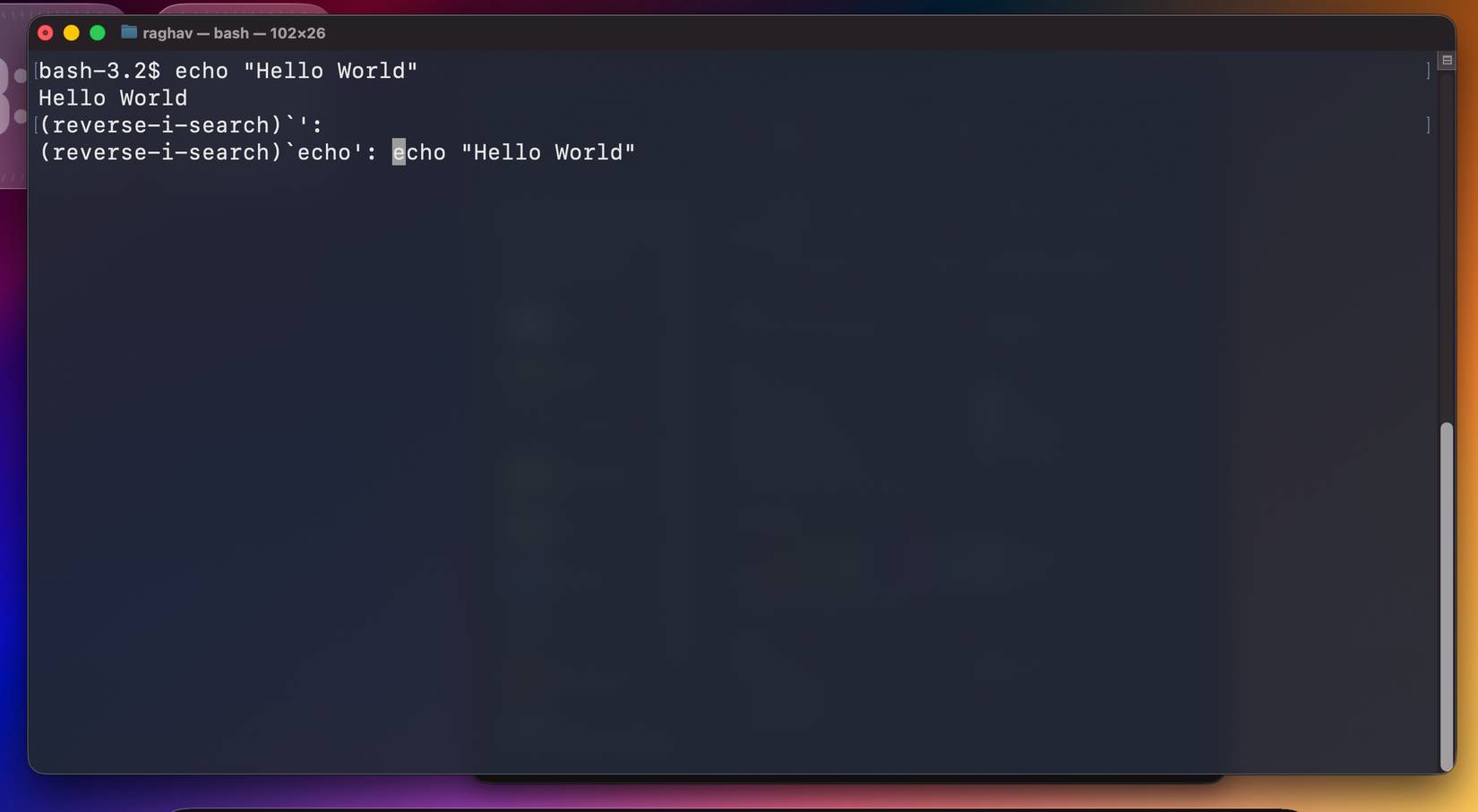
You can cycle through all previous commands with the up arrow key, which is great for quick repetition, but quickly becomes annoying when you're trying to find a command you ran a while ago. People have spent more time than they'd like to admit hitting the up arrow key repeatedly just to find a particular command.
That's where reverse search comes in. Press Ctrl + R , then start typing whatever part of the command you remember. Terminal will immediately search your command history and display matches as you type.
Once you start using it, you will never want to scroll through command history line by line again.
Auto pull last argument
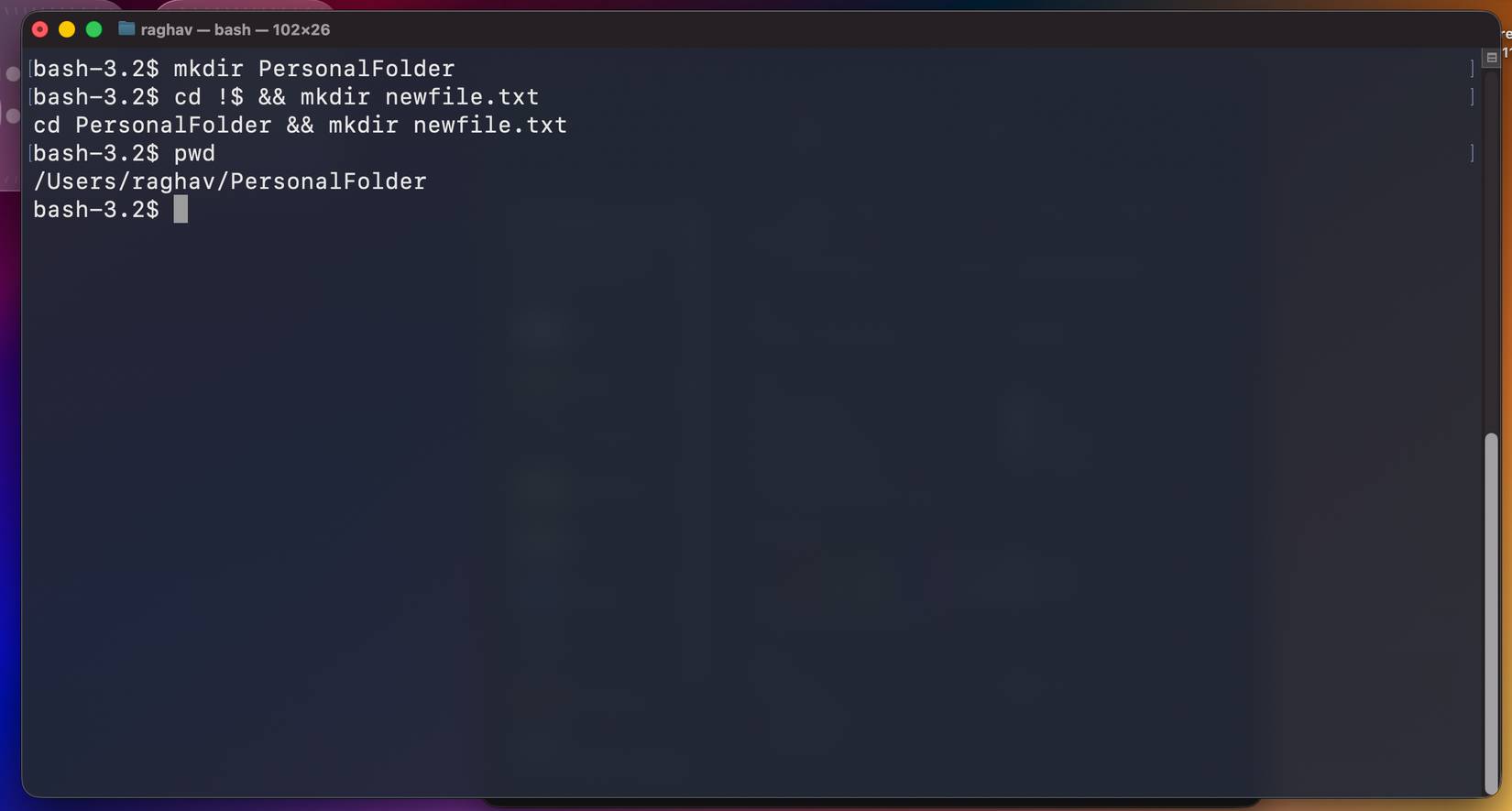
You can find many times when you run a command and then need to reuse one of its arguments in the next command. Typing the command over and over again can quickly become tedious, especially when it's a long command like a file path or directory name.
For example, if you just created a new folder and now want to move to it, you can instinctively retype the name:
Mkdir projectsBut there is a faster way. You can automatically get the last parameter from the previous command by typing !$ . So instead of retyping the whole command, just write:
Cd !$The !$ Character will expand to the last parameter from the previous command; in this case, Projects . This little shortcut may seem trivial at first, but once you get used to it, it feels like a significant quality of life improvement when working in the terminal.
Edit the current command in the editor
Difficulty with long commands
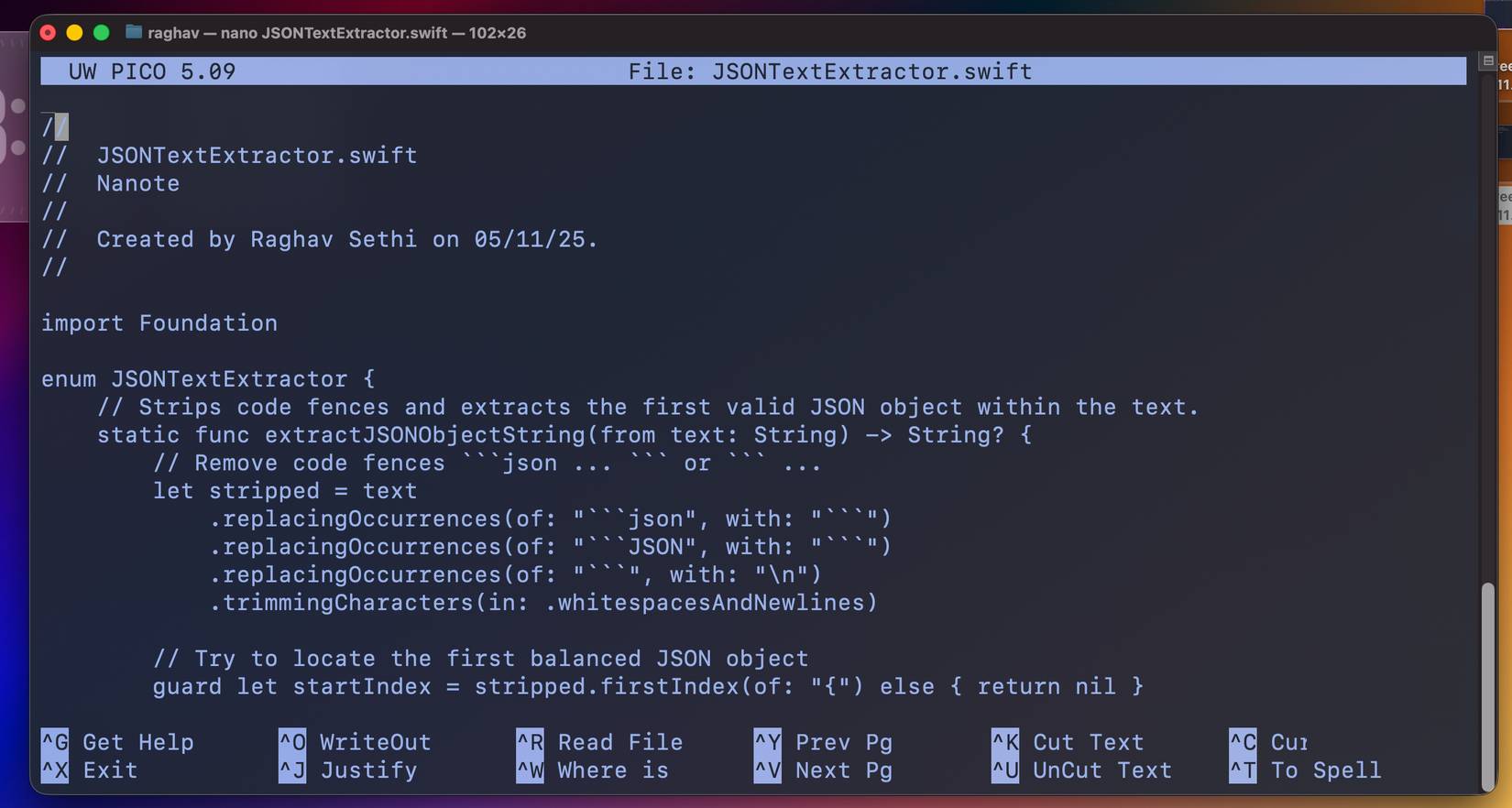
Sometimes you paste a long command into the terminal and realize You should edit a small part of it, such as a file path, flag, or environment variable. Using the arrow keys to move through the entire command line can get tedious, especially if the command is long or full of nested quotation marks.
That's where this shortcut comes in handy. You can open the current command in your default text editor by pressing Ctrl + X , then Ctrl + E. This will launch the editor immediately, allowing you to edit the command with proper navigation, syntax highlighting, and all the bells and whistles of a real text editor.
This is especially useful when you copy a command from the Internet and need to edit a specific part of that command.
Turn long commands into shortcuts with aliases
Save time with your own shortcuts
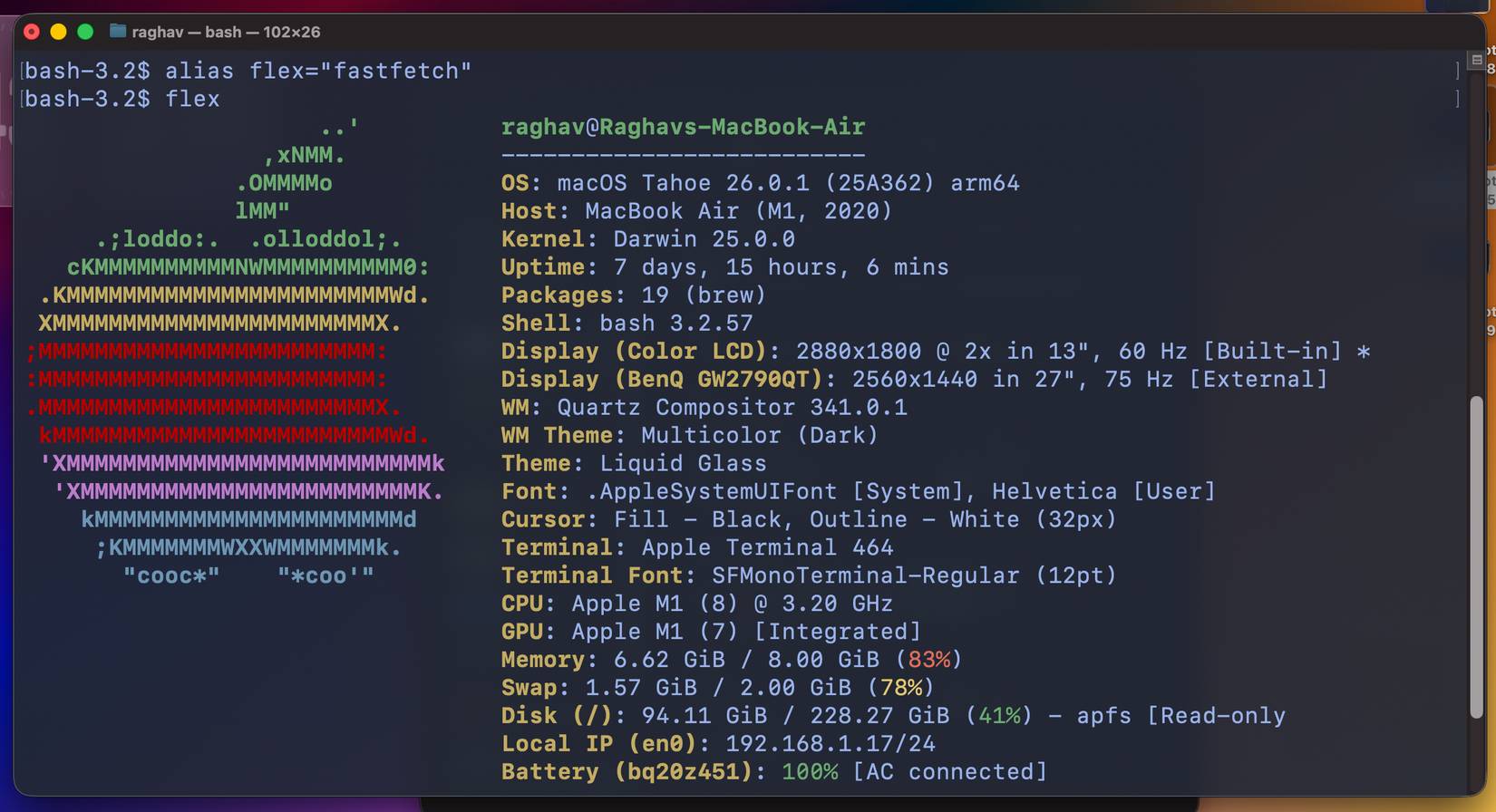
This isn't exactly a shortcut in the traditional sense, but it's such a big time saver that it's worth mentioning. In a way, it's a shortcut to get things done faster without having to type the same long command over and over again.
If you frequently run the same commands, especially long ones or ones that include many options, you can create an alias. An alias is essentially a shorthand for a longer command that you define yourself.
For example, if you frequently update your system, instead of having to type a long command line each time, you can create an alias like this:
Alias update='sudo apt update && sudo apt upgrade -y'Now you just type Update , and the command will run the whole thing automatically. You can add as many aliases as you like, and if you put them in your shell configuration file, they will be saved every time you open a new terminal.
FAQ
What should you know about the options in this guide?
In practical terms, you can certainly learn commands to take the fear out of the terminal, but there are also a few tricks that can make your workflow inside the terminal much faster.
Which option is the best choice?
The best choice depends on your priorities, compatibility, budget, and the specific features discussed in the comparison.
What should you compare before deciding?
Compare core features, limitations, ease of use, compatibility, and long-term value before making a decision.
Related Articles
 Shortcuts to Copy - Paste Coming Soon on Windows 10's Bash Console3 minutes read
 If You Want to Master Windows, Master These Shortcuts24 minutes read
 How to Customize Windows Terminal Application6 minutes read
 How to Create and Open Folders in vs Code with Git Bash for Windows4 minutes read
 Difference Between Zsh and Bash: Complete Overview7 minutes read
 What Is 'Bash' in Linux?5 minutes read
Reader Comments 0
Sign in with email or Google to join the discussion.