Table of Contents
Explore your gaming monitor probably can't handle 'genuine' hdr.
But on PC, the story is… very shaky. HDR on computer monitors has never lived up to expectations, and there are quite a few reasons behind that. The good news is that with a little effort, PC users can still enjoy high-quality HDR, whether on a computer monitor or a TV.
HDR Reality on PC
HDR offers a wider range of brightness, contrast, and color than SDR—a standard that dates back to the days of CRT TVs. When displayed properly, HDR delivers deep blacks and vibrant highlights like sunrises, fires, or laser effects.
The problem is that most PC monitors, including gaming monitors, aren't bright enough or contrasty enough to do HDR justice. Many models still claim to be HDR, but the results are dull. On some monitors, SDR looks better than HDR—and that's a bad sign.
If the display doesn't have local dimming, doesn't hit 400 nits of peak brightness, and doesn't support 8-bit color with dithering, then HDR reception is pretty much meaningless. And even those specs are just the… bare minimum.
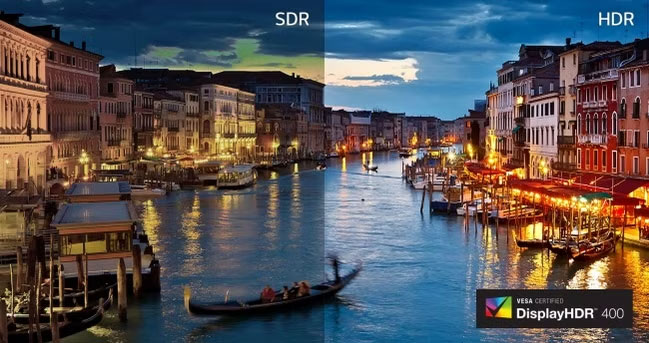
Windows is often blamed for poor HDR — and it has plenty of problems . HDR on the desktop suffers from incorrect tone-mapping, forcing users to constantly toggle HDR on and off when switching between watching videos and playing games. Windows 11 has a keyboard shortcut to enable HDR more quickly, but this is only a temporary solution because auto-switching is still very unreliable.
But the problem isn't just Windows. Many monitors don't comply with the EOTF standard—a standard that describes how digital signals are converted into real light. Two monitors with the same HDR label and specs can have drastically different results: one looks great, the other… looks… wrong.
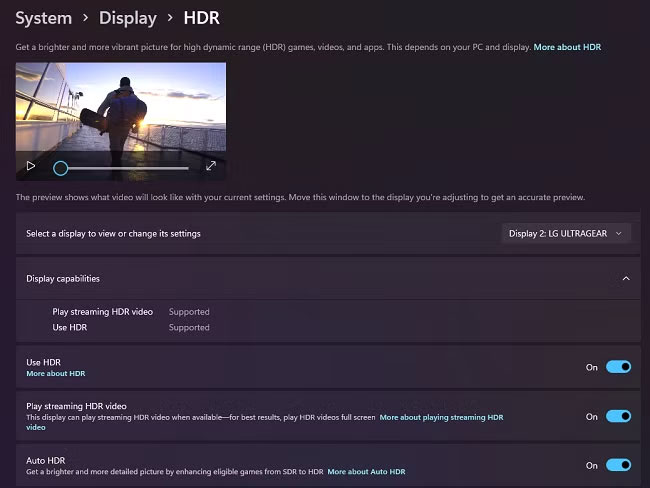
If the screen doesn't meet brightness standards or displays the wrong light curve, Windows can't do anything about it.
Not all 'HDR' labels are created equal
The confusion comes from VESA's DisplayHDR certification system. These labels allow many monitors to pass themselves off as HDR even though they don't actually meet the standards.
Some important levels to mention are:
- DisplayHDR 400: Not true HDR. No local dimming required, 400 nits is too weak to create HDR contrast.
- DisplayHDR True Black 400: This is the minimum HDR threshold for PC monitors—and only OLEDs can achieve it because of the infinite contrast. Peak brightness is still low, though.
- DisplayHDR 600 / 1000: This is the 'true' HDR level. 1000 nits is also the level at which most HDR content is mastered today.
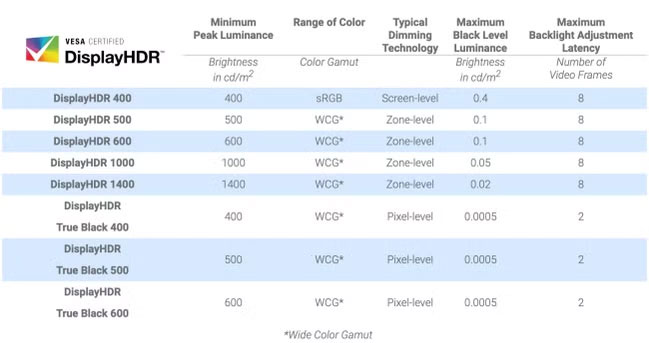
Want real HDR? Choose a display with DisplayHDR True Black 400 or DisplayHDR 600 or higher.
Additionally, even if your monitor is HDR-compliant, if you're still using HDMI 1.4 or older DisplayPort, the bandwidth may not be enough to properly transmit HDR signals. HDMI 2.1 or DisplayPort 1.4 is required at the very least.
And of course, the GPU must support these standards, too. This is why many people run into HDR limitations when using a PC with a TV: many older GPUs don't have HDMI 2.1, while TVs almost never have DisplayPort.
Games make things…more confusing
HDR on consoles is better than PC because the hardware is fixed. On PC, each game is its own ecosystem, and many developers… struggle to get HDR right.
As a result, users have to manually adjust HDR for each game. Some games have such bad HDR that Windows Auto-HDR looks better than native HDR.
In short, to have a delicious HDR experience, you need to ensure the following factors:
- Choose the right display — DisplayHDR 600+ or True Black 400 or higher.
- Update GPU driver, set 10-bit color.
- Turn on HDR and run the Windows 11 HDR calibration tool.
- Use the correct cable — HDMI 2.0b/2.1 or DP 1.4 or higher.
- Fine-tune HDR in each game.
If you want to go all out you can have your monitor professionally calibrated, but most good quality monitors will give you fine results without this step.
Final Thoughts
Understanding your gaming monitor probably can't handle 'genuine' hdr makes it easier to evaluate the information and apply the most relevant recommendations. Focus on the key points above and verify details that may change over time.
FAQ
What is your gaming monitor probably can't handle 'genuine' hdr?
Explore your gaming monitor probably can't handle 'genuine' hdr.
What key points does this article cover?
The article focuses on HDR Reality on PC, Not all 'HDR' labels are created equal, Games make things…more confusing, with practical explanations and examples.
How can you use this information in practice?
Use the explanations to compare options, verify important details, and make a more informed decision. Apply the recommendations that best match your goals and situation.
Related Articles
 How Is a Gaming Monitor Different from a Regular Monitor?6 minutes read
 Old Monitor: Hunting for Used Gaming Monitors and What4 minutes read
 How to Set Up the Xbox One Gaming Console on Windows 108 minutes read
 ASUS Launches ROG Strix XG27JCG: the World's First 5K 180Hz Gaming Monitor5 minutes read
 6 Reasons Not to Buy an HDR Monitor for a Gaming PC7 minutes read
 Top 10 Best Gaming Screens Under 5 Million34 minutes read
Reader Comments 0
Sign in with email or Google to join the discussion.