Table of Contents
This guide provides a clear, practical overview of "Quick Test to See If HDR on Smart TV Is Working". It organizes the most useful details, explains important considerations, and highlights the steps or choices that matter most.
5. Check the video ports on your Smart TV
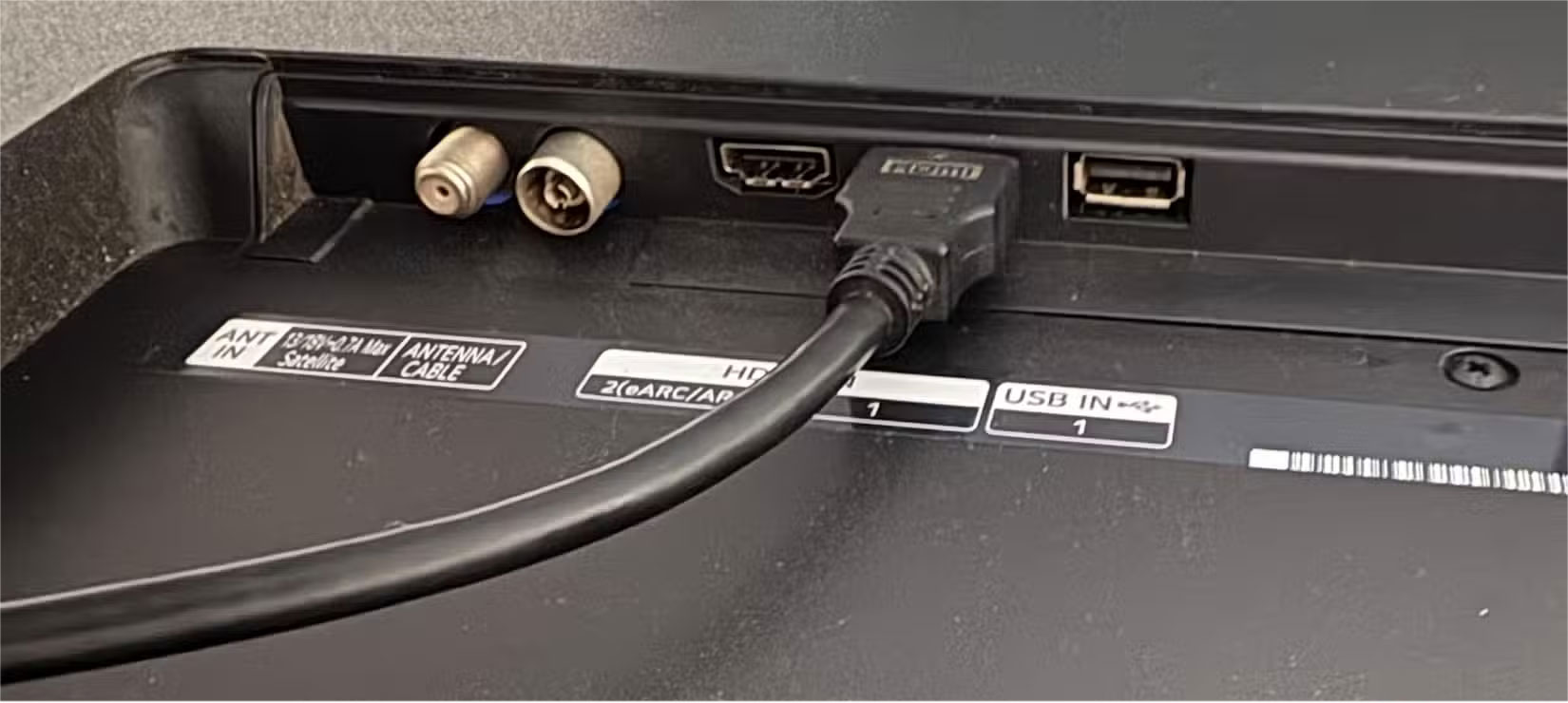
Whenever you need to troubleshoot picture settings on a Smart TV (or any TV for that matter), it's best to start with the ports themselves. And in the case of HDR, the video ports you're using are especially important, as not all ports support HDR out of the box. The older your Smart TV is, the more likely you are to run into problems.
To make sure you're using the right port, you should have your Smart TV's manual or at least the model number, which can be found on the back of your TV. You might even be lucky enough to find ports labeled with their version number.
4. Use peripherals and apps to test HDR
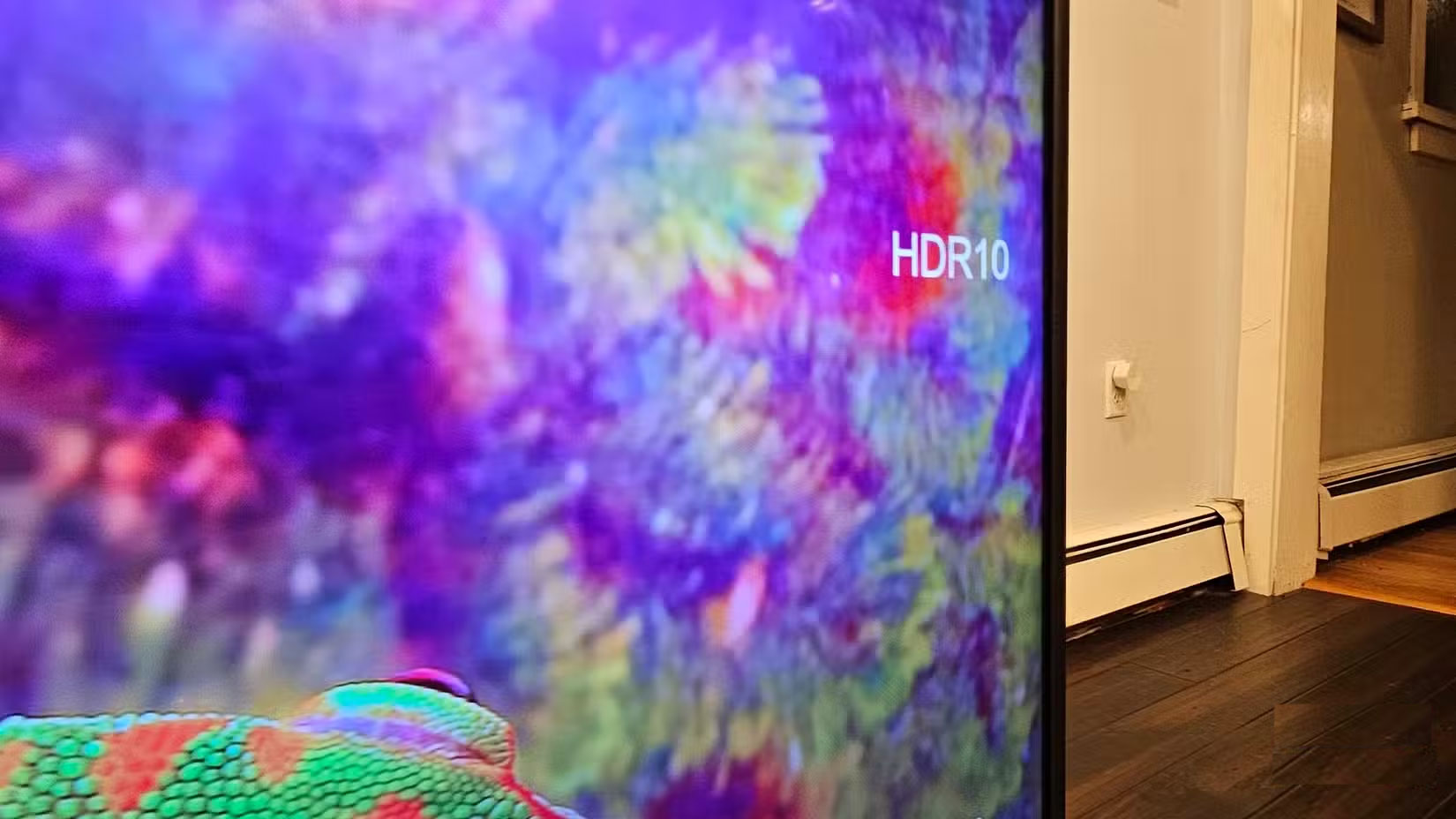
Assuming you've plugged your peripherals into the right ports, they can serve as a gateway to test HDR. The same goes for apps. Game consoles, for example, have the option in their settings, while streaming services like Amazon Prime tag HDR-enabled content on the information page for movies or TV shows.
3. Turn on HDR in Smart TV settings
Intuitively, you would think that HDR would be enabled by default, but that's often not the case. Many people make this mistake when they first buy a Smart TV – they don't realize that HDR needs to be enabled in their TV settings. The first thought is that HDR is over-exciting because before that, the colors didn't look much different from the old TV!
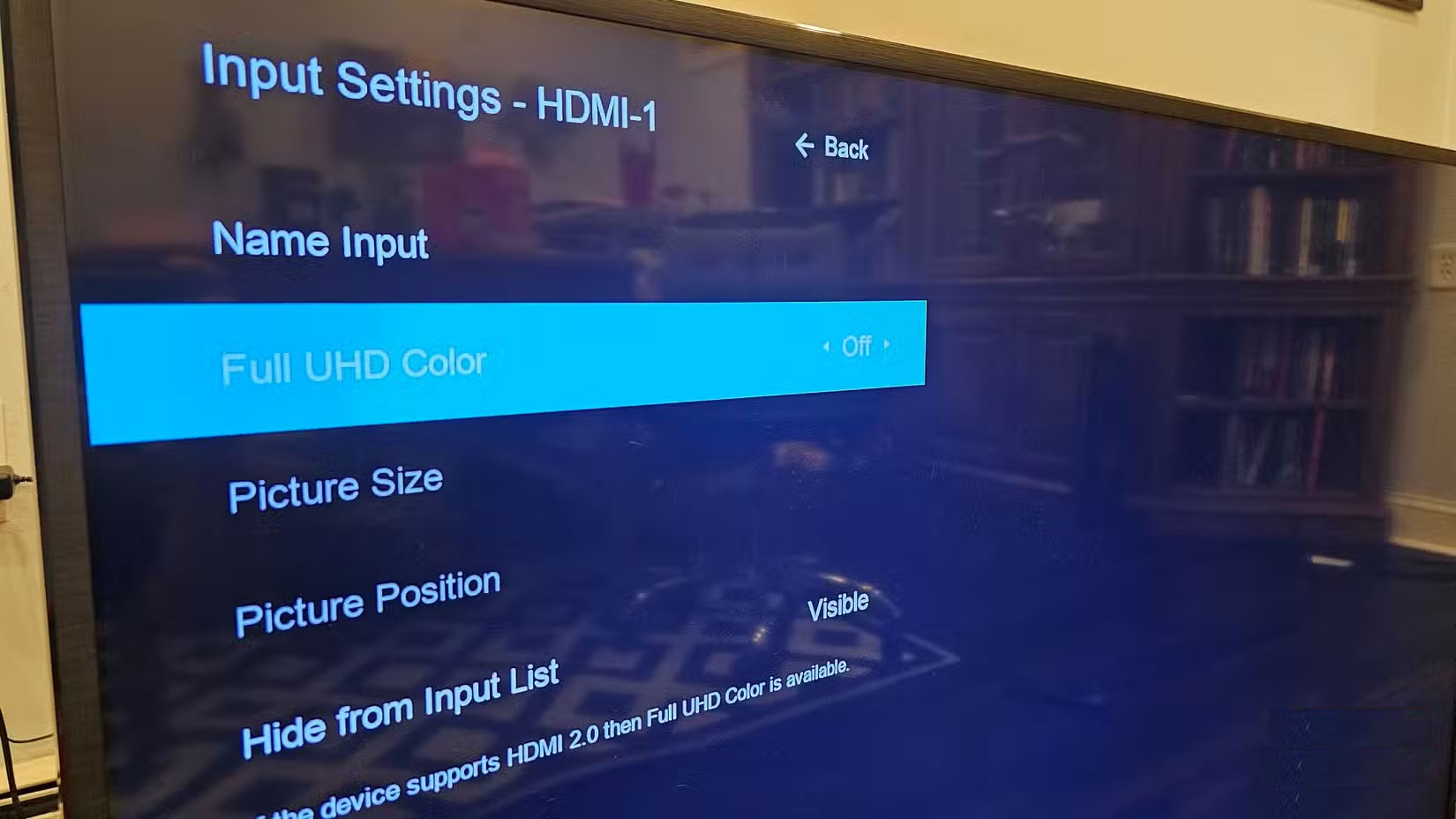
In the example, the author had to open the TV settings, go to Input Settings , select the HDMI port he wanted to change, and then set Full UHD Color to On . Enabling HDR on a Smart TV may be a little different on each Smart TV, but it's essentially the same.
2. Use YouTube to test HDR
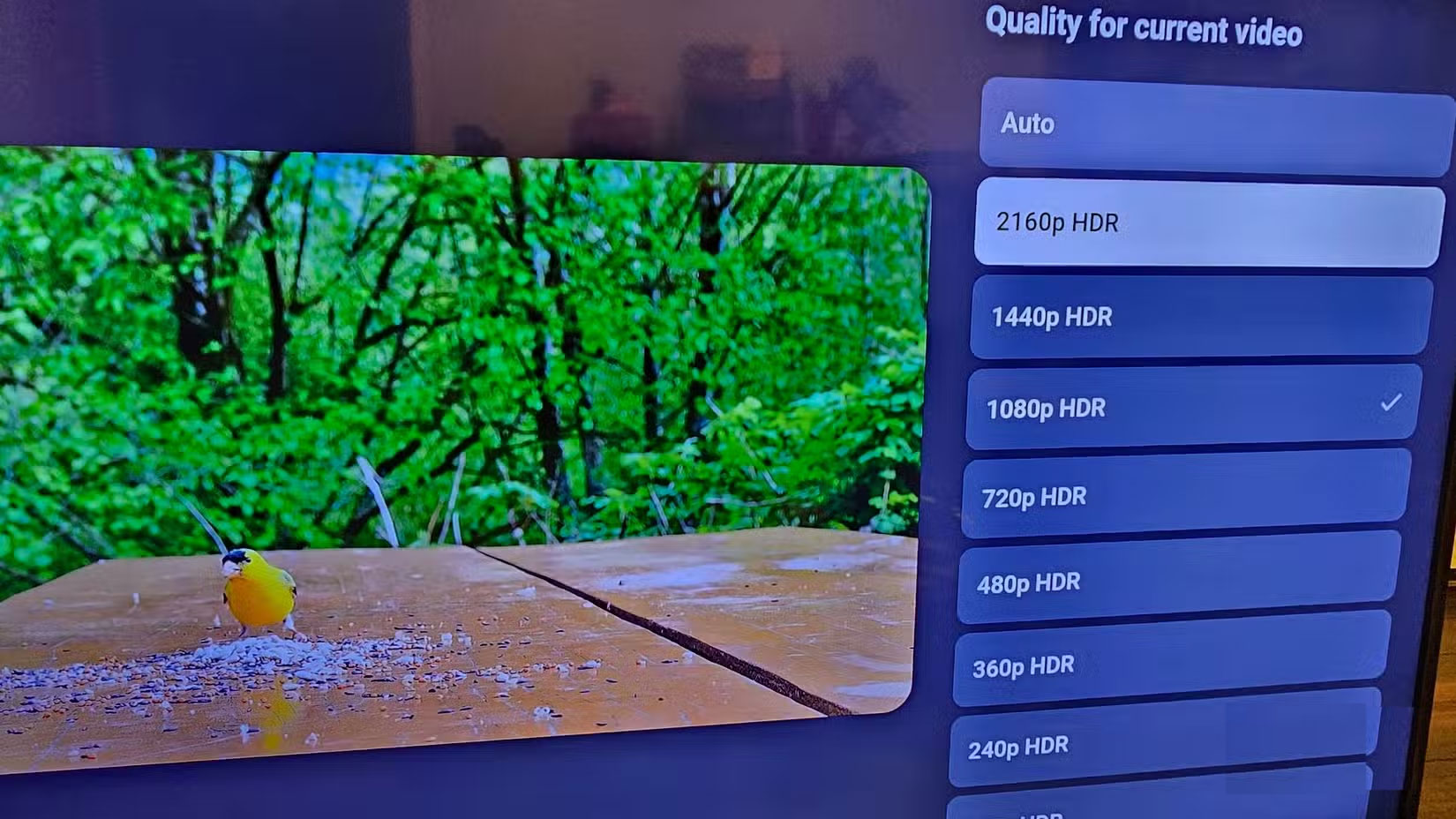
YouTube has a handy feature for testing HDR on your Smart TV through the video quality settings. The way you switch between watching videos in 480p and 4K and above is similar to how you can test HDR. Using the YouTube app, search for 'HDR videos,' and you'll see a long list of videos with HDR and 4K in the thumbnails.
Choose any video, preferably one that shows colorful nature and landscapes, to get a better idea of what HDR actually looks like. Go to Settings > Quality and see the available resolutions. If your Smart TV has HDR enabled, you'll see HDR resolutions. It's that simple!
1. Why does HDR still look dull?
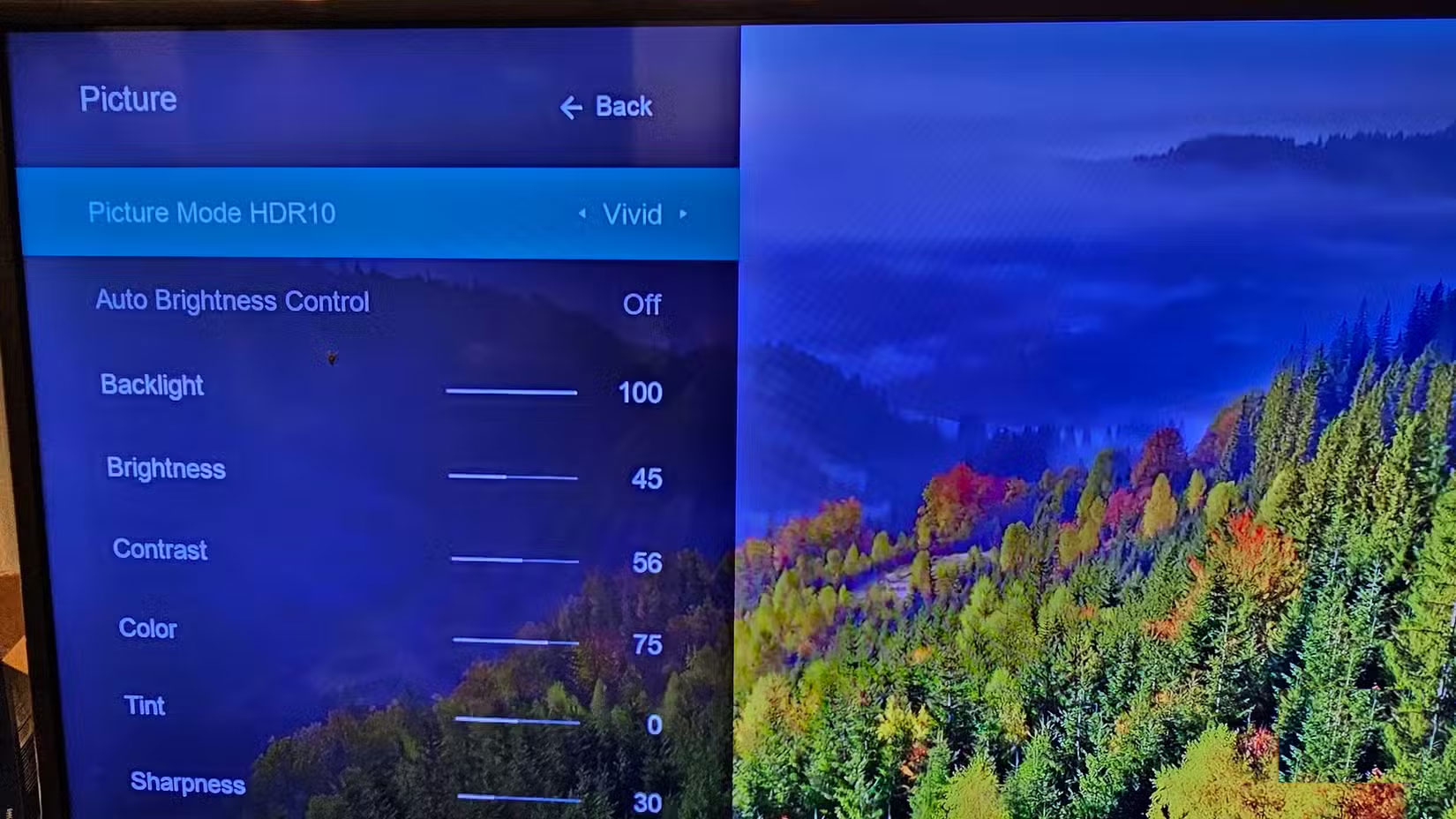
This is another issue that many people are facing even after enabling HDR on their Smart TV. The picture looks much more vibrant than before, but the colors are washed out, especially in dark areas. If you are facing this issue, it is because the Picture Mode on your Smart TV is set to an unsightly option.
In your TV settings, select Picture , then highlight Picture Mode and cycle through the options until you find one you like. Vivid Mode makes colors pop and dark scenes look blacker instead of gray. Another option to consider is to select a picture mode as a sample, then adjust accordingly. This is especially useful when you're watching HDR videos on YouTube, and you can see the changes take effect immediately.
FAQ
What should you know about 5. Check the video ports on your Smart TV?
Whenever you need to troubleshoot picture settings on a Smart TV (or any TV for that matter), it's best to start with the ports themselves. And in the case of HDR, the video ports you're using are especially important, as not all ports support HDR out of the box. The older your Smart TV is, the more likely you are to run into.
What should you know about 4. Use peripherals and apps to test HDR?
Assuming you've plugged your peripherals into the right ports, they can serve as a gateway to test HDR. The same goes for apps. Game consoles, for example, have the option in their settings, while streaming services like Amazon Prime tag HDR-enabled content on the information page for movies or TV shows.
What should you know about 3. Turn on HDR in Smart TV settings?
Intuitively, you would think that HDR would be enabled by default, but that's often not the case. Many people make this mistake when they first buy a Smart TV – they don't realize that HDR needs to be enabled in their TV settings. The first thought is that HDR is over-exciting because before that, the colors didn't look much.
What should you know about 2. Use YouTube to test HDR?
YouTube has a handy feature for testing HDR on your Smart TV through the video quality settings. The way you switch between watching videos in 480p and 4K and above is similar to how you can test HDR. Using the YouTube app, search for 'HDR videos,' and you'll see a long list of videos with HDR and 4K in the thumbnails.
Related Articles
 How to Test the Windows 10 Webcam Webcam: Step-by-Step Guide4 minutes read
 Tweaks to Make Your Old Smart TV Work Again8 minutes read
 4 Quick Test Steps for Old Samsung Smart Phone5 minutes read
 Settings to Tweak for Better Gaming on Smart TV8 minutes read
 Top 5 Most Accurate and Comprehensive iPhone Testing Software5 minutes read
 3 Ways to Test Macbook Keyboard for Free, Simple and Accurate8 minutes read
Reader Comments 0
Sign in with email or Google to join the discussion.