Table of Contents
This updated guide explores use iPhone as webcam with these 5 apps with practical details, clear explanations, and useful takeaways. Did you know you can use your iPhone as a webcam? The iPhone can never mimic a webcam in the traditional sense, but there are a few apps that record your phone's camera and send the footage to your Mac, Windows PC, other mobile devices, or even the web.
There are some practical benefits to this. for instance, you can use it as a baby/pet monitor or a security camera. If you have an old iPhone lying around, repurposing it as a webcam can save you a significant amount of money.
Today's article will introduce some methods to use iPhone camera as webcam.
1. EpocCam
EpocCam is the most popular and frequently downloaded app that can turn your iPhone into a webcam.
- How to use your iPhone as a webcam with EpocCam
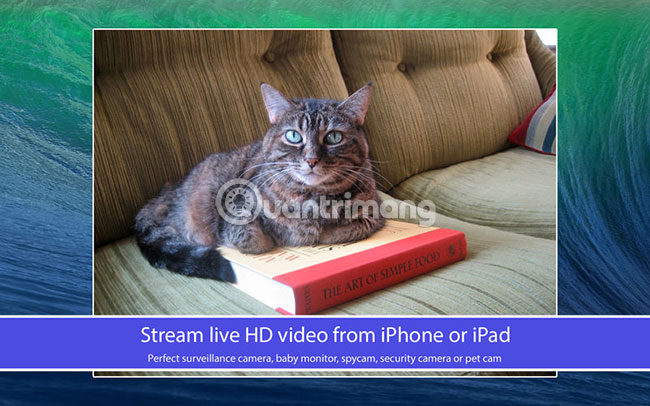
EpocCam works with all webcam-enabled apps (like Skype and Google Hangouts), supports both the rear and front cameras on iPhones, and encrypts all the video it records. EpocCam has a wireless range of up to 20 feet (6.1m).
Along with the app, you will also need to download the driver directly from the developer's website. Once the app is installed, setting up the connection is completely automatic and you do not need to do anything.
The EpocCam app has a pro version, which lets you use the mic to record audio, adds manual focus options, and improves the video resolution from 640×480 pixels to 1920×1080 pixels. The pro version also removes the watermark.
- Download EpocCam (Premium and Free Version).
2. iCamSource Pro Mobile
iCamSource Pro Mobile is a paid app that turns your iPhone into a webcam. There is no free version of iCamSource Pro Mobile.

The Pro Mobile app is just one of the essentials. You also need the iCam Pro Webcam Streaming app (a free version is available). Once you have both apps installed, you'll be able to stream video and audio directly from any iOS device.
Just like you'd expect from a security camera, iCam can send you instant alerts if it detects motion or sound. All events are automatically backed up to the cloud.
- Download iCamSource Pro Mobile ($5/115,000VND).
3. Presence
Presence offers many of the same features as the three apps we looked at above. The key difference is that Presence gives users 50MB of free cloud storage.
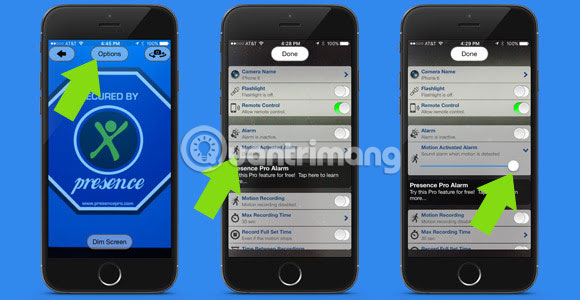
It may not sound like much, but it is enough to capture and save a few minutes of footage if an intruder breaks into your home or your dog does something funny while you're away. If you upgrade to the pro version (via an in-app purchase), you'll be able to store up to 5GB of content in the cloud.
Presence also has a companion web app, meaning you can log in and view your feed from any computer in the world. The service is compatible with Amazon Alexa.
- Download Presence (Free, subscription available).
4. FaceTime
If you do not want to use third-party apps, you can use FaceTime to turn your iPhone into a webcam. FaceTime isn't designed to be a webcam app, but that does not mean It is best to ignore it.
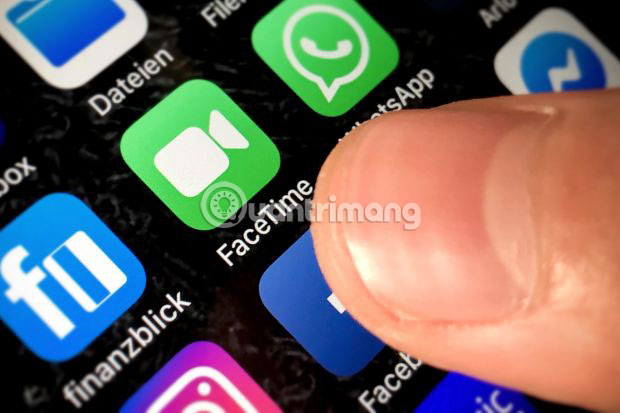
FaceTime has one significant advantage over third-party options. it is reliable. FaceTime is made by Apple, supported by Apple, and runs on Apple's operating system. If something goes wrong with a third-party option while you're away, you're in a bind. With FaceTime, it is easier to reconnect.
All you need to do is install the app on your iPhone and your Mac. it is important to note that you'll need to ensure that the two apps have different contact details in the You can be reached for FaceTime at setting (iPhone: Settings > FaceTime ; macOS: FaceTime > Preferences ). If you list the same contact details on both apps, you'll get a busy tone when you connect.
Finally, place your phone in the area you want to monitor and call it from your Mac. You need to answer manually, but the connection will be very reliable.
EpocCam lets you use your phone as a proxy for your computer webcam, but with limited range. AtHome Camera gives you flexibility in which device you use for what role. Presence is more like a surveillance camera system, with a web app and unlimited range. The final option, FaceTime, gives you a private way to access your phone's camera.
5. Camo
When it comes to Windows devices, there are many third-party apps out there, which makes the decision even more difficult. After testing a few options, Camo (by Reincubate) emerged as the top choice for getting the job done in its free version. it is a great app for streaming your iPhone camera as a webcam input to your Windows PC.
This app streams high-quality video to any desktop app that supports webcams, such as video calling software, livestreaming tools, and more. To get started, you'll need both the Camo app for iOS and the Camo Studio app for Windows. Camo can connect to your iPhone via a Lightning cable or wirelessly over Wi-Fi.
- Download Camo for iOS | Windows (Free, premium version available)
Once installed, follow the steps below on your Windows computer:
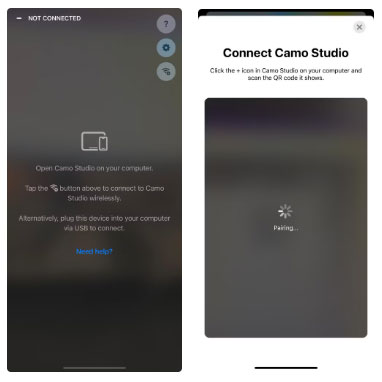
Launch Camo Studio and connect your iPhone to your PC using a Lightning cable. The app should detect your iPhone immediately. To connect wirelessly, ensure both your iPhone and PC are connected to the same Wi-Fi network and choose Pair a device .
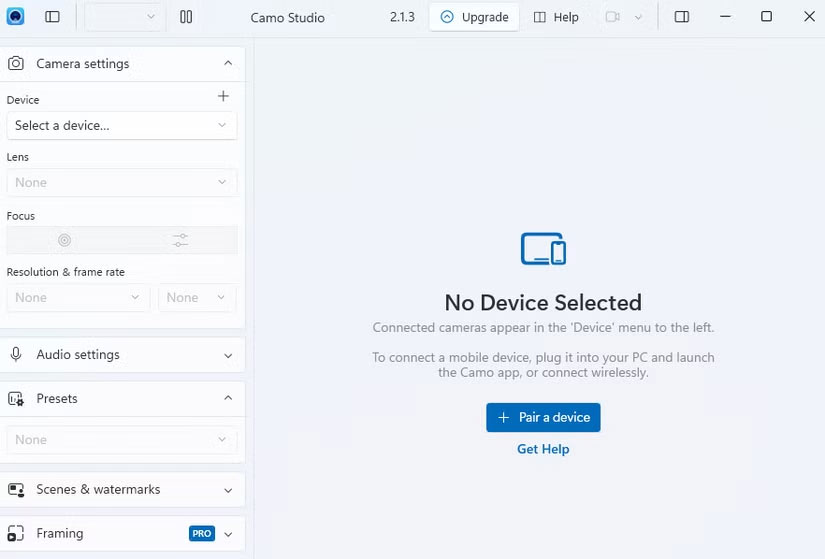
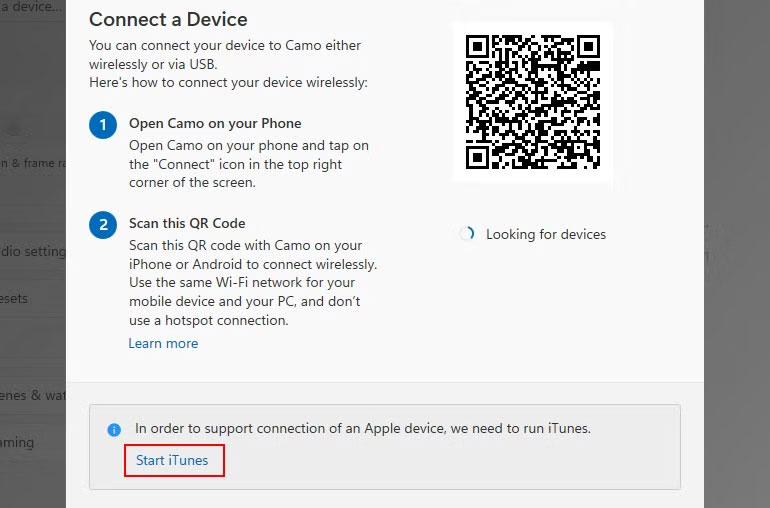
A QR code will appear on Camo Studio. To scan it, launch the Camo app on your iPhone and tap the Wi-Fi icon in the upper right.
If you're prompted to launch iTunes or install any required drivers, agree on your computer.
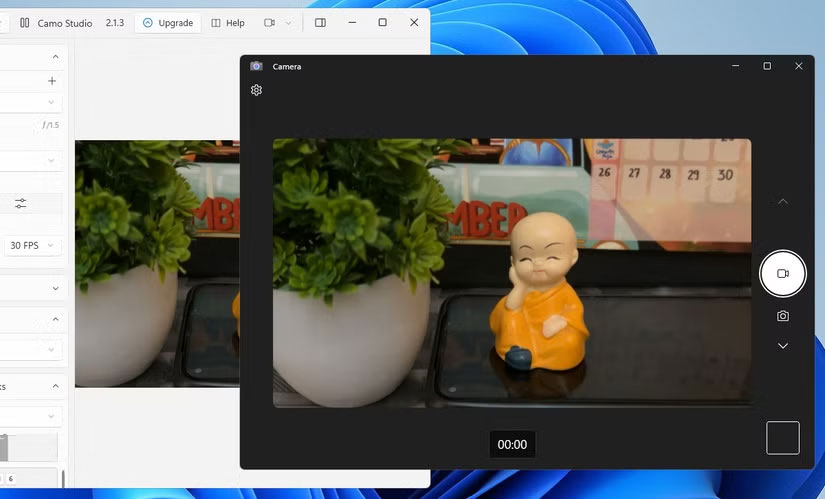
With your iPhone now paired as a webcam in Camo, you can launch any webcam app on your computer (like the default Camera app) to test if it works.
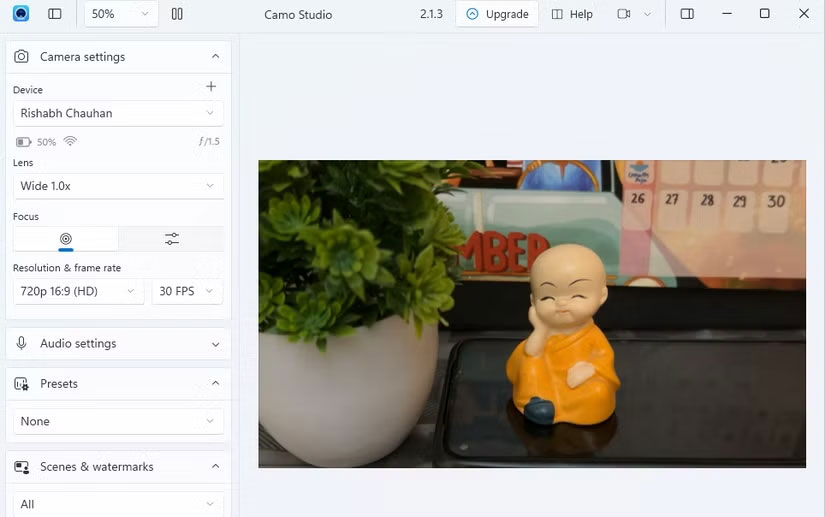
Tip : If your computer does not have a built-in microphone, choose the drop-down menu under Device in Audio settings and select Bottom to use your iPhone's microphone.
While the free version of Camo offers full webcam functionality, Camo Pro unlocks higher resolutions like 1080p and 4K for better quality. For most users, the free version will be sufficient. Still, upgrading makes the most sense for YouTube streamers, educators, content creators, and professionals who need the best quality for video calls with clients or office meetings.
And to learn more about home security, please refer to the article: What to consider when buying a surveillance camera for your family for more details.
Some Tips for Using iPhone as a Webcam
Along with online meetings, you can use your iPhone's camera for many other purposes. for instance, you can use it to live stream on social media platforms or shoot high-quality videos for your vlog or online course.
Here are some helpful tips to optimize your iPhone webcam setup for any creative use case:
- Use the rear camera for the highest resolution : The iPhone's main camera is superior to the front-facing selfie camera, so always select the rear camera from the Lens option in Camera settings on the left pane.
- Stabilize your iPhone : You can use a tripod, stand, or table stand to keep your iPhone steady.
- Use a good battery pack : It is best to plug your iPhone into a portable charger to avoid battery drain during long webcam sessions.
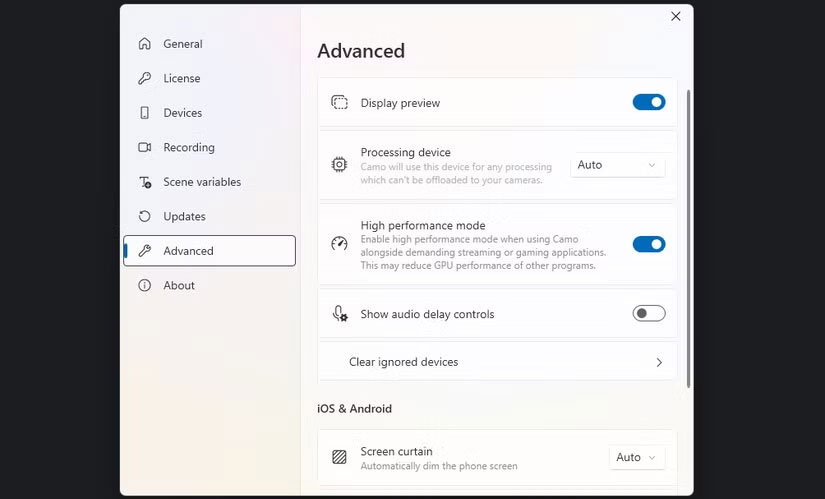
- Turn on High Performance Mode : If you're using Camo while gaming or streaming, choose the Camo icon in the top-left corner of the desktop app window and open Settings > Advanced . Then turn on High performance mode .
- ensure you have the right lighting : Position yourself near a window or a desk lamp for nice lighting. While streaming your webcam, if you have the Pro version, you can enable the Flash option to turn on your iPhone's flashlight.
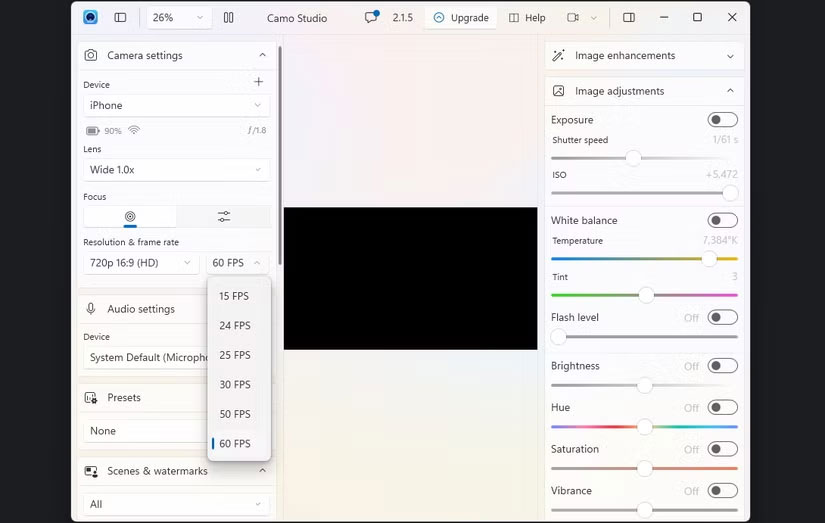
- Use 60 FPS mode : For smoother webcam streaming, find the Resolution & frame rate setting under Camera settings in the left pane and set it to 60 FPS .
- Keep the Camo app running on iPhone : Camo automatically stops streaming video once you close the Camo app on iPhone, so ensure to keep the app open as long as you want to use the webcam.
Camo isn't the only option for using your iPhone as a webcam for your computer. EpocCam, for instance, is a great alternative if you want something similar to Camo. And if that does not meet your needs, consider using iVCam or DroidCam OBS (a plugin for OBS Studio).
Why settle for low-quality, grainy video when you can already have a great camera that can be used as a webcam right away? The iPhone is perfectly capable of replacing your existing webcam, providing a crisp, high-definition feed to apps like Google Meet, OBS, Zoom, and more.
While apps like EpocCam and iVCam offer similar core functionality, Camo offers a more polished and intuitive interface along with more camera settings, so you will not regret trying out the free version.
Hope you find the right choice!
FAQ
What is the main takeaway about Use iPhone as Webcam with These 5 Apps?
The key is to understand the core idea, compare the available options, and apply the practical guidance that matches your situation.
What should beginners know about Use iPhone as Webcam with These 5 Apps?
Start with the essential steps and terminology. Avoid changing advanced settings until you understand how they affect performance, privacy, cost, or compatibility.
How can I use this information in practice?
Follow the relevant section in order, test one change at a time, and confirm the result before moving to the next step or recommendation.
Related Articles
 How to Use iPhone as Webcam9 minutes read
 The Best Webcam Models 201812 minutes read
 How to Check If Your Webcam Is Hacked7 minutes read
 What Is a Webcam? Features, Uses, and Key Details8 minutes read
 Do You Really Need a 4K Webcam?4 minutes read
 Fixed a Problem with Invalid Webcam Windows 1011 minutes read
Reader Comments 0
Sign in with email or Google to join the discussion.