Table of Contents
The open source project Cimbar allows users to transfer files from their computer to their Android phone simply by pointing the camera at the screen, without the need for a network or wires.
Cimbar Overview
You can find countless ways to transfer files from your computer to your phone these days—from Wi-Fi, Bluetooth, SD cards, to USB. But what if you could just Point your camera at an image on your computer screen , and the file would automatically be sent to your phone?
It may sound like magic, but that's the brilliant idea behind an open-source project called Cimbar. It works simply: instead of sending a file over the internet, your computer screen displays an animated series of small, constantly changing blocks of color, while an app on your Android phone uses your camera to 'record' the animation. After a few seconds, the app will pair the data and ask you where you want to save the file — and voila, no internet or wires required.
According to the development team, the system's data transmission speed can reach 850 KB/s . This number is certainly not comparable to fiber optic transmission, but considering 100% wireless and offline file transfer , this is an extremely impressive result.
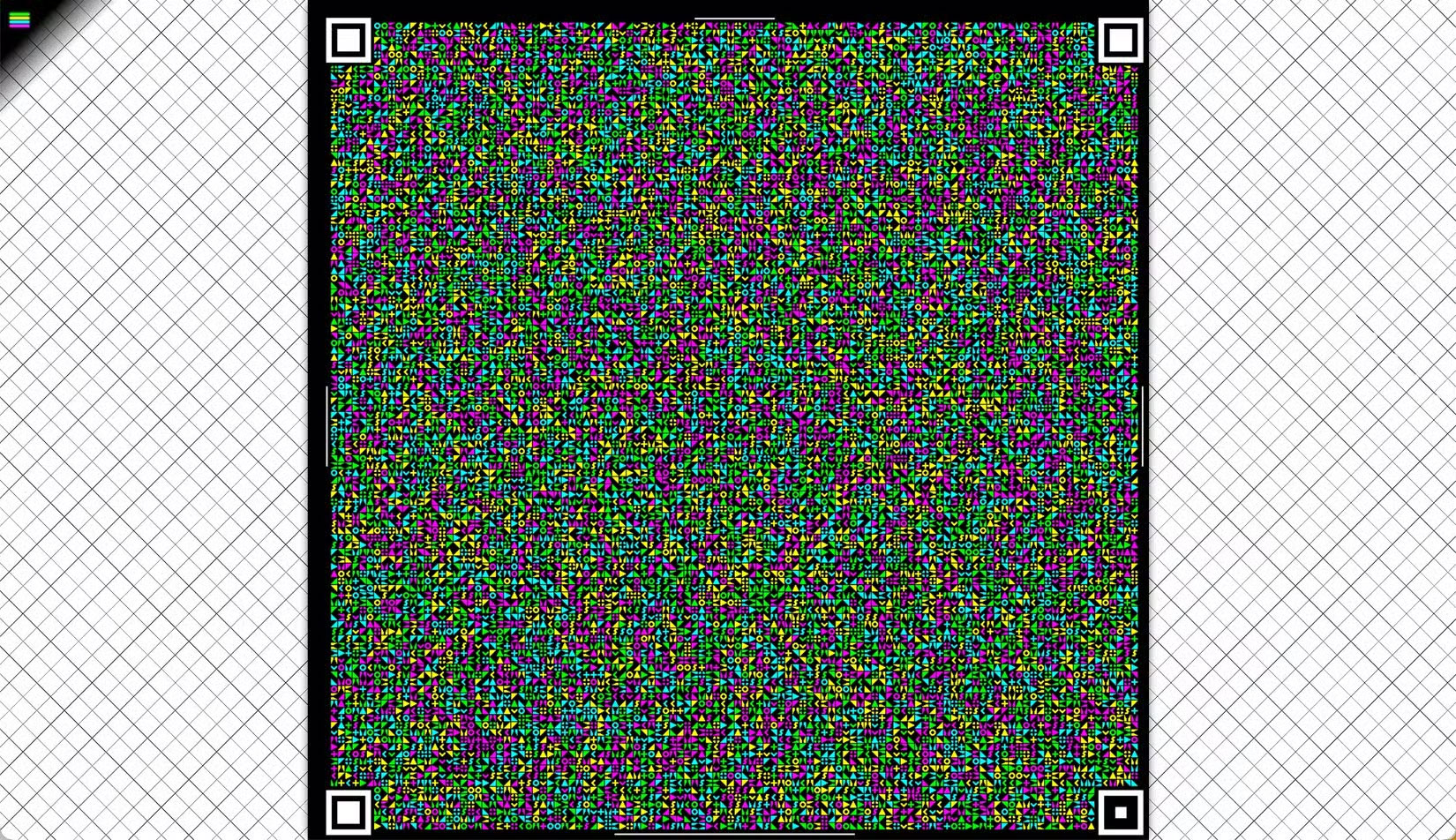
Of course, there are some issues with camera feeds—like hand shake, screen glare, or camera angles that are off. To combat this, Cimbar incorporates a Reed–Solomon error correction algorithm that automatically corrects and restores faulty data even if the camera misses a few frames or the lens is a little dirty.
For larger files, the system uses a technique called 'fountain codes' — which divides a file (up to 33 MB) into a series of small frames. The application only needs to capture enough unique frames to reconstruct the entire original data, even if some parts are damaged or in the wrong order.
To test, users just need to manually install (sideload) the APK file of the Android application from the project's GitHub page. Then, open a browser on the computer, go to cimbar.org, upload the file you want to send, then open the Cimbar app on the phone and point the camera at the screen. After a few seconds, when the application successfully recognizes, just select the save location and the file will automatically appear on the phone.
This small project is a great proof that even in the modern technological world where everything depends on the Internet, there are still extremely innovative ideas – turning light into a real data transmission channel.
FAQ
What should you know about transfer files from computer to phone using just camera?
In practical terms, the open source project Cimbar allows users to transfer files from their computer to their Android phone simply by pointing the camera at the screen, without the need for a network or wires.
Why does transfer files from computer to phone using just camera matter?
The article highlights that but what if you could just Point your camera at an image on your computer screen , and the file would automatically be sent to your phone.
What is the main takeaway?
The main takeaway is that it works simply: instead of sending a file over the internet, your computer screen displays an animated series of small, constantly changing blocks of color, while an app on your Android phone uses your camera to.
Related Articles
 How to Transfer Files from Computer to Phone on Coc Coc5 minutes read
 How to Transfer Files Between Your Computer and Phone with3 minutes read
 How to Transfer Pictures from Digital Camera to Computer8 minutes read
 How to Transfer Data Between Computer and Phone: Complete Guide16 minutes read
 How to Transfer Photos and Videos from Your Phone to a Computer7 minutes read
 Ways to Transfer Data Between Phone and Computer Without Connecting8 minutes read
Reader Comments 0
Sign in with email or Google to join the discussion.