Table of Contents
Luckily, Excel's wildcards can help you find things faster. Once you get used to using them, they'll come naturally.
Fortunately, Excel's wildcards can help you search faster. Once you get used to using them, you'll find they fit naturally into features like filters, the Find and Replace tool, and formulas that use COUNTIF, VLOOKUP, SEARCH, and other smart Excel conditional functions. Most importantly, they make searching much faster, smarter, and more efficient.
The asterisk (*) wildcard character
Used when you need to match any string of characters, no matter how long or messy the string is.
The asterisk (*) is a wildcard that represents any string of characters, even if there are no characters at all. This is the most flexible option of the tools, as it can replace any number of characters in your search. You can use this tool to find text that starts with, ends with, or simply contains a specific string of characters.
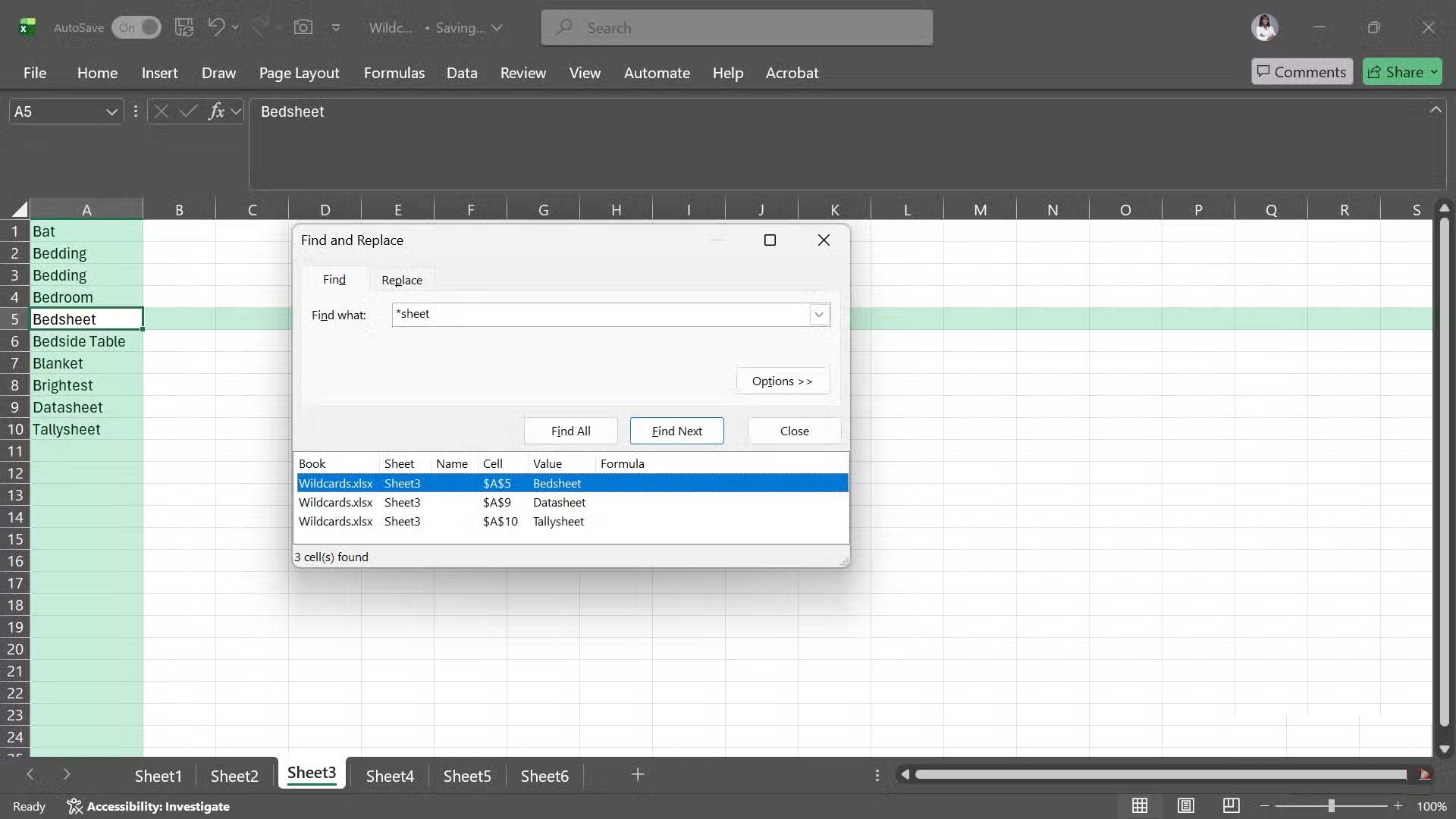
For example, when using the Find and Replace feature in Excel to search for different product tags, you can place an asterisk at the beginning, middle, or end of a string of characters that you know:
*sheet Bed* B*tYou can use a similar idea with Excel's Filter feature. Let's say you have a long list of employees and want to show only those whose job title includes the word "Manager," regardless of what title comes before or after it, such as Regional Manager or Manager II. In the Job Title column's filter box, you can select Text Filters -> Contains , and enter the criteria *Manager* . Excel will then show all the job titles that contain this word, saving you many manual sorting.
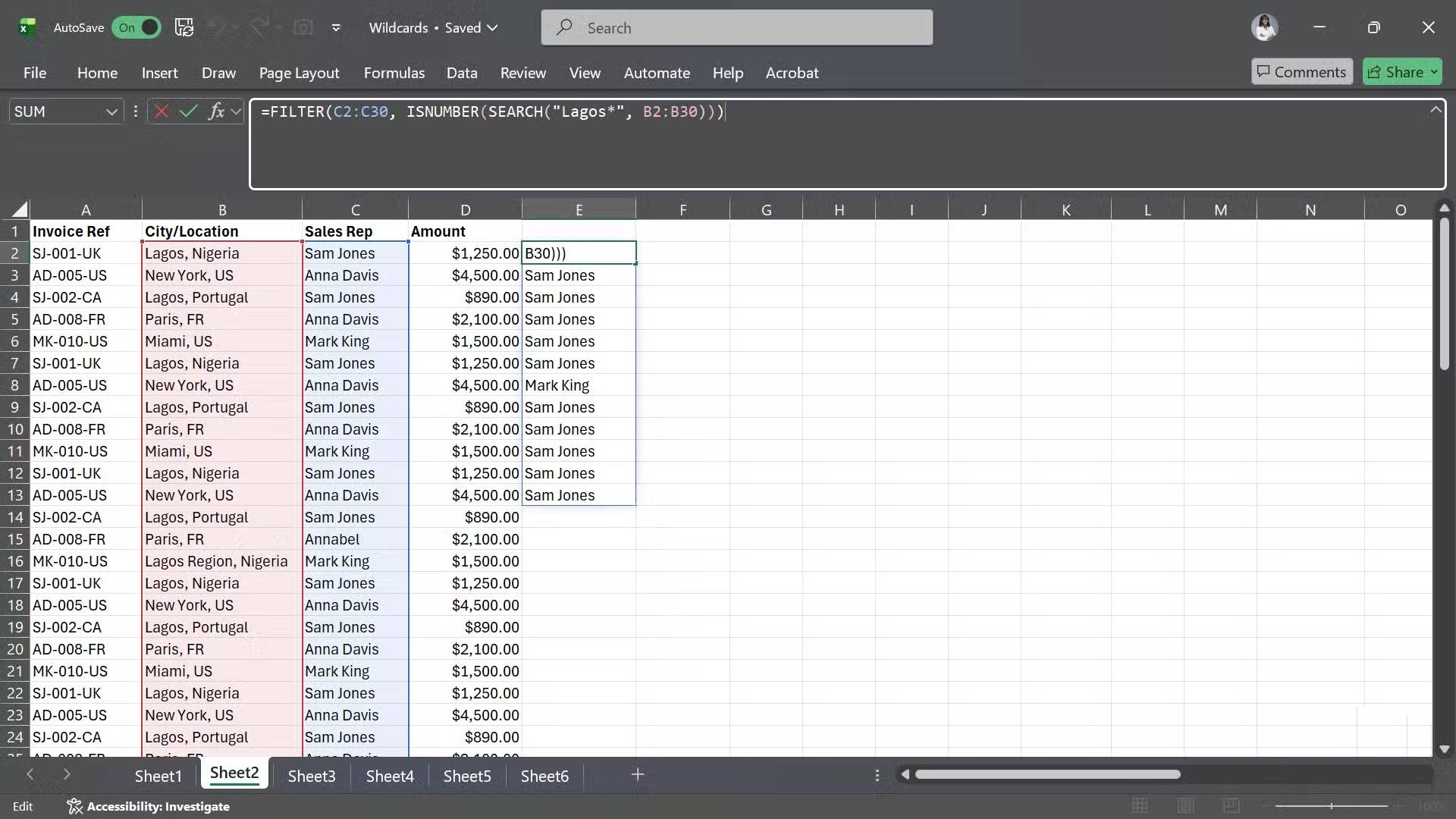
You can also use the asterisk directly in a formula to search for partial matches. For example, if you wanted to look up a salesperson's name based on a partial city match, you could use a formula like this:
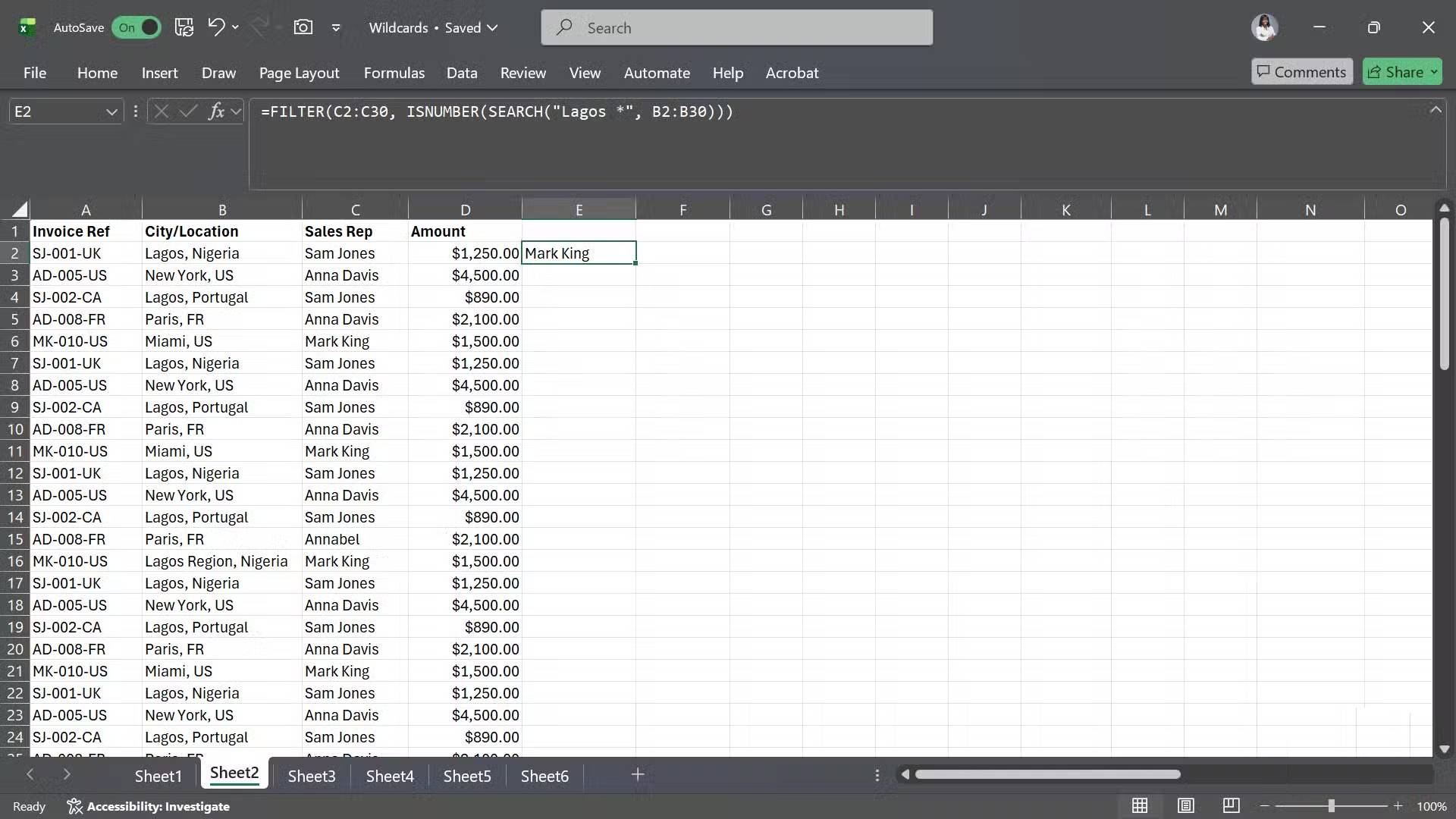
=FILTER(C2:C30, ISNUMBER(SEARCH("Lagos*", B2:B30)))Adding a space before the wildcard will narrow the results even further, returning only Mark King, whose address is "Lagos Region, Nigeria":
=FILTER(C2:C30, ISNUMBER(SEARCH("Lagos *", B2:B30)))The question mark (?) wildcard character
Used to match text when only a few characters are different.
This wildcard represents any single character. It acts as a placeholder for exactly one character in a text string, which is especially useful when you are working with fixed-length data or detecting inconsistencies.
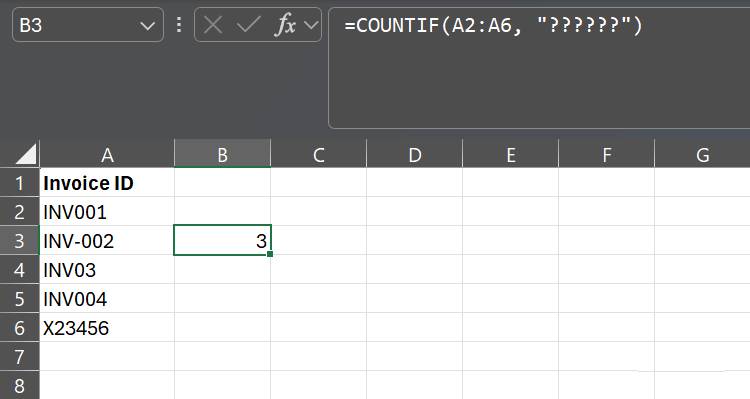
People often use it when troubleshooting or counting strings that need to follow a specific format or length. For example, in Excel's COUNTIF function, you can use a certain number of question marks to count how many cells have that exact number of characters. If you have a column of invoice IDs and want to count how many cells are exactly 6 characters long, you can use a formula like this:
=COUNTIF(A2:A6, "??????")Excel counts every character, including punctuation. Therefore, an invoice like INV-002 would not count as 6 characters because a hyphen is also considered a character.
You can use the question mark wildcard in almost any Excel function and feature that supports the asterisk character. The only difference is that the question mark only matches one character, while the asterisk can represent any number. For example, if you use Find and Replace to search for "p??ce", Excel will find both "piece" and "peace".
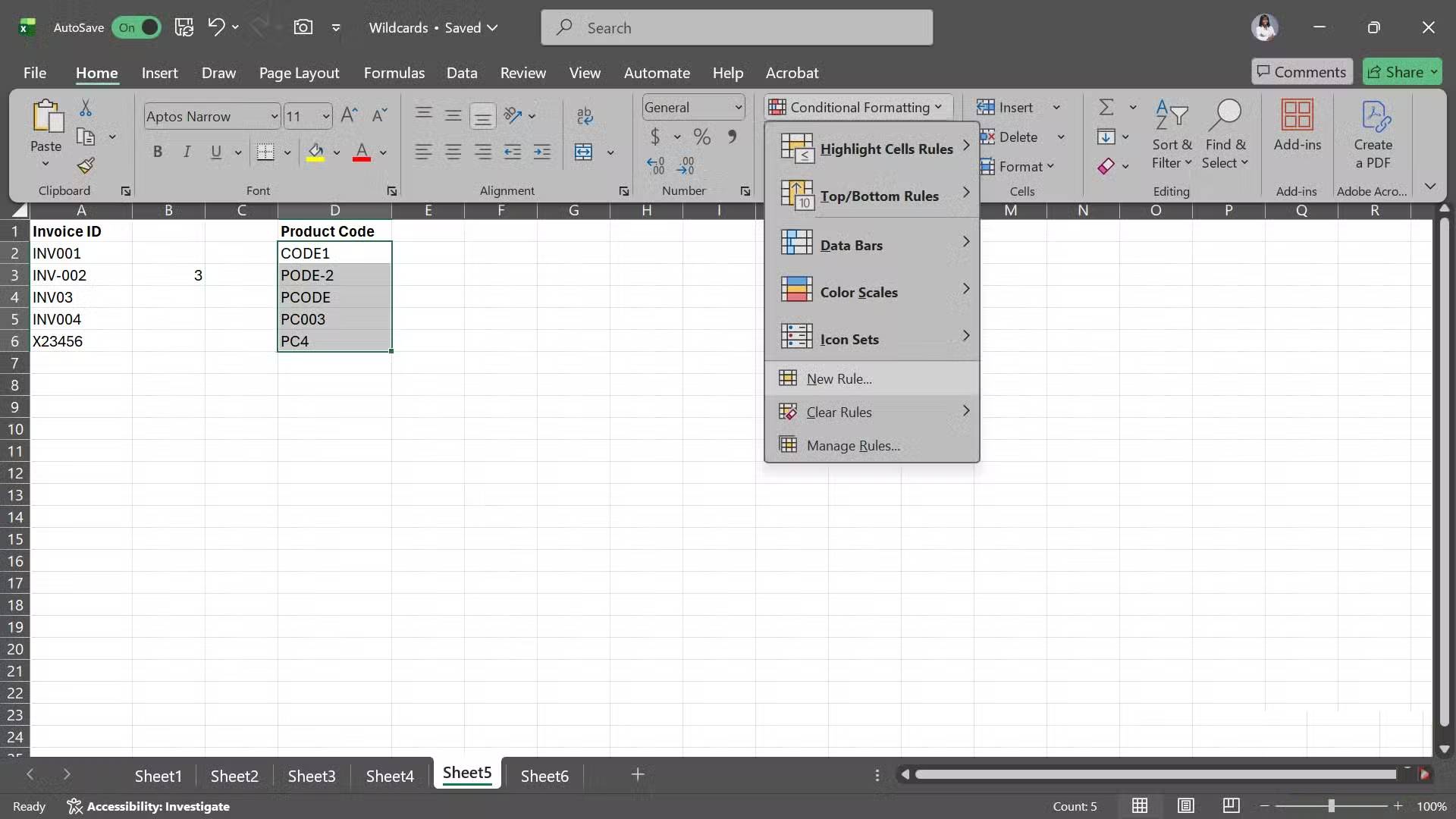
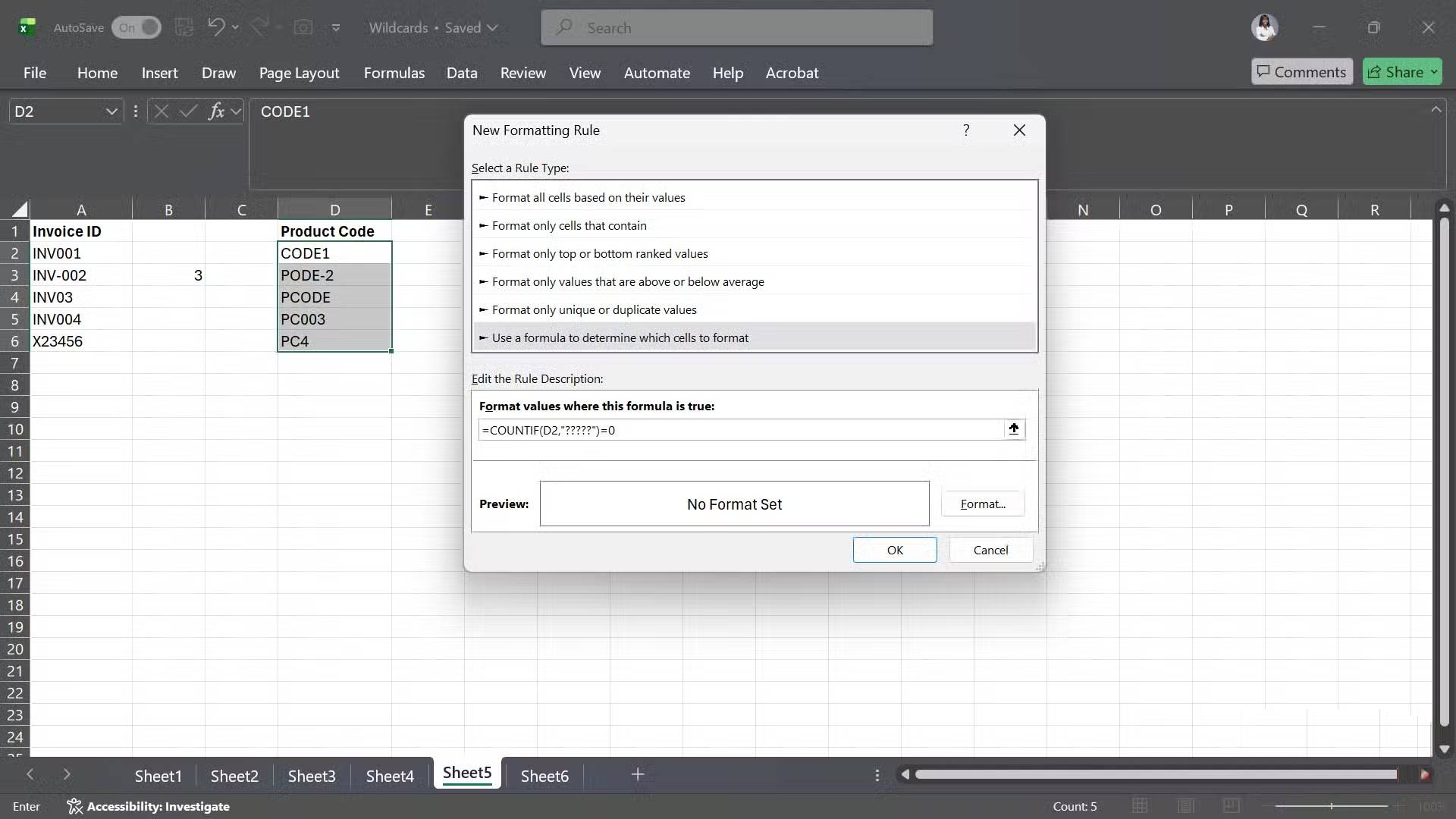
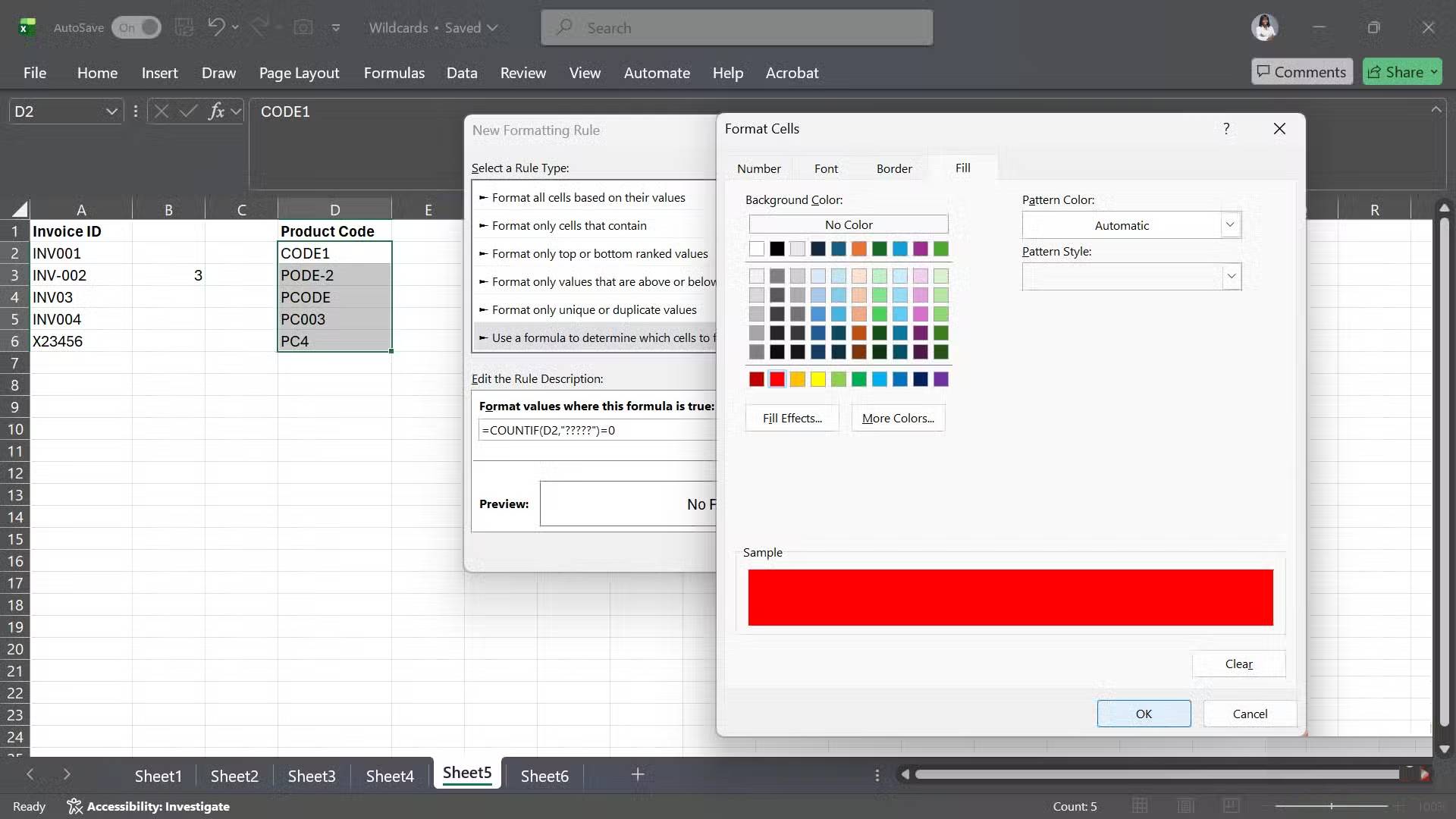
This wildcard is also useful in conditional formatting. Let's say you have a list of product codes in cells D2:D6, each of which is exactly 5 characters long (like CODE1). You can use this formula to highlight any entries that are not the correct length:
=COUNTIF(D2,"?????")=0If the contents of a cell match the "?????" criteria, the COUNTIF function returns TRUE (or 1). Otherwise, because the code is too long or too short, the function returns FALSE (or 0).
This is a fast and reliable way to validate your data, and is one of the most practical uses of the question mark wildcard character.
The tilde (~) wildcard character
In some cases you really need to search for * or ?
In Excel, asterisks and question marks are often considered wildcards. But if you want Excel to treat them literally, that is, as actual characters rather than as wildcards, You should put a tilde in front of them. Now, you might be wondering in what cases Excel needs to treat wildcards literally. There are real cases.
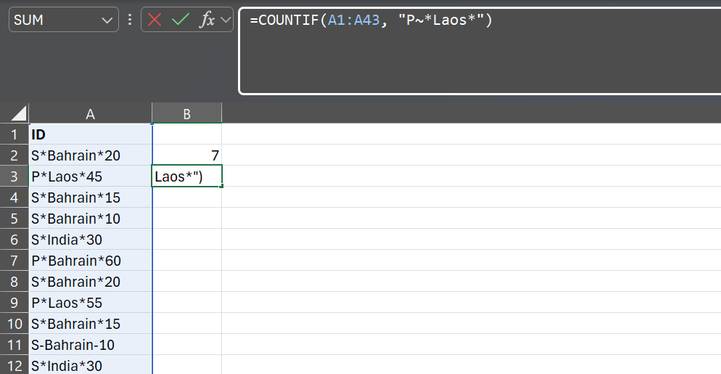
Let's say you have a list of IDs, some of which have an asterisk in the middle to separate the parts (for example, P*Laos*45 or S*Bahrain*05), indicating whether it's a product (P) or service (S), along with its location and order unit. If you only want to count products ordered in Laos, you can tell Excel to literally look for the asterisk using a formula like this:
=COUNTIF(A1:A43, "P~*Laos*")This formula instructs Excel to treat the first asterisk as a regular character and use the last asterisk as a wildcard to get any text after "Laos". If you omit that last asterisk, Excel will only look for an exact match of "P*Laos" and ignore the rest.
The same idea applies to the question mark wildcard. Imagine you're working with survey responses and want to find every instance of a literal question mark (?) in your spreadsheet, perhaps to quickly see what questions respondents entered. In the Find and Replace dialog box (Ctrl + F), simply type ~? into the Find What Field. Excel will return all cells containing the actual question mark character.
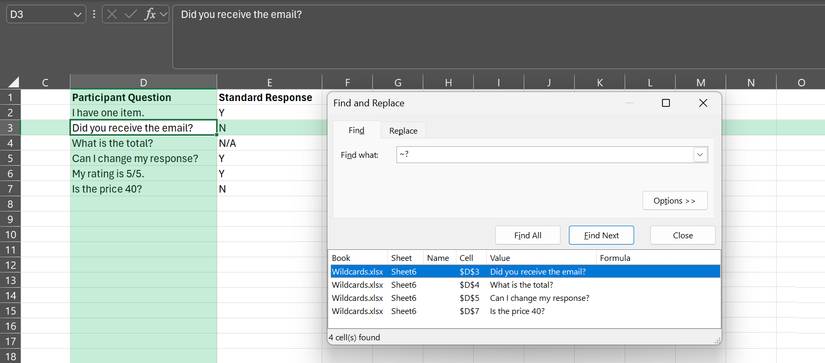
In short, the tilde wildcard is the escape key for special characters. Whenever you want to search for a?, *, or even another ~ character, add a tilde before it so Excel doesn't interpret it as a wildcard.
FAQ
What should you know about wildcards in Excel are the secret weapon for faster, smarter?
In practical terms, luckily, Excel's wildcards can help you find things faster. Once you get used to using them, they'll come naturally.
Why does wildcards in Excel are the secret weapon for faster, smarter matter?
The article highlights that but if you want Excel to treat them literally, that is, as actual characters rather than as wildcards, you need to put a tilde in front of them.
What is the main takeaway?
The main takeaway is that now, you might be wondering in what cases Excel needs to treat wildcards literally.
Related Articles
 Microsoft Excel: What Is the CORREL Function in Excel? Complete Guide5 minutes read
 Make Excel Spreadsheets Smarter with Drop-down Lists: Step-by-Step Guide6 minutes read
 How to Use Wildcards to Match File Names in Linux7 minutes read
 The Secret to Being Smarter Than the Smarter Person Than You5 minutes read
 Excel Data Entry Faster: Enter4 minutes read
 MS SQL Server: Condition LIKE in SQL Server6 minutes read
Reader Comments 0
Sign in with email or Google to join the discussion.