Table of Contents
Samsung Messages lets you organize conversations into named categories such as Family, Work and Deliveries. These tabs filter the inbox so you can find a group of chats without scrolling through every notification. They are useful on devices where Samsung Messages remains supported, but availability now matters more than a feature comparison.
Availability: Samsung’s US support guidance says Samsung Messages was discontinued on Galaxy devices running Android 12 or newer starting July 6, 2026, and documents the remaining app for Android 11 or older. Check the notice on your device and Samsung’s guidance for your region before changing your default messaging app.
What categories do
Categories group entire conversations, not individual messages. A Transactions category can collect bank notifications; a Personal category can collect friends and family. The All view still provides access to the full inbox.
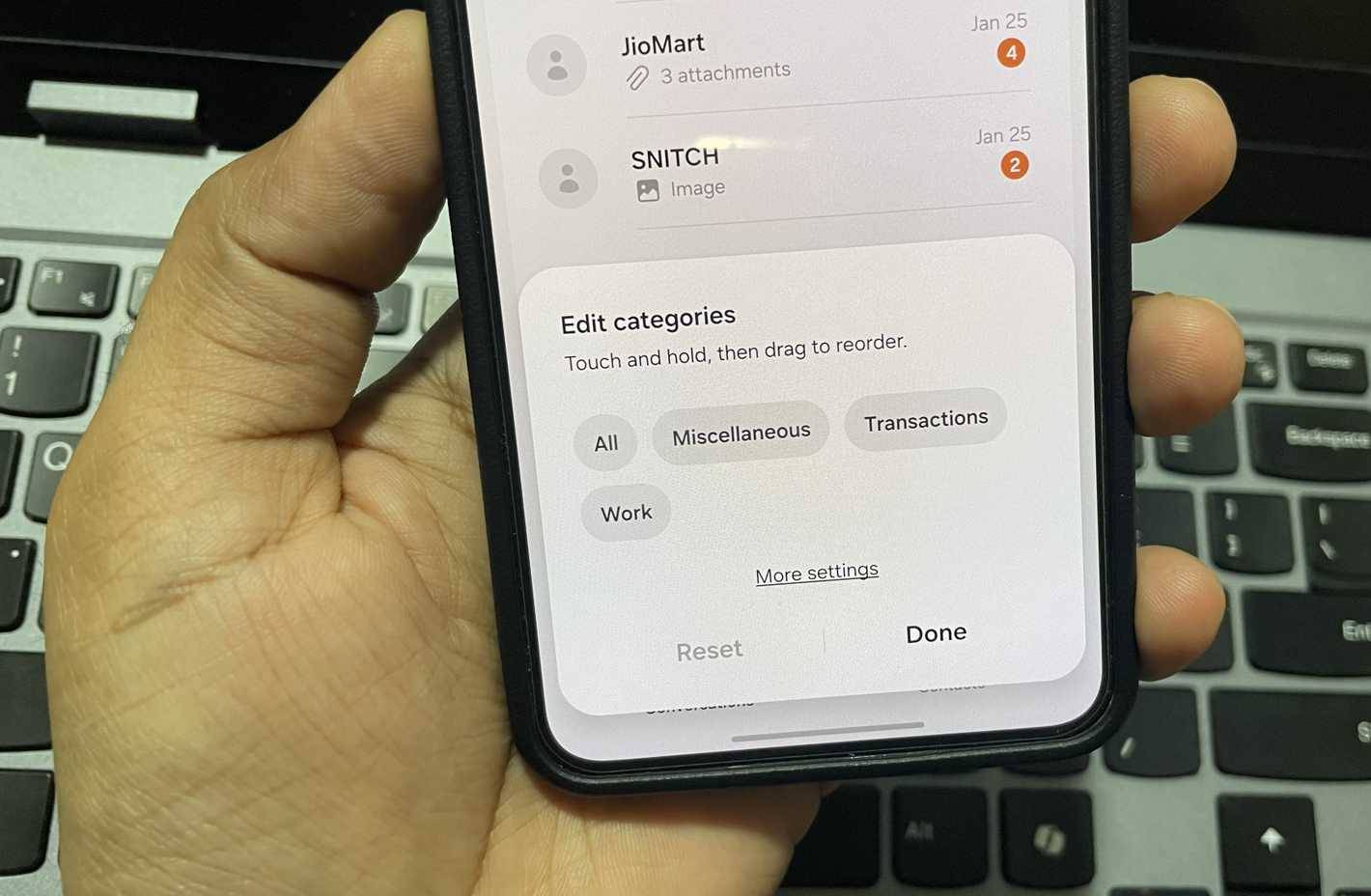
Organizing a thread does not block spam, secure a verification code or change whether a message is SMS, MMS or RCS. Use the app’s blocking controls for unwanted senders rather than hiding them in a category. If needed, check how to view blocked numbers on Android.
Create and manage a category
- Open Samsung Messages and go to the conversation list.
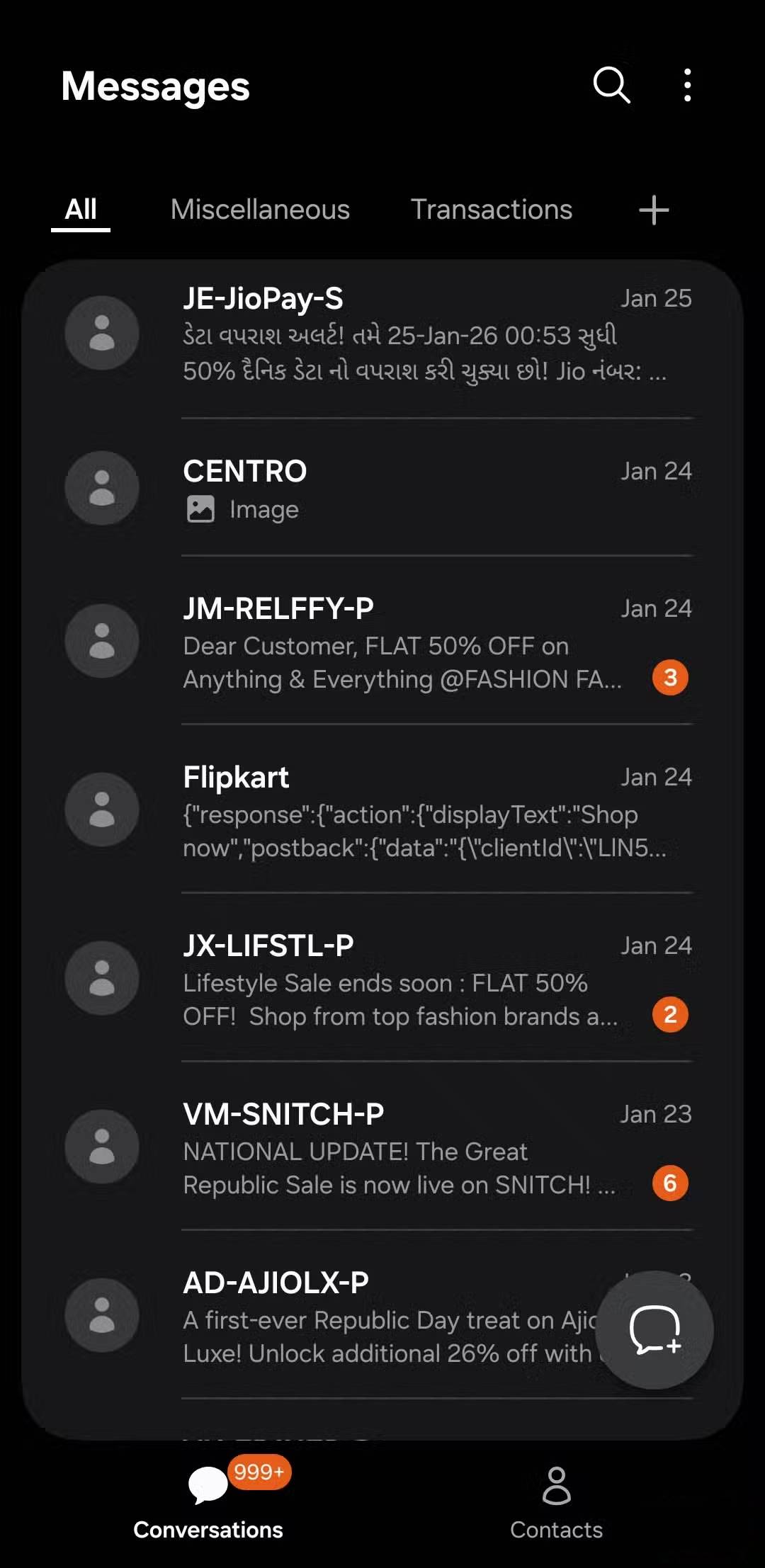
- If categories are hidden, open the three-dot menu, select Settings and enable Conversation categories, where available.
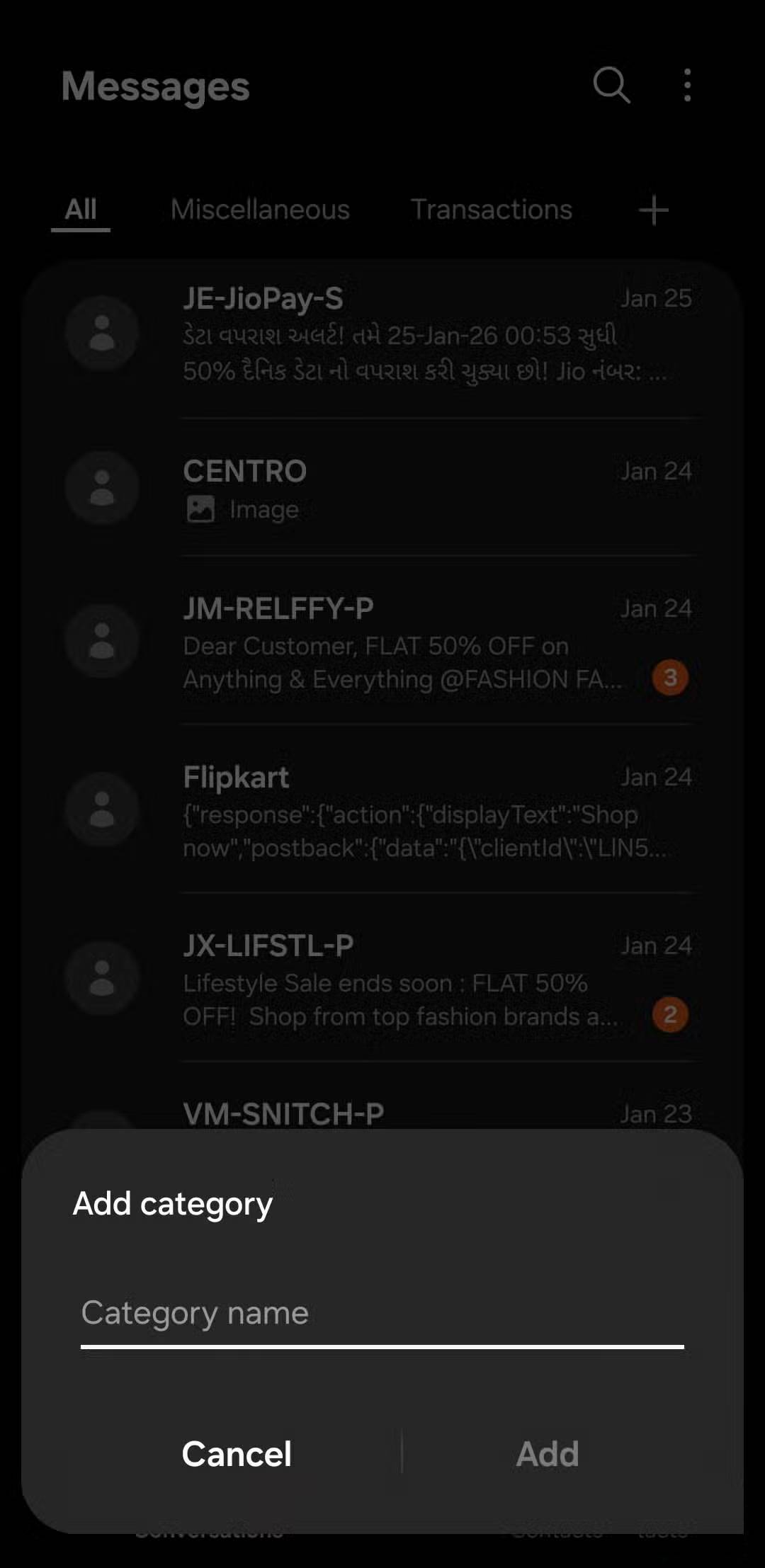
- Tap the + beside the category tabs, enter a name and confirm.
- Select the conversations to include, then finish the selection.
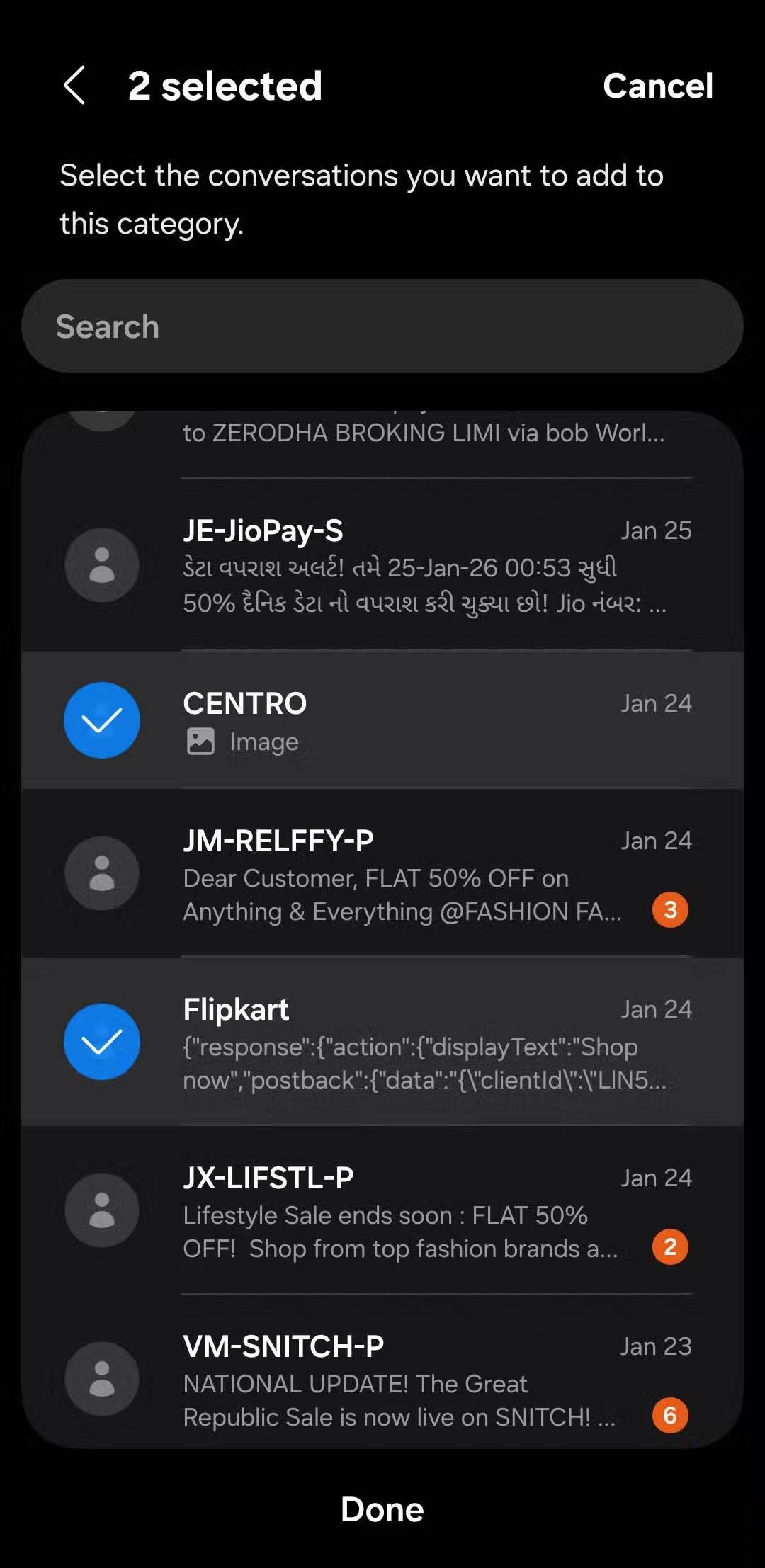
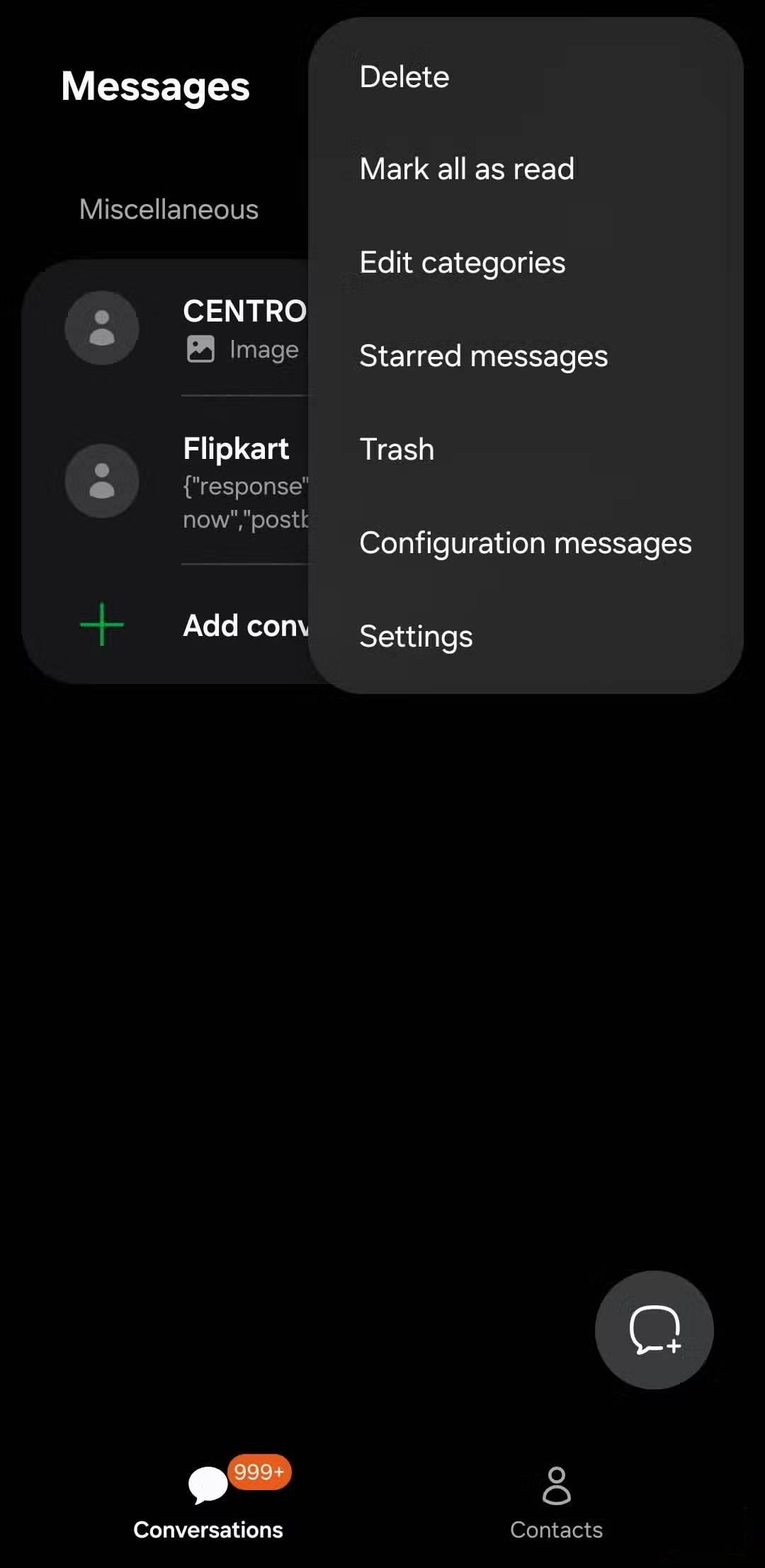
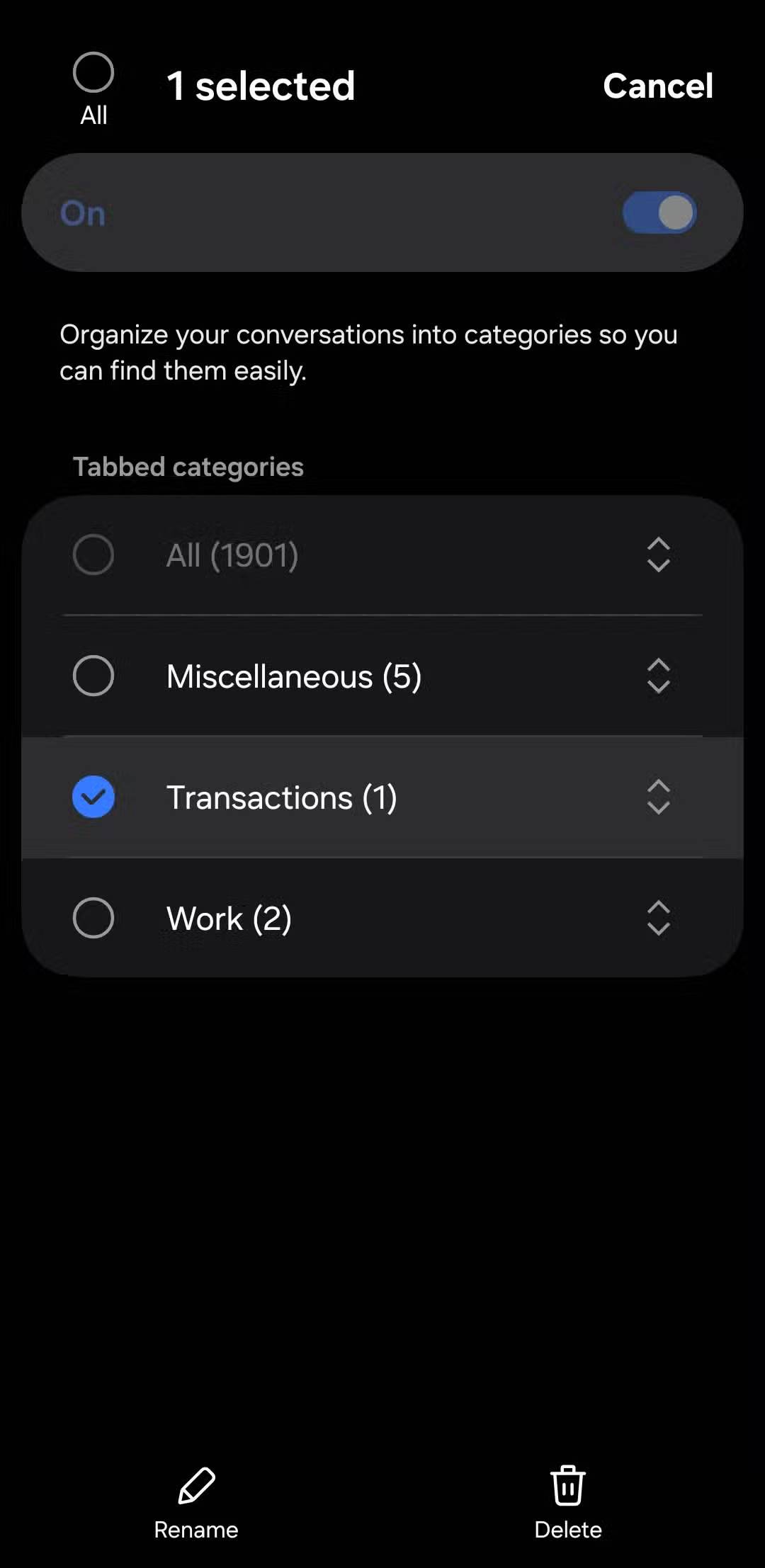
To change membership, touch and hold a conversation and look for Add to category or Remove from category. Category management may also appear under Settings or Edit categories; menu wording and reorder controls vary by app version.
Removing a conversation from a category leaves it in All. Deleting a category removes the grouping rather than deleting its messages. Read the confirmation dialog carefully: deleting the conversation itself is a different action.
Other features shown in the older app
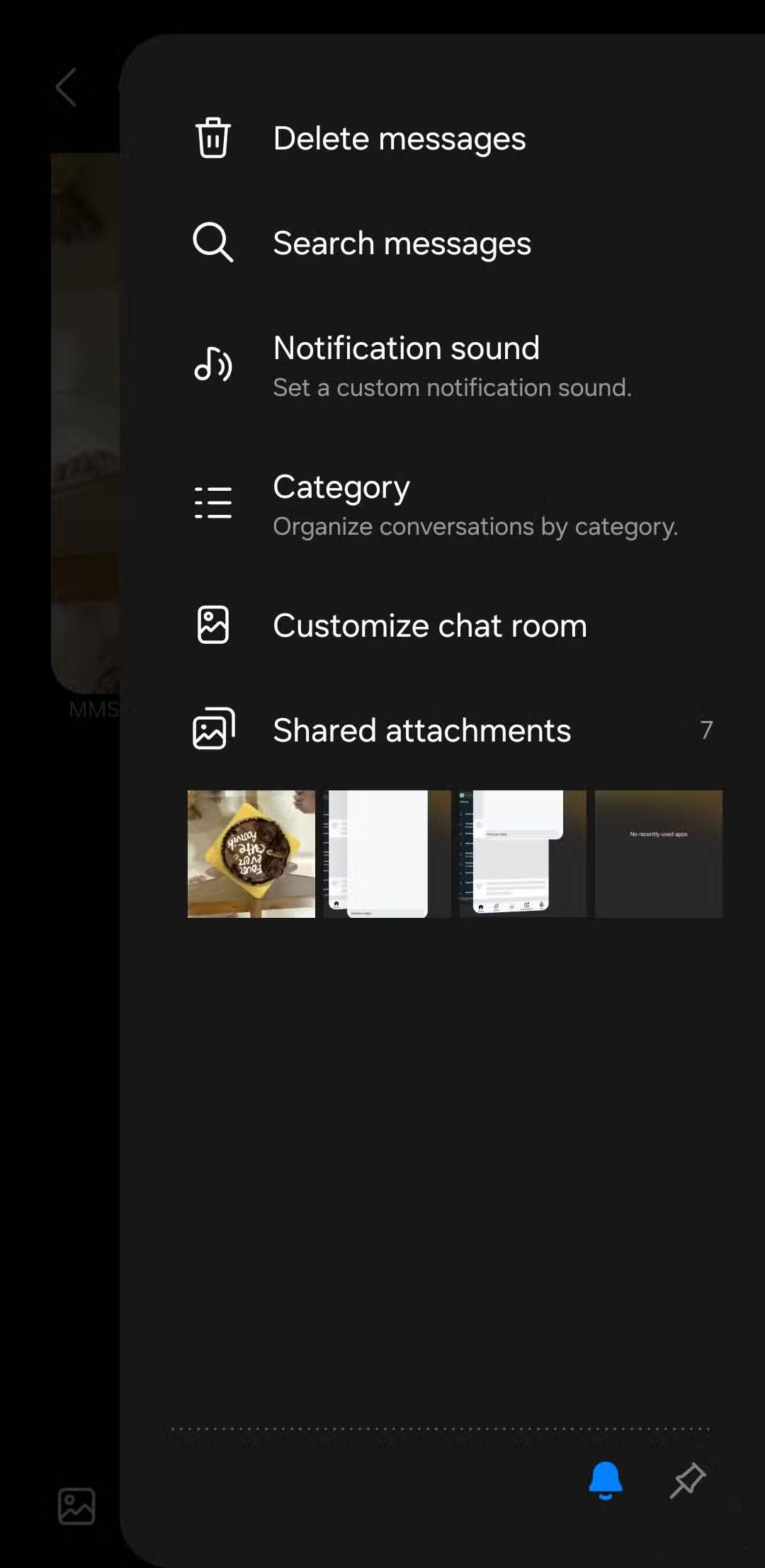
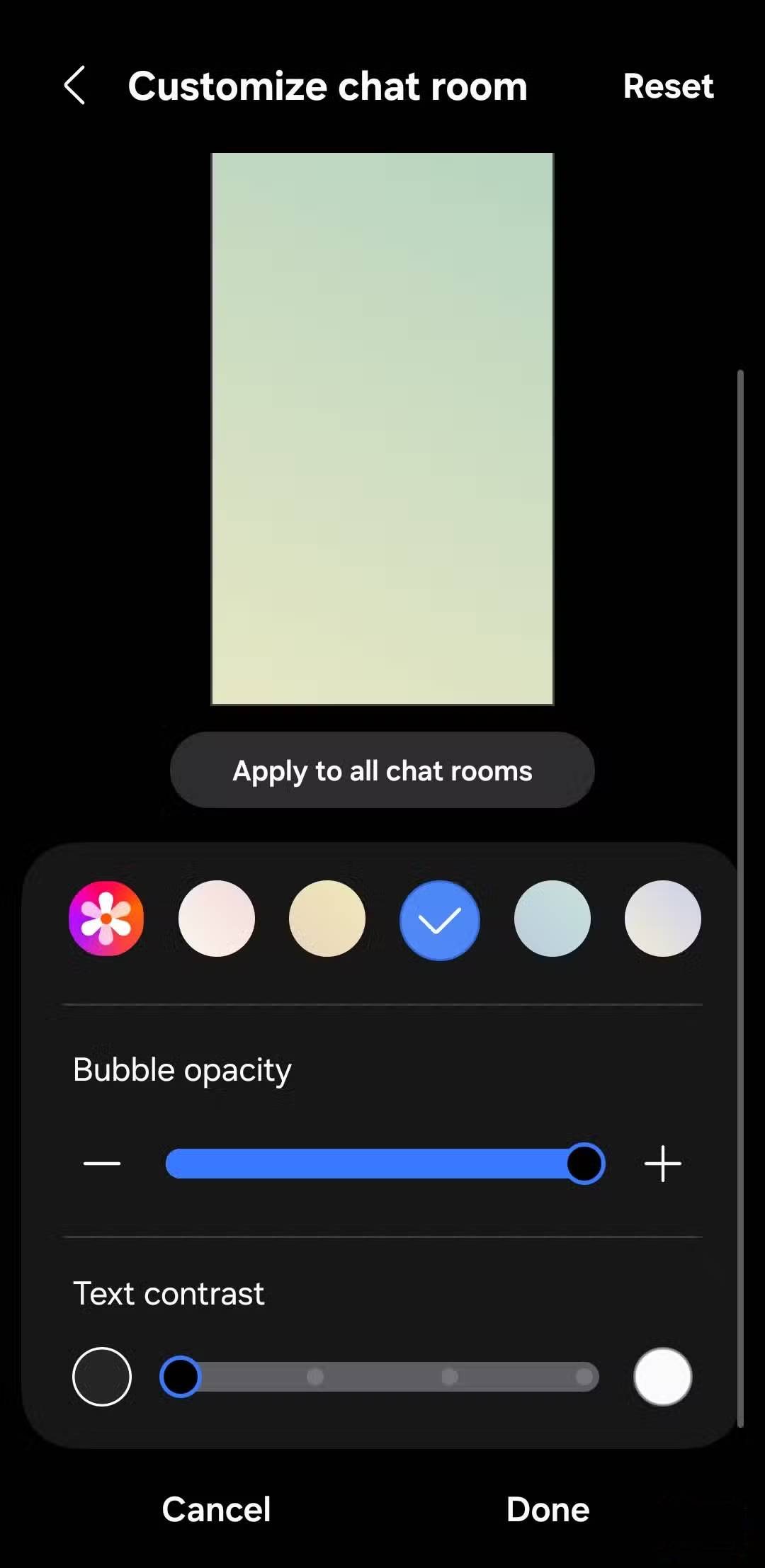
Supported versions can also offer conversation backgrounds, text readability adjustments and a Trash or Recycle bin for recently deleted messages. Translation controls depend on the device and software, so do not assume every installation includes them.
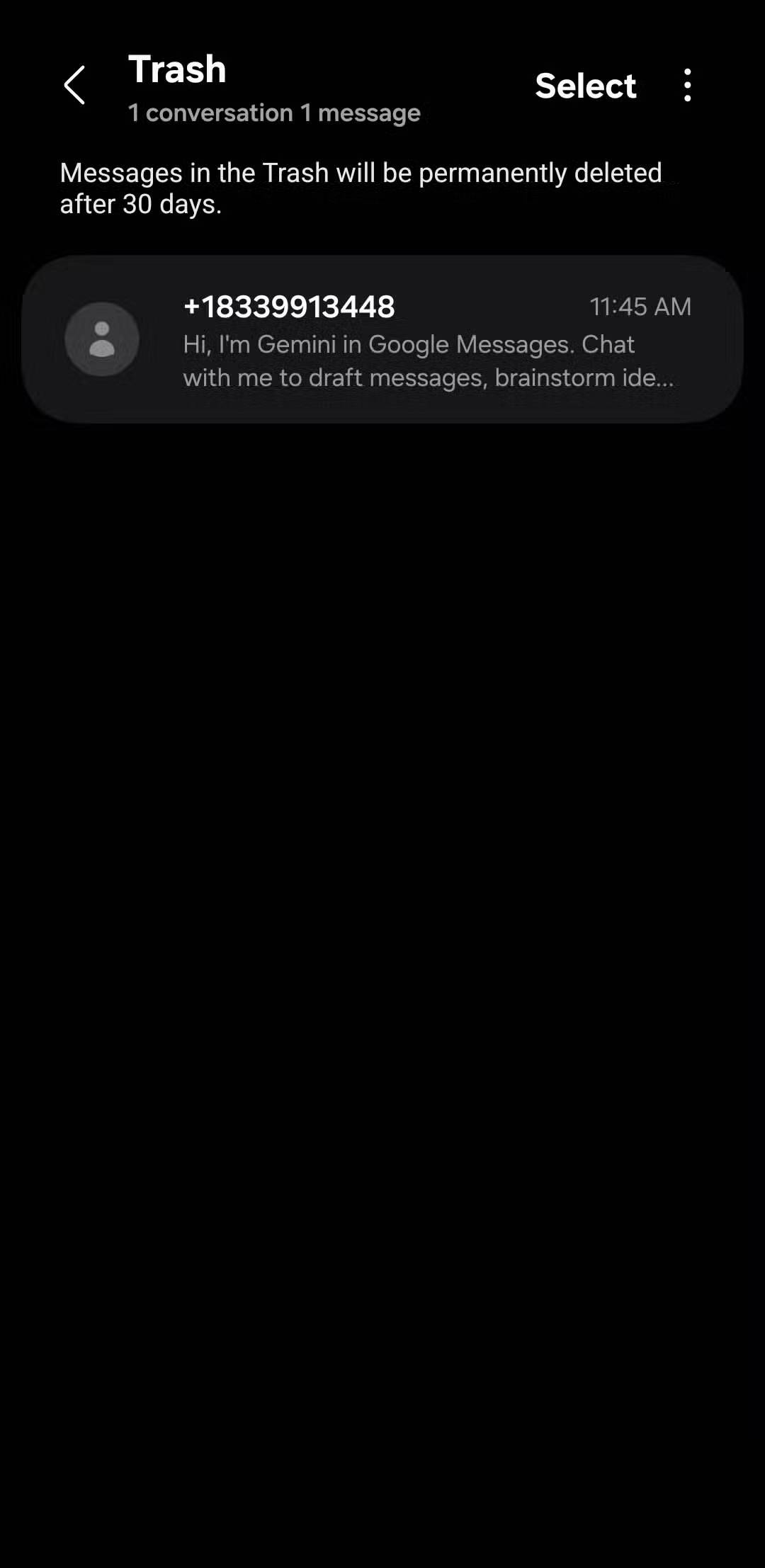
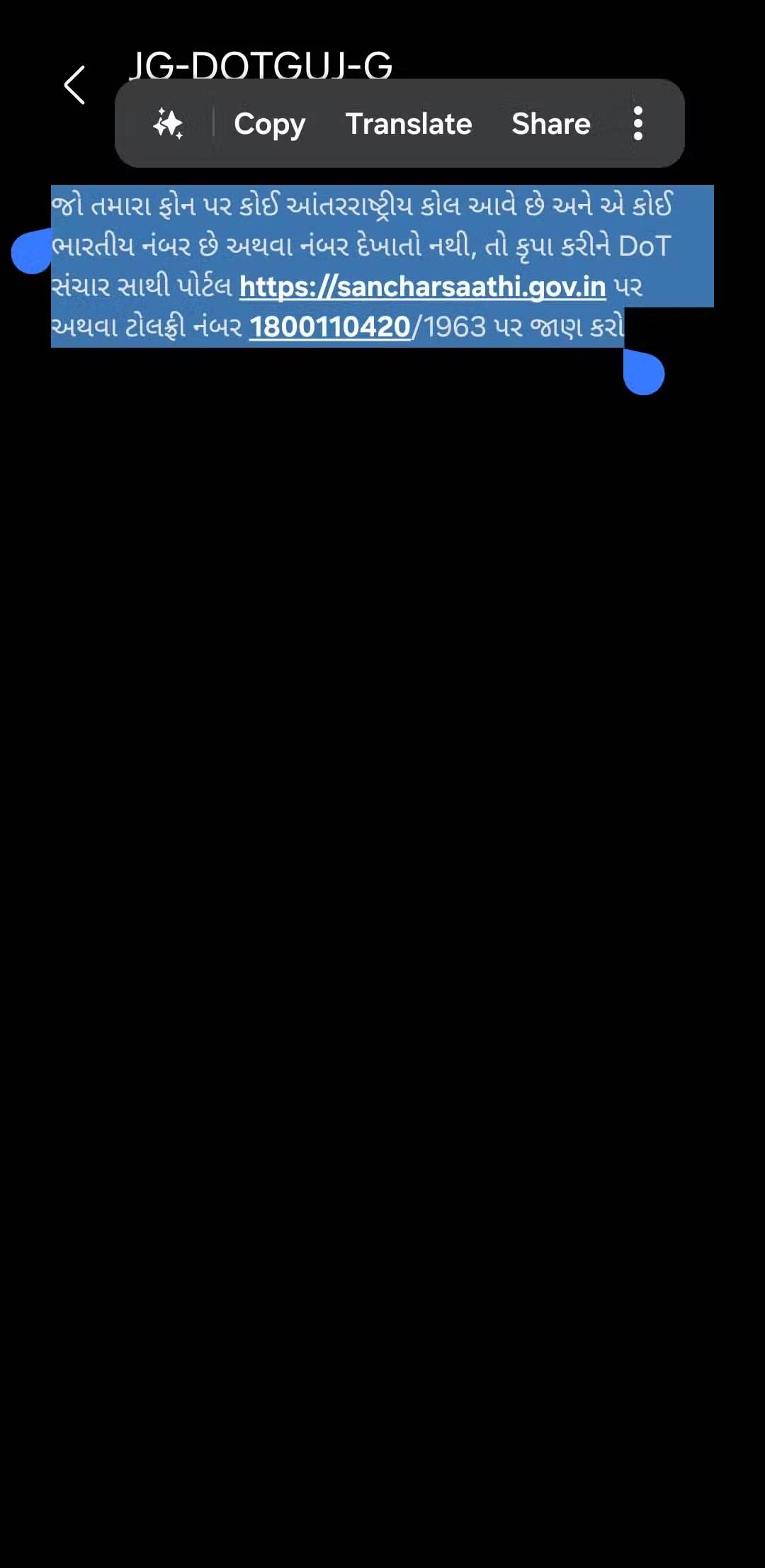
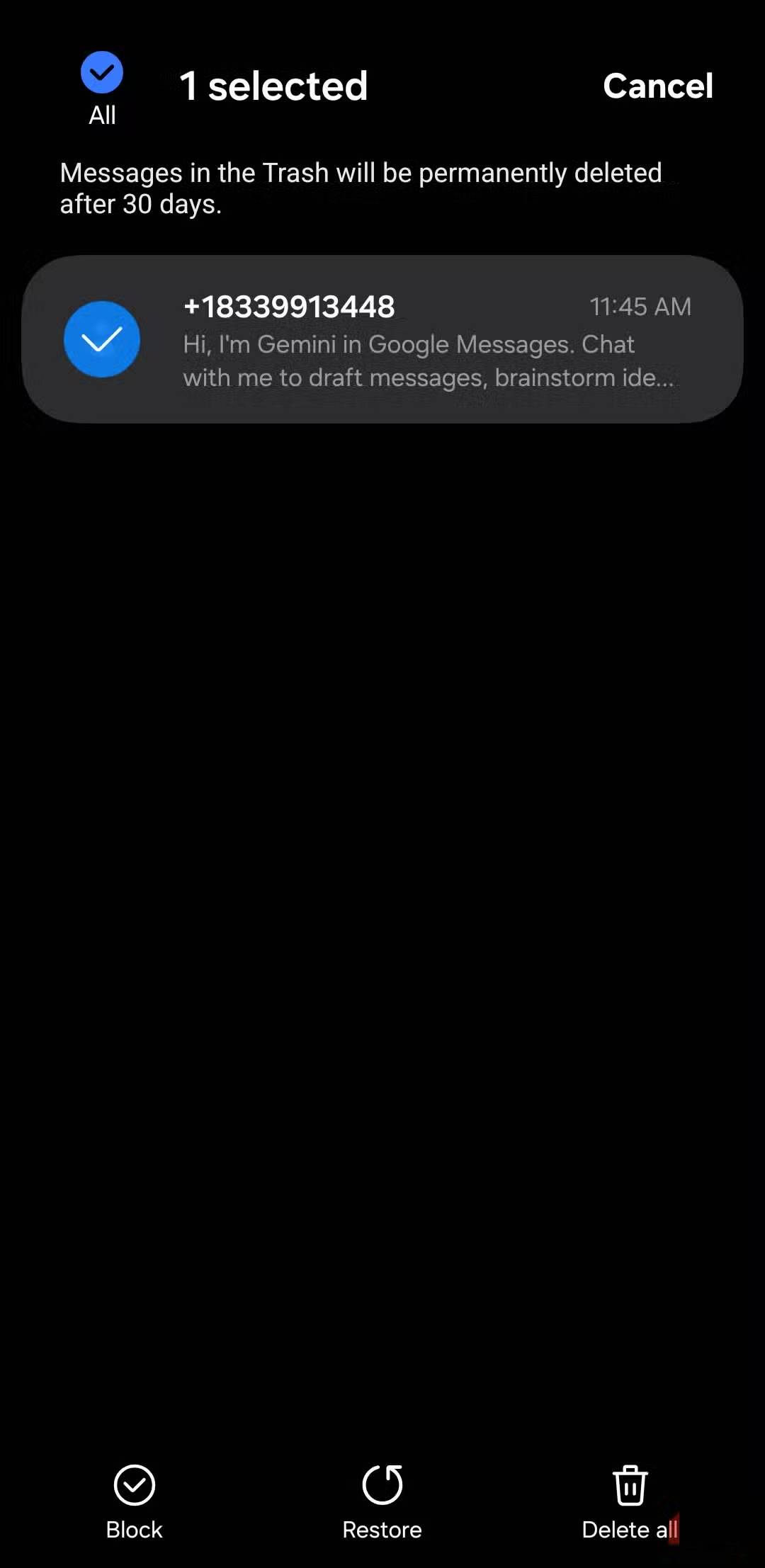
If you need to keep a particular message, you can copy its text on Android before changing apps or deleting a thread. A temporary Trash folder is not a backup.
Choose your messaging app based on continued support, reliable message delivery and the features you actually use. Conversation categories are a convenient organization tool, but they are not a reason to install an unsupported app or assume that Google Messages has no other inbox-management options.
Related Articles
 Is Google Messages or Samsung Messages Better for Messaging?9 minutes read
 6 Samsung-exclusive Apps That Make You Think You Made the Right5 minutes read
 Can Trojans Self-Replicate?5 minutes read
 How to Cancel Sent Messages on Google Messages5 minutes read
 How to Use the Live Messages Feature on Samsung Galaxy Note 86 minutes read
 Instructions for Using the Google Messages Application on Computers3 minutes read
Reader Comments 0
Sign in with email or Google to join the discussion.