Table of Contents
This updated guide explains how to cancel sent messages on Google messages with clear steps, practical tips, and useful context. Have you ever sent a message that you immediately regretted and wanted to take back? With the new beta release, you can now unsend a sent message on Google Messages. This feature is similar to unsend a sent message on WhatsApp.
There have been a number of updates and upgrades to Google Messages to make it a worthy competitor to other messaging apps. This latest beta feature lets you unsend sent messages in Google Messages, but only in large group chats with 12 or more people.
Unlike WhatsApp and Telegram which allow up to 2 days of grace, you only have 15 minutes to delete your messages here.
Also, this feature only works with RCS, a modern and exciting messaging protocol. For this feature to work, everyone in the conversation must be using the latest Google Messages app with RCS enabled. You can check out this guide to RCS messaging on Android to understand how it works.
While this feature is similar to WhatsApp and Telegram, it is not available for one-on-one chats yet. Google is still testing it, so it is not perfect yet. Still, it is a valuable tool for hiding your embarrassment in group chats.
Join Google Messages Beta
To unsend messages on Google Messages, you need to join the beta group. Here's how:
open the Google Play Store and search for Google Messages. Scroll down to Join the beta , tap Join and confirm your choice.
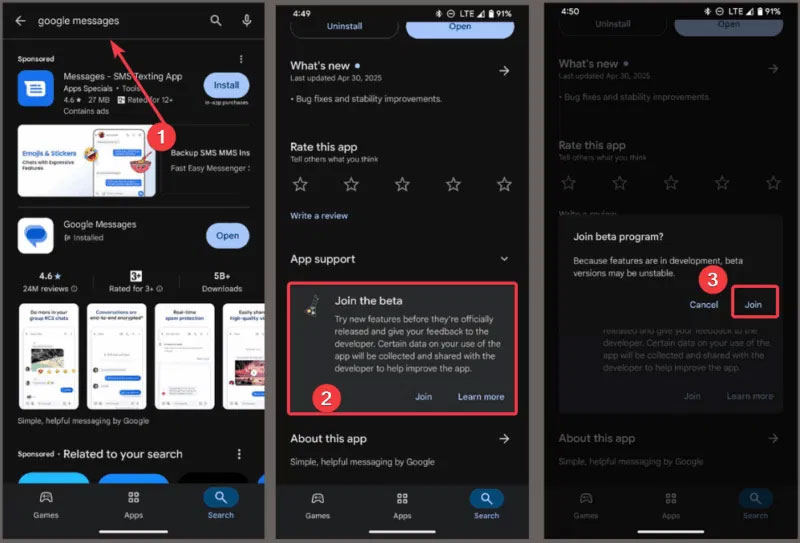
Wait a few minutes for the app to update to the beta version. Then, choose Update .
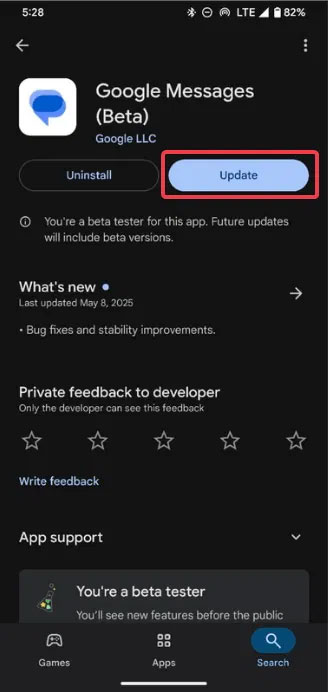
Note that Beta apps can sometimes be buggy and messy. Also, not everyone has the option to delete them right away because Google rolls them out slowly. So if you're not ready for the beta's complications, you may want to wait for the stable version.
Delete Messages for Everyone
To unsend a sent message in a Google Messages group chat, do these:
Open Google Messages and join a group chat with 12 or more people. Find messages you sent within the last 15 minutes.
Tap and hold the message, then tap Delete for Everyone from the prompt and select Delete .
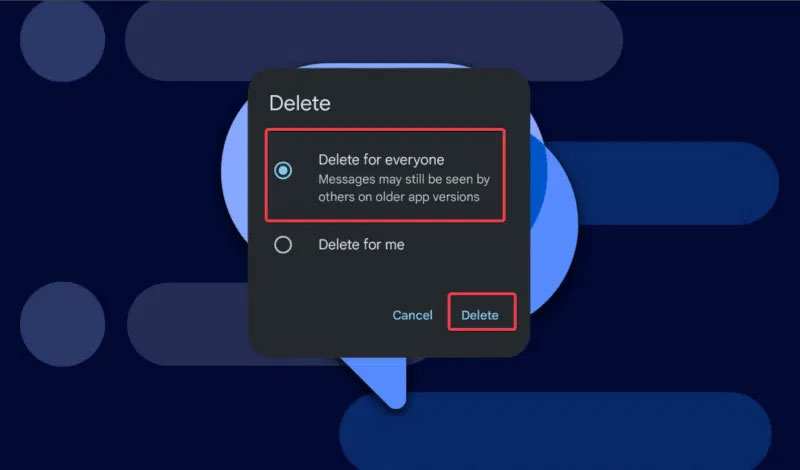
Wait for the prompt to confirm your action and tap Delete . Your message will disappear from the chat group immediately.
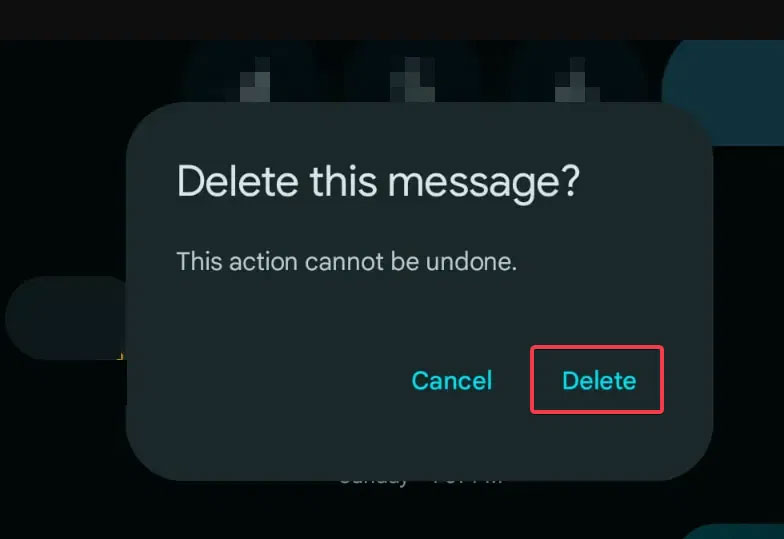
The problem is that if someone is offline or using an older version without RCS enabled, they can still see the messages. If you accidentally delete something important, you can still recover deleted text messages on Android.
Key Limitations and Best Practices
This feature isn't perfect yet. You only have 15 minutes to unsend a message, and it is only available to large groups right now. Plus, people need to update their apps and turn on RCS for it to work. Try these quick tips:
- do not wait, always act quickly to unsend your message.
- Ask your team members to update Google Messages.
- Stay tuned for a stable release that may support more chat types.
Unsending messages in Google Messages is a great feature that can save you from embarrassing group chats. Join the beta to try it out early rather than waiting for the full release. In the meantime, you can check out other Google Messages tips and features if you want more messaging tips.
FAQ
What should I prepare before I cancel sent messages on google messages?
Review the requirements and options in the guide first. Having the correct device, app version, account access, or materials ready helps prevent avoidable errors.
How long does it take to cancel sent messages on google messages?
The time depends on the task and your setup. Most basic steps can be completed quickly, while downloads, updates, scans, or troubleshooting may take longer.
What should I do if the steps do not work?
Repeat the instructions in order, confirm that your software or device is supported, and check permissions, connectivity, and available updates before trying again.
Related Articles
 How to Cancel Sent Messages in Gmail: Step-by-Step Guide3 minutes read
 Don't Cancel Your Google One Subscription Until You Read This!7 minutes read
 How to Cancel Netflix: Complete Guide9 minutes read
 Instructions for Using the Google Messages Application on Computers3 minutes read
 How to Pin Messages on Android Phones: Step-by-Step Guide3 minutes read
 How to Backup Google Messages Messages: Step-by-Step Guide3 minutes read
Reader Comments 0
Sign in with email or Google to join the discussion.