Table of Contents
Microsoft Excel is incredibly powerful. Just when you think you've got it down pat, Excel pulls a new trick. Its latest feature makes you wonder how much time you've wasted by not using it sooner.
Excel keeps surprising its users
Recently, a small event used QR codes for guests. This made many people curious. If you want to create a QR code for your own event, how would you do it? It turns out, the easiest way requires no programming, no server, just Excel.
If you have a guest list in Excel, all you need to do is select the content you want to encrypt – perhaps their names and whether they paid or not.
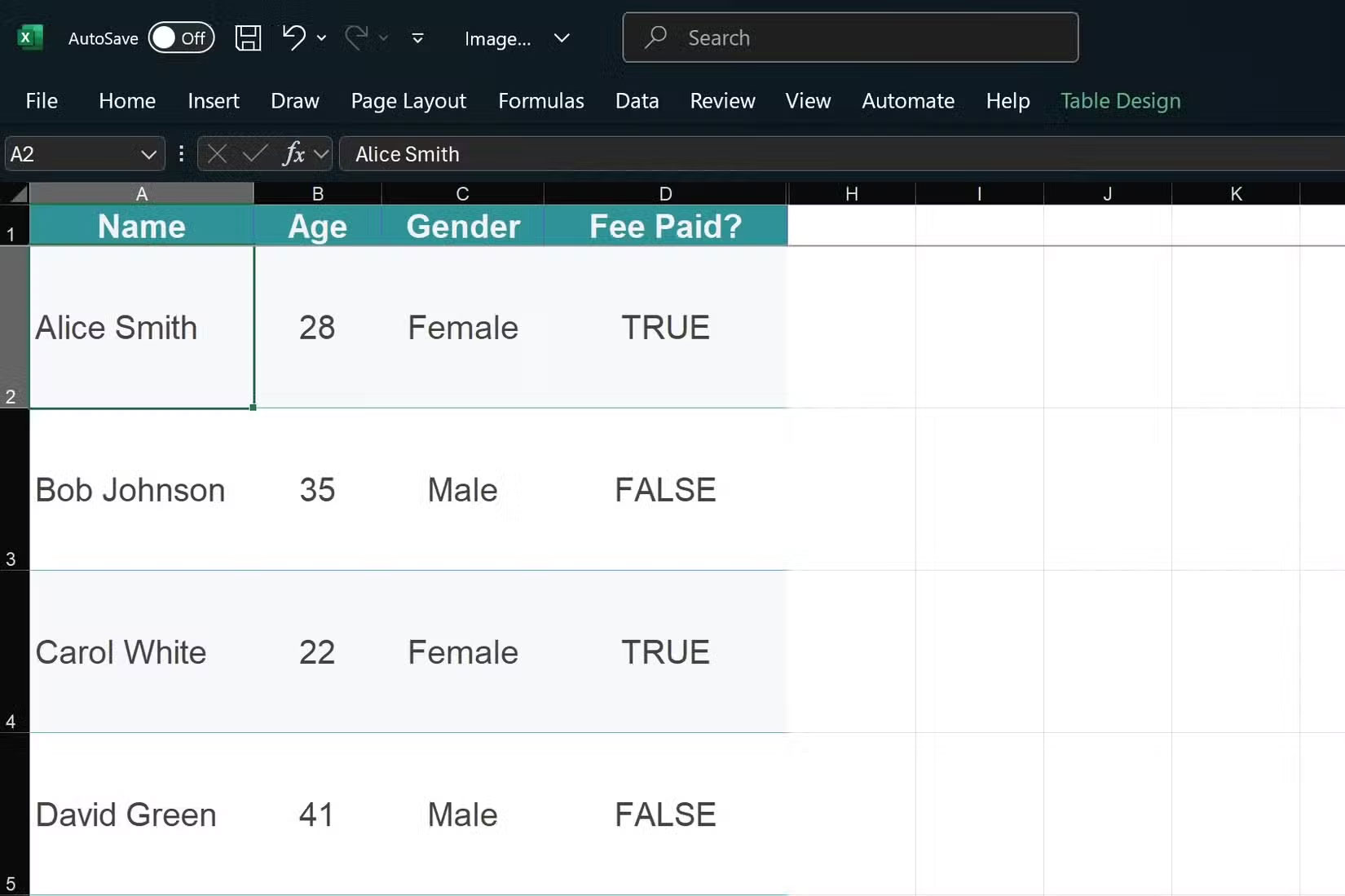
In the example case, there are name, age, gender and whether they have paid or not, so the author decided to convert the guest name and ticket paid status (TRUE/FALSE) into a QR code.
Excel doesn't have a built-in QR function, but it can build a URL and import an image. That's all you need. There are free services that will generate static QR codes from a URL; one example is QRServer. Here's the URL format:
https://api.qrserver.com/v1/create-qr-code/?size=200x200&data=[YOURDATA]&color=000000&bgcolor=FFFFFFTip : The color and size parameters are optional. You can change them as you wish.
You create a URL that embeds your data (with proper URL encoding), then feed that data into Excel's IMAGE function. The formula looks like this:
=IMAGE("https://api.qrserver.com/v1/create-qr-code/?size=200x200&data=" & ENCODEURL(A2) & ENCODEURL(D2) & "&color=000000&bgcolor=FFFFFF")Note : ENCODEURL is what prevents things from breaking. It converts spaces to %20, etc., so you don't get broken links.
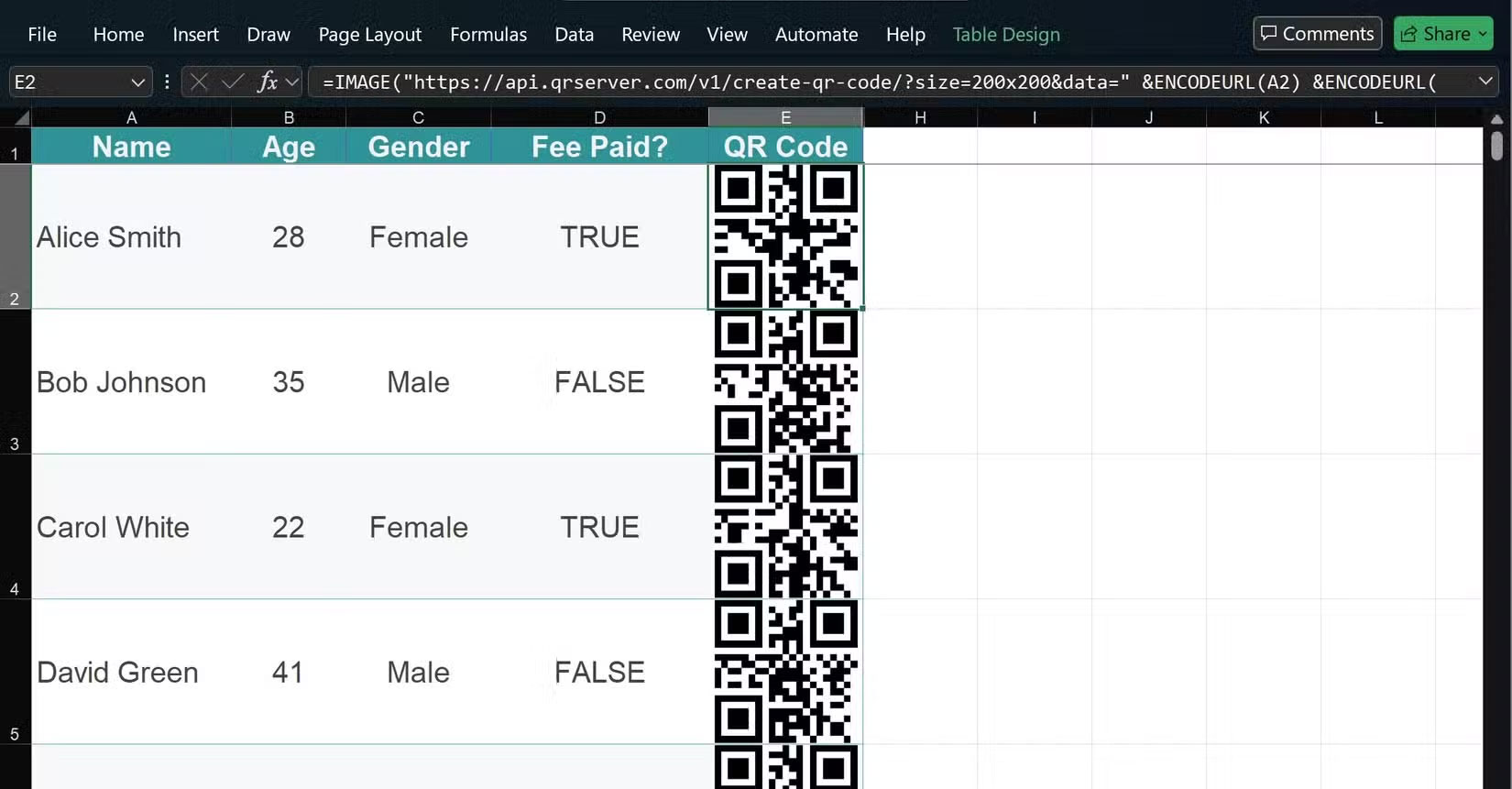
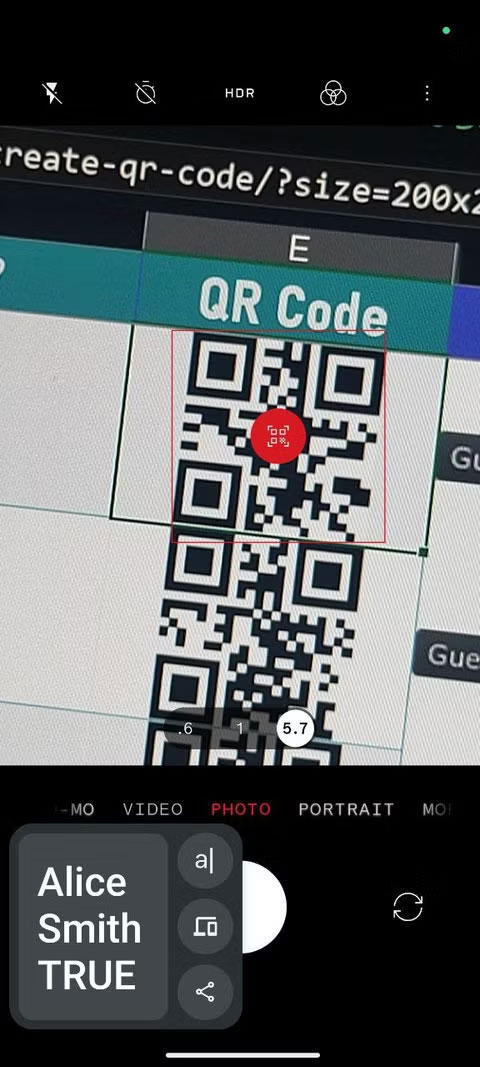
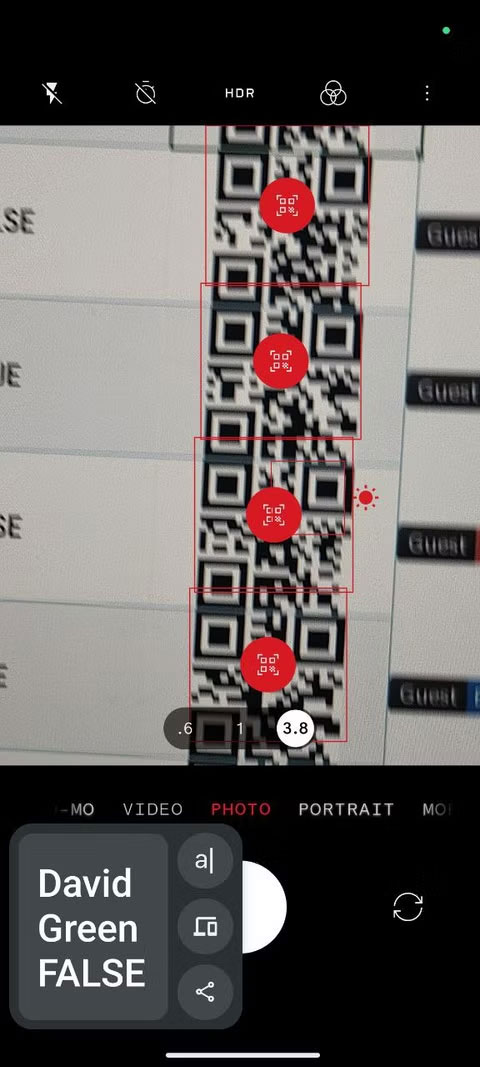
Drag that recipe down the list and each guest will receive a QR code. Scan the code and you'll get their details right on your phone.
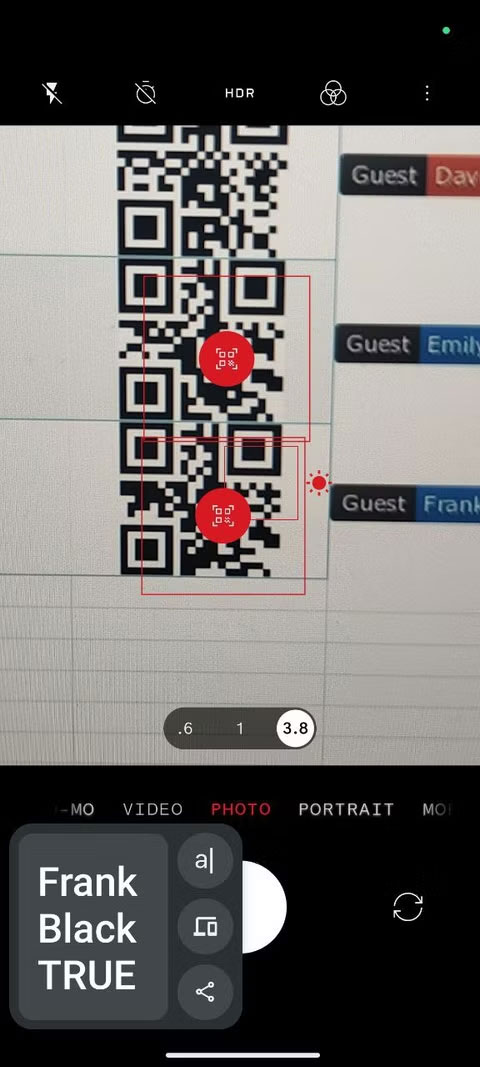
What else can you create in Excel?
Once you've done that, you're wondering - what else can I create? Try shields.io. You may have seen these little badges on GitHub. They're just static images created by passing text and formatting to a URL.
For instance, the author created a blue badge for each guest:
=IMAGE("https://img.shields.io/badge/"&ENCODEURL(A2)&"-blue.png?mstyle=flat")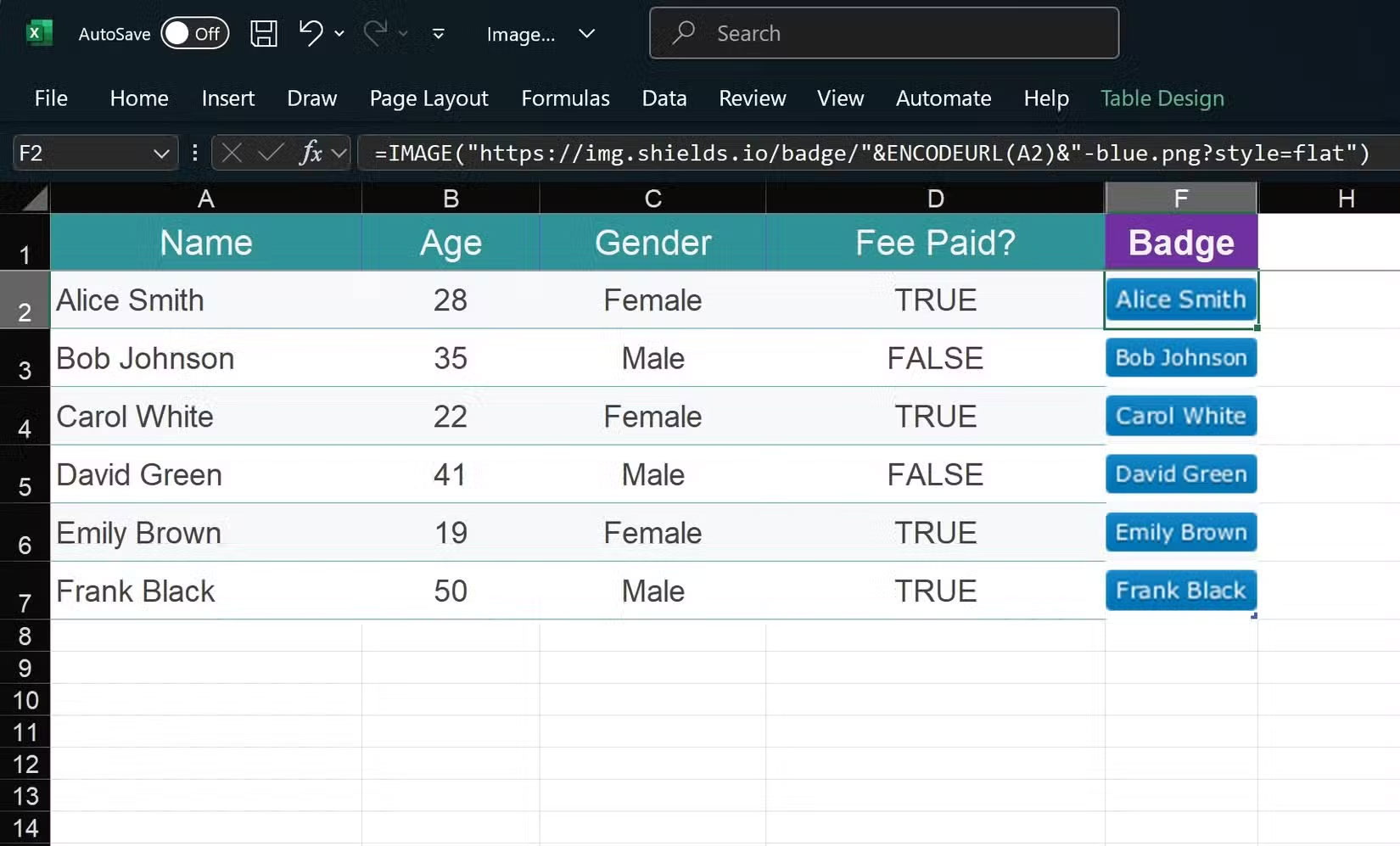
Then take it up a notch by adding the guest prefix and using Excel's IF() function to display red for guests who haven't paid yet:
=IMAGE("https://img.shields.io/badge/Guest-"& ENCODEURL(A2) & IF(D2, "-blue.png?mstyle=flat", "-red.png?mstyle=flat"))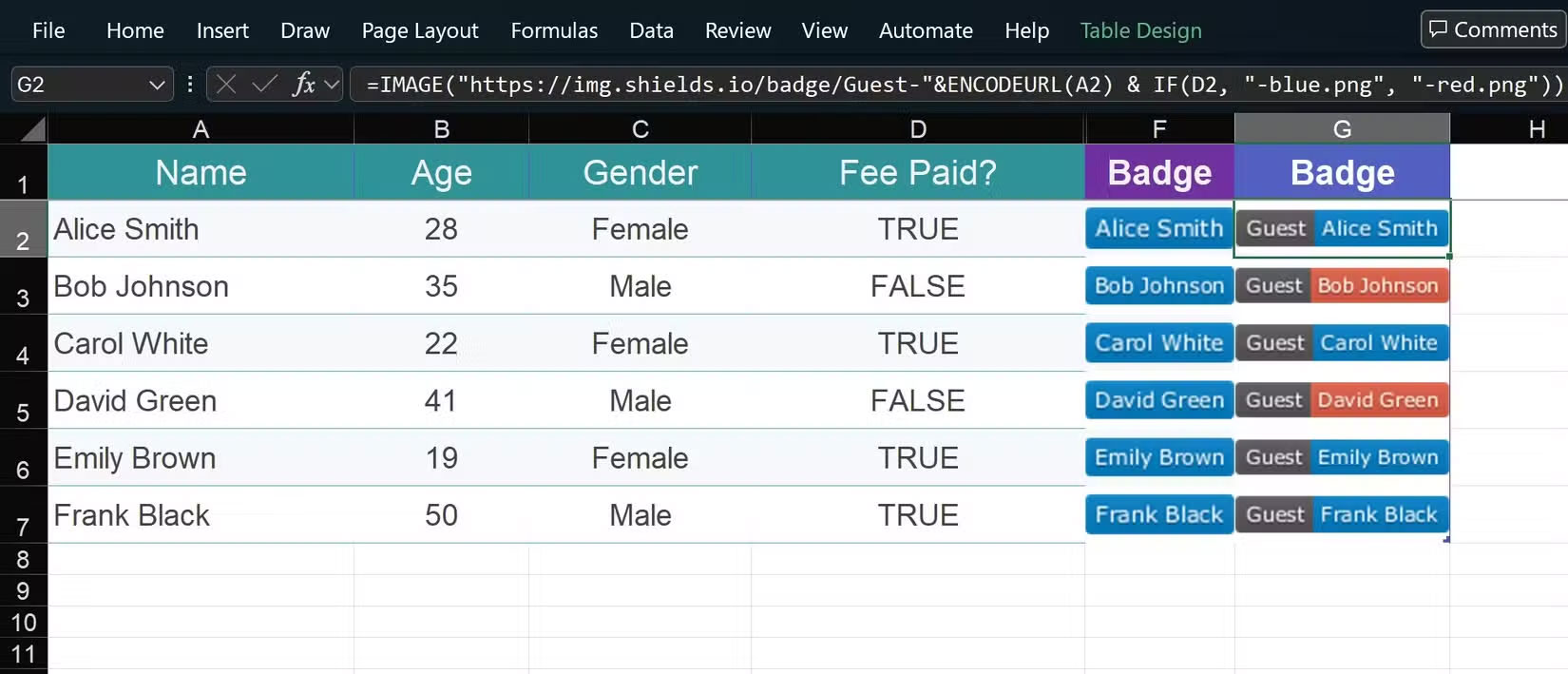
The combination of Excel formulas and images supported by this API is extremely flexible.
API + Excel = Endless Possibilities
Realizing that you can fetch arbitrary images via URLs turns Excel into a lightweight front-end for all sorts of APIs. You can even use the Memegen API to create memes inside Excel. The top and bottom text are separated by a slash, so to create a simple meme:
=IMAGE("https://api.memegen.link/images/buzz/" & ENCODEURL(A2) & "/" & ENCODEURL(A3) & ".jpg", 2)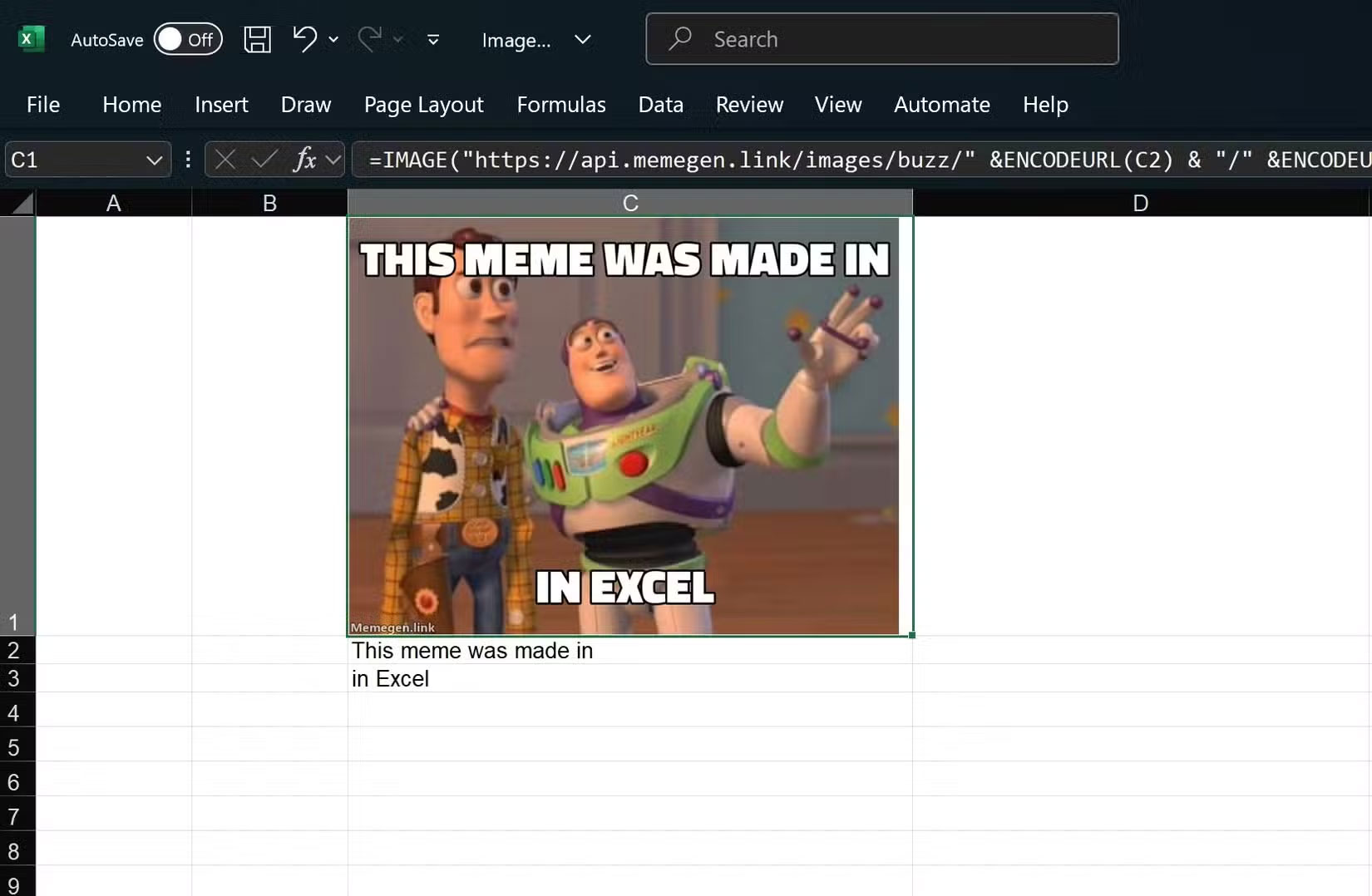
You can change "buzz" to any other pattern; the format remains the same. The author also fetched the weather data directly using wttr.in. If A1 has "Chicago" in it, you get a terminal-style weather graph:
=IMAGE("https://wttr.in/" & A1 & ".png?0_m_q_n")Graphics inspired by classic terminal icons - may not be to everyone's taste.
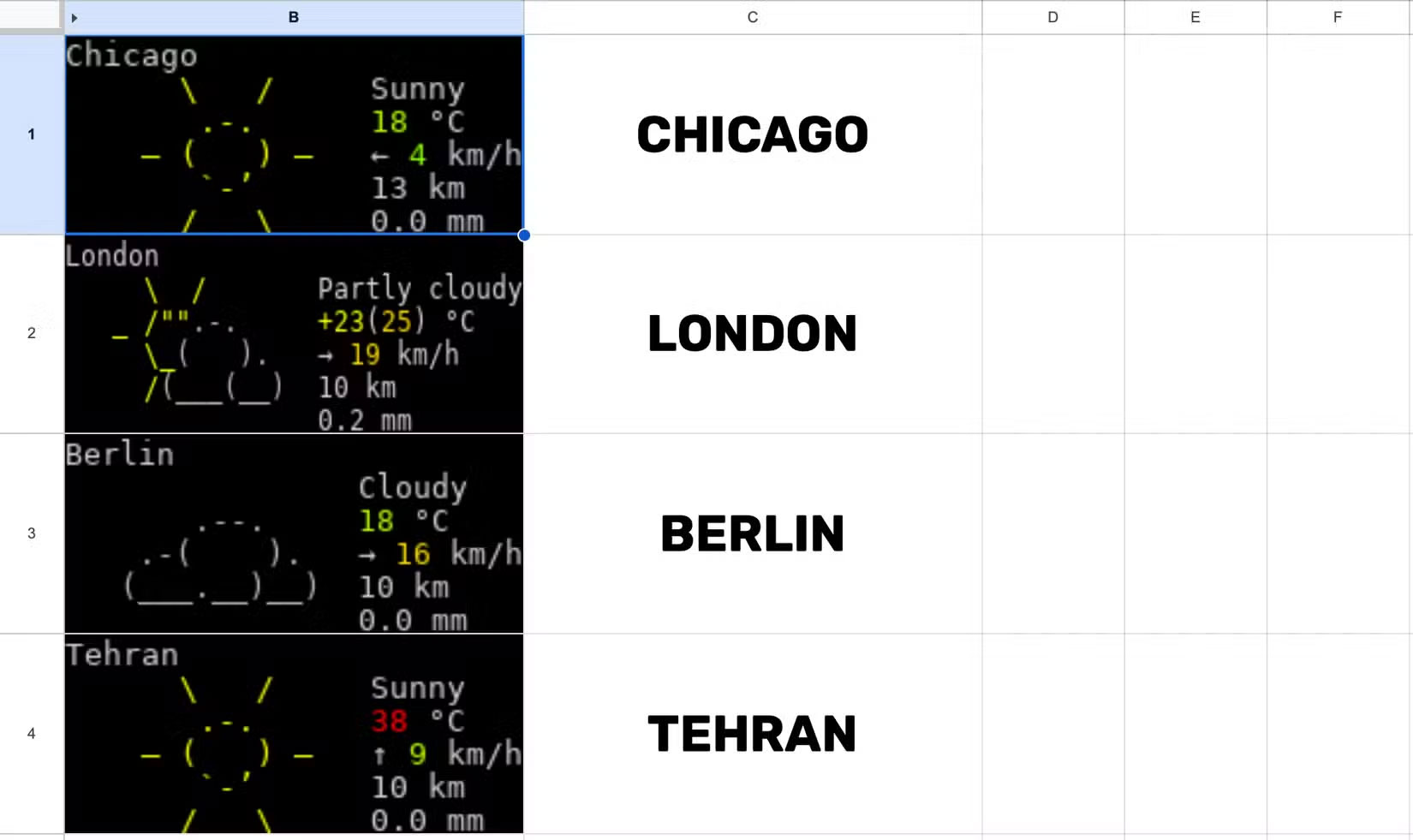
Once you realize Excel can handle API-based images in this way, it's hard to stop experimenting. Any free service that provides images via URL will work. It also works exactly the same in Google Sheets, making it even more versatile.
When introducing it to friends, the first thing many people say is, 'Did you know you could do this in Excel?' There's a whole universe of free APIs that you can tap into just by constructing the right URL. If you've always thought of Excel as dry and predictable, these will help you get out of it quickly.
Final Thoughts
The development covered in this article is worth following, but specifications, dates, and feature details may change until the relevant company or organization publishes an official confirmation.
FAQ
What is the main development covered in this article?
Microsoft Excel is incredibly powerful. Just when you think you've got it down pat, Excel pulls a new trick. Its latest feature makes you wonder how much time you've wasted by not using it sooner.
What should you know about Excel keeps surprising its users?
Recently, a small event used QR codes for guests. This made many people curious. If you want to create a QR code for your own event, how would you do it? It turns out, the easiest way requires no programming, no server, just Excel.
Is every reported detail officially confirmed?
Not necessarily. Product leaks, preview builds, research reports, and early announcements can change. Confirm important specifications, dates, and availability through an official source before making a decision.
Related Articles
 10 Ways to Use the Paste Feature in Excel10 minutes read
 21 Ways to Use the Paste Feature in Excel19 minutes read
 Shortcut Guide, Abbreviated in Excel: Autocorrect Excel4 minutes read
 Why Checkbox Is an Underutilized Excel Feature?7 minutes read
 Tips for Turning Off Suggestions in Excel, Disabling the Prediction Feature in4 minutes read
 How to Number Columns Automatically in Excel: Excel Tips5 minutes read
Reader Comments 0
Sign in with email or Google to join the discussion.