Table of Contents
The MAP function is part of Excel's dynamic array functions and requires Excel 365 or Excel 2021 or later to work.
The MAP function is part of Microsoft Excel 's dynamic array functions and requires Excel 365 or Excel 2021 or later to work. If you're using an earlier version, you won't see this function available.
How does the MAP function work?
The MAP function and its counterpart, LAMBDA, work together
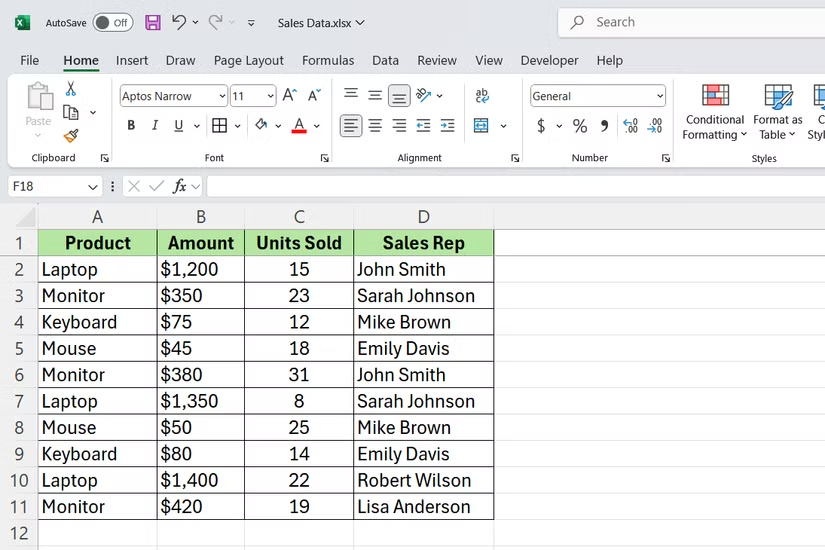
The MAP function takes a range of data and applies a custom calculation to the entire data set at once. It uses the following syntax:
=MAP(array, lambda)Let's analyze the parameters:
- Array : This is the range of cells you want to process. It can be one column, multiple columns, or even an entire table. MAP will iterate through each value in this range.
- Lambda : This is where you define the calculation. Think of it as a little formula that tells MAP what to do with each value. You create it using Excel's LAMBDA function, which lets you write formulas like a human with custom logic without having to repeat the formula.
When you run MAP, it applies your lambda function to every cell in the array and returns a new set of results. The output matches the size and shape of the input, so if you enter 10 rows, you get 10 results.
Start with a simple task to see how MAP works
Let's add markup to product prices with just one formula!
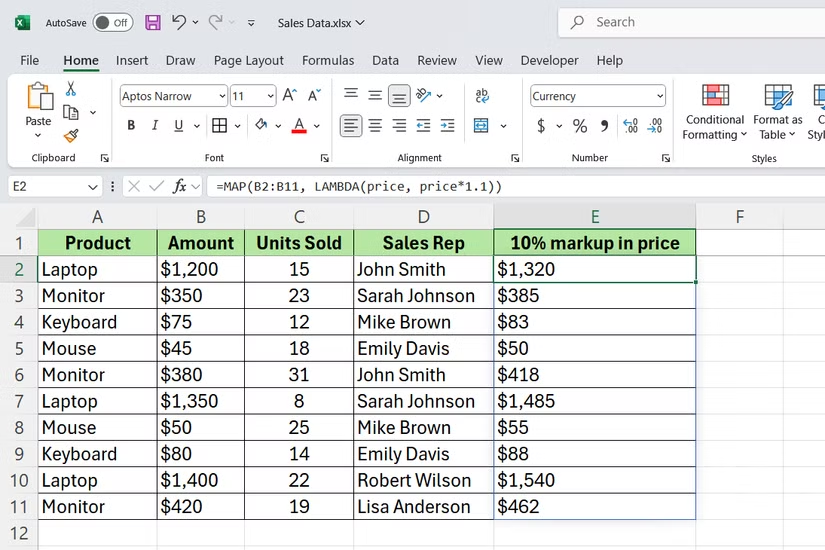
Let's say you have a list of product prices and need to add a 10% markup to each price. The traditional way would be to write a formula like =B2*1.1 And drag it down. However, MAP handles this differently.
Instead of writing individual formulas, you create a MAP function that processes the entire price column:
=MAP(B2:B11, LAMBDA(price, price*1.1))Here's what happens: MAP takes each value in B2:B11 (your price range) and feeds it into the LAMBDA function. LAMBDA assigns each value to the variable "price", multiplies it by 1.1, and returns the result. All in one step.
Add logic to MAP with IF statements
You can nest other functions within each other.
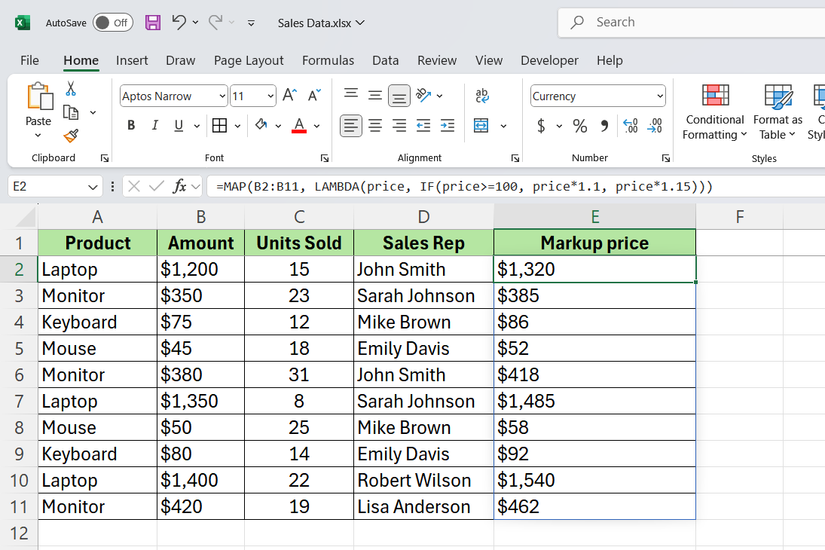
MAP is not limited to simple calculations. You can add Excel conditional functions inside the LAMBDA function to handle different situations based on the data.
Let's say you want to apply different markups depending on price. Products that are $100 or more get a 10% markup, while products under that get a 15% markup. You might write something like this:
=MAP(B2:B11, LAMBDA(price, IF(price>=100, price*1.1, price*1.15)))The IF statement checks each price as MAP processes. If the price is $100 or more, it will multiply by 1.1. Otherwise, it will multiply by 1.15.
MAP handles multiple columns and messy text data
Standardize your name list with a single formula!
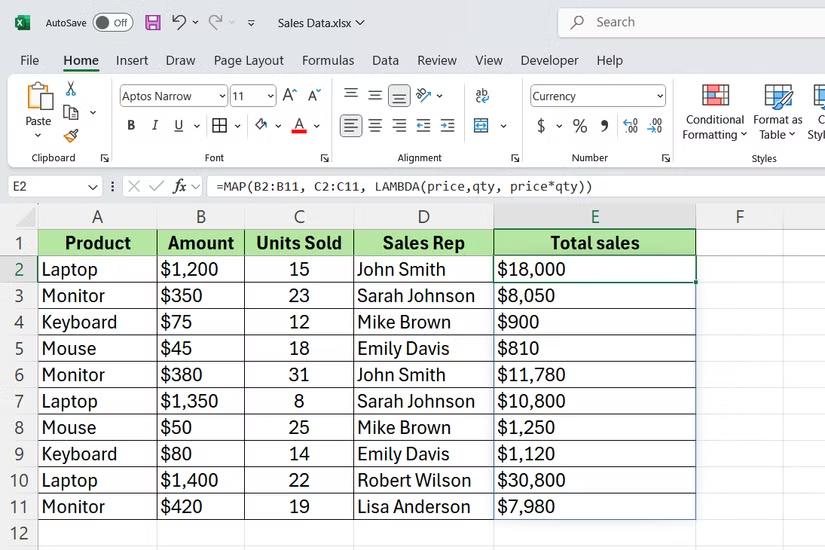
MAP is not limited to single column operations. You can feed multiple arrays into the function and process them together in one function.
Let's say you want to calculate total sales by multiplying price and quantity. Instead of creating a separate formula column, use MAP to handle both:
=MAP(B2:B11, C2:C11, LAMBDA(price, qty, price*qty))MAP takes two arrays - B2:B11 (price) and C2:C11 (quantity) - and processes them row by row. The LAMBDA function takes both values, multiplies them, and returns the result.
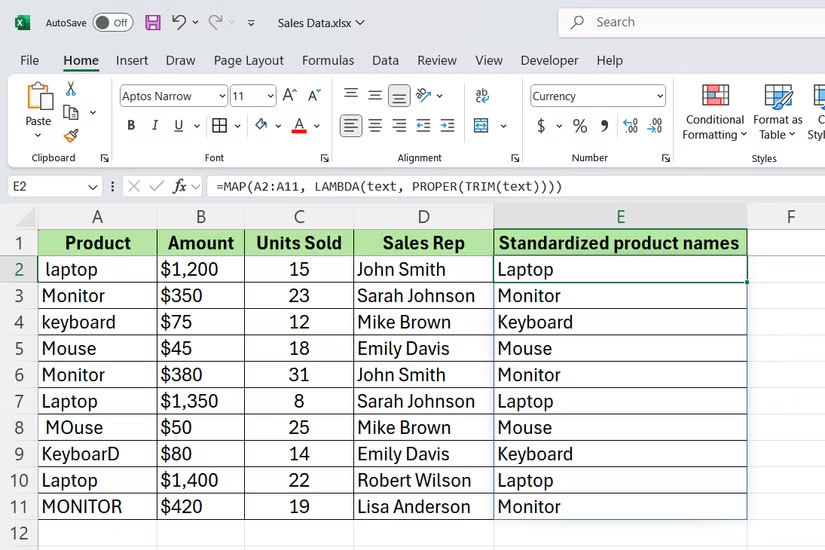
You can also use the MAP function to clean up text data. If your product names are inconsistent—some are all uppercase, some are lowercase, or have extra spaces—you can easily normalize them all at once:
=MAP(A2:A11, LAMBDA(text, PROPER(TRIM(text))))This formula trims unnecessary spaces and converts each product name to uppercase. The TRIM function removes leading and trailing spaces, while the PROPER function capitalizes the first letter of each word. The MAP function applies both functions simultaneously to every cell in the range.
FAQ
What should you know about MAP function in Excel?
In practical terms, the MAP function is part of Excel's dynamic array functions and requires Excel 365 or Excel 2021 or later to work.
Why does MAP function in Excel matter?
The article highlights that the MAP function and its counterpart, LAMBDA, work together The MAP function takes a range of data and applies a custom calculation to the entire data set at once.
What is the main takeaway?
The main takeaway is that when you run MAP, it applies your lambda function to every cell in the array and returns a new set of results.
Related Articles
 The Index Function in Excel: Formulas and Usage9 minutes read
 How to use the VALUE function in Excel - A function to4 minutes read
 Basic Excel Functions That Anyone Must Know20 minutes read
 How to Use Hlookup Function on Excel: Excel Hlookup Function4 minutes read
 How to Use the SUM Function to Calculate Totals in Excel8 minutes read
 DATE Function: Converts Numbers to a Valid Date Format5 minutes read
Reader Comments 0
Sign in with email or Google to join the discussion.