Table of Contents
Explore a guide to creating mind maps quickly using napkin AI, including the key concepts, practical examples, important considerations, and useful guidance.
How to create a lecture mind map using Napkin AI
Step 1
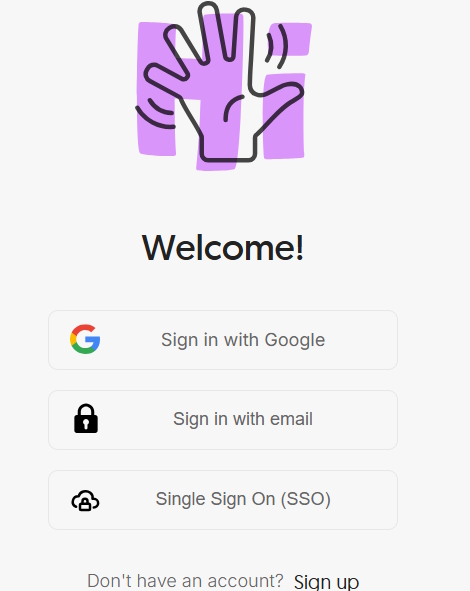
We access the Napkin AI website via the link below and then register using our personal account. Next, we will register a Napkin AI account through our Google account.
Access Napkin AI
Step 2
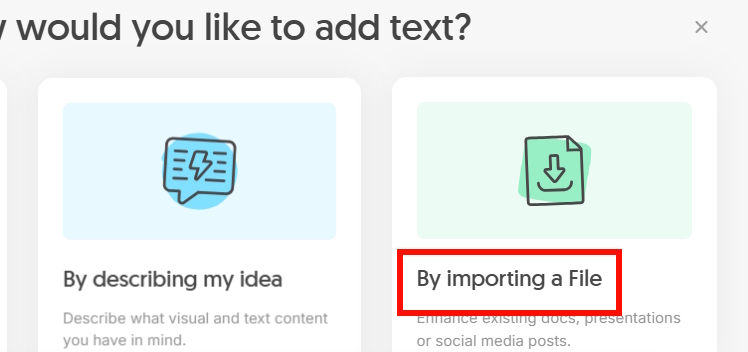
To access the main Napkin AI interface, select "New Napkin" . In this interface, click on "By importing a File" to upload your lecture file to Napkin AI.
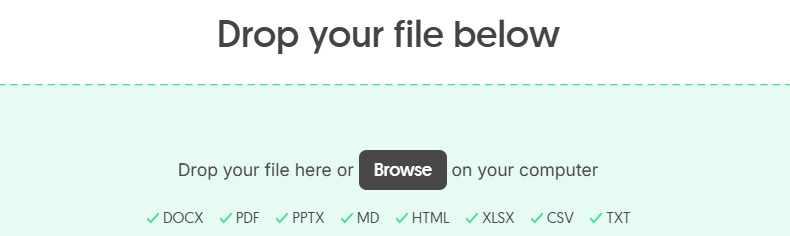
Next, you upload the lecture file to the website.
Step 3
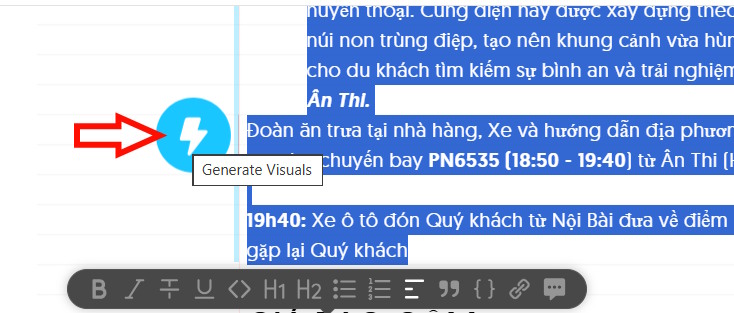
After successfully uploading the document to Napkin AI, in the content interface you can highlight the data you want to create a mind map from, then click the blue icon next to it.
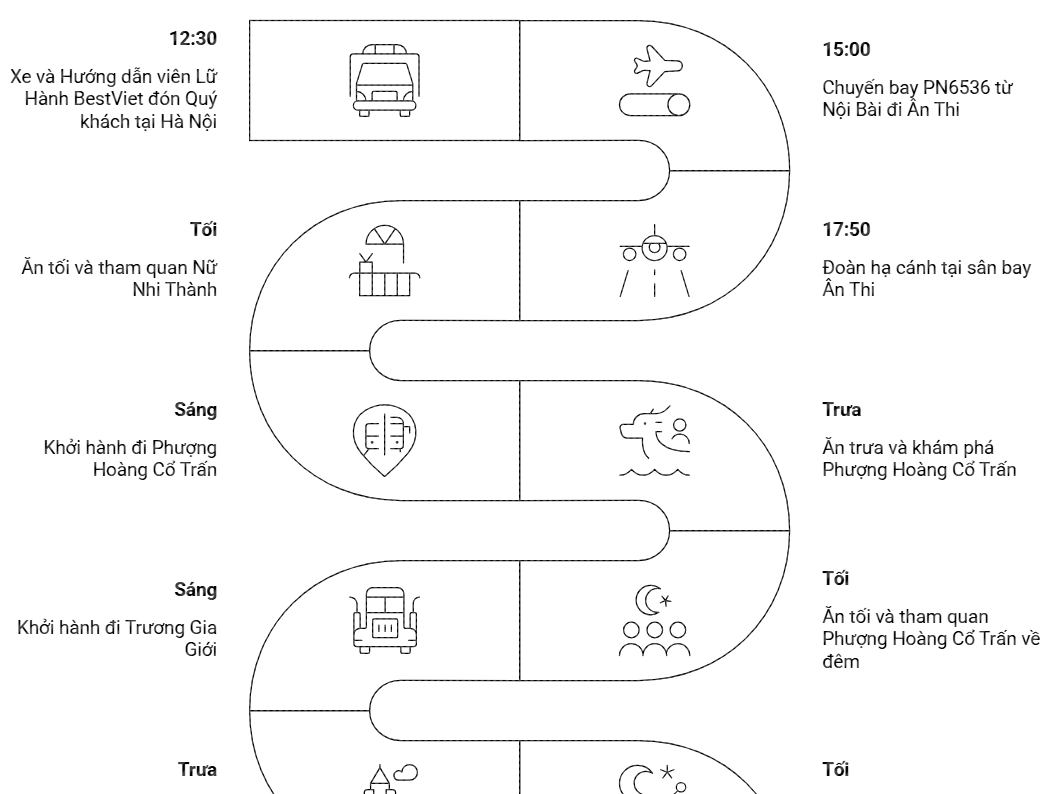
At this point, you will see a mind map created at the end of the highlighted content. The mind map will present an overview of the entire lecture or any other content, highlighting the main points to make it easy for everyone to follow.
Step 4
Napkin AI also offers many different diagram styles for your content. We can modify the diagram to our liking.
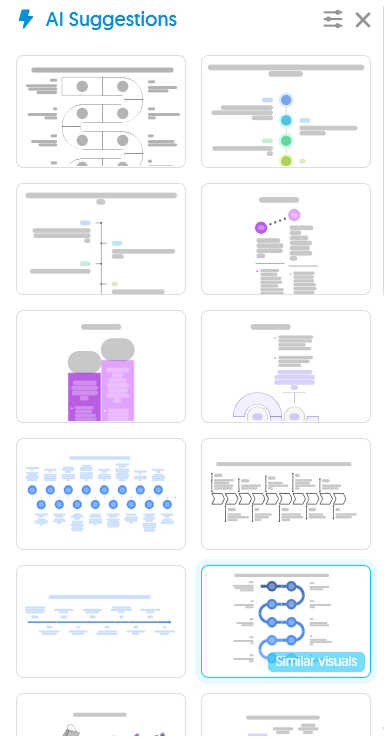
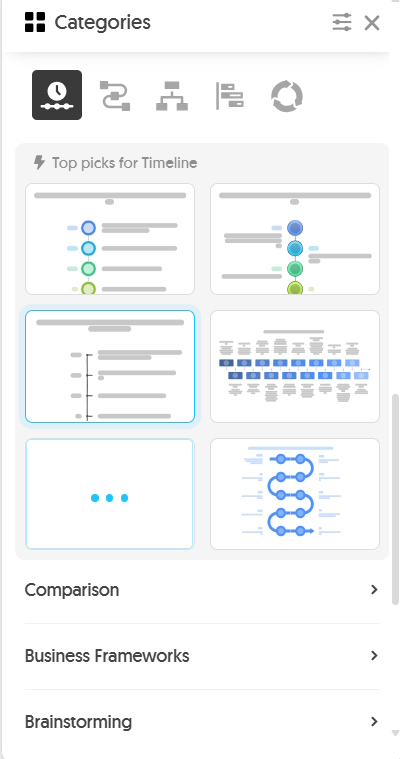
Depending on the content you choose, select a diagram theme such as Timeline, Comparison, etc. Click on the category corresponding to the content to choose the most suitable diagram.
Step 5
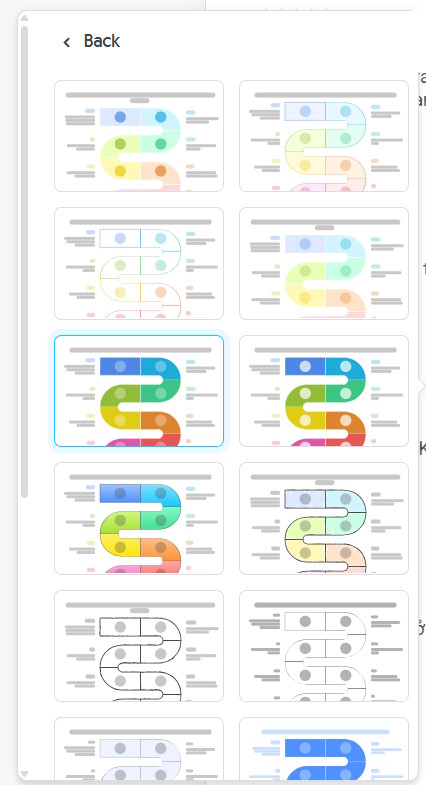
When you click on a diagram template , you'll see more color options for that type of mind map.
Step 6
In a mind map created using Napkin AI, clicking on the content will display options for modification , as shown in the image.

Based on these options, users can freely change the style of their content.
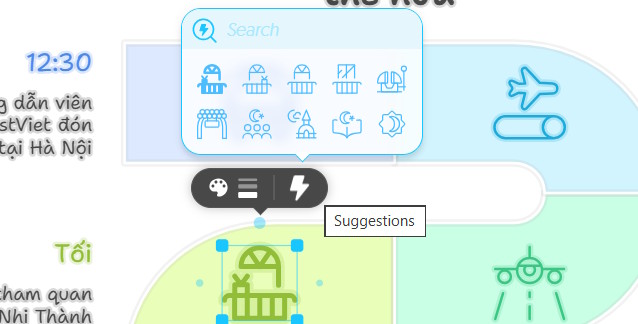
If you want to edit the content , double-click on the current content to make changes.
To add new content , tap the "A" icon and then type the text where needed.

Step 7
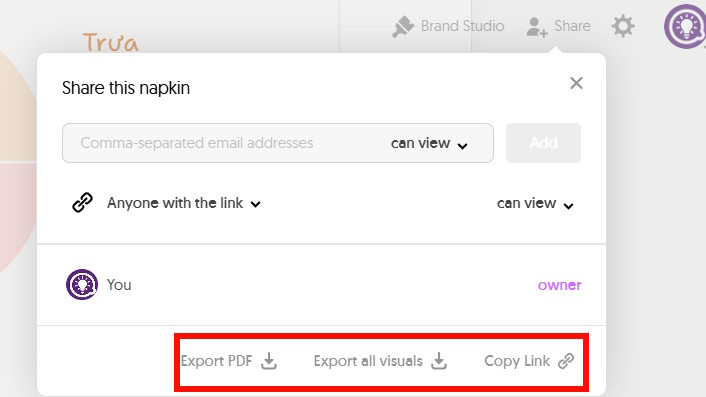
To download a mind map, click the Share icon , then select the download option that suits your needs.
Final Thoughts
Use this guide as a practical checklist for a guide to creating mind maps quickly using napkin ai. Work through the steps in order, verify each result, and adjust the options to match your needs.
FAQ
What do you need before following this A Guide to Creating Mind Maps Quickly Using Napkin AI guide?
Review the required tools, accounts, settings, or materials mentioned in the article. Explore a guide to creating mind maps quickly using napkin AI, including the key concepts, practical examples, important considerations, and useful guidance.
What are the main steps for a guide to creating mind maps quickly using napkin ai?
Follow the sections in order, especially How to create a lecture mind map using Napkin AI, Step 1, Step 2. Complete each step before continuing and verify the result as you go.
What should you do if the process does not work as expected?
Recheck the prerequisites, update the relevant app or service, review the settings, and repeat the step that caused the issue. Use any troubleshooting notes included in the guide.
Related Articles
 How to Create Mind Maps Using AI4 minutes read
 How to Create Mind Maps for Lessons Using Gemini5 minutes read
 How to Create Mind Maps in NotebookLM3 minutes read
 How to Create Mind Maps Using Canva AI6 minutes read
 Best AI Tools for Creating Mind Maps7 minutes read
 How to Create Illustrations on Napkin AI3 minutes read
Reader Comments 0
Sign in with email or Google to join the discussion.