Table of Contents
Having 17 keys sitting there, doing almost nothing, serves as a waste. So find a way to put them to good use.
It's funny how much space is wasted on a full-size keyboard. The numpad takes up many real estate, but for many of us, it's useless. Sure, it's essential for anyone who works in Excel or does math all day, but if you're not one of those people, it's pretty much useless.
For years, many people have completely forgotten about it. It's like an extra part of the keyboard that they never use. There are 17 keys sitting there, doing almost nothing, what a waste. So let's find a way to put them to good use.
Why and how to reuse numpad?
Turn "extra" keys into everyday essentials
For a long time, the numpad was essentially a cosmetic thing. Most people didn't work with spreadsheets or do calculations all day, so the numpad's original purpose never really fit. Sure, you'd use it occasionally—to enter a PIN, a random number, or some value—but that was it. In fact, if you switched to a smaller external keyboard without a numpad, you'd barely miss it.
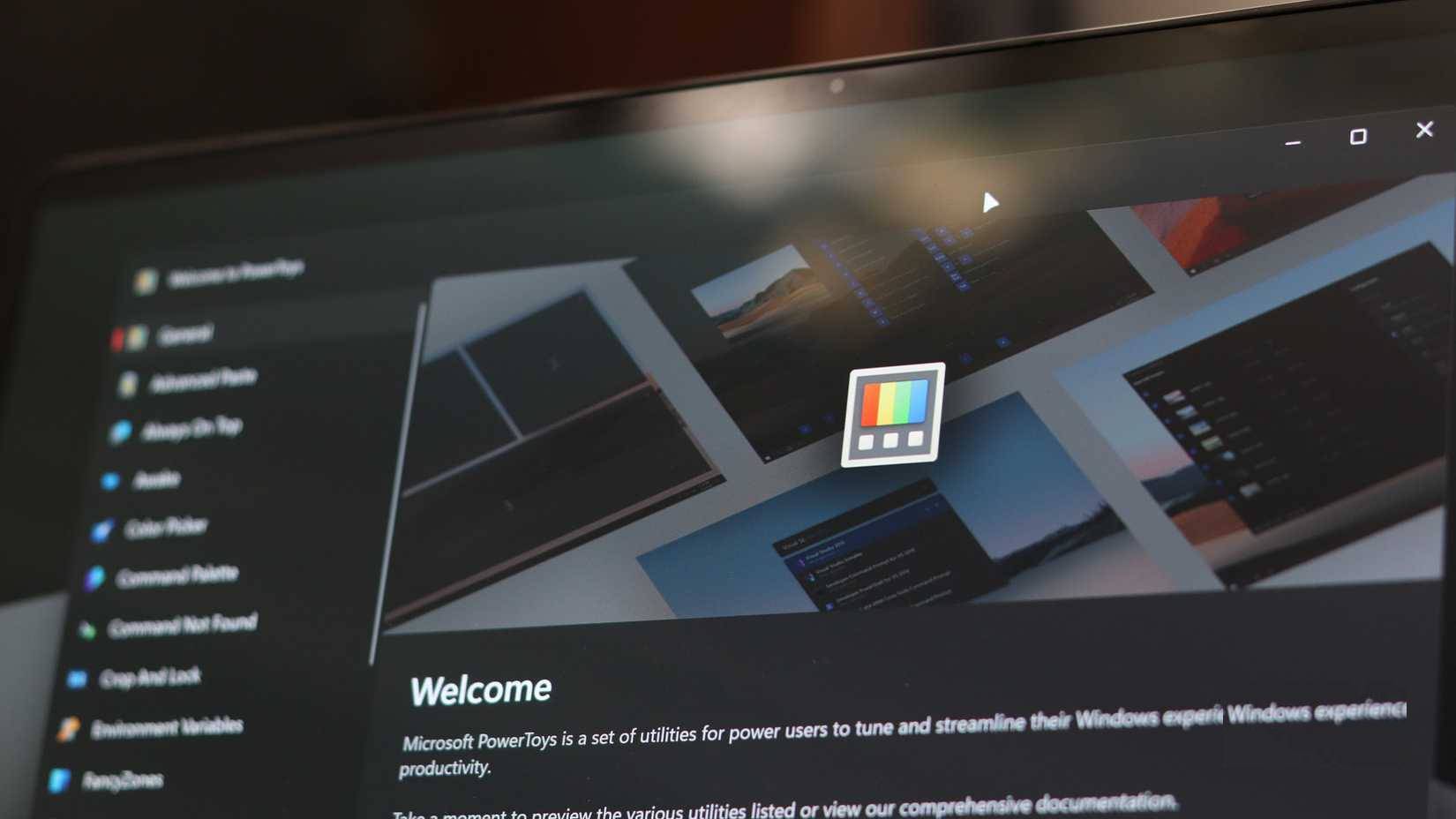
The turning point came when some people bought a new laptop that had an unhelpful Copilot key. They used PowerToys to repurpose that Copilot key to open Slack. It was a small success, but it got us thinking: If you can make an underused key useful, why not do the same for the entire numpad?
You can find a few different options for this. There are tools like SharpKeys and AutoHotkey that promise the freedom of key remapping. They're powerful, but also a little intimidating. No one wants to spend hours writing scripts just to make their keyboard work a little better. PowerToys, on the other hand, makes the process more fun.
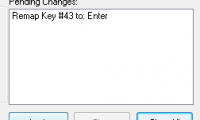
PowerToys is Microsoft's collection of utilities designed for power users. One of its best features is Keyboard Manager, which lets you remap almost any key, including the numpad. If you don't have it yet, download PowerToys from the Microsoft Store. Once installed, go to Input / Output > Keyboard Manager > Remap a key . From there, reassigning that key is easy; just select the key you want to remap and assign it a new role.
Use the numpad as a control center for apps, shortcuts, and media
Small actions, big productivity gains
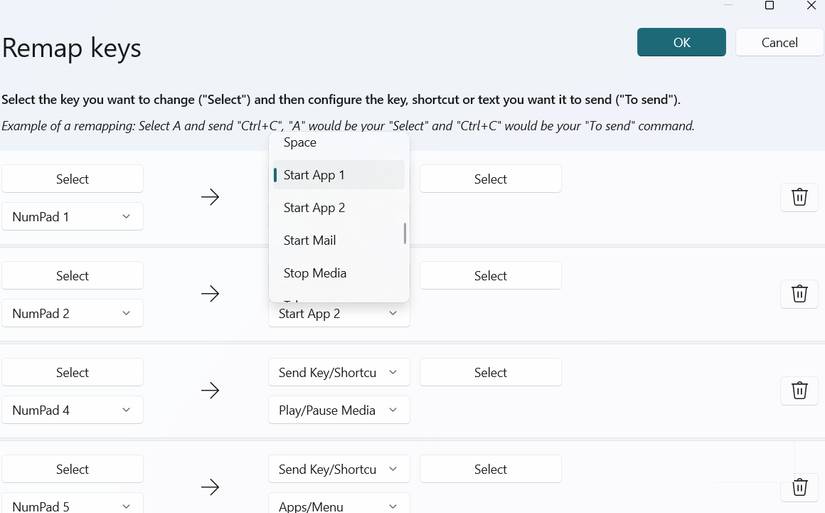
When you decide to reassign the numpad, the possibilities quickly grow. With PowerToys' Keyboard Manager, you're not limited to simple key swaps. You can assign individual keys to launch apps, trigger complex shortcuts, or even control music playback. This way, you can open File Explorer, Calculator, or any other app you use every day with a single tap.
Next, let's tackle your favorite but slightly awkward shortcuts, like restoring minimized windows ( Win + Shift + M ), creating new virtual desktops ( Win + Ctrl + D ), or pasting without formatting ( Ctrl + Shift + V ). With PowerToys, you can map any of these keys to a single number key—and it makes a huge difference.
You can also set up music controls. Now you can play, pause, skip songs, or adjust the volume without having to switch to apps like Spotify or YouTube. If your laptop doesn't have a dedicated number pad, this little tweak alone makes the numpad indispensable.
So, with just a little curiosity and PowerToys, you can turn something you once overlooked into one of the most useful parts of your setup.
FAQ
How do you make the numpad useful by remapping the keys: step-by-step guide?
In practical terms, having 17 keys sitting there, doing almost nothing, is a waste. So find a way to put them to good use.
What should you check before getting started?
Review the requirements, compatible device or software version, and any warnings described in the guide before making changes.
What should you do if the steps do not work?
Repeat the steps in order, confirm that your app or system is up to date, and review the troubleshooting details provided above.
Related Articles
 How to Add Number Keys to the Windows 10 Keyboard5 minutes read
 How to Remap the Fn Keys on macOS5 minutes read
 How to Use SharpKeys in Windows 10 to Remap Keyboard?5 minutes read
 5 Best Tools for Remapping Keyboards on Windows 105 minutes read
 How to Use Keytweak6 minutes read
 How to Remap Hardware Buttons on Smartwatch6 minutes read
Reader Comments 0
Sign in with email or Google to join the discussion.