Table of Contents
Learn how to completely disabling copilot in Windows with clear steps, practical tips, and troubleshooting guidance for a reliable result.
Uninstall the Copilot application on Windows
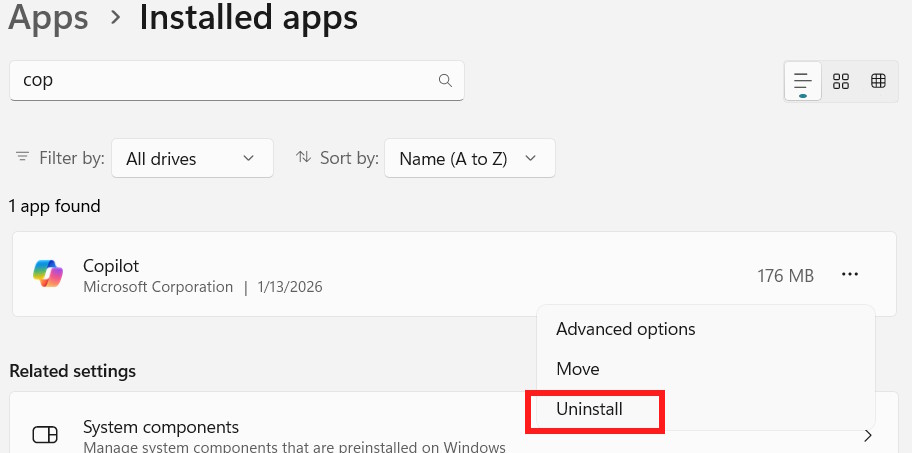
You will need to access your computer's settings to uninstall the Copilot application. Access the application management interface on your computer , then find Copilot and click the three-dot icon to select Uninstall .
If the computer is used by multiple users and you don't want to uninstall Copilot for each user individually, you can use a PowerShell command.
Open PowerShell with administrator privileges and enter the following command:
Get-AppxPackage -AllUsers -Name "Microsoft.Windows.Copilot" | Remove-AppxPackage -AllUsers
To prevent Windows from reinstalling Copilot when you create a new user, use the command below.
Get-AppxProvisionedPackage -Online | Where-Object { $_.DisplayName -like "*Microsoft.Copilot*" } | Remove-AppxProvisionedPackage -Online
Disable Copilot's autostartup
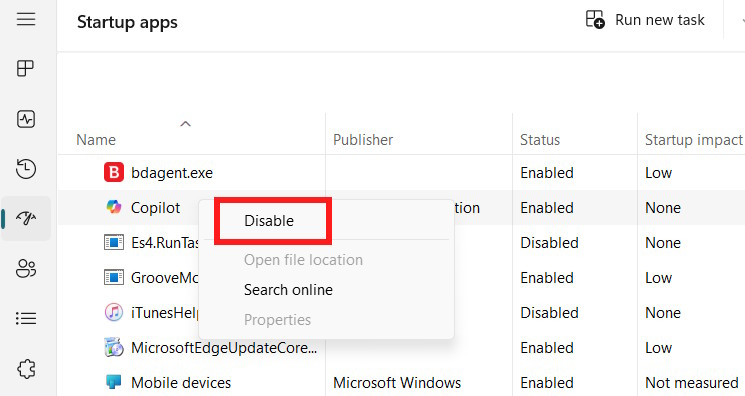
Open Task Manager and click on Startup. Then right-click on Copilot and select Disabled .
Disable Copilot in Edge
Copilot appears in multiple locations within the Edge browser, so disabling it requires several steps.
- Instructions on disabling Copilot mode in Edge
Disable Copilot in Edge using the Registry
Step 1
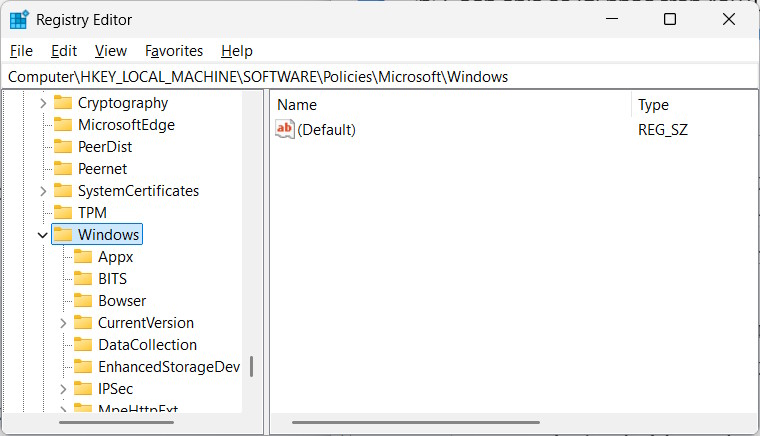
First, type "registry editor" in the search bar , then access the following path.
HKEY_LOCAL_MACHINESOFTWAREPoliciesMicrosoftWindows
Step 2
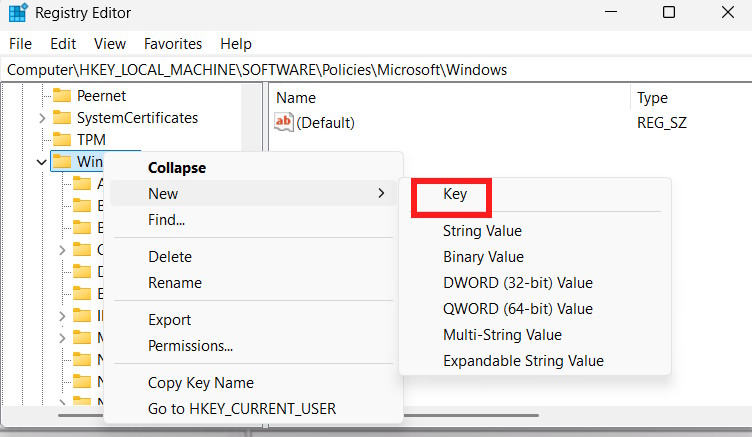
Right- click on the Windows key , select New > Key, and name it WindowsCopilot .
Step 3
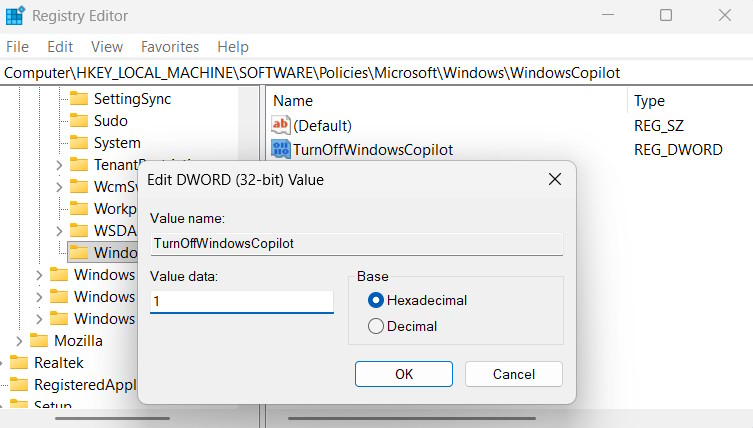
Next, right-click on the new WindowsCopilot key and select D-WORD 32-bit Value . Name the value TurnOffWindowsCopilot .
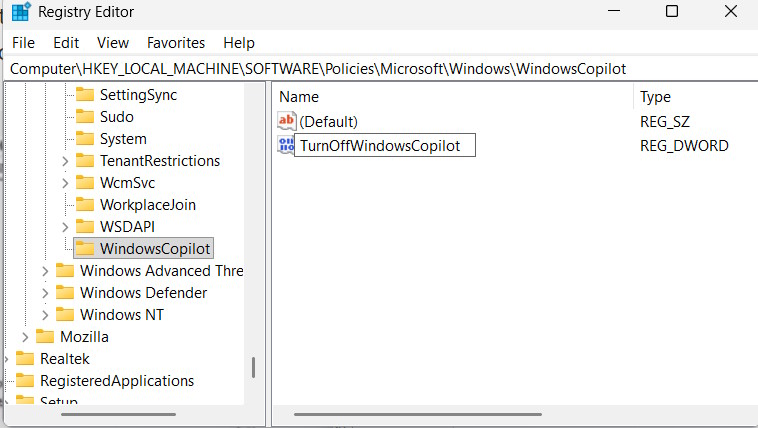
Double-click on the selected value 1 to enable Copilot disabling mode on Windows.
Step 4
Continue accessing via the link below.
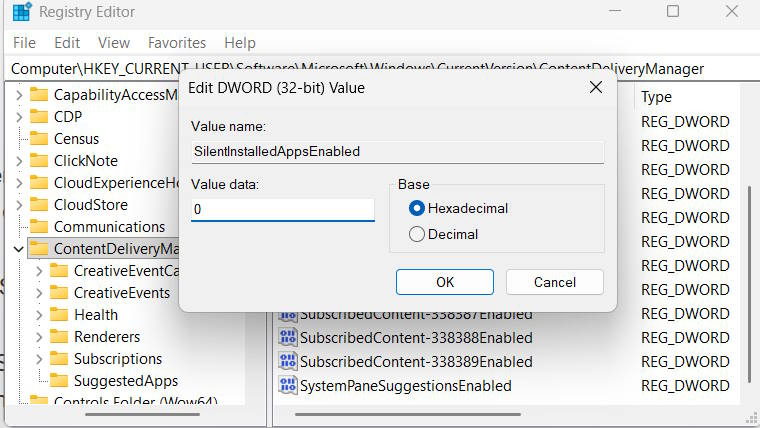
HKEY_CURRENT_USERSoftwareMicrosoftWindowsCurrentVersionContentDeliveryManager
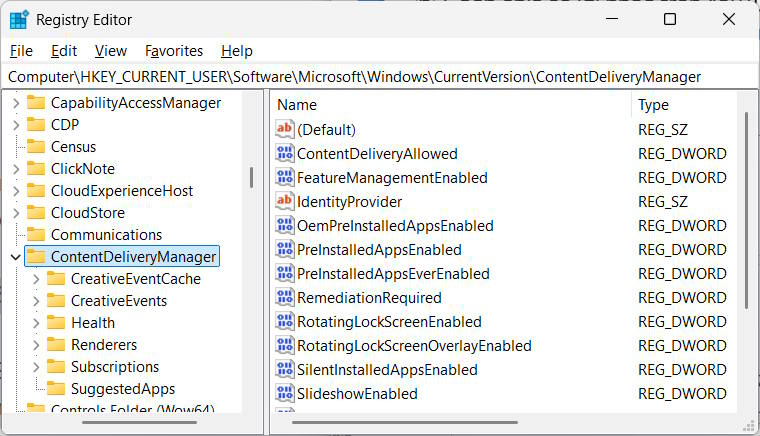
Look to the right, find the value for SilentInstalledAppsEnabled , and double-click to change it.
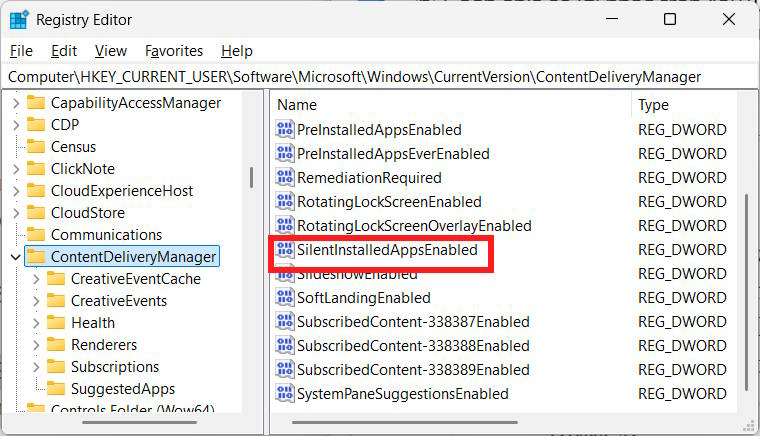
Enter 0 to disable Microsoft from secretly installing Copilot on your computer.
Final Thoughts
Use this guide as a practical checklist for how to completely disabling copilot in windows. Work through the steps in order, verify each result, and adjust the options to match your needs.
FAQ
What do you need before following this How to Completely Disabling Copilot in Windows guide?
Review the required tools, accounts, settings, or materials mentioned in the article. Learn how to completely disabling copilot in Windows with clear steps, practical tips, and troubleshooting guidance for a reliable result.
What are the main steps for how to completely disabling copilot in windows?
Follow the sections in order, especially Uninstall the Copilot application on Windows, Disable Copilot's autostartup, Disable Copilot in Edge. Complete each step before continuing and verify the result as you go.
What should you do if the process does not work as expected?
Recheck the prerequisites, update the relevant app or service, review the settings, and repeat the step that caused the issue. Use any troubleshooting notes included in the guide.
Related Articles
 minutes read
 How to disable formatting and Copilot in Notepad on Windows5 minutes read
 How to Turn Off Copilot in Windows 11: Step-by-Step Guide4 minutes read
 Instructions on Disabling New Tab Copilot on Microsoft Edge3 minutes read
 How to Delete Copilot History in Edge Windows5 minutes read
 How to Searching for Files Using Copilot on Windows 114 minutes read
Reader Comments 0
Sign in with email or Google to join the discussion.