Table of Contents
NotebookLM has just updated 2 useful features: creating Flashcards and Quizzes.
NotebookLM has just updated 2 useful features: creating Flashcards and Quizzes. These 2 features are very useful for teachers to refer to teaching content and students to review their lessons through the content that NotebookLM supports creating. Below are instructions for creating Flashcards and Quizzes from documents on NotebookLM.
How to create Flashcards from documents on NotebookLM
Step 1:
You access NotebookLM and Upload the document file to the website .
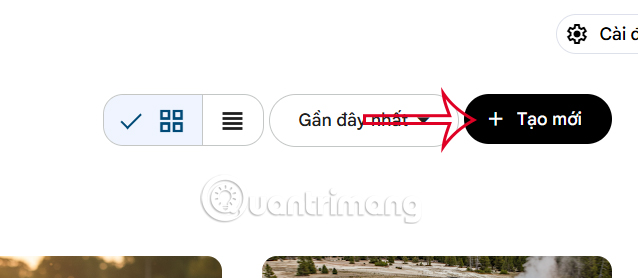
After the document has been uploaded to the system, Click on the pen icon in the Note Card To customize the questions created from the document.
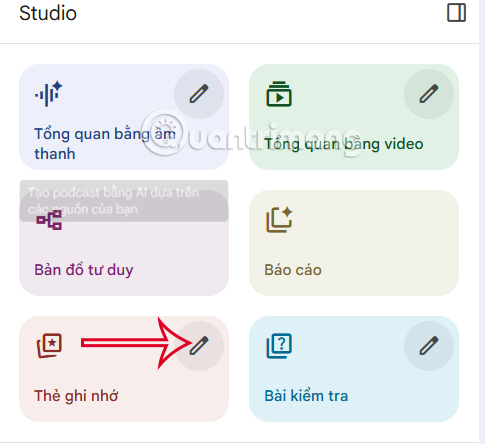
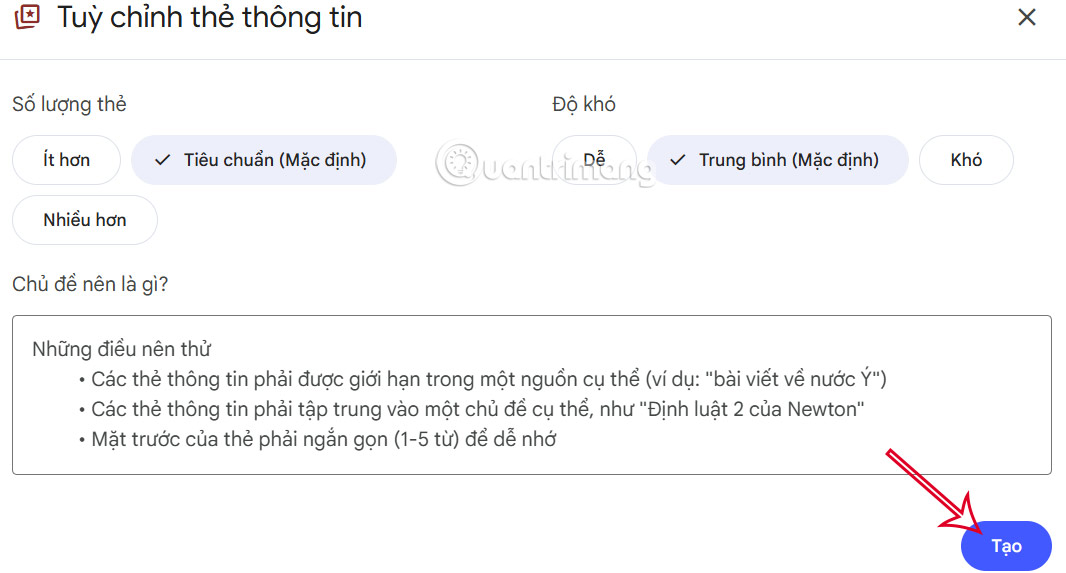
We customize the content of the flashcard we want to create, then Click the Create button Below.
Step 2:
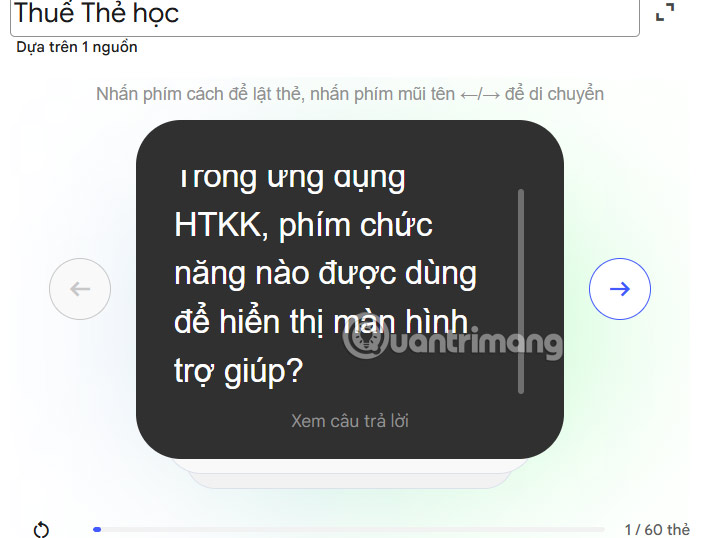
Now you will see the created document note card, Click to view the content .
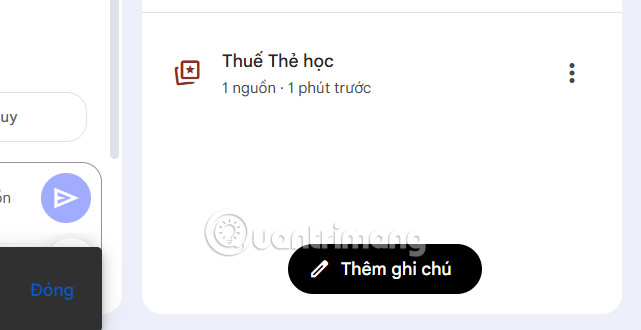
We use the arrows to move through the flashcards. The questions are taken from the content of the document with important content that You should remember.
Step 3:
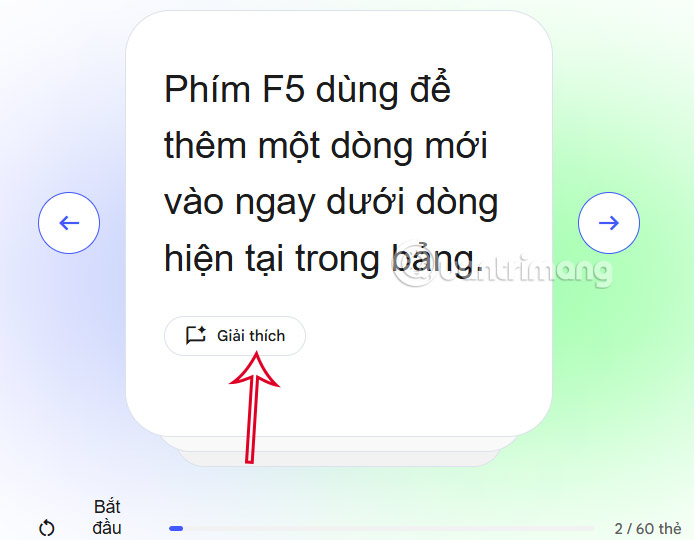
Click View Answer To see the short, concise answer that NotebookLM compiles and designs for each flashcard. Click Explanation To see more details for the answer.
Instructions for creating Quizzes on NotebookLM
Step 1:
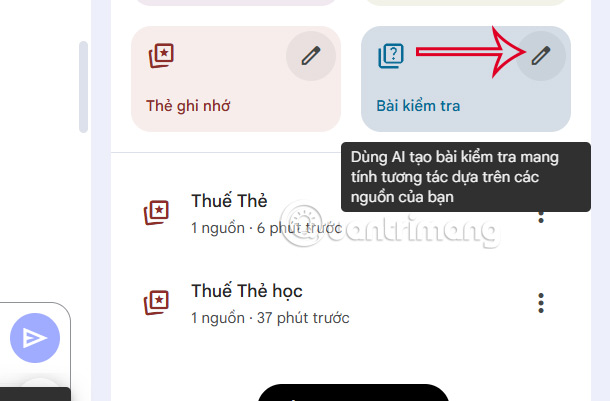
You can also click on The pen icon in the Test To customize the content.
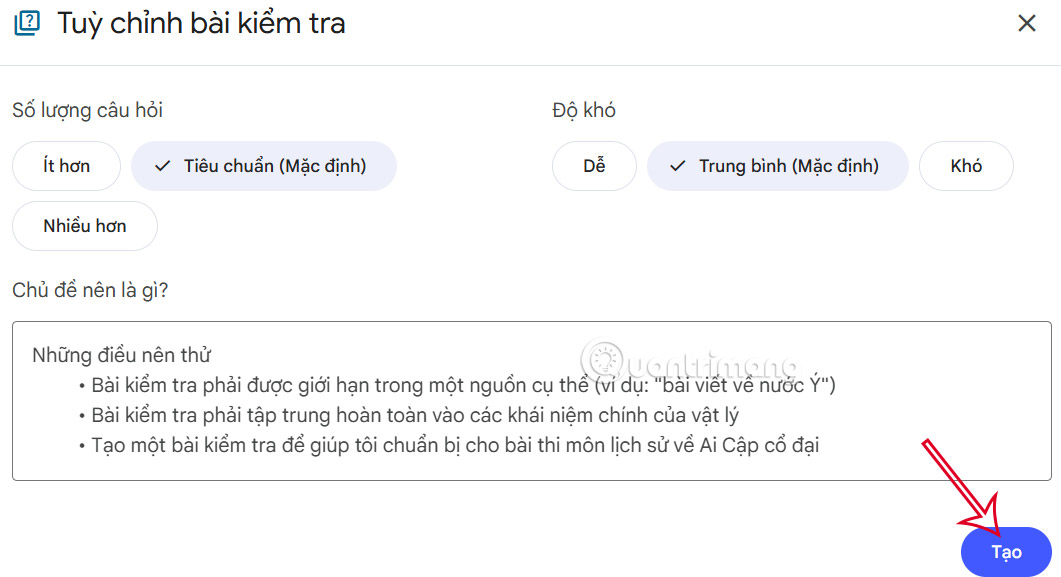
Now we also Select the test requirements And Press the Create button Below.
Step 2:
The process of creating a test on NotebookLM is also done later. You click on the test after creating it to see the content.
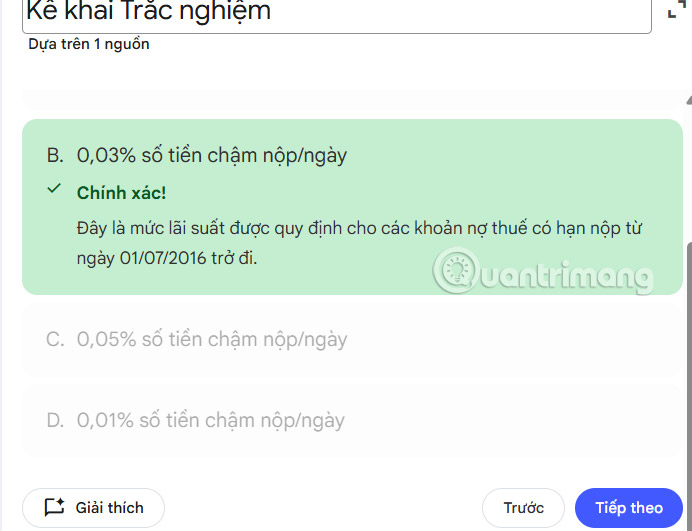
Multiple choice test, with options. When you choose an answer, it will appear immediately for you to test the test content created on NotebookLM.
Step 3:
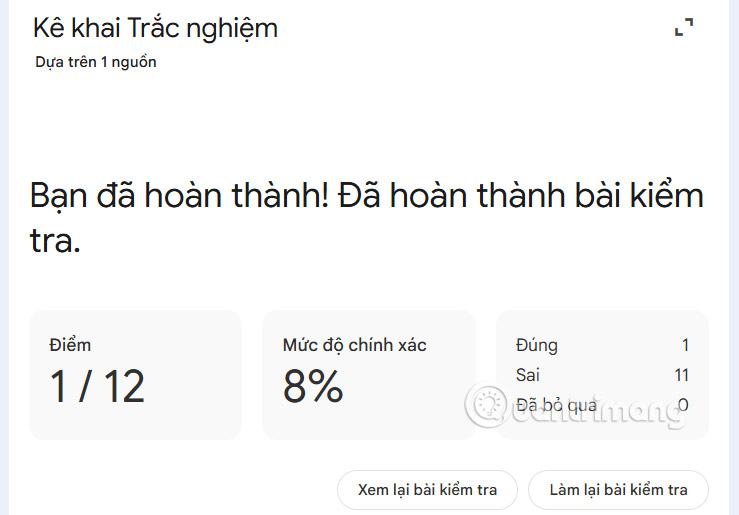
After completing the test there is a detailed summary.
FAQ
How do you create flashcards and quizzes on notebooklm?
In practical terms, notebookLM has just updated 2 useful features: creating Flashcards and Quizzes.
What should you check before getting started?
Review the requirements, compatible device or software version, and any warnings described in the guide before making changes.
What should you do if the steps do not work?
Repeat the steps in order, confirm that your app or system is up to date, and review the troubleshooting details provided above.
Related Articles
 Instructions on Creating Flashcards and Quizzes on NotebookLM5 minutes read
 NotebookLM Alternatives Worth Trying5 minutes read
 Instructions for Creating Reading-style Readings Using NotebookLM4 minutes read
 Instructions on Converting Lessons into Videos on NotebookLM4 minutes read
 How to Create Flashcards in Canva AI3 minutes read
 Create Data Tables at Lightning Speed in NotebookLM5 minutes read
Reader Comments 0
Sign in with email or Google to join the discussion.