Table of Contents
Obsidian is excellent for maintaining a connected collection of Markdown notes, while NotebookLM is designed to analyze source material and turn it into summaries, study guides, audio overviews, and other outputs. The difficulty is that NotebookLM does not treat an Obsidian vault as a live, browsable source.
This workflow bridges the two tools by copying the vault to Google Drive, combining its Markdown files into a single text file with Google Apps Script, and adding that export to NotebookLM. It is not a real-time integration: the export must be regenerated and the NotebookLM source must be refreshed when the notes change.
What you need
- An Obsidian vault stored in, or synchronized to, a folder in Google Drive.
- A Google account that can run Apps Script and read that folder.
- A NotebookLM notebook in the same Google account, or an account with access to the exported file.
If you currently use Obsidian Sync, note that it does not expose the vault as a Google Drive folder. You will need a separate, supported way to place a copy of the vault in Drive. Test any synchronization method with a backup first so that conflicts do not overwrite your notes.
Why a single export file helps
Each Obsidian note is normally a .md file, often arranged in nested folders. Adding hundreds of individual files to a notebook is inconvenient, and folder structure is not automatically reproduced in NotebookLM. A generated text file provides one source that is easy to add and replace.
The trade-off is loss of some Obsidian-specific behavior. Wiki links, embeds, tags, and folder relationships remain as text rather than becoming interactive NotebookLM features. The script below adds a heading before every note so you can still see where each section came from.

Create the Obsidian export in Google Drive
- Open the vault folder in Google Drive and copy the folder ID from its URL.
- Open Google Apps Script and create a new project.
- Paste the script below, replace
YOUR_FOLDER_ID_HERE, and save the project. - Run
mergeObsidianToMasterTxt. Google will ask you to review the permissions because the script reads and creates Drive files. - Confirm that
Obsidian_Master.txtappears in Drive and inspect it before adding it to NotebookLM.
function mergeObsidianToMasterTxt() {
  const obsidianFolderId = 'YOUR_FOLDER_ID_HERE';
  const outputFileName = 'Obsidian_Master.txt';
  const rootFolder = DriveApp.getFolderById(obsidianFolderId);
  let masterContent =
    'OBSIDIAN VAULT EXPORT - ' + new Date().toLocaleString() + 'n';

  function collectContent(folder) {
    const files = folder.getFiles();

    while (files.hasNext()) {
      const file = files.next();

      if (file.getName().toLowerCase().endsWith('.md')) {
        const title = file.getName().replace(/.md$/i, '');
        const content = file.getBlob().getDataAsString('UTF-8');
        masterContent +=
          'n--- FILE: ' + title + ' ---n' + content + 'n';
      }
    }

    const subfolders = folder.getFolders();

    while (subfolders.hasNext()) {
      collectContent(subfolders.next());
    }
  }

  collectContent(rootFolder);

  const existingFiles = DriveApp.getFilesByName(outputFileName);

  if (existingFiles.hasNext()) {
    existingFiles.next().setContent(masterContent);
  } else {
    DriveApp.createFile(outputFileName, masterContent, MimeType.PLAIN_TEXT);
  }
}
This corrects an important detail in many copies of the script: line breaks must use n. Without them, file boundaries can run together and make the export harder to read.
Keep the export up to date
In the Apps Script project, open Triggers, add a trigger for mergeObsidianToMasterTxt, and choose a time-driven schedule that suits how often the vault changes. A trigger regenerates the Drive file; it does not make NotebookLM monitor the vault in real time.
Do not schedule the script more frequently than you need. Large vaults take longer to read and may encounter Apps Script execution limits. You can reduce the export by excluding archive, template, attachment, or private-note folders in the script.
Add the export to NotebookLM
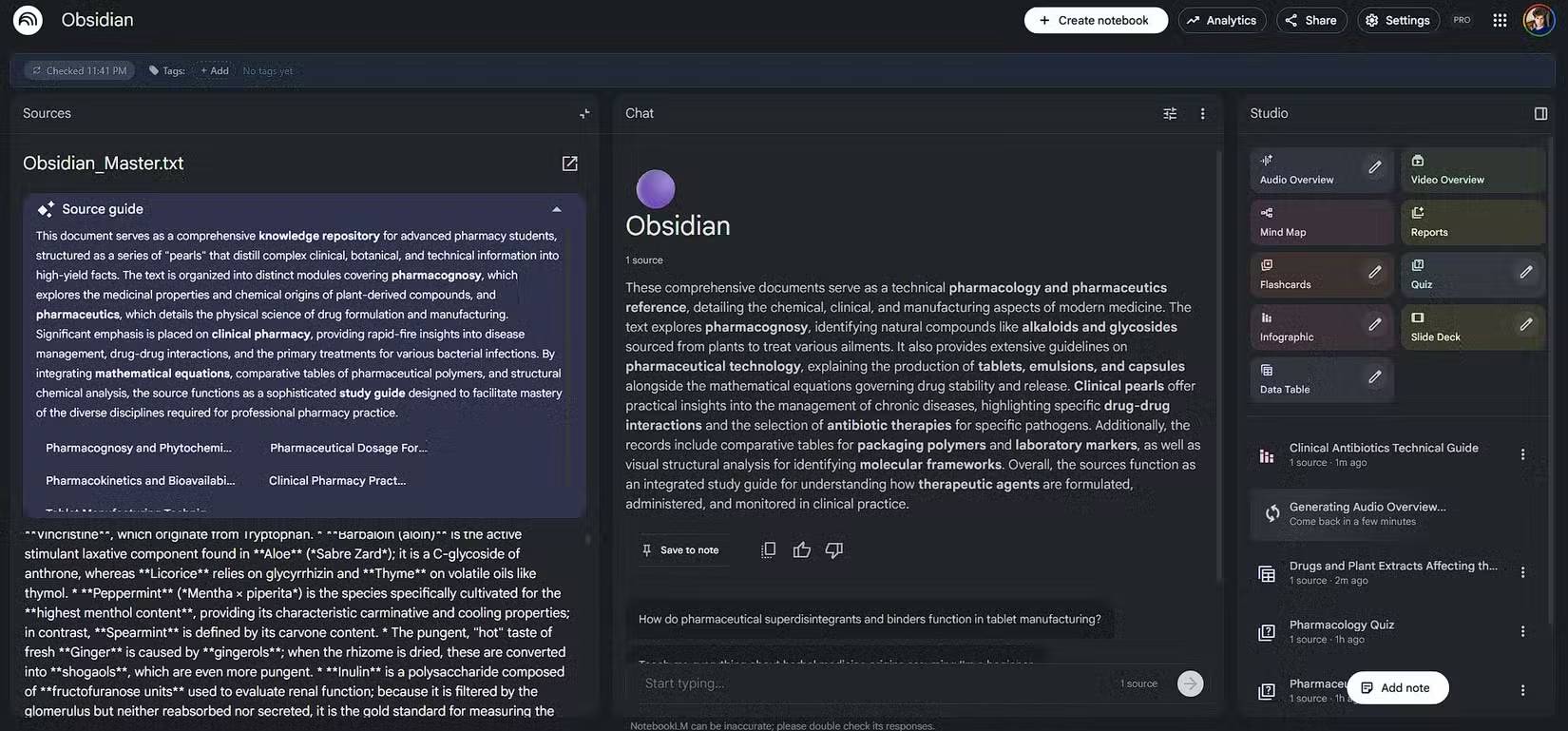
Create or open a notebook, choose the option to add a source from Google Drive, and select Obsidian_Master.txt. After processing finishes, ask a question whose answer appears in a known note. This simple test confirms that the export is readable and that note boundaries are clear.
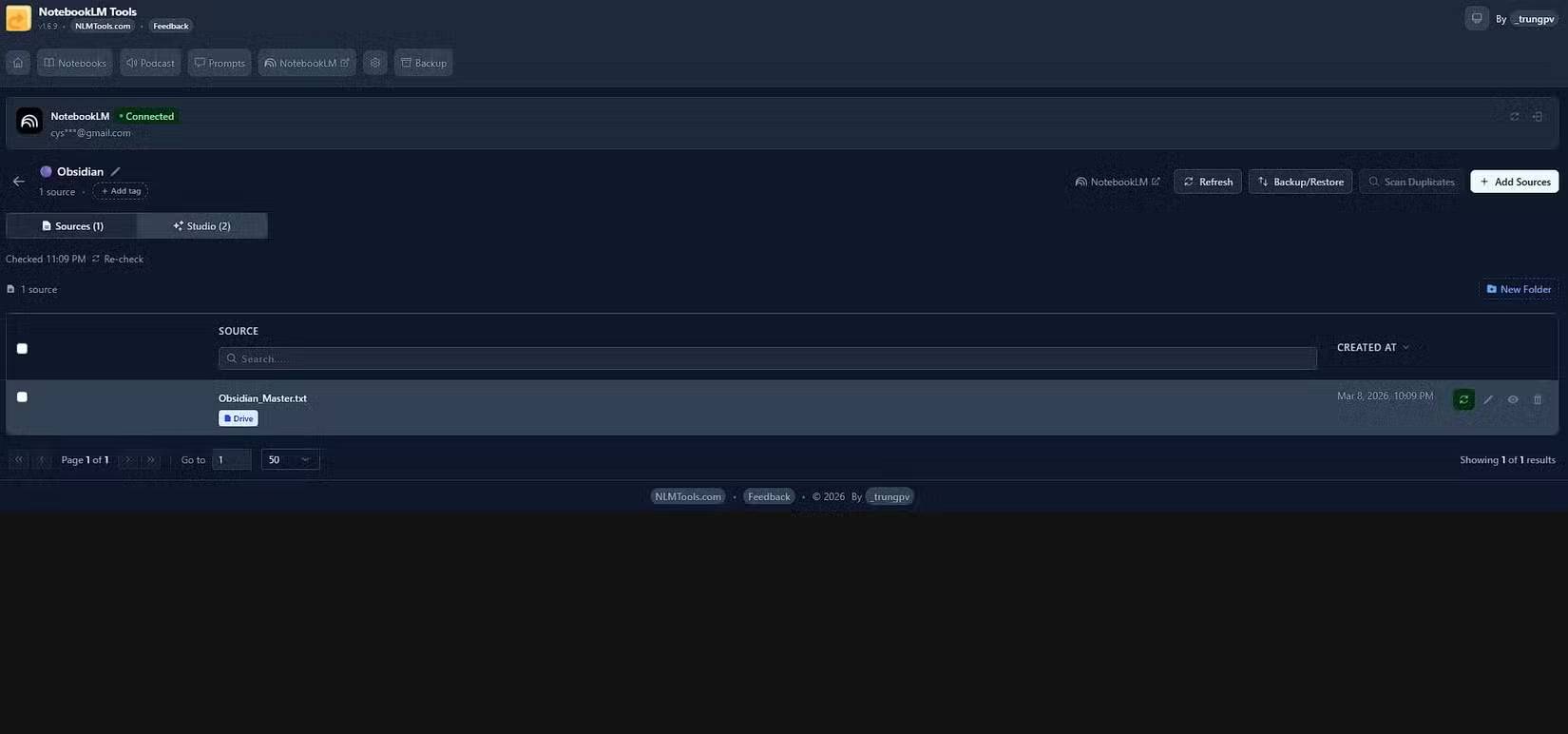
The Drive file can change without the copy already imported into NotebookLM changing immediately. Check the source controls for a refresh or synchronization option. If your NotebookLM interface does not offer one, remove the old source and add the updated file again.
Be cautious with third-party extensions
Some browser extensions add bulk-import or source-refresh controls to NotebookLM. These can be convenient, but they are not required for the basic workflow. Before installing one, check its publisher, recent reviews, update history, and requested permissions. An extension that can read NotebookLM or Google Drive pages may be able to access sensitive source material.
Use the combined vault effectively
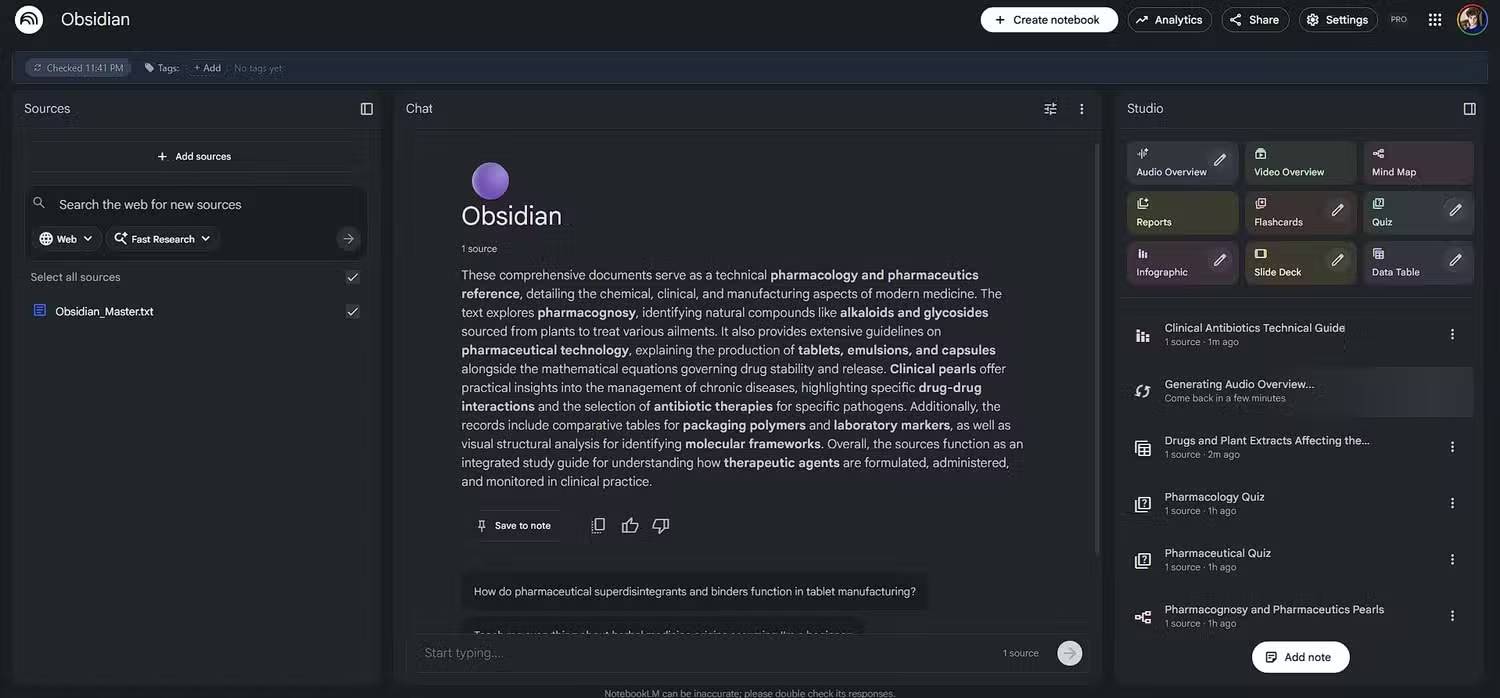
A large export can cover unrelated subjects, so specific prompts work better than broad requests. Name the topic, desired output, and evidence you want NotebookLM to use. For example: “Using only notes under the project-management headings, create a checklist and cite the source note for each item.”
Keep the file headers generated by the script. They make citations easier to interpret and help you return to the correct note in Obsidian. If the notebook becomes noisy, create separate exports for major areas such as work, study, and personal research instead of merging the entire vault.
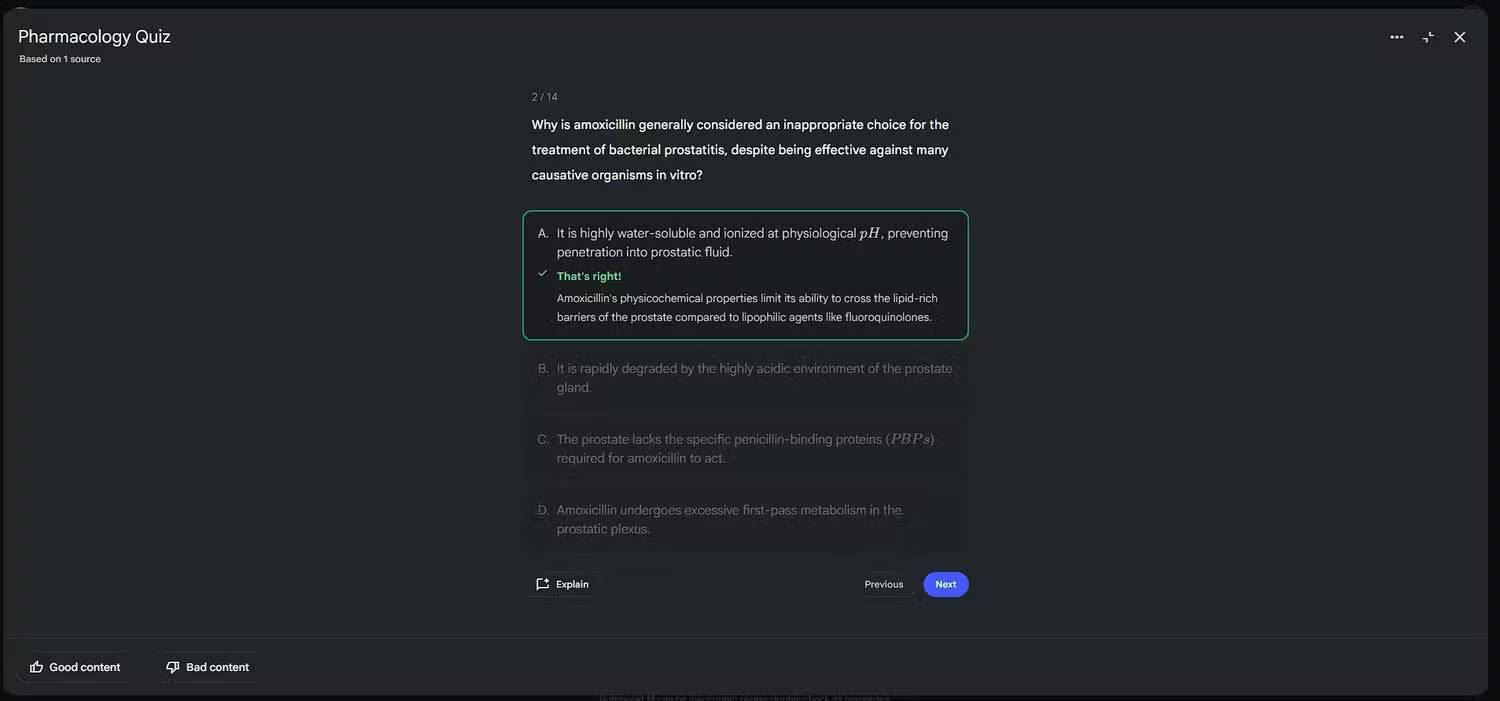
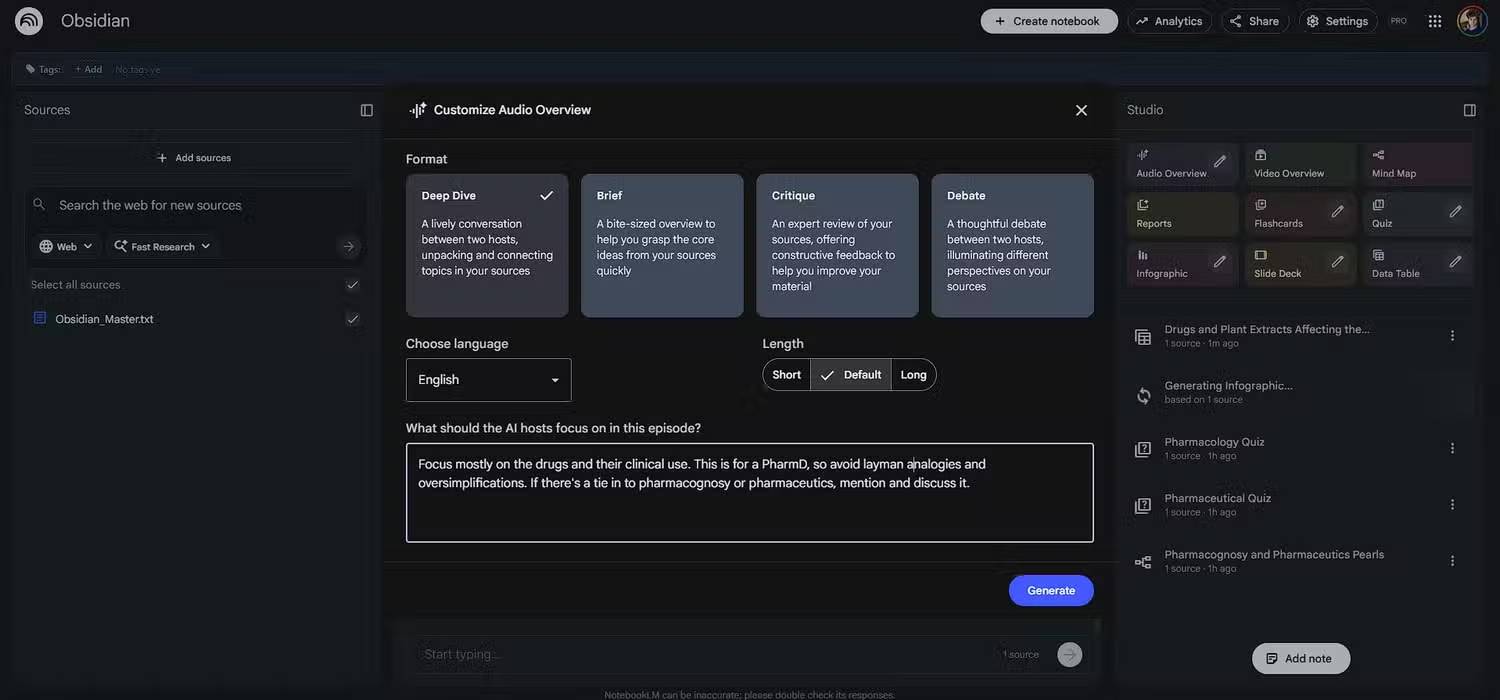
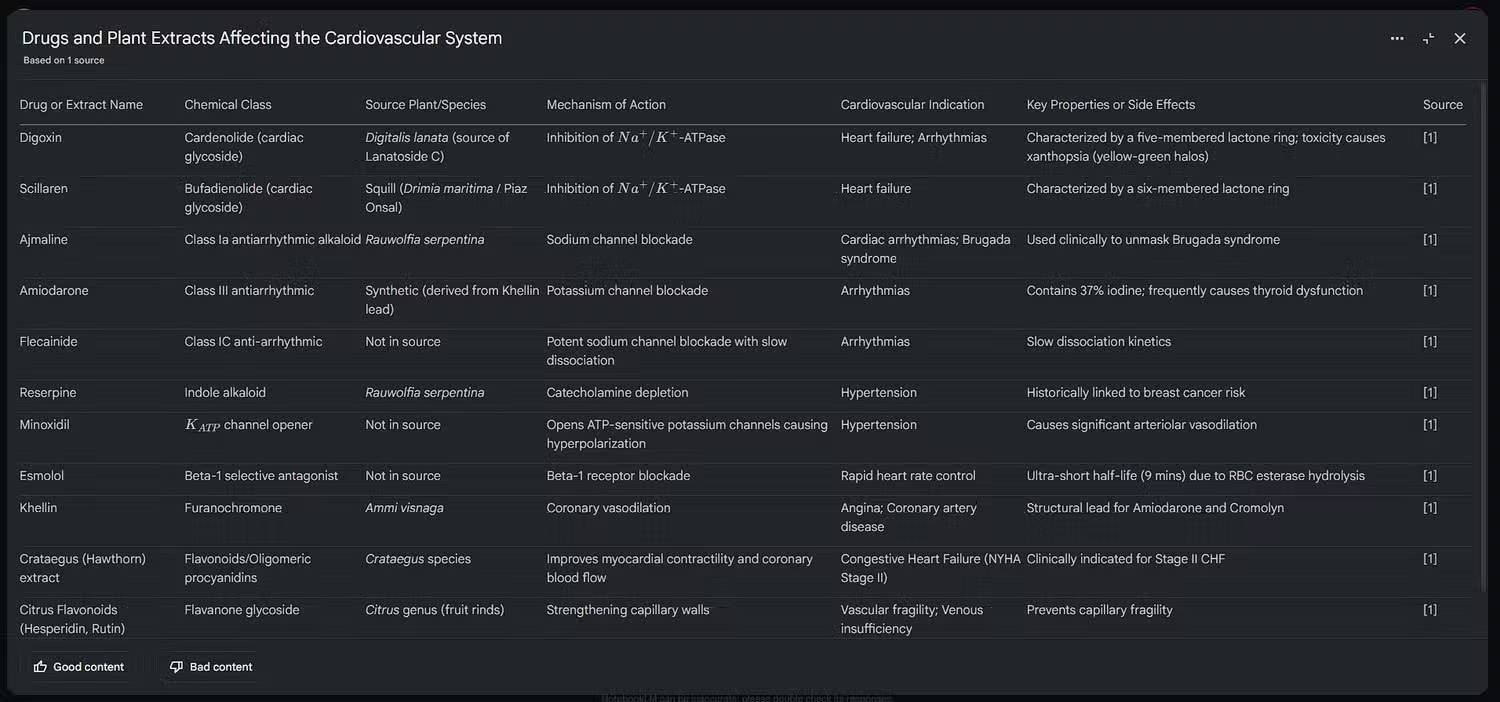
Examples of focused outputs

Limitations to understand
- This is a scheduled export, not two-way synchronization. Changes made in NotebookLM do not update Obsidian.
- NotebookLM sees the exported text, not Obsidian's graph, plugins, or interactive embeds.
- Attachments are not included unless you extend the script to process supported file types.
- A single file may become unwieldy. Split large vaults by subject and keep sensitive notes out of any export you plan to share.
With those limits in mind, the setup provides a practical division of labor: Obsidian remains the editable knowledge base, Google Drive carries a generated snapshot, and NotebookLM analyzes that snapshot.
Related Articles
 How to Connect a Local AI Model to Obsidian Using MCP: Step-by-Step Guide9 minutes read
 NotebookLM Alternatives Worth Trying5 minutes read
 How to Share NotebookLM Publicly6 minutes read
 15 Best Gemini Notebook (NotebookLM) Alternatives in 202623 minutes read
 3 Tools That Make NotebookLM Much More Useful14 minutes read
 What Is Obsidian Note-Taking? Obsidian User Manual6 minutes read
Reader Comments 0
Sign in with email or Google to join the discussion.