Table of Contents
Open your notebook in Google’s notebook tool, add your source material, and choose Video Overview from Studio. The feature launched in NotebookLM, and Google’s current help documentation refers to it under Gemini Notebook. A Video Overview turns the material into a narrated visual summary.
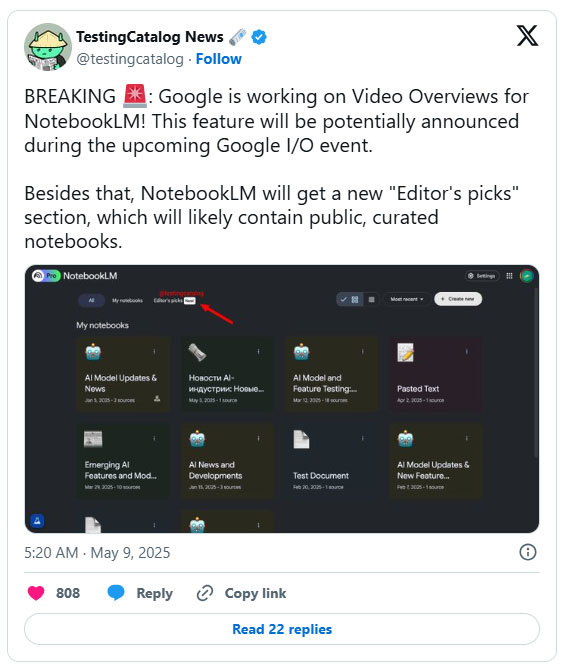
Create an overview from your sources
- Open or create a notebook and add the notes or other sources you want to summarize.
- In Studio, select Video Overview. If your mobile app doesn’t show it, check the desktop version.
- Choose any available format and add a short instruction about the audience and topic. For example, ask for an explainer for beginners focused on the process diagram and the three main steps.
- Generate the overview and open it from Studio when it finishes.
Google’s Video Overviews help page describes current controls and supported options.
Choose a visual or audio overview
Use video when diagrams or visuals help explain the material. Use Audio Overview when you mainly want a listening summary. Some accounts offer additional video styles, including narrated slides or more animated cinematic formats. Use the options your Studio panel shows.
Check the video before sharing it
Compare numbers, names, and any chart labels with your original sources. The narration and visuals are generated and can contain errors. If the overview focuses on the wrong material, narrow the sources or ask for a more specific focus and generate it again.
Related Articles
 AI video creation workflow: from idea to published video
 How to transfer notes from Evernote to Mac's Notes
 How to Turn Lesson Materials into a NotebookLM Video Overview
 How to save notes as photos with Marked.cc
 How to share folders in Notes app on iOS
 How to create notes, save images, videos on Chrome tab
Reader Comments 0
Sign in with email or Google to join the discussion.