Table of Contents
Fortunately, Excel has two built-in functions, WEBSERVICE and FILTERXML, that can pull data directly from the web and update automatically.
Microsoft Excel is great for organizing data. But if you need information that changes constantly—like stock prices, weather updates, or cryptocurrency rates—you don't need to copy numbers from websites every time they change.
Fortunately, Excel has two built-in functions, WEBSERVICE and FILTERXML, that can pull data directly from the web and update automatically. These two functions are on the list of lesser-known Excel functions that can save you many time. So, you don't need any special add-ins or subscriptions - just these two functions and a basic understanding of how websites structure their data.
How to get raw data from a website using the WEBSERVICE function
The syntax is very simple but the result is crude
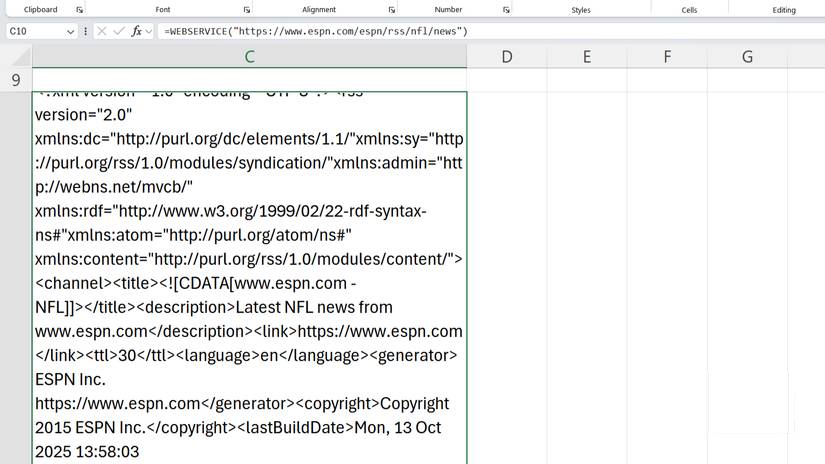
The WEBSERVICE function is Excel's built-in tool for retrieving data directly from the Internet. The function sends a request to a web address ( URL ) and returns any information that page contains. The function returns data as text, usually in XML format, but can also be JSON or plain text. However, FILTERXML, used with WEBSERVICE, only works with XML, so JSON data cannot be parsed directly without conversion.
This function uses the following syntax:
=WEBSERVICE(url)WEBSERVICE has only one parameter – the URL. The full web address from which you want to retrieve data. This must be a valid URL that returns data, not just a regular web page. Most APIs (Application Programming Interfaces) provide specific URLs to provide data in structured formats such as XML or JSON. The URL must be enclosed in quotation marks, or you can reference an Excel cell containing the URL.
Here's a simple example. If you wanted to get XML data from an API that provides exchange rates, you could use the following syntax:
=WEBSERVICE("https://api.example.com/exchange-rates")This function returns everything the server sent back, usually a long text string with tags, brackets, or other formatting. This text string is raw and unfiltered, which is why you'll need FILTERXML to make sense of it later.
Note : WEBSERVICE only works with URLs that do not require authentication. If a site requires a login or an API key embedded in the header, this function will not work. You will need Power Query or VBA for those cases.
How to use the FILTERXML function to make web data usable
XPath queries let you select exactly what you want
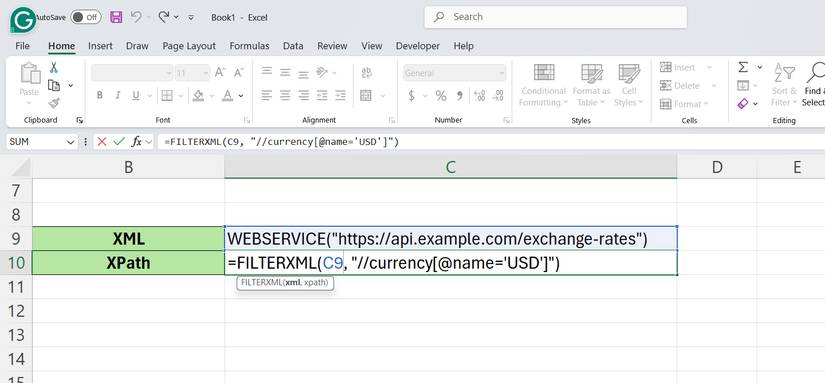
The raw output from WEBSERVICE is often a mess of tags and text that Excel can't interpret on its own. That's where FILTERXML comes in. It extracts specific pieces of information from the XML data using XPath queries.
The syntax looks like this:
=FILTERXML(xml, xpath)Here is the function of each parameter:
- Xml : The XML data you want to filter. This is usually the output from the WEBSERVICE function, but can also be a cell reference containing XML text or a manually entered XML string enclosed in double quotes.
- Xpath : An XPath query tells Excel exactly which part of the XML structure to extract. XPath uses path syntax (similar to file directories) to navigate through XML tags and attributes. For example, //price will extract all elements with the tag "price" from the XML data.
Assuming the WEBSERVICE function in cell A1 returns an XML file and you only need to extract the USD exchange rate, use:
=FILTERXML(A1, "//currency[@name='USD']")This formula tells Excel to search inside the XML in cell A1, find the "currency" element whose "name" attribute equals "USD", and return its value.
To extract multiple values at once, FILTERXML will return them as an array. Using //currency Instead will extract all exchange rates (if present in the XML), you can use them across multiple cells if you are using Excel 365 or 2021.
The tricky part is writing the XPath query correctly. XML data has a hierarchical structure—parent tags contain child tags—and your XPath needs to follow that structure. If the data has namespaces (prefixes like ns:currency), You should account for these too, although most simple APIs don't use them.
FAQ
How do you use webservice and filterxml functions to get data directly from the?
In practical terms, fortunately, Excel has two built-in functions, WEBSERVICE and FILTERXML, that can pull data directly from the web and update automatically.
What should you check before getting started?
Review the requirements, compatible device or software version, and any warnings described in the guide before making changes.
What should you do if the steps do not work?
Repeat the steps in order, confirm that your app or system is up to date, and review the troubleshooting details provided above.
Related Articles
 FILTERXML - Function That Returns Specified Data from XML Content Using the3 minutes read
 How to Use the WEBSERVICE Function in Excel3 minutes read
 Create Excel Charts That Automatically Update Data with These Three4 minutes read
 Date Functions in Excel, DAY, WEEKDAY, MONTH8 minutes read
 Summary of Trigonometric Functions in Excel6 minutes read
 Get Data from Web into Excel: Step-by-Step Guide5 minutes read
Reader Comments 0
Sign in with email or Google to join the discussion.